
Starting May 13, 2026, GA4 can now recognize referrals from AI assistants and automatically groups them into a dedicated AI Assistant channel — no configuration needed on your end.
In this post, I'll walk through the details and nuances of this update.
Here's what we'll cover:
What Google Changed and How GA4 Now Tracks AI Traffic
Here's the technical side: when a browser passes a referrer with a recognized AI source address, GA4 automatically assigns medium = "ai-assistant" to the session, places it in the AI Assistant channel within the Default Channel Group, and adds campaign = "(ai-assistant)" as a fallback label.
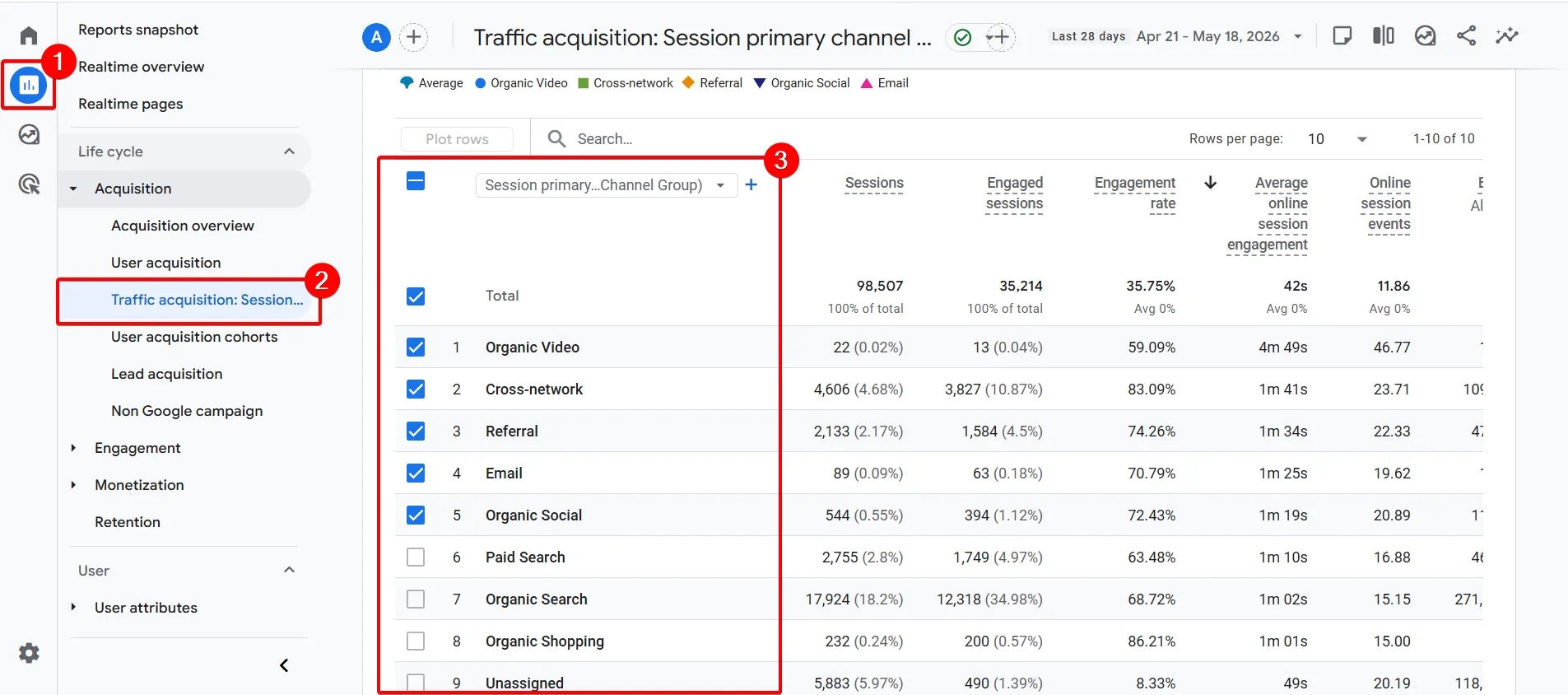
To see the new channel:
- Go to Reports
- Open Acquisition → Traffic Acquisition
- Look for AI Assistant in the Session Default Channel Group column
4. If you switch the dimension to Session source / medium, you'll see individual AI tools paired with the new channel — for example: chatgpt.com / ai-assistant or claude.ai / ai-assistant.
If you open the Traffic Acquisition report and don't see an "AI Assistant" row — like in my screenshots — don't worry. The rollout is happening in waves and may appear in your account over the next few weeks.
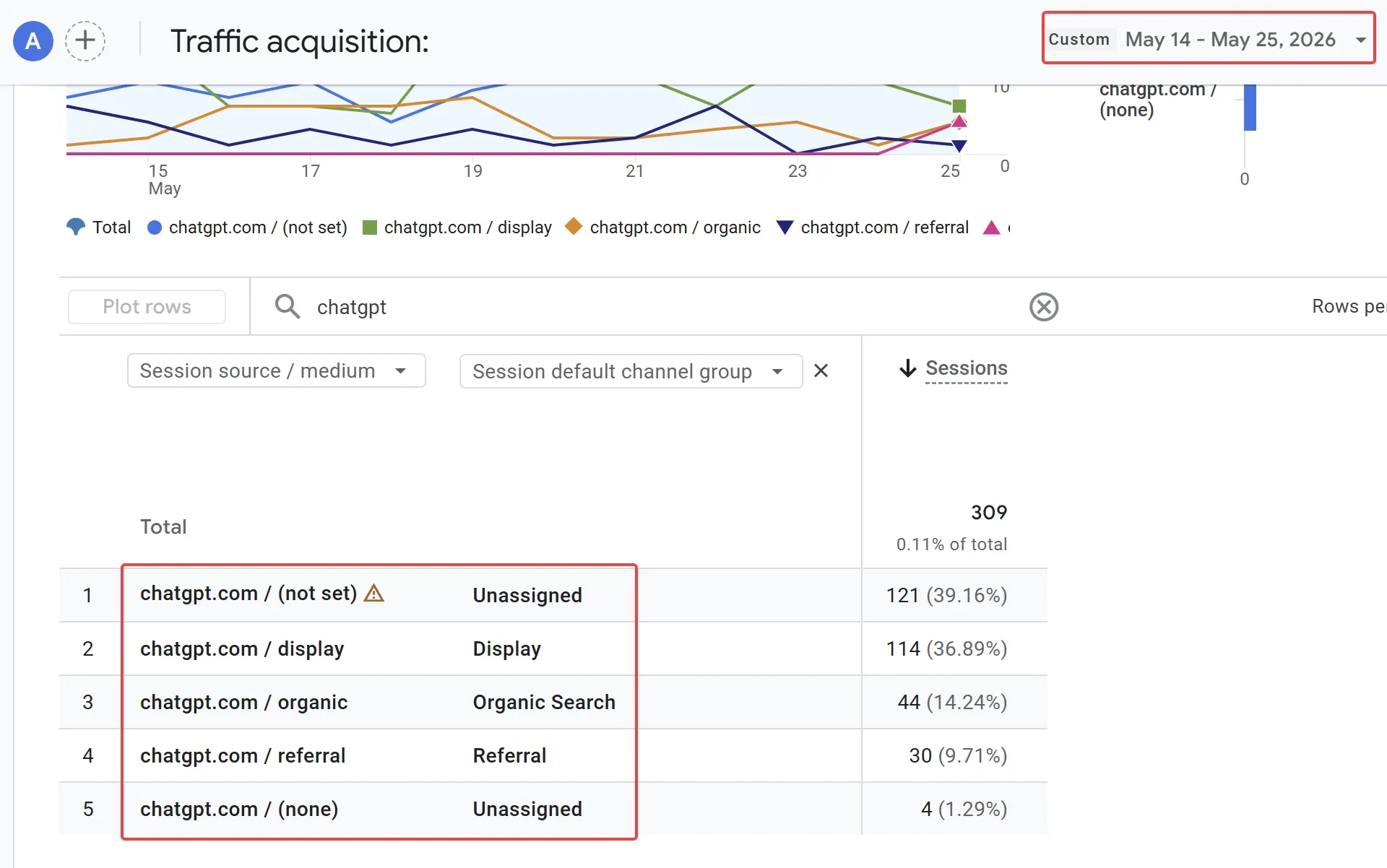
That said, whether or not it's live for you yet, Google's official solution has one significant drawback: we don't know which LLMs it covers. The documentation mentions "those matching the list," but the list itself isn't provided. That may change over time, but for now it's a real blind spot — and the update hasn't shown up in our own property yet either.
So below, I'll show you how to build a similar solution yourself — available right now, with a fully controlled list of AI sources that you can extend whenever you want. Along the way, you'll also get familiar with custom channel groups in GA4.

One more thing worth keeping in mind: the new channel only works when the browser sends an HTTP Referer header. A portion of AI traffic doesn't include that header, and in those cases GA4 can't automatically identify the source — it falls back to Direct.
Also important: the AI Assistants channel does not include traffic from AI Overviews or AI Mode. That traffic gets attributed to Organic Search.
Creating a Custom Channel Group for AI Traffic
What if the update hasn't reached your account yet, but you want it now?
Or maybe you're the kind of person — like me — who prefers to control exactly what they see, with their own list that can be updated at any time.
You can create your own "rule" in GA4, essentially the same thing the GA4 team did: a custom channel group that can be applied in any report. (And this skill isn't limited to AI traffic — you can use it anywhere.)
Here's how:
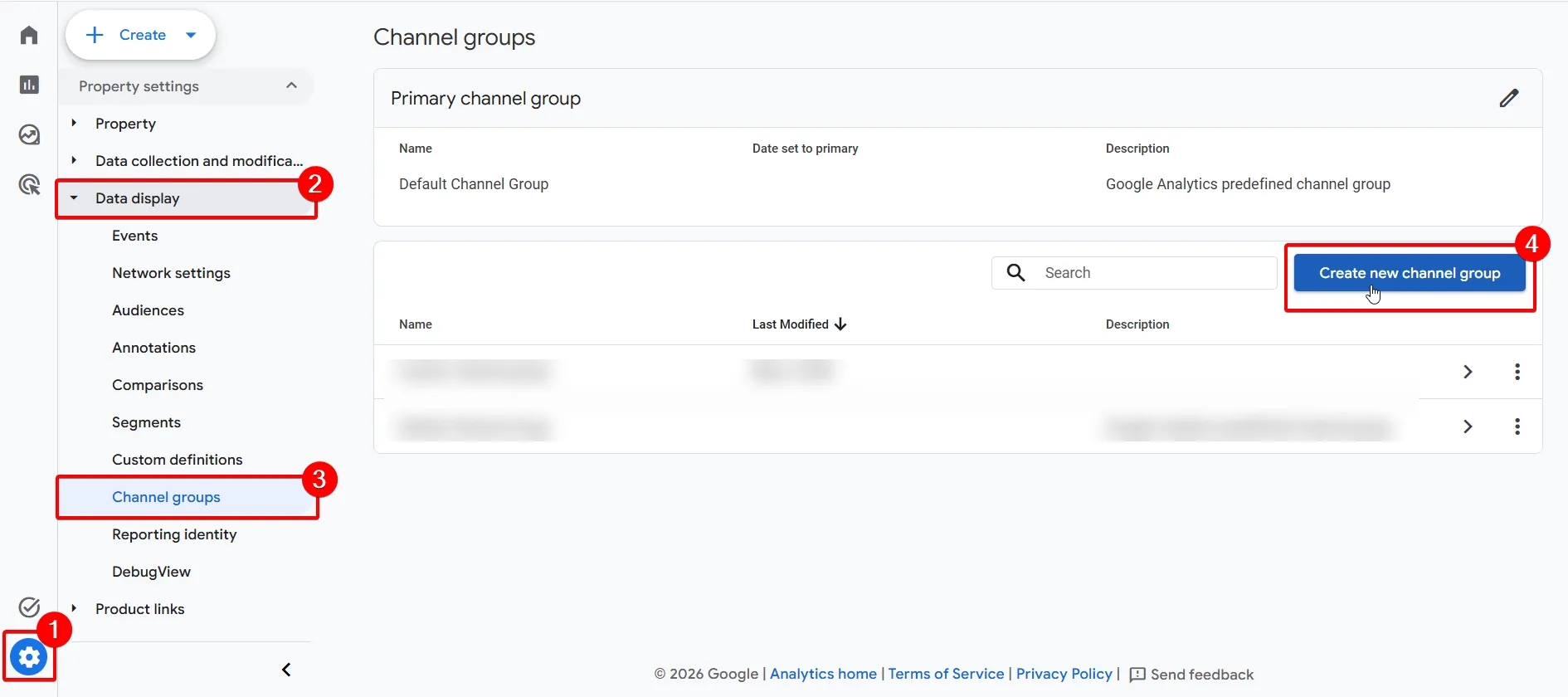
- Go to Admin
- Open Data display
- Click Channel groups
- Click Create new channel group
- Name the group Custom channel group and click Add new channel.
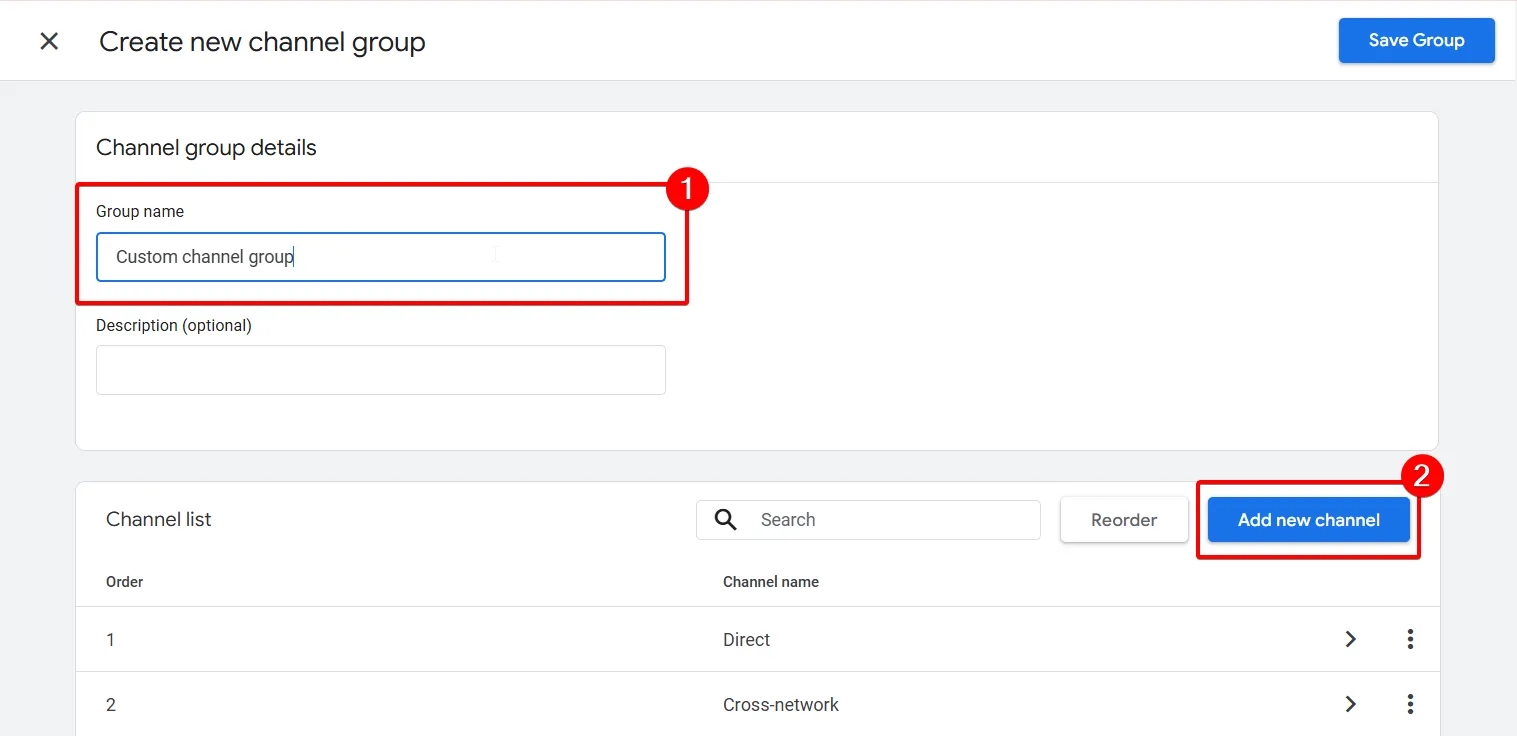
- Give the new channel a name — for example, Artificial Intelligence.
- Then set up the condition:
- Source
- matches regex
- Paste the following regular expression:
.(chatgpt\.com|chat\.openai\.com|openai\.com|perplexity\.ai|labs\.perplexity\.ai|claude\.ai|anthropic\.com|gemini\.google\.com|bard\.google\.com|ai\.google\.com|vertexai\.google\.com|deepseek\.com|copilot\.microsoft\.com|copilot\.azure\.com|edgeservices\.bing\.com|sydney\.bing\.com|bing\.com\/chat|grok\.com|grok\.x\.com|groq\.com|x\.ai|you\.com|.\.you\.com|poe\.com|character\.ai|mistral\.ai|meta\.ai|meta\.com|duck\.ai|chat\.qwen\.ai|qwenlm\.ai|getmerlin\.in|magai\.co|chat-gpt\.org|phind\.com|searchgpt\.com|pi\.ai|www\.pi\.ai|cerebras\.ai|together\.ai|iask\.ai|kagi\.com|app\.writesonic\.ai|writesonic\.com|fireworks\.ai|link\.edgepilot\.com|cohere\.com|cohere\.ai|inflection\.ai|openrouter\.ai|app\.copy\.ai|copy\.ai|felo\.ai|komo\.ai|coze\.com|exa\.ai|blackbox\.ai|useblackbox\.io|quillbot\.com|jasper\.ai|wordtune\.com|hyperwriteai\.com|deepl\.com|huggingface\.co|huggingchat\.com|firefly\.adobe\.com|syntesia\.io|reka\.ai|ai21\.com|magical\.team|d-id\.com|sider\.ai|webpilot\.ai|lmarena\.ai|customgpt\.ai|venice\.ai|wrtn\.ai|chat\.chaton\.ai|app\.chatboxapp\.ai|chat\.chatbotapp\.ai|aitastic\.app|bnngpt\.com|nimble\.ai|outlier\.ai|deepmind\.com|elicit\.com|consensus\.app|glean\.com|yiyan\.baidu\.com|ai\.baidu\.com|chatglm\.cn|baichuan-ai\.com|zhipu\.ai|my-ai\.snapchat\.com|app\.loora\.ai|open-assistant\.io|openchat\.so|forefront\.ai|chat\.suno\.com|wav\.ai|xiaoice\.com|bot\.ivy\.ai|chat\.hotmart\.ai|chathub\.gg|ninjachat\.ai|yeschat\.ai|teamai\.com).*- Click Save channel.
Before saving the group, there's one more important step: check the channel order.
The channel you just created is automatically added to the bottom of the list. But in GA4, order matters — the system checks conditions from top to bottom and assigns a session to the first matching channel it finds.
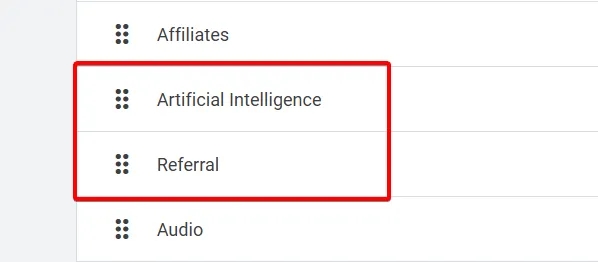
Since AI referrals are technically referral traffic, you need to drag Artificial Intelligence above Referral. If you skip this, sessions will be classified as regular referrals before GA4 ever reaches your new rule.
- Click Reorder and drag Artificial Intelligence above Referral.
Once it looks like the screenshot below, go ahead and save the group.
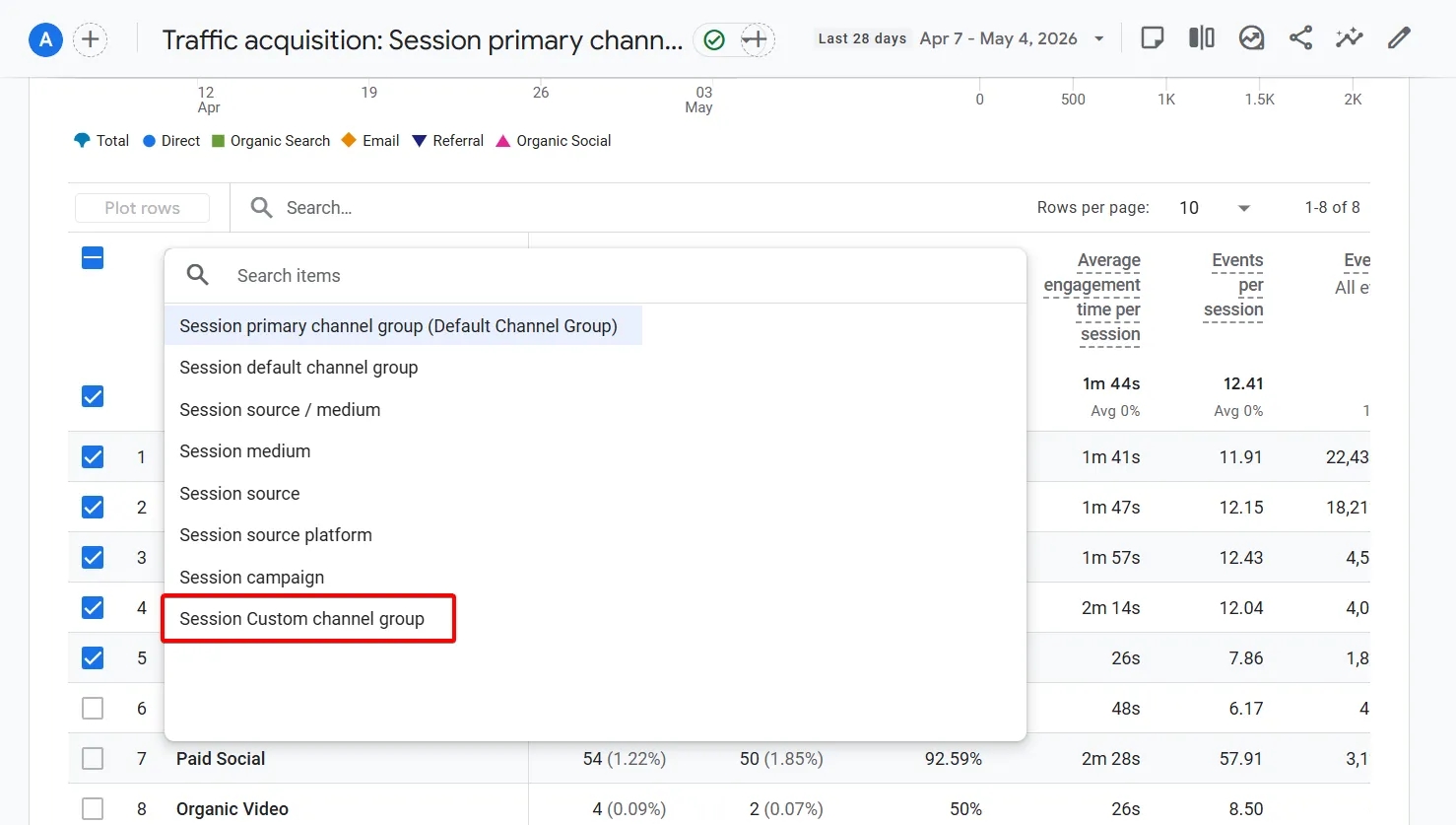
Now when you head to the Traffic Acquisition report, a new Session custom channel group dimension will appear, based on the group you just created. Select it in this or any other report and you're good to go.
That's it. Five minutes of setup, and you don't have to wait for Google to roll out the update — you can already see all the traffic your AI chat tools are generating.
See you in the next article!
Loading comments…