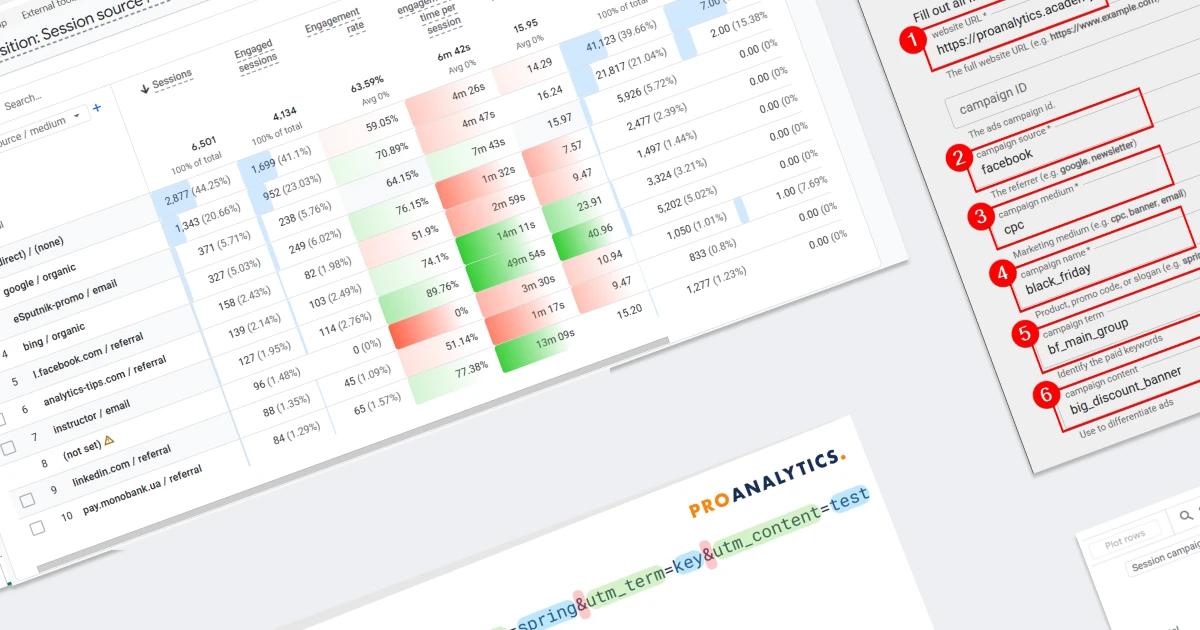
How Google Analytics Identifies Traffic Sources — or Why You Have So Much Direct Traffic

In web analytics, one of the most common challenges is understanding which marketing channels actually pay off. You launch ads on Facebook, send out email newsletters, post updates on LinkedIn — but how can you see what exactly brought visitors and which channels performed better? If your traffic lacks proper breakdown, you get numbers but miss the key element — clear context: which source truly works and delivers results.
Of course, Google Analytics has its own algorithms for identifying sources and, even without your intervention, tries to classify traffic. But here lies the main problem: without your help, you leave Google Analytics to sort out all this information on its own — and often end up with a significant portion of traffic categorized as “direct/none,” which is impossible to work with because it’s unclear what it actually represents. This is exactly the problem that UTM tags solve.
In today’s world, where most companies are moving toward end-to-end analytics and at the very least want to see the lead source in their CRM, UTM tags are gaining even more importance. While GA4 can at least partially determine traffic sources on its own, most CRMs typically lack that basic capability.
UTM tags are small technical parameters in a URL that make a big difference for your analytics. And in this article, we’ll break them down in detail.
This article is a shortened summary of one of the videos from the PRO ANALYTICS course. And considering how many students said that this video finally helped them connect all the dots in the topic of UTM tags — I hope it helps you understand everything, too ;)
- What Are UTM Tags
- How Google Analytics 4 Identifies Traffic Sources (and Why UTM Tags Are So Important)
- How to Properly Use and Format UTM Tags
- How to Create a Custom UTM Tag Template for Your Team
- Conclusion
- FAQ
- Can You Use UTM Tags Together With Google Ads Auto-Tagging?
- Do UTM Tags Affect SEO and Website Ranking?
- Can You Use UTM Tags on Internal Website Links?
- Is Case Sensitivity Important for UTM Tags?
- Can You Use Cyrillic in UTM Tags?
- Should You Use UTM Tags for Email Campaigns?
- Can You Edit UTM Tags After Launching a Campaign?
- Do UTM Tags Affect Page Loading Speed?
- What Are utm_id and utm_source_platform?
- Can You Use Spaces in UTM Parameters?
- How Many Characters Can Be Used in UTM Tags?
- Can You Add Personal Data (Email, Phone) to UTM Tags?
- Where Is the Easiest Place to Create UTM Tags?
Like most important concepts in web analytics, UTM tags combine two contexts: business and technical. We’ll look at both — starting with the latter.
Fun fact: UTM tags have a long history — they were originally invented by a company called Urchin, which Google later acquired in 2005. Over time, that acquisition evolved into what we now know as Google Analytics. UTM stands for Urchin Tracking Module. As you can see, UTM tags do their job so well in identifying the original source of traffic that they’ve carried the name of their inventors through all these years ;)
Technically, UTM tags are GET parameters in your URL. What are GET parameters? They are pairs of “name=value” added to your website’s URL after a question mark.
Here’s an example of a regular website link:
https://proanalytics.academy/
And here’s the same link with UTM tags:
https://proanalytics.academy/?utm_source=instagram&utm_medium=cpc
In the structure of this link, we can see two “name=value” pairs: utm_source=instagram and utm_medium=cpc. Typically, there are at least five such pairs used, but for now, we’ll focus on these two.
In the link structure, we see two tags:
- utm_source=instagram — this records the platform the user comes from (the traffic source). Here, the tag name is utm_source and the value is instagram.
- utm_medium=cpc — this indicates the method through which the traffic was acquired; in our case, it’s paid advertising (cpc). Here, the tag name is utm_medium and the value is cpc.
This means that people who follow this link to your website will appear in your analytics under the category of traffic coming from Instagram ads.
What makes these pairs so special? The main advantage is that UTM tags simultaneously send information about the traffic source to Google Analytics while not affecting the content of your website.
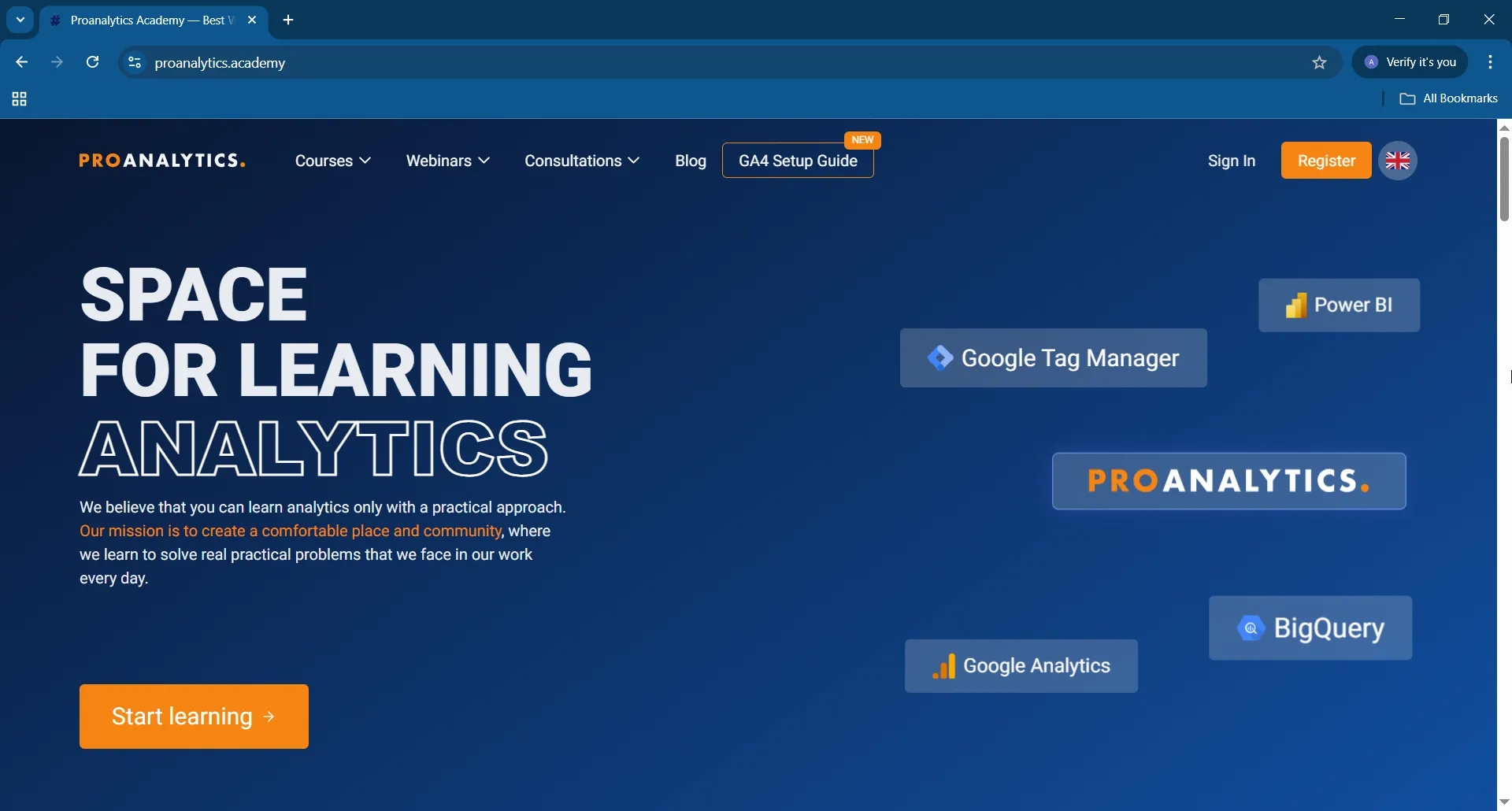
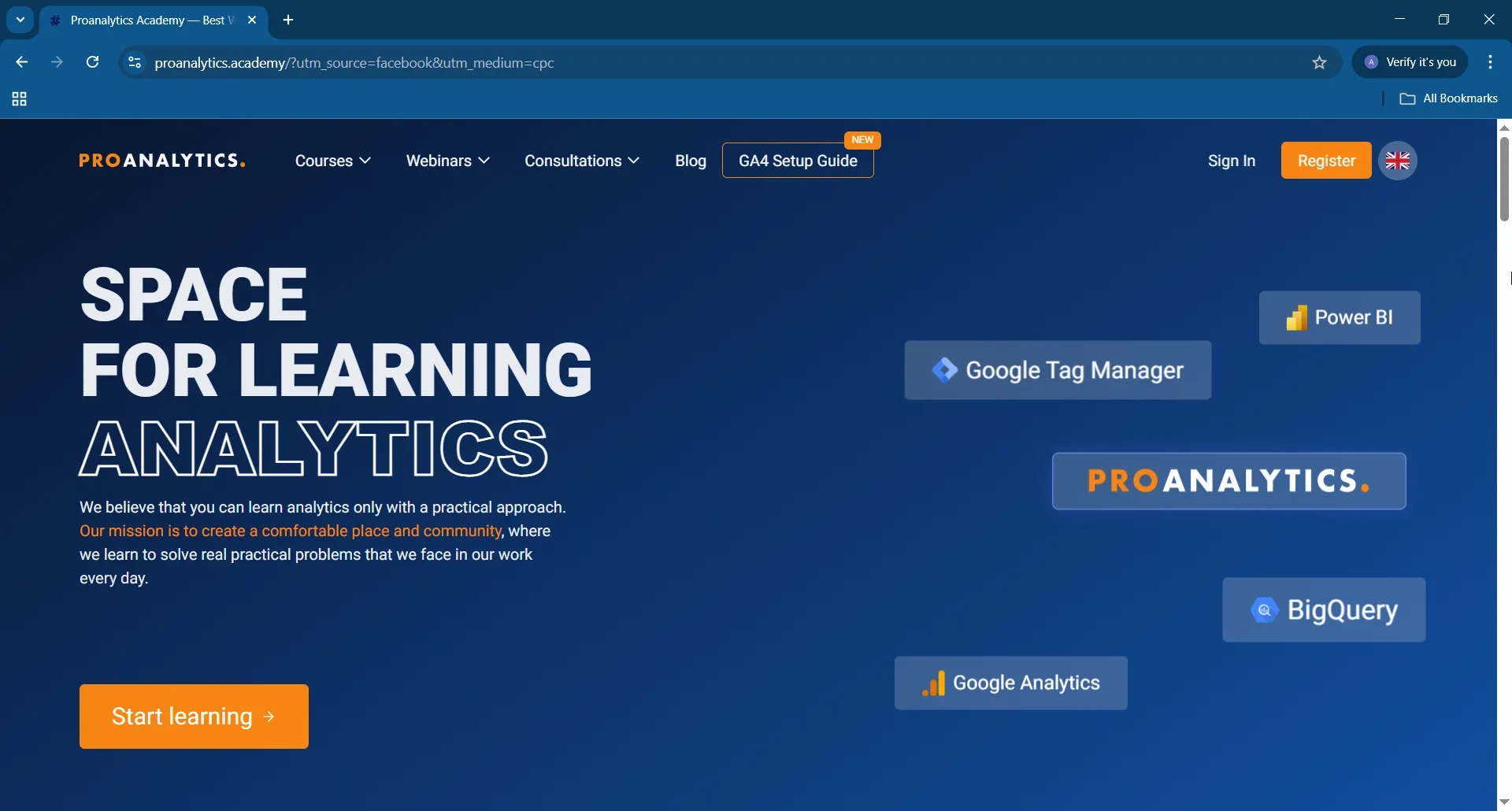
Try opening both links above — you’ll notice the content is exactly the same. However, in the first case (without UTM), Google Analytics 4 will register the visit as direct/none, while in the second case — as instagram/cpc.
Website without UTM tags:
Website with UTM tag:
If you’re reading this material, most likely you or your colleagues run various marketing activities daily — in newsletters, social media, or partner platforms. And if you want to know which of these actions brings results and which don’t — before inserting a link into an ad account, email, or post — make sure to tag it with UTM parameters. Yes, I’ll repeat this point in several forms throughout this article so it sticks well in your mind.
Now, back to the business features: these tags are a critical part of the work of analysts, marketers, and PPC specialists. To understand why, let’s see how Google Analytics 4 determines the source and medium of traffic.
How Google Analytics 4 Identifies Traffic Sources (and Why UTM Tags Are So Important)
What Is a Traffic Source
One of the main goals of web analytics is to analyze traffic effectiveness. In GA4, there are built-in system parameters for this:
- Source — the platform that brought the traffic, for example, Facebook, Google, eSputnik.
- Medium — the method of acquiring that traffic, for example, CPC (paid advertising), organic (unpaid traffic organically coming from search engines), email, etc.
For example, in Google Analytics 4, this might look like:

google / cpc— paid traffic from Google Ads;google / organic— organic traffic from Google;esputnik / email— traffic from an email newsletter;bing / organic— organic traffic from Bing;l.facebook.com / referral— free traffic from Facebook, coming through mentions by other people;(direct) / (none)— direct traffic, meaning the traffic GA4 was unable to identify.
Let’s clear up a common myth: (direct) / (none) doesn’t only include users who visit your site through saved bookmarks or by typing the URL manually. It actually represents all traffic that GA4 couldn’t identify. Usually, only a small portion of it consists of users who really came through direct links.
How GA4 Identifies Source and Medium of Traffic
To determine the traffic source and medium, Google Analytics 4 follows a sequence of rules. It works like a “cascade”: the system first tries to apply one rule, and if it doesn’t fit, it moves to the next one — and continues until it finds data suitable for classification.
In reality, the diagram below doesn’t fully explain how GA4 determines the source of traffic, since it doesn’t take into account the possibility of adjusting certain GA4 or GTM settings that may affect how sources are recognized. However, those technical aspects go beyond the scope of this article, so we’ll skip them here.
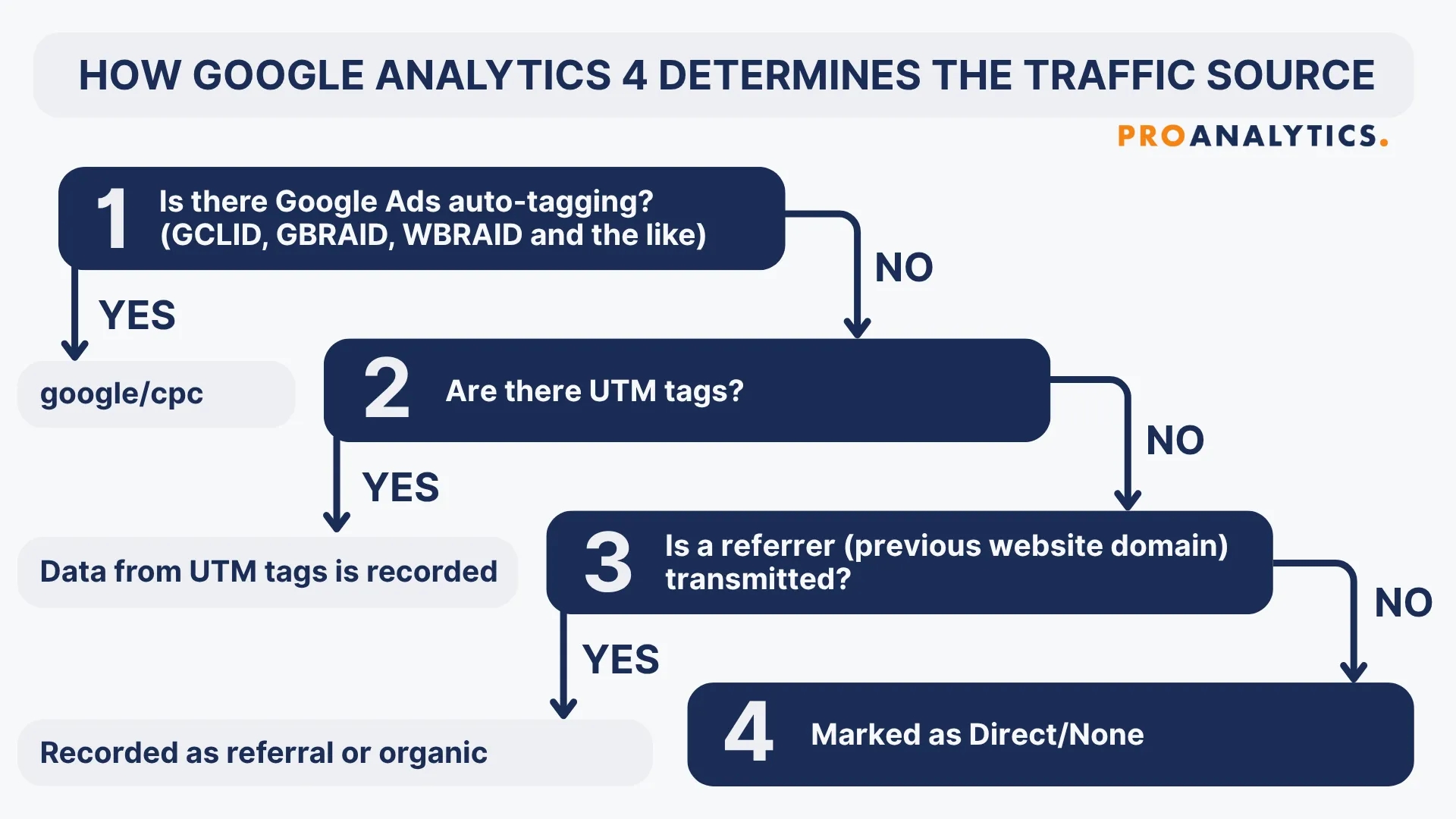
- Google Ads Auto-Tagging (GCLID, GBRAID, WBRAID, etc.)
The first thing GA4 looks for is a special Google Ads auto-tag (GCLID, GBRAID, WBRAID, or their equivalents). When you run ads through Google Ads and enable auto-tagging, special GET parameters are added to your URLs. These contain data about the ad click (and other relevant Google Ads details). If this auto-tag is present, Google automatically classifies the source asgoogleand the medium ascpc(meaning paid Google advertising). In your reports, this appears asgoogle / cpc, ensuring accurate classification of paid traffic coming from Google Ads. - UTM Tags.
If no auto-tag is found, GA4 checks whether your link contains UTM parameters. If they are present, the system assigns the source and medium based on the values you defined manually — for example,facebook / cpc,esputnik / email,forbes / banner, etc. This is the most controlled and transparent way to define traffic sources — you decide how the traffic will be classified and get the exact level of detail you need. - Referrer (Previous Domain).
If there’s no auto-tag or UTM parameters, Google turns to the so-called document.referrer — the domain of the website from which the user came to your site (technically, it’s a bit more complex, but we’ll simplify it here). For example, if I posted a link to your site on my blog analytics-tips.com, Google would record that traffic asreferral, more precisely asanalytics-tips.com / referral, because the referring page contains information about the source of the visit.
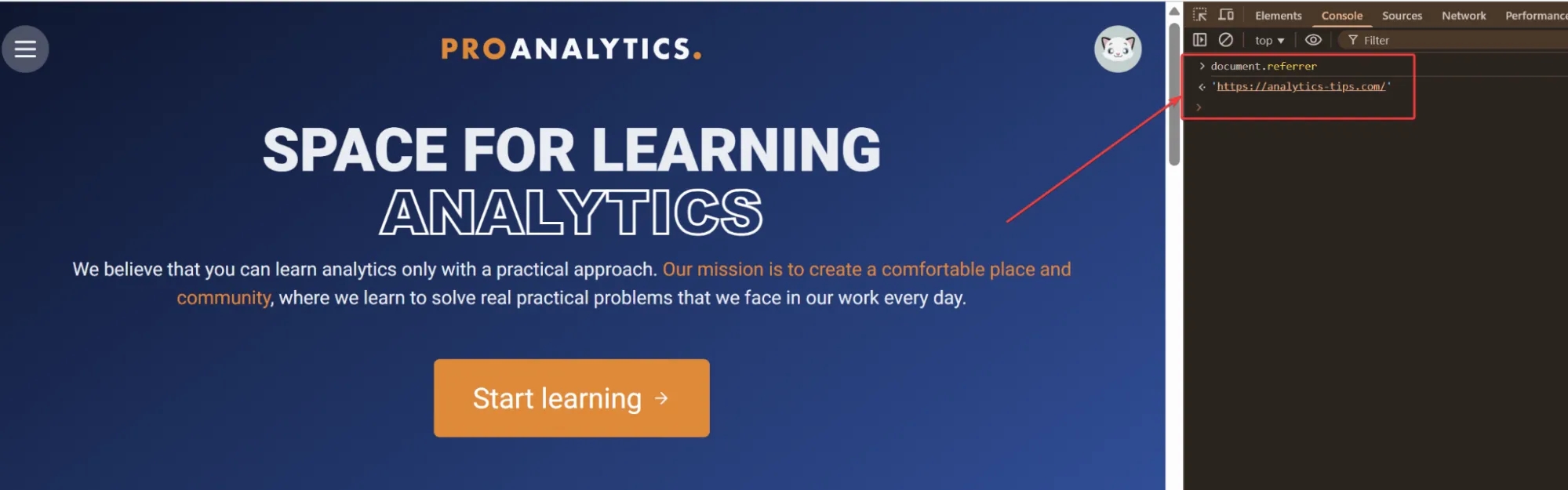
Note: Some referrers are recognized by Google in a special way — if the referring domain is a search engine, it’s classified as organic (organic search traffic).
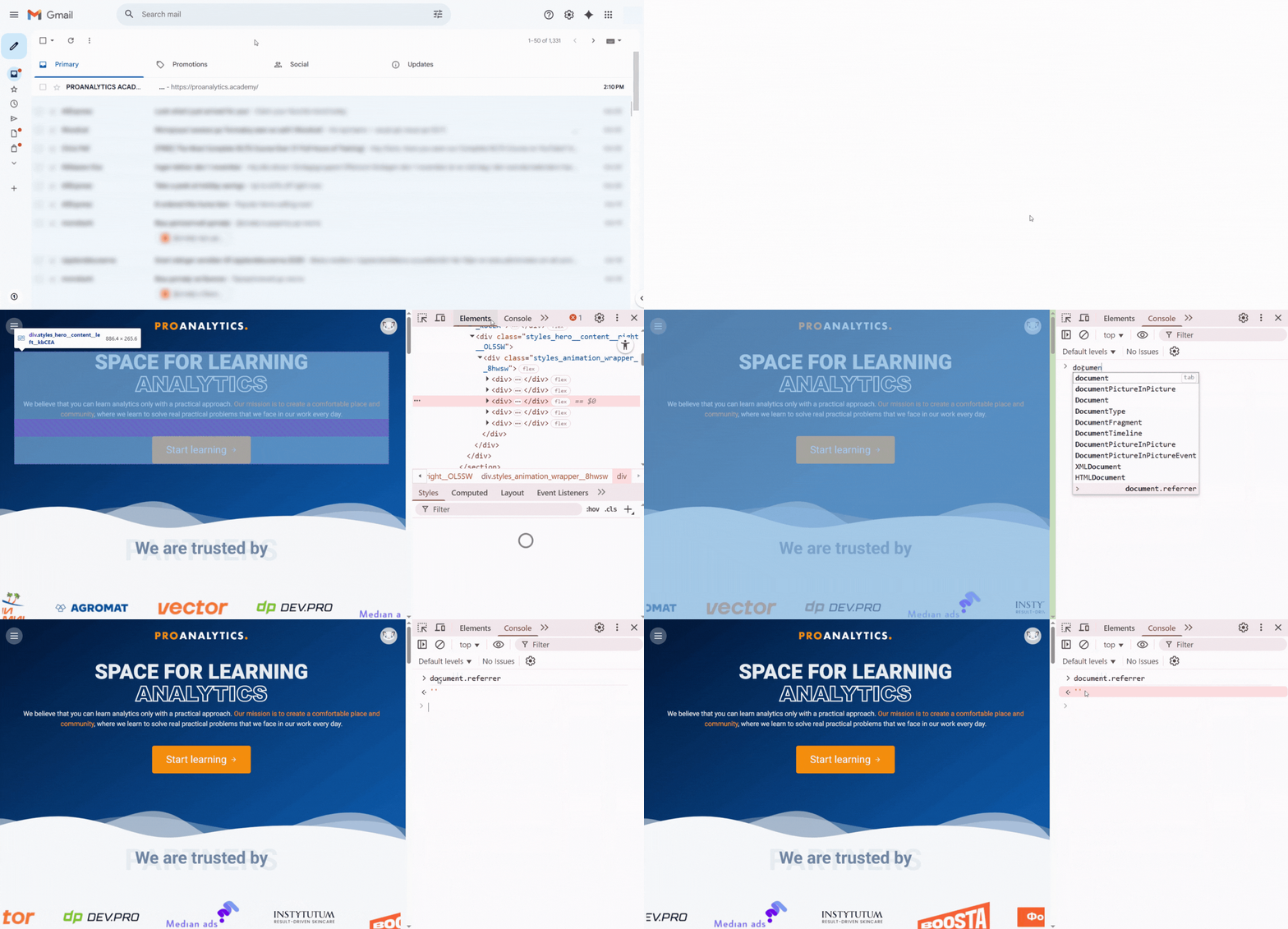
There’s one important detail about document.referrer: it’s fully controlled by the website the user comes from. This means that in some cases (and there are quite a few), document.referrer will be empty (see the animation below for one of the common cases — by the way, the same situation happens with most messenger apps, and that’s not the only example). When this happens, GA4 moves on to the fourth and final rule for determining the traffic source.
4. (direct) / (none) — direct, or more accurately, “unknown” traffic.
If none of the previous three checks return a match, Google records the visit as direct / none. Formally, this means the user supposedly entered your site’s address manually or used a bookmark.
But by now you understand that, in reality, this simply means there was no Google Ads auto-tag, no UTM parameters, and no value in “document.referrer.”
And this brings us to an important conclusion:
UTM tags are the only way to truly control what traffic source information GA4 will see.
Or in other words:
If you want to be sure GA4 correctly understands where your users came from — always tag your links with UTM parameters.
Structure of UTM Tagging
As mentioned earlier, there are typically five UTM tag pairs used. Let’s break down each one and understand its role:
- utm_source — the traffic source, meaning the platform or site where you usually invest (money or time) to attract users to your website. Examples: facebook, google, linkedin, esputnik, youtube.
- utm_medium — the channel through which the traffic was acquired. It shows what you pay the platform for: cpc — cost per click (paid ads), email — for sent newsletters, banner — for display ads, etc. There’s one conditional exception — social. This channel is used to indicate free traffic from your own social media pages. In other words, that’s when you “paid with time.” :)
- utm_campaign — the name of the marketing campaign that ties all your activities into one cohesive story. Examples: black_friday, new_year, spring_sale.
Important: If you run multiple activities under the same marketing campaign — for example, on Black Friday you launch ads on Facebook, post promotions on Instagram, and send an email newsletter — don’t name each one separately (“email_black_friday,” “instagram_black_friday,” “facebook_black_friday”).
A single campaign name, like black_friday, is enough for all channels.
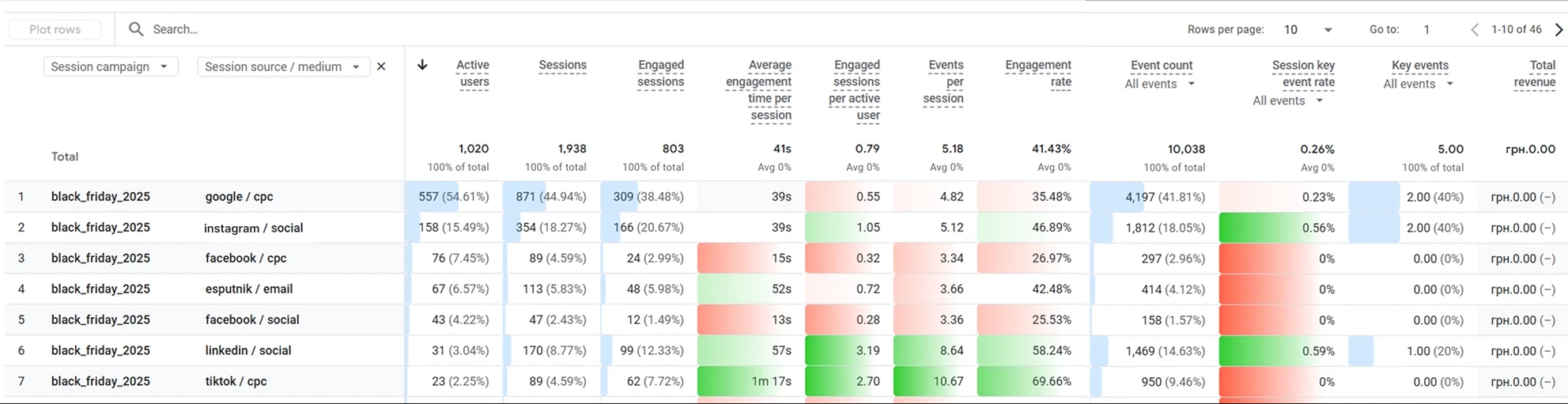
If the first three pairs have general naming rules, the next two usually depend on the platform that helps attract traffic. Let’s look at some examples to make it clearer.
- utm_term — an auxiliary variable where you can enter a keyword, ad group, mailing list segment, or blogger nickname.
- utm_content — provides even greater detail: the name of a banner, email, creative, specific video, or particular ad. For example, in an email campaign, utm_content can help track which email performed better — the early announcement or the final sale-day reminder. In a banner campaign, it helps distinguish between different formats or versions of a banner.
Examples of tagging:
For paid Facebook ads:
- utm_source=facebook
- utm_medium=cpc
- utm_campaign=black_friday
- utm_term={{ad_group_name}}
- utm_content={{ad_name}}
Note that on Facebook, even if you’re paying per impressions, it’s become standard practice to mark utm_medium as cpc.
For email campaigns sent via eSputnik:
- utm_source=esputnik
- utm_medium=email
- utm_campaign=black_friday
- utm_term={{contact_group_name}}
- utm_content={{email_name}}
Why utm_term and utm_content Don’t Have Strict Rules Like the First Three
Originally, utm_term and utm_content fields were used specifically for passing keywords and ad names in Google Ads. But over time, UTM tags became an industry standard, and their use expanded across all systems. The first three tags were easy to adapt, but utm_term and utm_content didn’t always have direct equivalents. Still, marketers wanted more detail — so they simply started filling them with whatever information they needed.
Today, these are universal variables where you can “store” anything that helps with deeper analytics — from ad group names to creative details. If you want to see which creative, ad group, email, or {{insert your value}} performs better, you can’t do without them.
My personal approach:
- In utm_content, I specify the “final asset” — the name of the ad, email, or video.
- In utm_term, I add supporting information — the ad group, mailing list, or blogger nickname.
To summarize everything we’ve learned so far, I suggest reinforcing it by reviewing the final UTM tagging diagram — it’ll help you visualize the concept more clearly.

How to Use Google’s Campaign URL Builder
Properly constructing a UTM-tagged link is an important — and not always easy — task. To help users avoid syntax mistakes, Google created Campaign URL Builder — a handy web interface where you paste your link, fill in the tag fields, and instantly get a ready-to-use, error-free URL.
Google recommends filling in at least three tags: utm_source, utm_medium, and utm_campaign. However, I suggest including all five. Let’s look at an example for Facebook ads:
- Paste your website URL.
- Enter utm_source: “facebook”.
- Enter utm_medium: “cpc”.
- Enter utm_campaign: “black_friday”.
- Add utm_term: “bf_main_group” (ad group name).
- Add utm_content: “big_discount_banner” (ad name).
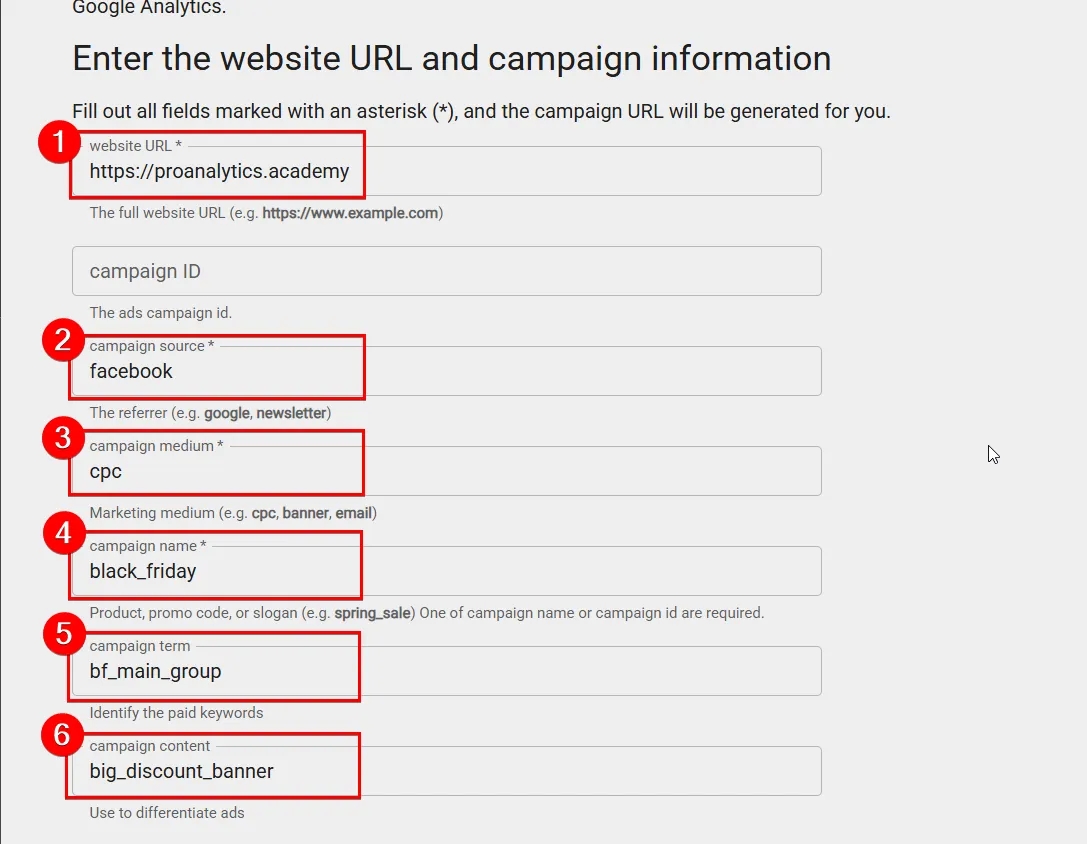
Below, the system immediately generates a complete URL that you can copy — simple and error-free.
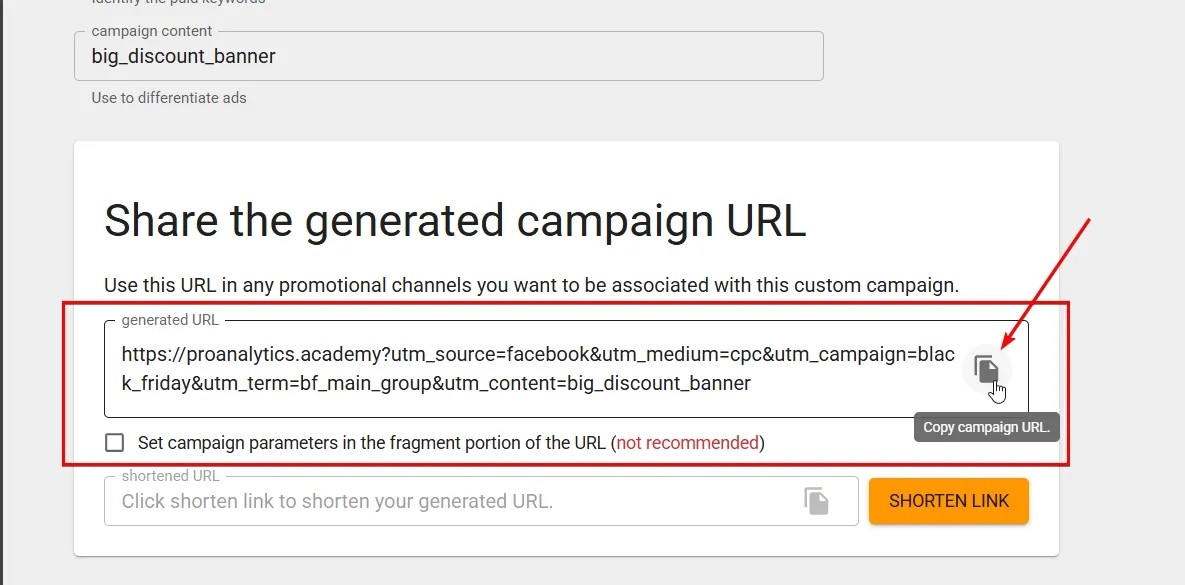
As you can see, using Campaign URL Builder makes the process quite straightforward. But even in such seemingly simple actions, there are several nuances that can completely ruin your analytics.
To avoid common mistakes and confusion, let’s go over the key rules for filling out UTM tags that help keep your data clean, clear, and well-structured across all campaigns.
Key Rules for Filling Out UTM Tags
In UTM tagging, there are real “rules of good manners.” These determine whether your web analytics will stay understandable — or turn into chaos.
- Keep your naming clean.
- For utm_source and utm_medium, use only lowercase Latin letters, numbers, and underscores.
- Avoid spaces, Cyrillic characters, and special symbols (?, &, #).
- Don’t write “Facebook Ads” — the correct format is “facebook.”
- Be unambiguous.
- Choose tag names that would make sense even to someone outside your team.
- Avoid vague abbreviations like
utm_source=g.
- Use Campaign URL Builder. It helps you follow proper URL structure:
- UTM parameters are added after “?”, and each subsequent parameter is separated by “&”.
- Don’t make tags too long.
- The shorter and clearer your URL, the lower the risk that something will “break” in your analytics or CRM.
- Don’t include sensitive data.
- Never insert emails, phone numbers, or personal data into tags — for both security and GDPR compliance reasons.
- Use UTM tags only for external traffic.
- Internal website links should never be tagged with UTM — this will mess up your analytics and create unnecessary “noise.”
- Document and align.
- Your company should have a document describing the general logic of UTM tagging, with regularly updated examples.
- It’s best to have a shared template for every new campaign — so your team can reference it and always keep your GA4 data tidy and consistent.
How to Create a UTM Tag Template for Your Team
Once you have several channels and multiple team members working on campaigns, “tag mixing” inevitably starts. To prevent chaos, most projects create a UTM tagging template — a document or spreadsheet that outlines which specific values each tag should have for every marketing activity.
What your template should include:
- Clearly defined parameters for each channel or activity.
- Example for an email campaign:
- utm_source=esputnik
- utm_medium=email
- utm_campaign={campaign_name}
- utm_term={contact_group_name}
- utm_content={email_name}
- Example for an email campaign:
- Explanations for dynamic fields with correct examples.
- {contact_group_name} — name of the contact group as it appears in the eSputnik interface; use only Latin letters and replace spaces with underscores. Example: proanalytics_students.
- {email_name} — internal name of the email in eSputnik, following a consistent format (newsletter_{mailing_number}, e.g., newsletter_048, newsletter_050, etc.).
- Agreed-upon template usage rules within your marketing team.
Important: if your template includes placeholders in curly brackets {} (e.g., {email_name}, {contact_group_name}), make sure to clearly explain below how to actually fill them out — where to get the name, what format to use (Latin letters only, no special characters). This ensures everyone on the team can simply follow the “copy and paste” principle without guessing.
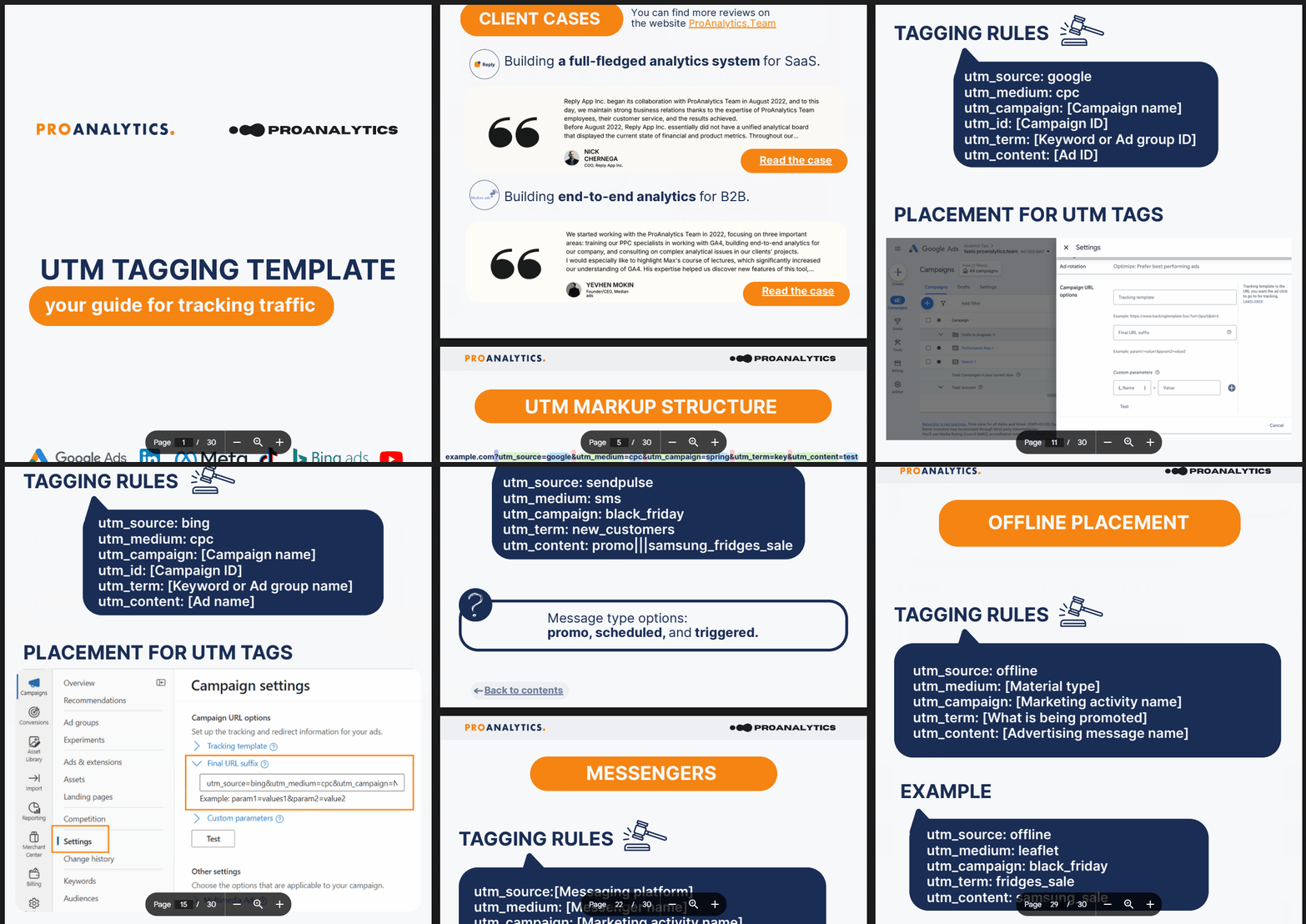
And if you want to save time — you can download a ready-made UTM tagging template that our ProAnalytics.Team has built and refined over several years.
Leave your email — and get a PDF guide with complete instructions and examples for most channels.
Conclusion
I hope you now understand how important it is to create UTM tagging — and, most importantly, how to do it correctly.
This seemingly small step actually opens up huge opportunities for your business: it helps you stop guessing where your traffic comes from and start clearly understanding the performance of every campaign, channel, or creative.
Don’t forget to follow the rules, align them with your team, and keep updating your template with real examples — that way, you’ll always have a complete and accurate picture of what’s happening with your traffic.
That means fewer guesses, more precision, and marketing that truly delivers measurable results.
By the way, there are more UTM parameters than just the basic five. Additional ones, such as utm_id, utm_platform, and others, also exist. They may be useful for more advanced projects — but if you’re just starting to build your analytics system, the five main parameters will be more than enough for most cases.
FAQ
Yes. Auto-tagging can only be read by Google services, while CRMs, call-tracking systems, and other similar tools rely solely on UTM parameters. By using UTM tags together with Google Ads auto-tagging, you provide the maximum amount of information to all systems.
Can You Use UTM Tags on Internal Website Links?
No! This is one of the most common mistakes. Adding UTM parameters to internal links will mess up attribution and create fake traffic sources in your reports.
What Are utm_id and utm_source_platform?
These are additional parameters for advanced GA4 analytics. They allow for deeper campaign identification but aren’t required for beginners. More details are here.
Can You Use Spaces in UTM Parameters?
No. Replace spaces with underscores (_) or hyphens (-). Otherwise, the URL may break.
Loading comments…