How to Set Up Audiences in Google Analytics 4: From Simple Solutions to Complex Scenarios

In the world of digital marketing, personalization is the key to success, and the ability to create audiences correctly can be a decisive factor in increasing conversions. In this article, you will learn how to effectively use the audience builder: from basic settings to more advanced methods. We will also explore some additional features, such as excluding users from audiences, setting up user action sequences on the website, and tracking events and key events in GA4 when a user enters your audience.
Here’s our plan:
What are Audiences in GA4 and why are they needed?
Let’s start with the obvious—the definition.
Audiences are groups of people united based on specific conditions. They can be created based on metrics, parameters, and events.
For example:
- Audiences of website visitors
- Audiences of users who added a product to the cart
- People aged 25–30 who visited from Kyiv in the last 7 days
As you’ve already understood, the conditions can vary. However, there are only two ways to use Audiences: for data analysis or for remarketing. Typically, the latter is the most well-known and popular, so we won’t go into detail about it. I’ll just remind you what remarketing is, in case anyone has forgotten.
Remarketing is personalized marketing aimed at specific groups of people. If your GA4 is integrated with a Google Ads account, you can transfer the created Audiences to the advertising platform and use them for targeting in ad campaigns.
Now, let’s take a closer look at the possibilities of data analysis using Audiences in Google Analytics 4.
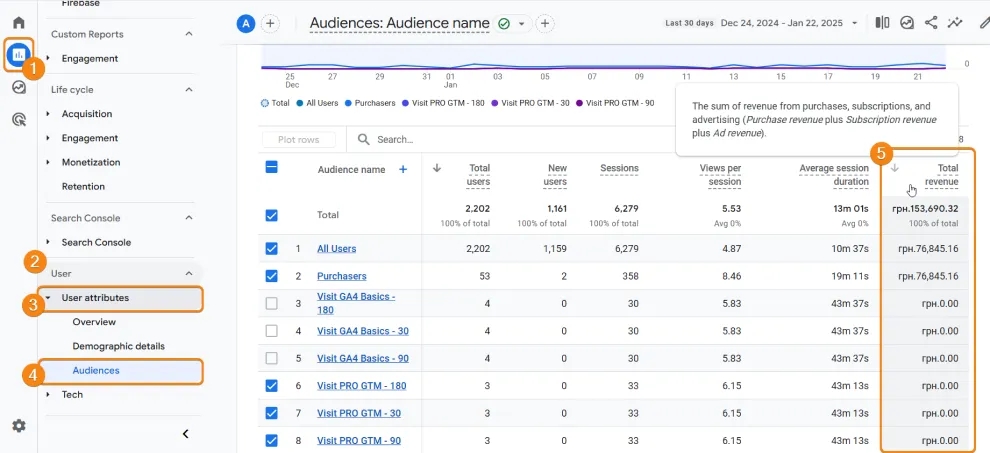
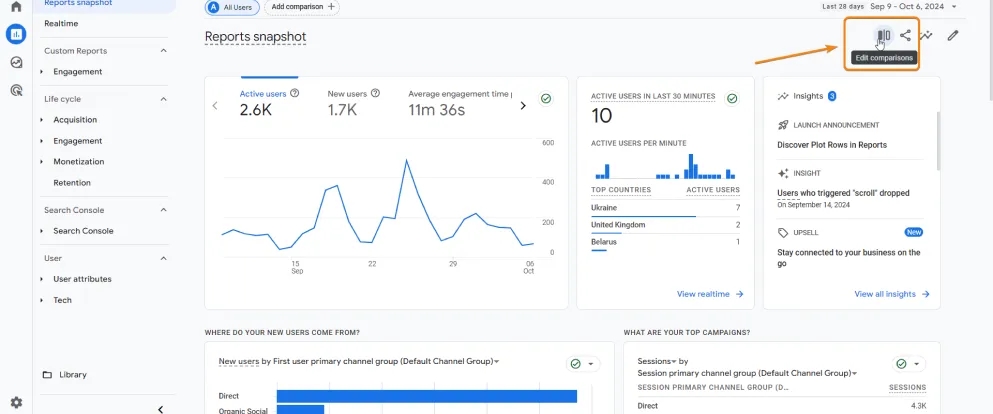
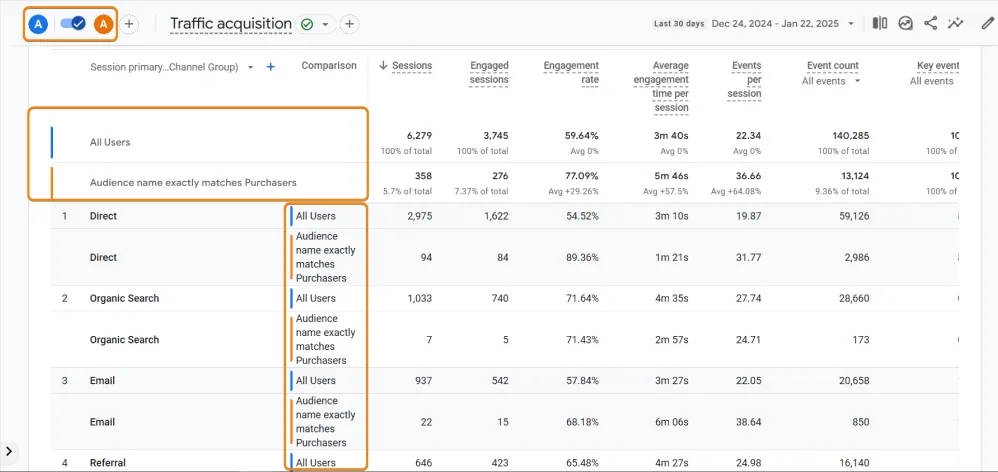
- In the same Reports section, there’s another way to use Audiences for analysis. The reports include a Comparison feature, which allows you to view and compare metrics of different groups of website visitors using relevant filters.
One such condition is the Audience name filter. You can select the desired Audience and view its specific metrics in a particular report.
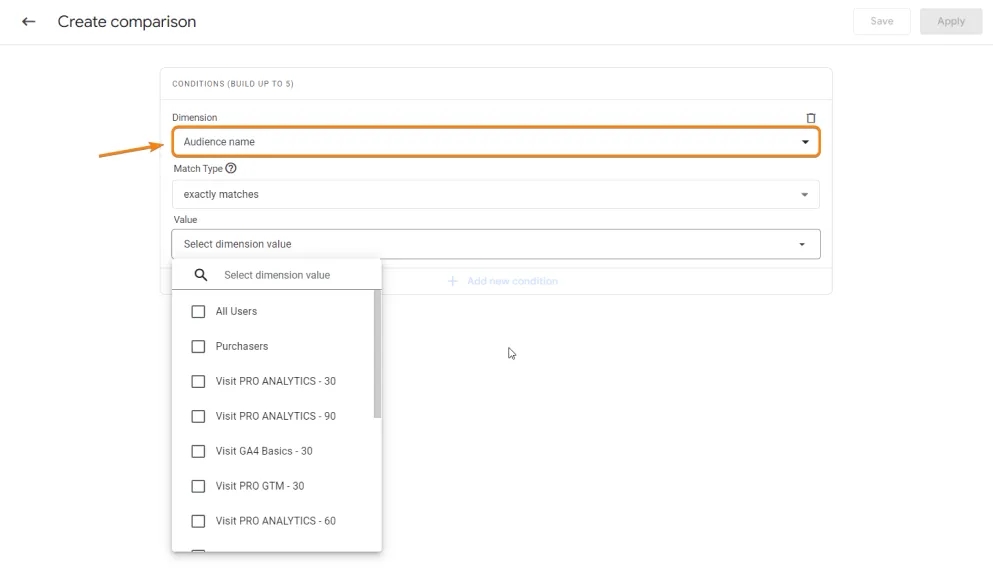
- You can also compare metrics of different Audiences.
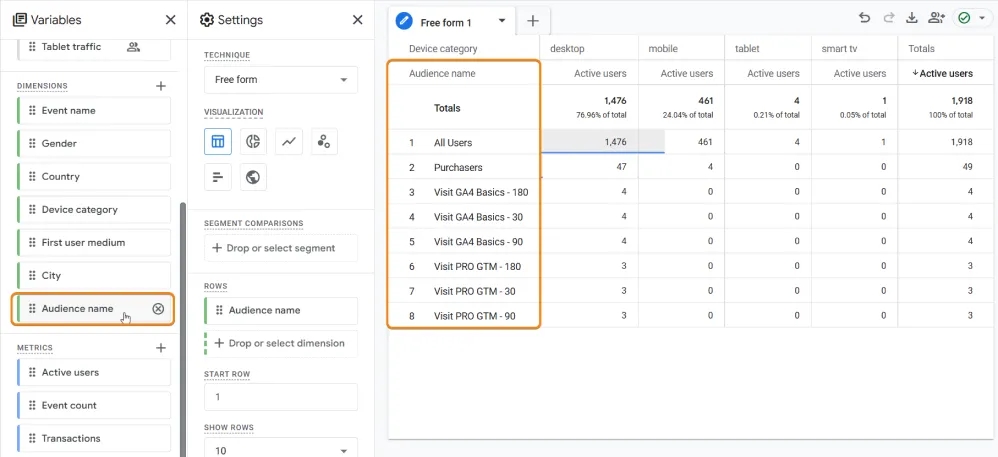
- And, of course, you can use Audiences in the Explore section with various data analysis techniques.
Segments vs Audiences vs Comparison in Google Analytics 4
Each of the three terms in the title of this section can be described as “a group of website visitors selected based on certain shared conditions.” So why not use one definition and avoid confusing people? Good question. I don’t have a definitive answer, but I suspect the reason lies in the different functions and use cases of each entity, which in turn lead to different limitations.
In any case, since all these entities already exist, it’s good to familiarize yourself with each of them.
Using Segments in Google Analytics 4
Segments are groups of people selected based on shared conditions: country, time spent on a page, age, etc. However, they can only be used in the Explore section.
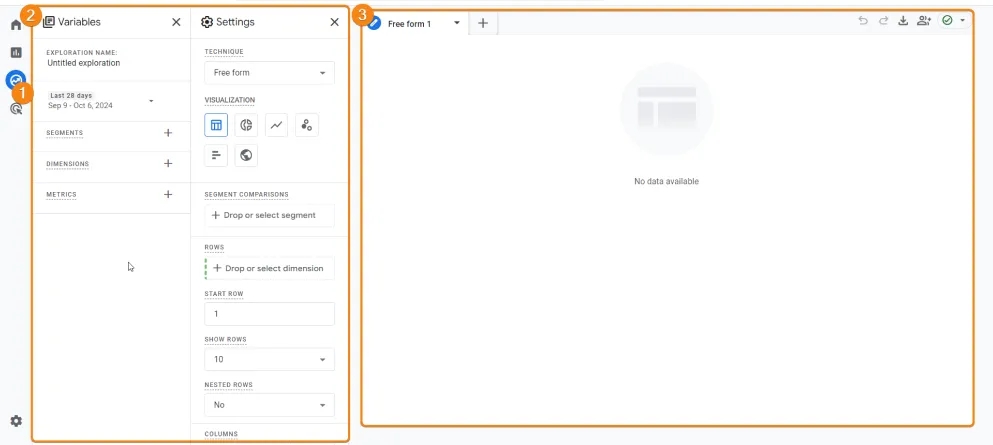
The Explore section is a GA4 feature where you can independently build reports using parameters, metrics, filters, and more. On the left is a panel where you can find and add all possible settings for creating a report (metrics, parameters, date settings, filters)—it’s like a quick access panel. On the right, the visualization of the report you’ve created will appear.
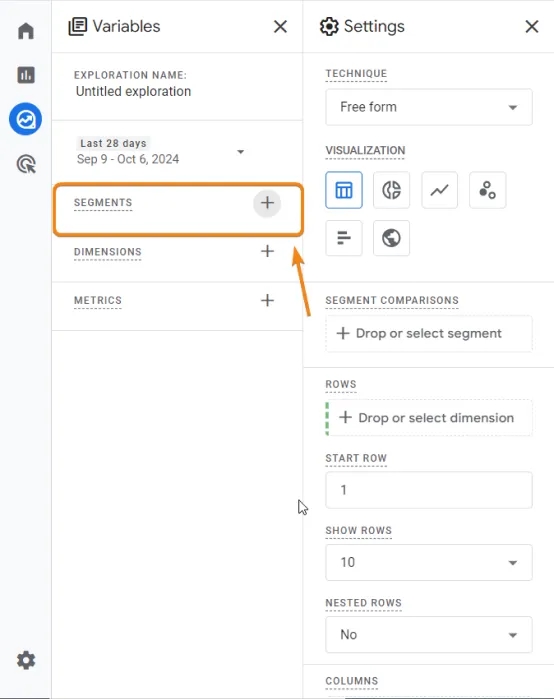
Here’s what the field for adding Segments looks like:
To summarize: Segments CANNOT be transferred to Google Ads and CANNOT be used for report analysis. The only way to use Segments is for exploration techniques in the Explore section.
Using Comparisons in Google Analytics 4
Comparisons are a feature available in standard reports. They allow you to compare the behavior of different user groups or analyze the behavior of a specific group.
Key features:
- Comparisons can only be used for data analysis in standard reports and are not available in the Explore section, unlike Segments.
- They are more focused on quick analysis of user behavior under specific conditions.
- You can add already created Audiences to Comparisons, making this feature even more versatile. This helps evaluate the effectiveness of Audiences across various reports and metrics.
- However, Comparisons CANNOT be transferred to Google Ads, just like Segments.
For clarity, here’s a general table with the main characteristics of these entities:
| Features | Creation | Usage | Transfer to Google Ads |
|---|---|---|---|
Segments | 1) In "Admin" -> "Segments" 2) In the "Explore" section | Analysis in the "Explore" section | CANNOT be transferred |
Audiences | 1) In Admin -> Audiences 2) Based on Segments in "Explore" section | 1) Google Ads campaign setup 2) Analysis in "Comparisons," "Explore," and the "Audience" report | CAN be transferred |
Comparisons | 1) In "Admin" -> "Comparisons" 2) In standard reports | Quick analysis in standard reports | CANNOT be transferred |
How are Segments, Comparisons, and Audiences related?
The reason I decided to briefly describe Comparisons and Segments in this article about Audiences is that these entities are partially interconnected.
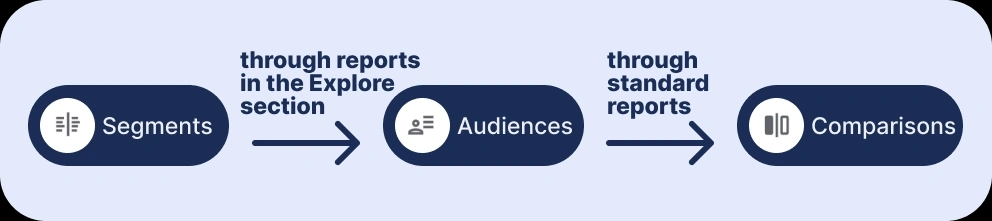
Segments can serve as the basis for creating Audiences. By using Segments in the Explore section, you can identify patterns in user behavior and create Audiences based on them. I’ll show you how a bit later.
Audiences are part of the Comparison tool. They can be added to standard reports as filters for analysis. Thus, one of the features of Comparisons is evaluating the effectiveness of Audiences. Through the Add comparison function, you can understand how Audiences perform within reports.
We’ve covered the theory; now let’s move on to the more practical part.
How to Create Audiences?
There are three main ways to create an Audience: based on templates, from scratch, and based on Segments. Below, we’ll explore each of them.
Method 1: Based on a Template
Google Analytics 4 offers many templates for various marketing tasks. Audience creation is no exception. Therefore, the easiest way to create Audiences is to use a template. This task is simple, and there’s a small guide in the help section on their use for the most common marketing goals, so I won’t go into detail. Let’s instead use one of them, for example, creating an Audience of purchasers (those who made a purchase).
How to create a Purchasers Audience in GA4?
To create it:
Go to Admin -> Data display -> Audiences -> Create audience -> Select the ready-made Purchasers template.
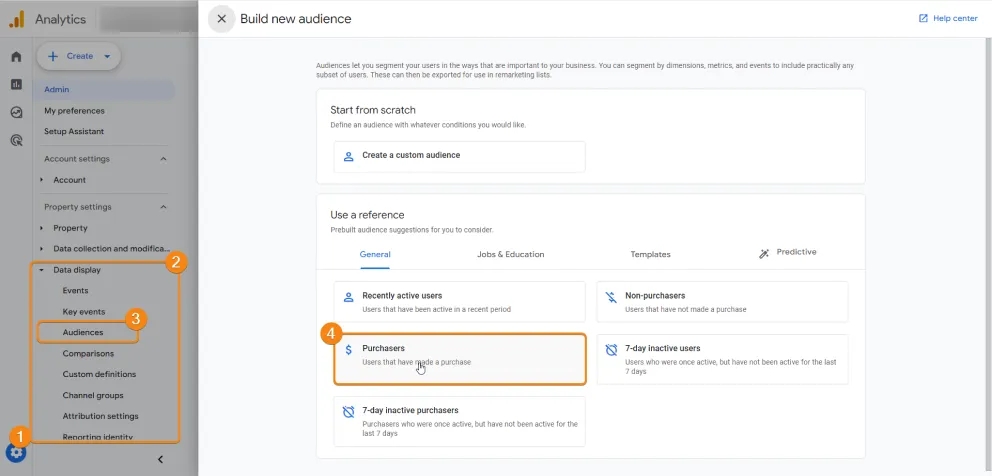
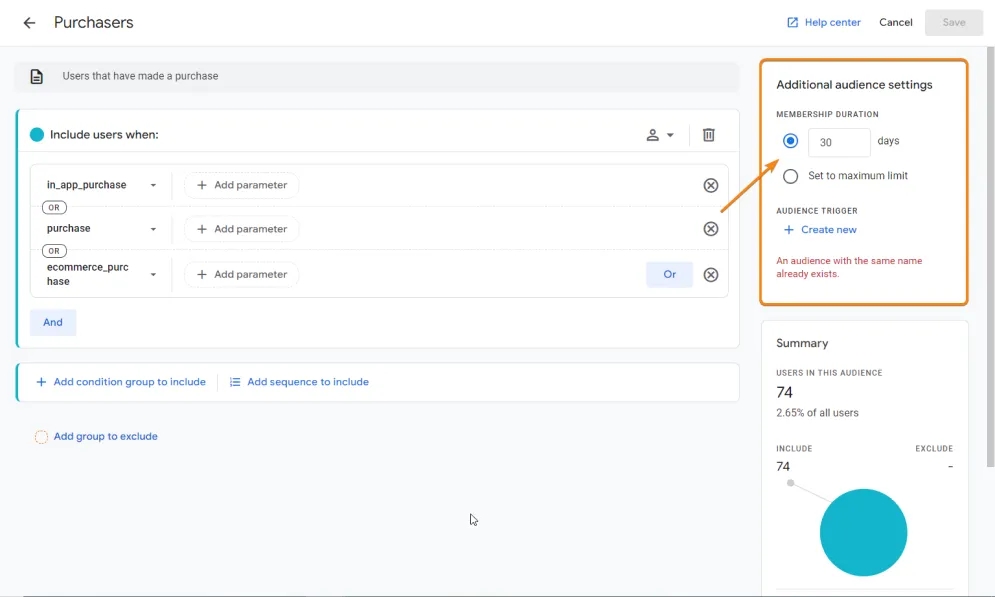
Google has already filled in all the Audience settings for you. All that’s left is to specify the period during which the user will belong to this Audience (e.g., 30, 100, or 500 days) and its name.
In other words, Membership duration shows after how many days the user will be removed from the Audience.
How to create a Cart Abandoners Audience in GA4?
Similarly, you can create another Audience from a template. For example, if you run an online store, you can create an Audience of users who added products to the cart but didn’t complete the purchase. This template is called Cart Abandoners. This Audience can be used for remarketing. Showing personalized ads about the unfinished purchase can encourage them to complete it and convert.
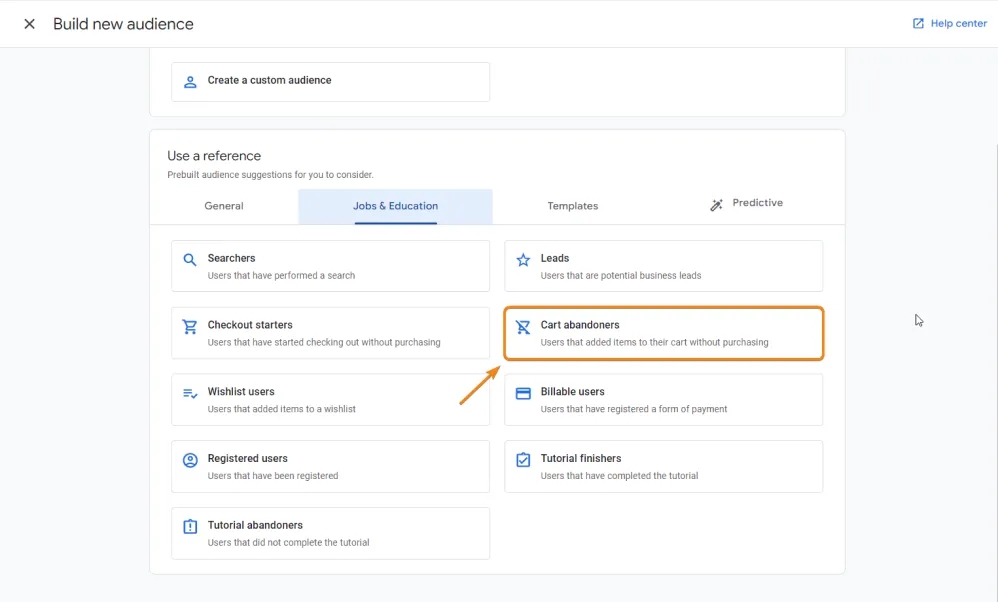
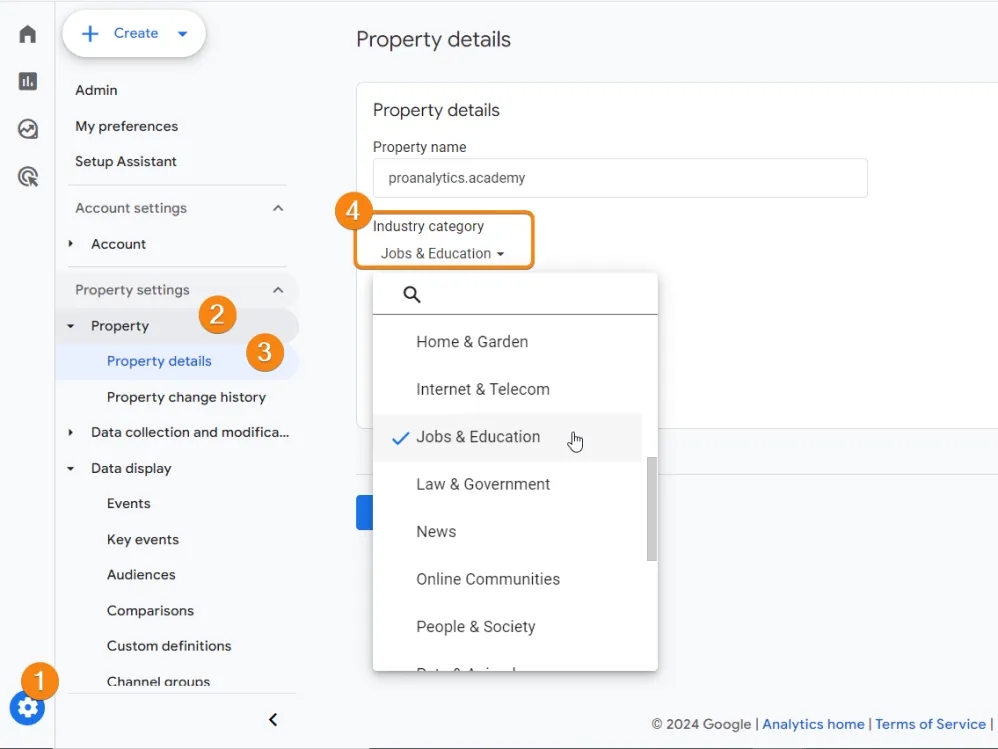
Google Analytics 4 offers many industry-specific templates. Note that they are configured according to the industry you selected when creating your GA4 property.
By the way, you can change the industry. To do this, go to Admin -> Property -> Property details -> Industry category
You can read more about Audience templates in the help section.
What are Predictive Audiences in Google Analytics 4?
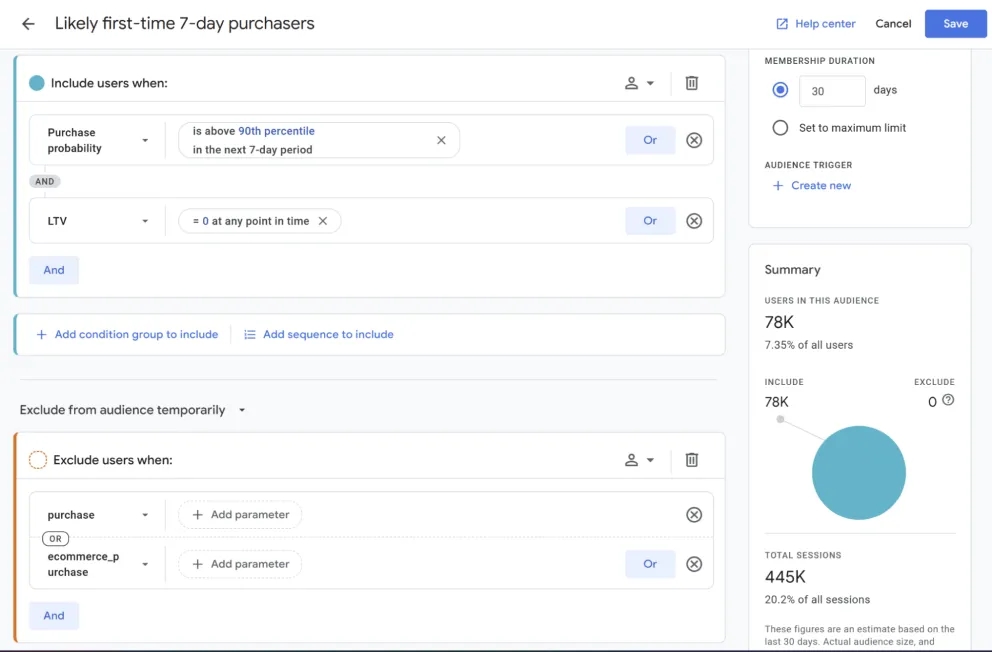
Among the templates, you’ll also notice an interesting Predictive feature, which works based on machine learning. Based on existing data, the system tries to determine which users are likely to make a purchase or perform another important activity for you.
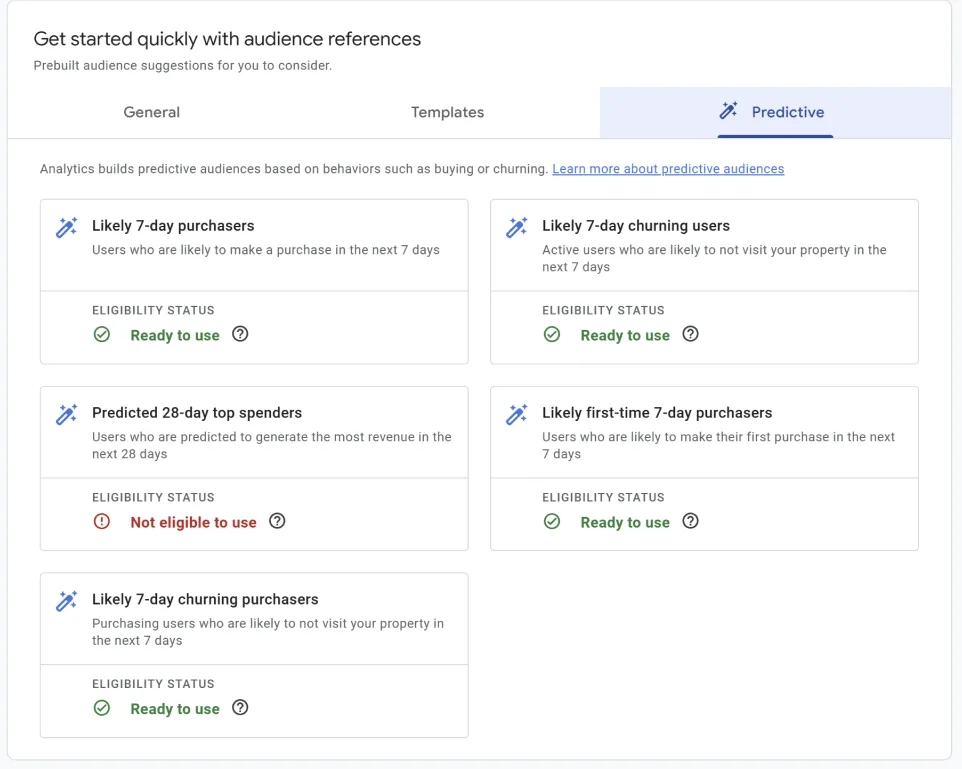
Of course, to use them, your account must meet certain conditions. Specifically, within the last 28 days, there must be at least one 7-day period where:
- At least 1,000 users made a purchase or met other predictive conditions.
- At least 1,000 users did NOT meet these conditions (e.g., did not make a purchase).
Although the settings may look a bit more complicated, don’t worry. The GA4 team has already done everything for you.
Method 2: Custom Audience Setup
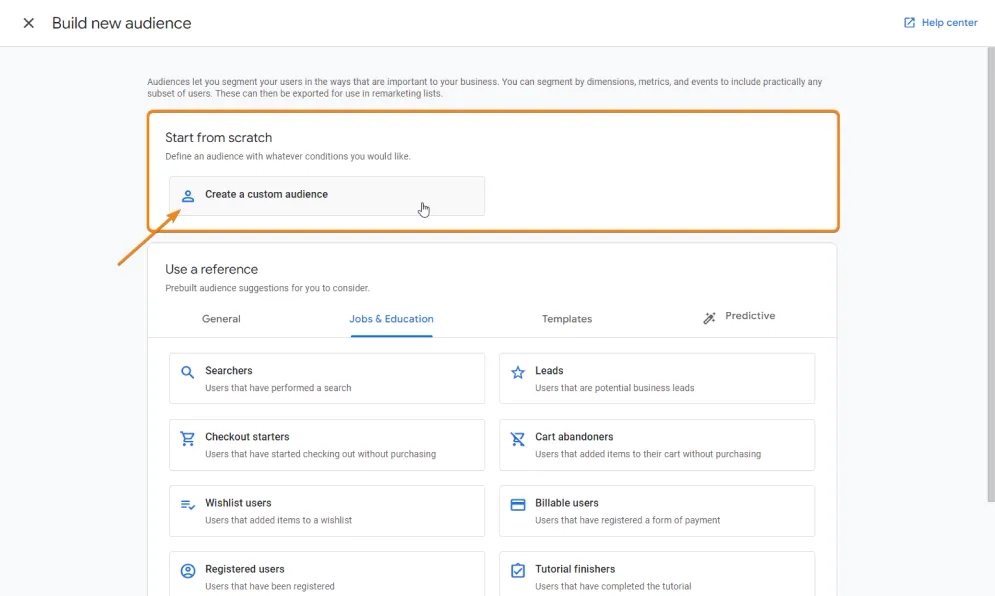
Of course, besides creating Audiences based on templates, you can create fully custom Audiences from scratch. For example, let’s say you have a blog, and you want to highlight people who viewed a specific article about setting up Google Analytics 4. This Audience can be used for personalized campaigns targeting people interested in GA4.
- Open the section for creating a custom Audience by clicking Create a custom audience.
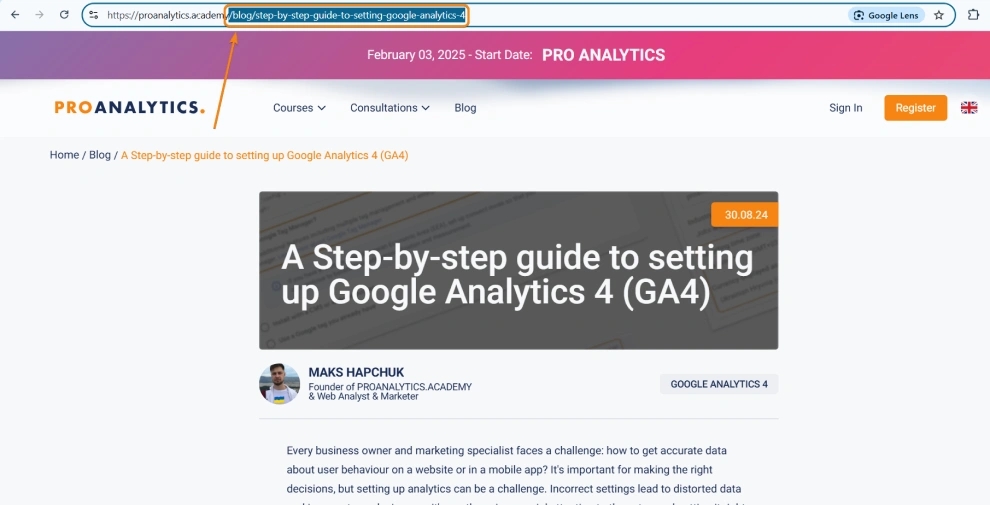
- Add the
page_viewevent and the Page Path and Screen Class parameter, where you insert the path to the article page, which looks like /uk/blog/step-by-step-guide-to-setting-google-analytics-4.
- Set the number of days users will remain in the Audience.
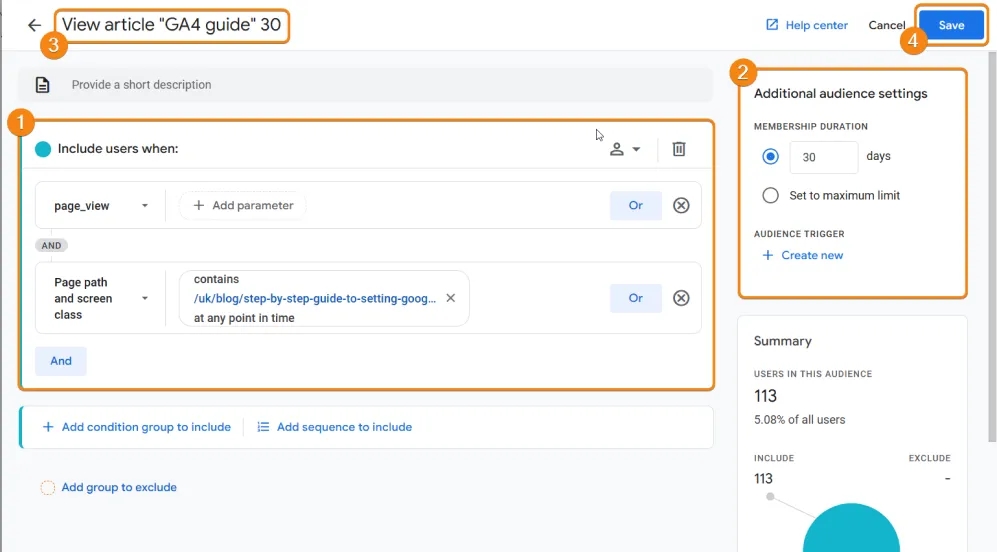
That’s it. Don’t forget to name your Audience and save the settings.
You may have noticed that I included the number of days in the Audience name. I recommend you take note of this lifehack. It will save you a lot of time in the future.
Of course, for settings, you can use other conditions based on any parameters (basic or custom): demographic, technological, behavioral (session duration, scroll percentage), traffic sources, etc.
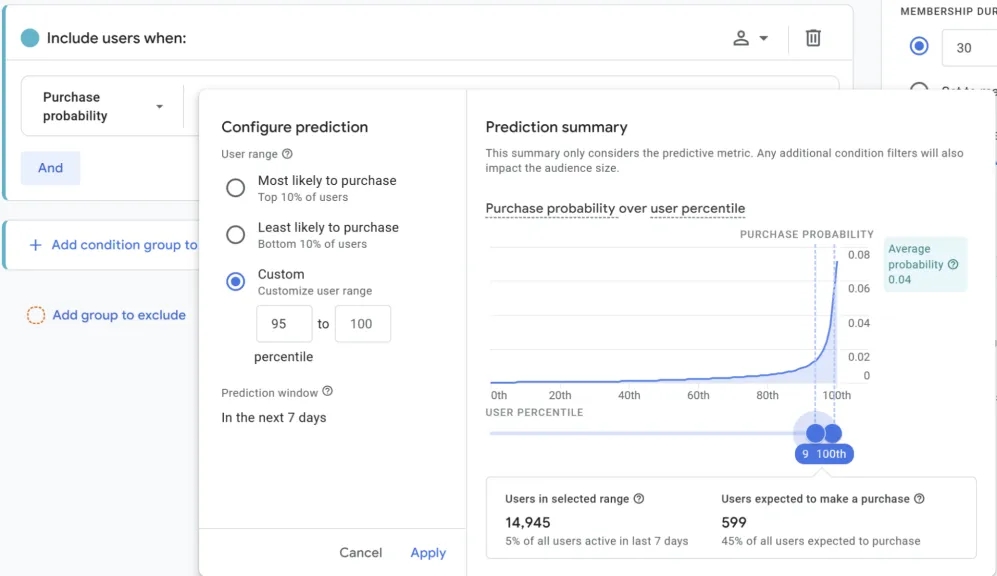
Note that you can also create a custom Audience based on predictive metrics.
Method 3: Based on Segments
Although Audiences CANNOT be applied in the Explore section, you can create them there based on Segments. This option is available directly during Segment setup:
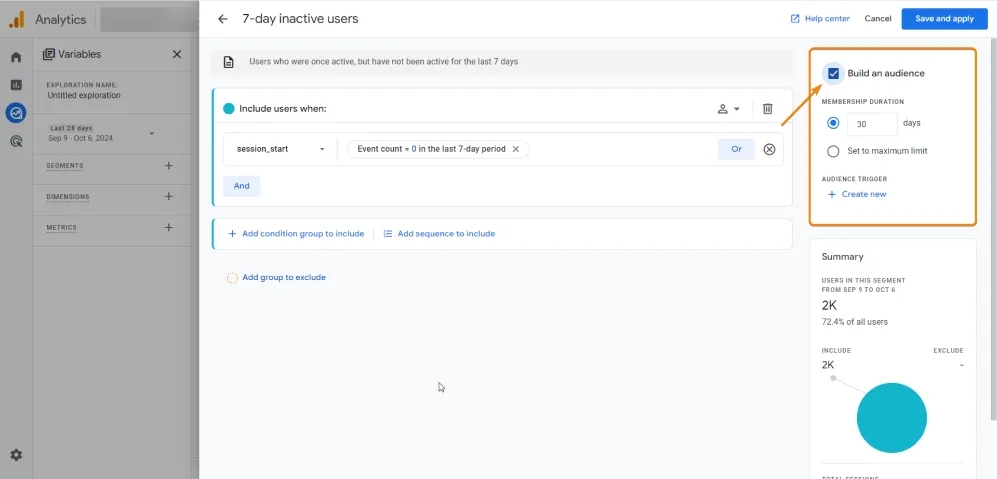
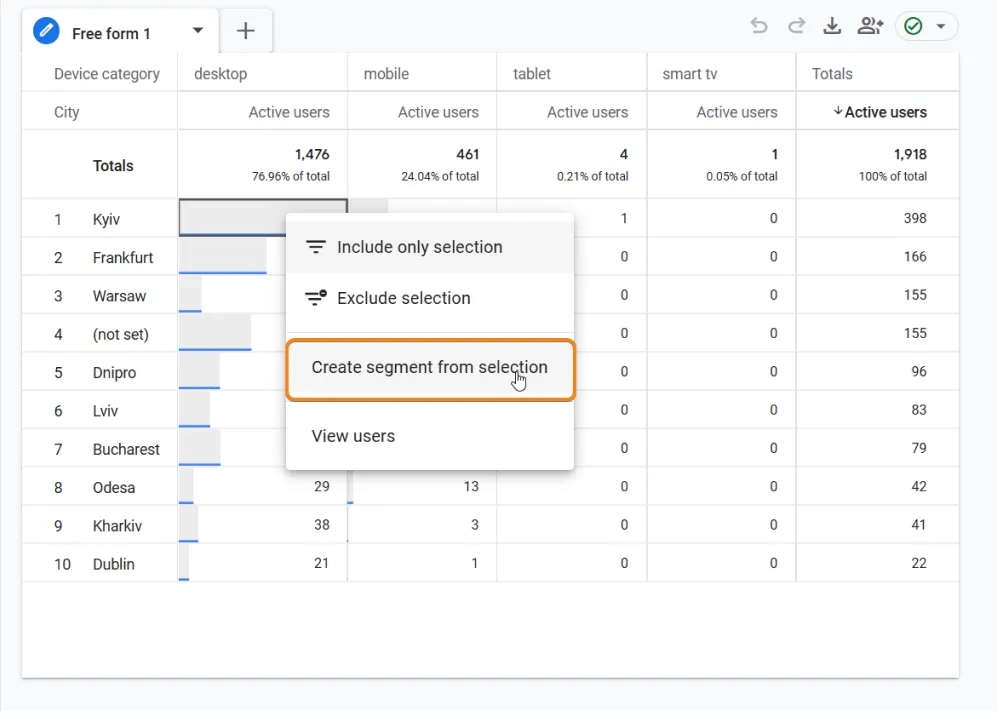
While analyzing in the Explore section, if you find an interesting group of people, you can create an Audience in a few clicks. Right-click on the desired group and select Create segment from selection.
In the window that opens, click the three dots and select Create an audience.
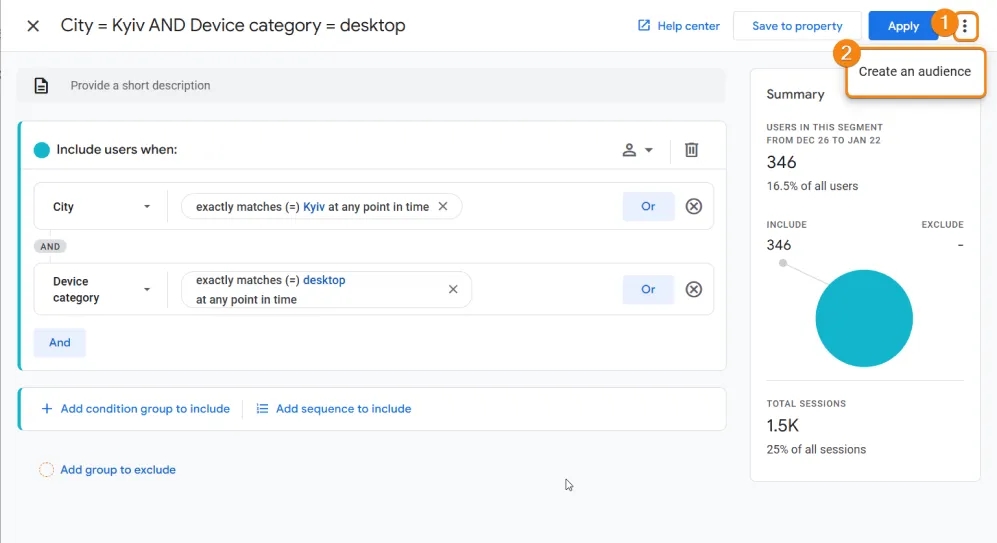
Specify the Membership duration, name the Audience, and save.
Advanced Features of the Audience Creation Editor
Sometimes you may need an Audience with much more complex conditions than those we’ve already covered: conditions that consider the sequence of user actions on the site, the time elapsed between certain actions, or exclusions of users who performed another specific action. The Audience editor has many capabilities. Let’s take a closer look at them.
Multiple Sequential Criteria for User Inclusion in Audiences
For example, let’s set up an Audience of people who viewed the article “Step-by-Step Guide to Setting Up Google Analytics 4 (GA4)” and then visited the GA4 Basics course page.
- Start with Add sequence to include.
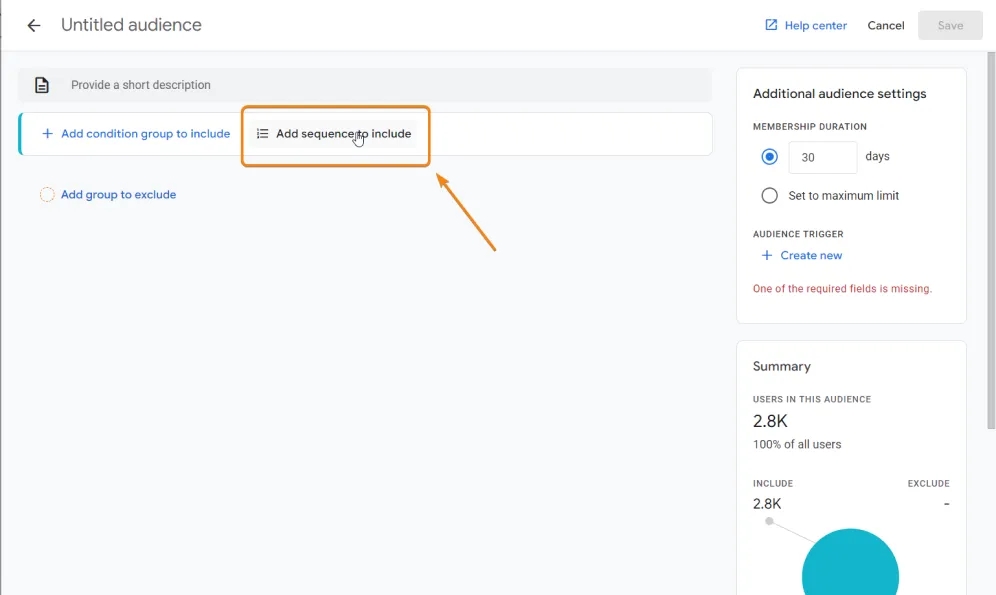
- Add the
page_viewevent - Add the Page Path and Screen Class parameter with the path to our article.
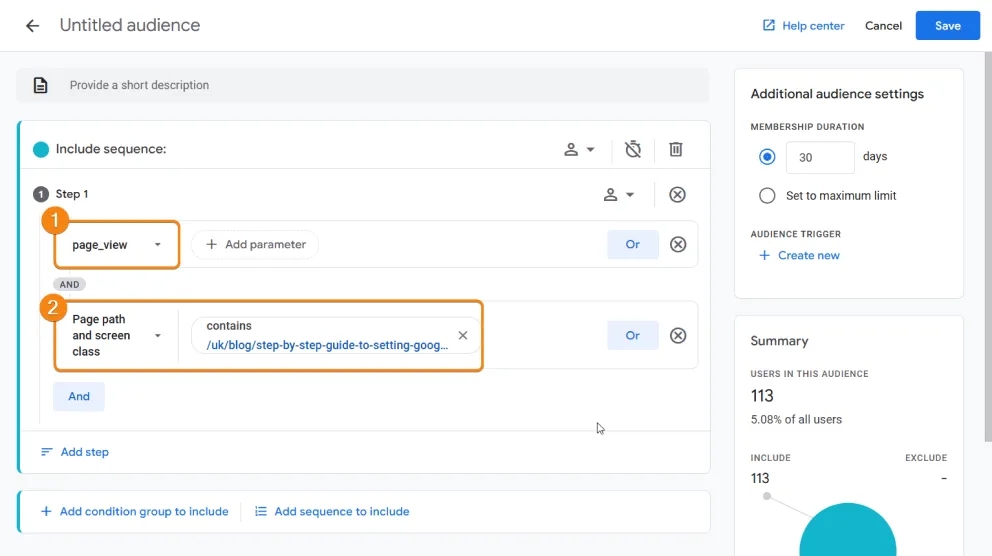
Create a new step in the sequence by clicking Add step.
- Add the
page_viewevent - Add the path to the GA4 Basics course page in the already familiar Page Path and Screen Class parameter.
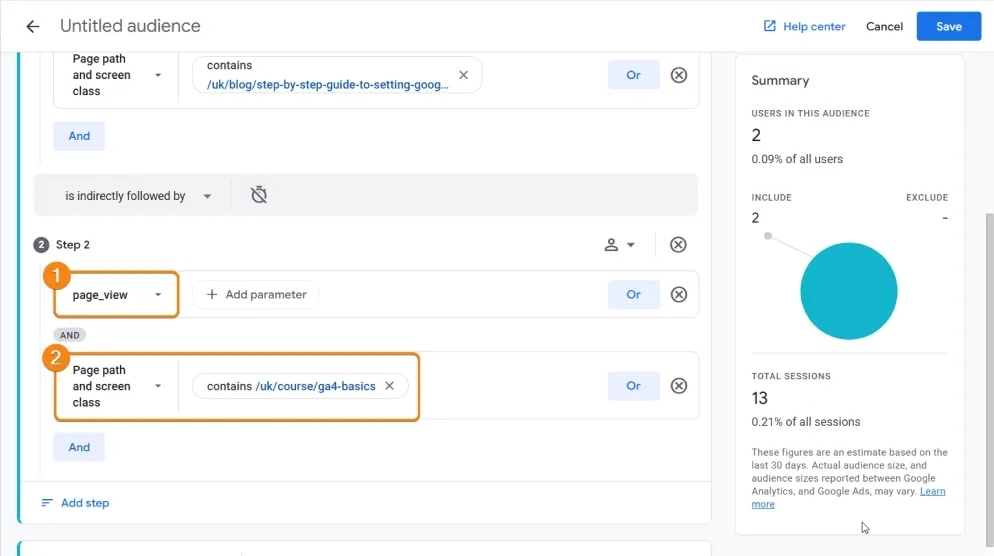
Note that in the bottom right corner, you can immediately see the number of website visitors who meet your conditions. This is very convenient, as it often prevents errors: if 0 users meet the condition, it’s worth double-checking.
In fact, the page_view event is not proof of a user’s interest in the article. Much more meaningful insights can be obtained by using a custom engagement event, which you can create yourself using Google Tag Manager.
For example, I set up such an engagement event, which is triggered from a blog article page when a user spends 40 seconds on it and scrolls 50%. In my opinion, such conditions indicate that the person is interested in reading. You can, of course, create your own conditions for such a custom event.
By the way, a separate detailed article on setting up such an event will soon appear on this blog. Don’t miss it!
Setting Time Limits for Transitions Between Sequence Stages
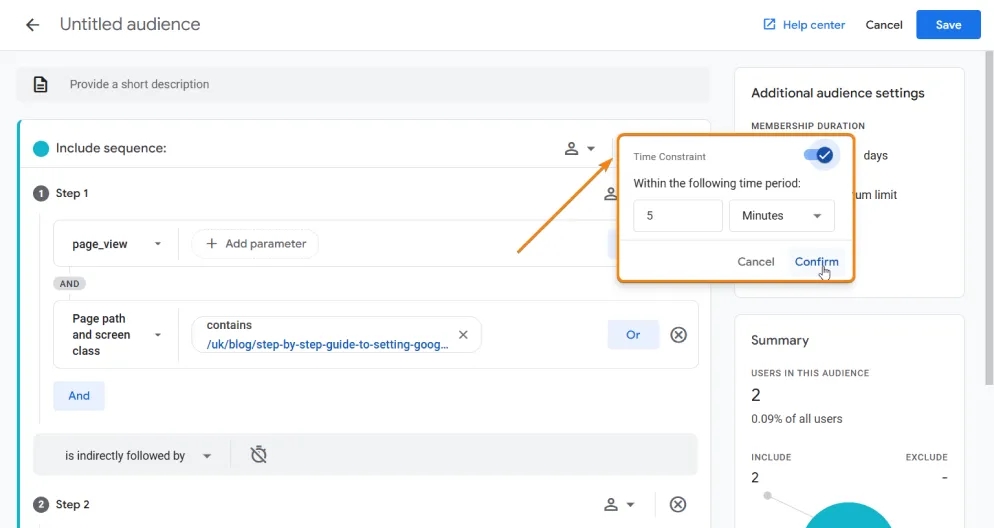
For Audiences, you can also set time frames within which conditions occurred and the time allowed for transitions between conditions. For example, you can specify that a user must view the article and go to the course page within 5 minutes. This provides more flexibility, and we can understand how quickly users engage with content and make decisions. This approach is better applied when you have many steps and want to limit the duration of the entire sequence.
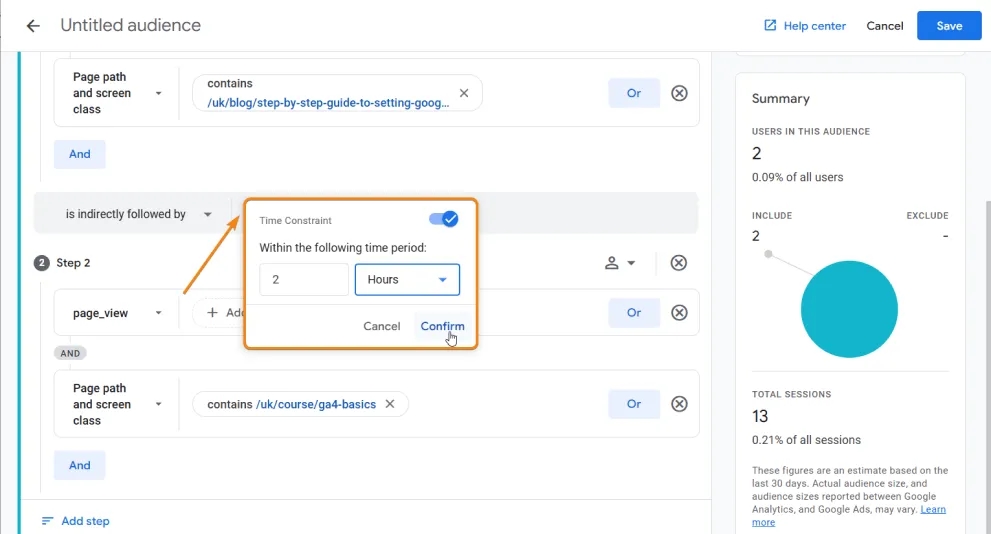
You can also set time limits for transitions from one stage to another. For example, in our case, you can specify that no more than 2 hours should pass between reading the article and viewing the course page.
Step and sequence scoping
We’re already used to the fact that many places in Google Analytics 4 use data levels:
- User level
- Session level
- Event level
The same levels apply when creating Audiences.
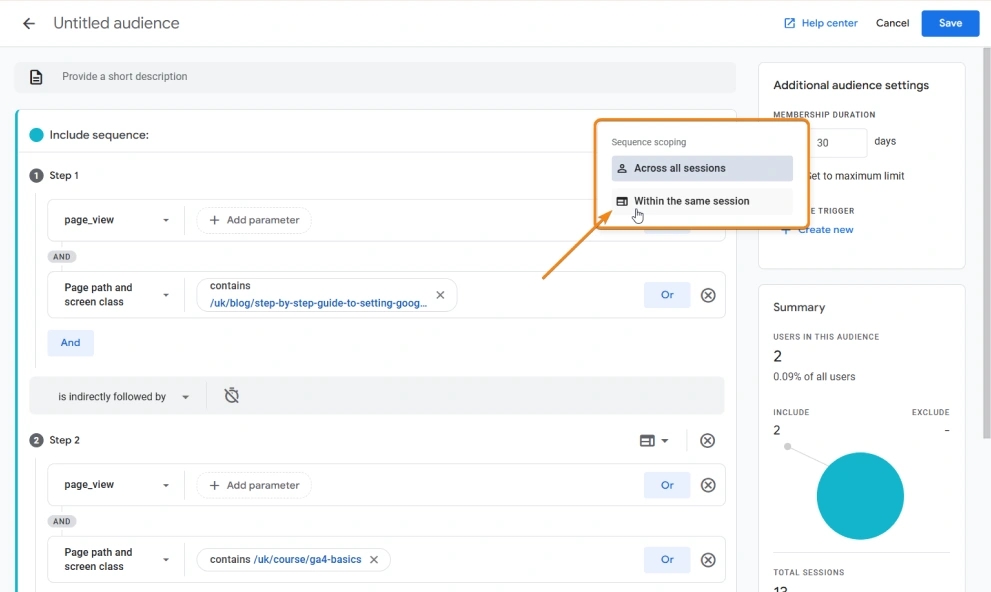
- Across all sessions: This condition is fulfilled at the user level.
- Within the same session: The condition is fulfilled within one session.
- Within the same event: The condition is fulfilled within one event.
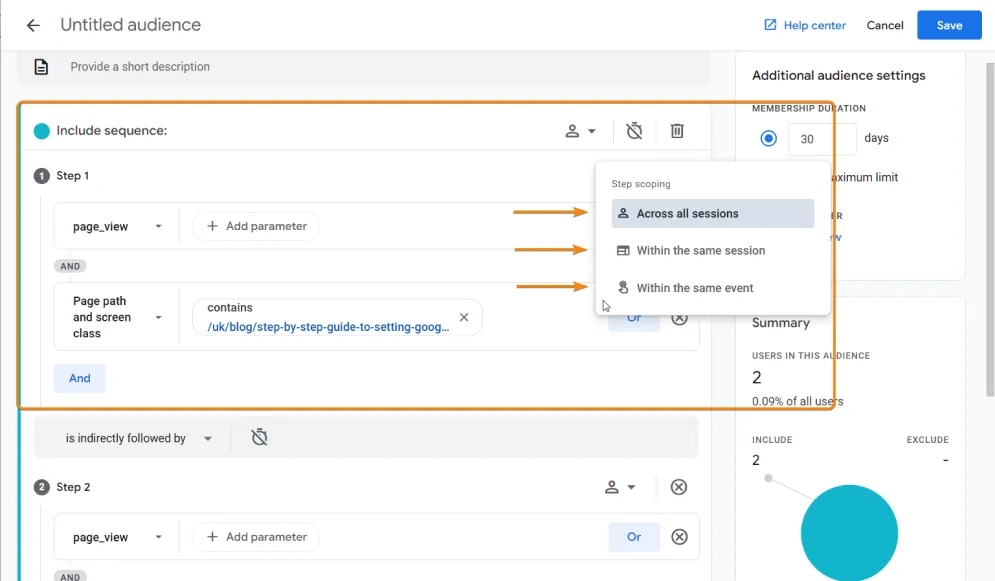
That is, for example, we can limit our sequence so that it is recorded only if it occurs within the same session by selecting the option Within the same session.
Direct/Indirect Sequence
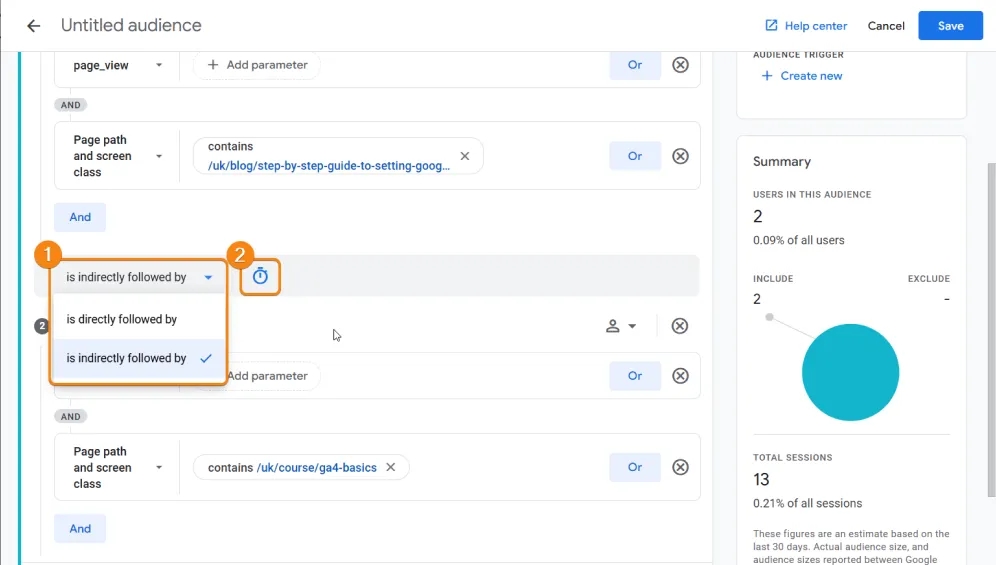
Each subsequent condition in the sequence can occur immediately after the previous one, or there can be other actions in between before the desired action occurs. The Audience creation editor allows you to choose the path that interests you. For example, you can specify that the next condition can occur not immediately after the first one but within a certain time frame.
- Is directly followed by: As the name suggests, this allows you to set a condition that the next event must occur immediately after the previous one.
- Is indirectly followed by: This allows you to set a condition that the next event must occur after the previous one, but other events can occur in between. This is the option we’ll use.
Exclusions from Audiences
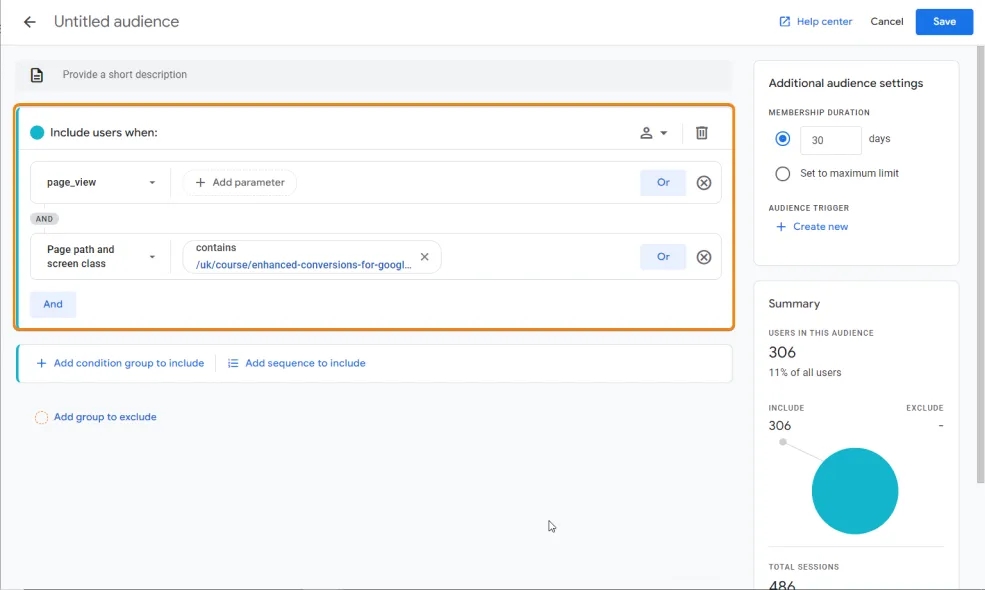
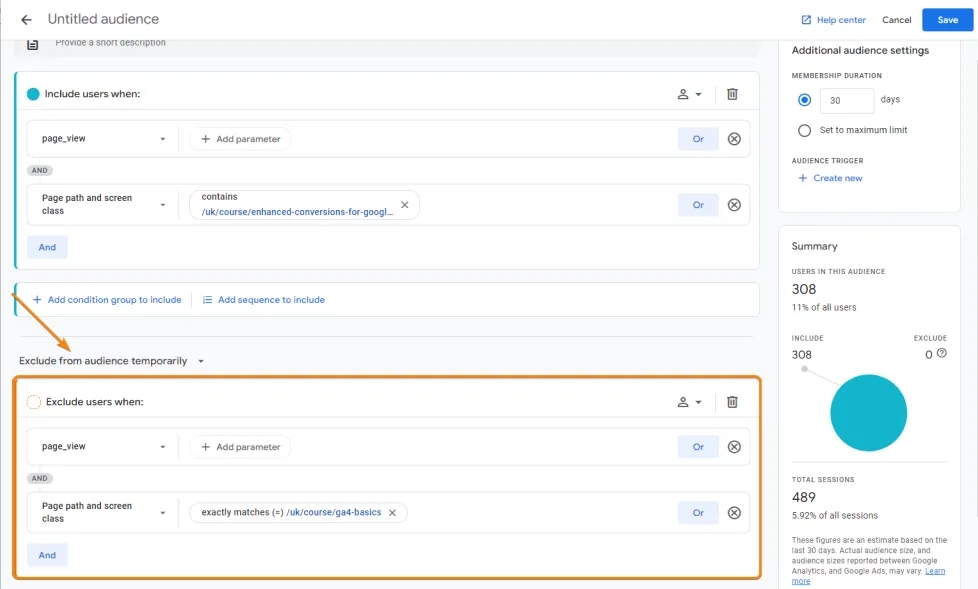
Sometimes it’s useful to exclude certain groups of users from one Audience to create another. Let’s consider an example of visiting course pages on the PROANALYTICS.ACADEMY website. For instance, we want to create an Audience of people who visited the “Advanced Conversions for Google Ads” course page but exclude those who viewed the “GA4 Basics” course page.
- Add the
page_viewevent and the Page Path and Screen Class parameter for the “Enhanced Conversions for Google Ads” course.
- Click Add group to exclude and make the same settings as above, but with the path to the “GA4 Basics” course page.
Creating Events Through Audiences
An important additional feature of the Audience editor is creating events when a user enters an Audience. This GA4 functionality allows you to easily set up complex events and key events that require a specific sequence of user actions.
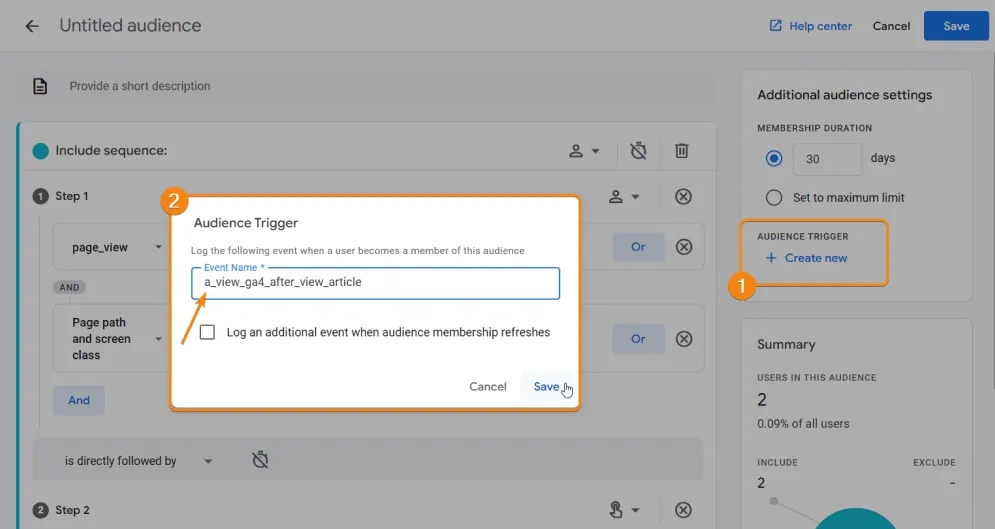
You can do this using the Audience trigger feature. This setting creates and automatically records an event when a user matches the conditions for entering an Audience.
To create such an event, click Create new -> Name the event -> Save.
Note that I added the letter “a” at the beginning as a reminder that this is an Audience-based event.
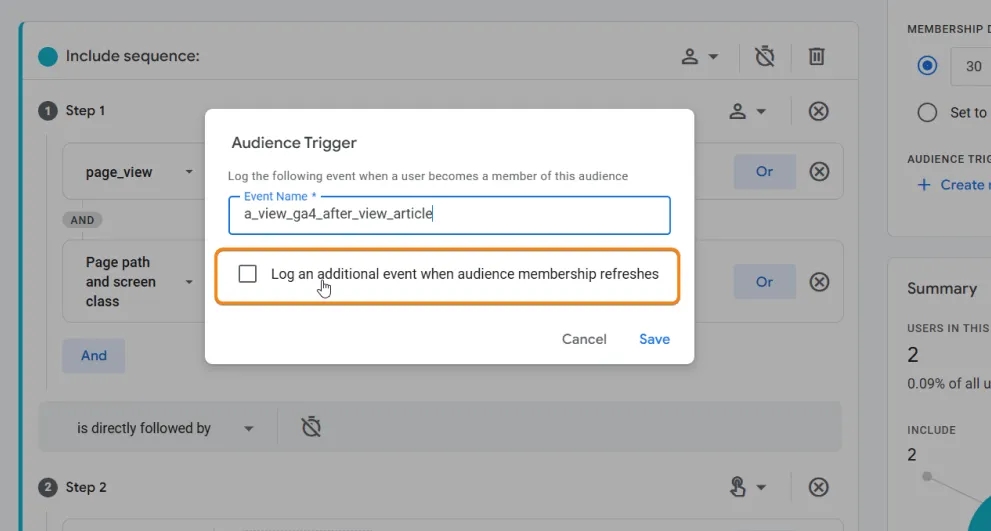
At the bottom, you’ll see a checkbox labeled Log an additional event when audience membership refreshes. It means the following:
- If the user was already in the Audience and the checkbox is enabled, the event will be recorded again.
- If the user was already in the Audience and the checkbox is not enabled, the event will not be recorded again while the user remains in the Audience.
This way, you can limit the number of events per user if a long time period is set. For example, if you set 540 days and the checkbox is not enabled, even if the user performs the action again within a year, it won’t be recorded again.
Features and Limitations of Creating Audiences
Features of Audiences
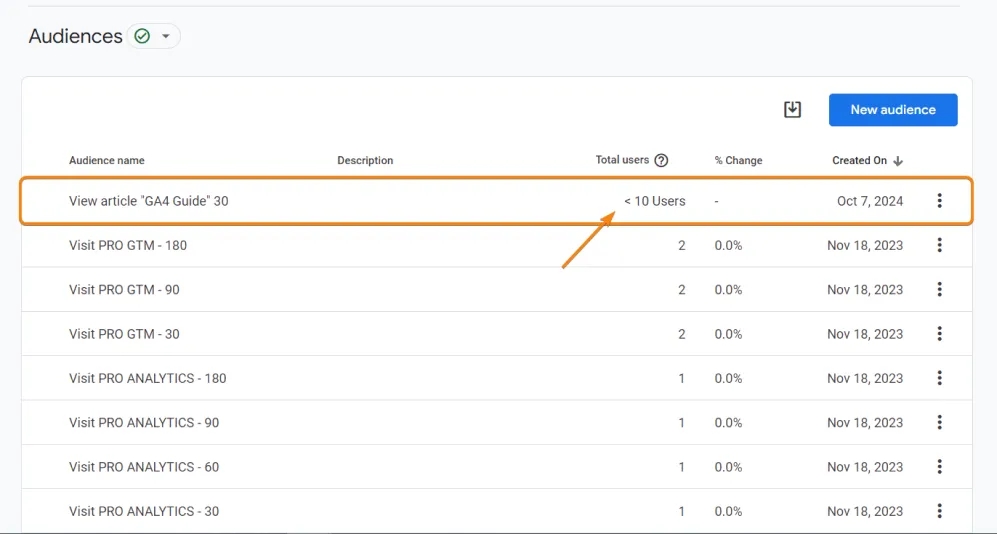
- Audiences are not retroactive. This means they do not reflect historical data. Information based on your settings starts being collected only from the moment the Audience is created. This is why, after creation, we see
<10(less than ten) in the user count, even though we saw up to 113 users in the preview during setup.
2. Related to this is another feature: we cannot change Audience settings. If you click the three dots, the Edit option allows you to edit the name or create an Audience trigger, but you cannot add new conditions, delete old ones, or modify them.
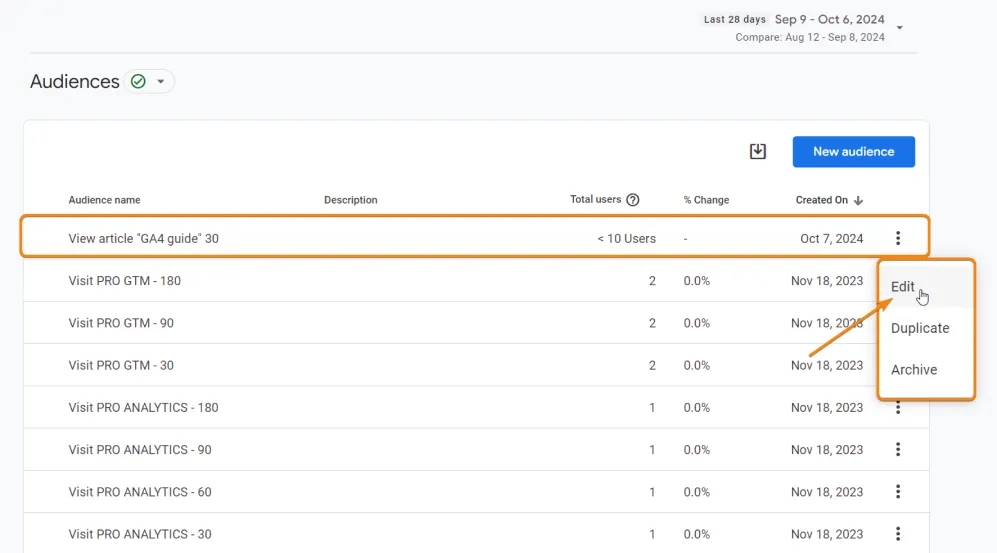
3. You might think that an Audience cannot be deleted, but it actually can. The GA4 team just called this feature Archive. However, as seen in the help screenshot, it’s not archiving but actual deletion.

Limitations When Working with Audiences
- You must have edit rights for the property where you want to create the Audience.
- For a standard GA4 property, you can create no more than 100 Audiences; for a GA4 360 property, no more than 400.
- An Audience can be published to an unlimited number of target Google Ads, DV360, SA360, Ad Manager, or Firebase accounts.
- Each Audience condition can contain no more than 500 characters.
You can read more in the help section.
Ideas for Audiences
Finally, I decided to add some ideas for your future Audiences. Of course, everything depends on the specifics of your business. Some of the suggested Audiences may work much better if you use specialized advertising tools, such as dynamic remarketing. So, this list is more for inspiration and understanding the possibilities.
I didn’t separate which Audiences are better for analysis and which are better for remarketing. I think that’s already clear.
For E-commerce:
- Added to cart/wishlist but didn’t purchase within a certain period
This is a great Audience for remarketing, especially if the product was added more than once. It’s also worth specifying a time condition—for example, not just “didn’t purchase,” but “didn’t purchase within X days.” - Made a purchase more than once within a certain period
A good Audience for loyalty programs. - Purchased a product from a specific Segment
You can remind them about related products to generate cross-sales (upselling). Additionally, you can set up an Audience for those who not only purchased but also viewed similar products. - Viewed out-of-stock products
You can notify them when the products are back in stock. - Engaged with product page content
You can set specific criteria: spent 40 seconds on the page and scrolled 50%. The time may depend on the average engagement duration on your site. - High-value customers
This is a key Audience for loyalty programs; it’s worth highlighting them separately for special offers.
For SaaS:
- Signed up but didn’t complete the required action to activate the product or didn’t choose a plan
- Viewed the pricing page but didn’t select a plan or register
- Users on the freemium version
You can advertise other paid features to them. - Completed a trial period but didn’t upgrade to the paid version
Additionally: those who were active during the trial period but didn’t purchase the paid version. - Users approaching subscription renewal date but with auto-payment disabled
- Users with high/low LTV metrics
- Active paid users
- Users who left feedback
For Informational Resources:
- Read more than 2 articles from one category
Additionally, you can specify a condition: “within X days” or “within X hours,” etc. - Regular visitors (returning users)
- Users from a specific traffic source
(social media, ads, organic search, partners) - Engaged with site content
You can set specific criteria: spent 40 seconds on the page and scrolled 50%. The time may depend on the average engagement duration on your site.
Instead of a Conclusion
The principle of “Divide et impera,” or “divide and rule,” known since ancient times, remains relevant today—especially in marketing. Thanks to Audiences in GA4, you can interact with different user groups, adapting your marketing activities to their needs. Analyzing the behavior of these groups will help you find new ideas for improving your strategy and achieving business goals. I hope this article has helped you understand how to do this in practice!
Loading comments…