
In modern web analytics, Google Tag Manager (GTM) has evolved from a simple tool for marketers into a critical component of the data infrastructure. And to help the community find answers to common questions about it faster, I decided to collect these frequently asked questions and answers in one place.
Yes, this is a compilation of things that are not usually combined, but I don’t want to generate dozens of separate articles on the same topic — I want to have one single resource for everything. A link that is always at hand. A link I can share with course students, clients, and colleagues across the market. That’s why you’ll find both fairly basic questions here, which help beginners better understand the tool, and quite deep technical topics.
The full list of questions is provided below, and you can immediately click on the one you need. For convenience, they are also grouped into logical sections.
This list includes a wide variety of questions. Some of them can be answered in two or three sentences. Others require a more in-depth explanation in the form of a separate article. Wherever possible, I provide the answer directly here. Where a topic requires a deeper dive, I give a short answer along with a link to a more detailed resource.
You can be sure that every link — whether it leads to my own materials or to content created by my colleagues in the analytics field — is worth your attention, and I fully agree with the author’s perspective.
General Questions and Basic Concepts
4. Can ad blockers or other browser extensions block Google Tag Manager?
5. Does using GTM on a project make you independent from developers?
6. Does GTM really have a negative impact on website loading speed?
GTM Implementation on Different Platforms
8. How to set up tracking on React/Vue/Angular if the page does not reload?
9. Why does the console show “refused to load script” errors for GTM?
10. Does GTM support AMP (Accelerated Mobile Pages)?
11. How to track users through an iFrame?
Diagnostics and Troubleshooting
13. Why does the Preview Mode window not connect to the site (“Not Connected”)?
14. My setup does not work (my event is not being sent). How can I understand where the problem is?
15. GTM shows “Tags Fired”, but there is no data in GA4/Facebook/{…}. Where is it?
17. Why does the standard “Form Submission” trigger not react to my form?
18. Why don’t you need to publish a new version every time when testing setups?
19. How can I check that the Google Tag Manager code is installed correctly on the site?
20. I want to test my setup before applying it in the main container. How can I test my changes?
Trigger Configuration
21. How to properly configure the Element Visibility trigger without “freezing” the browser?
23. How to configure a timer so that it does not run in a background tab?
24. Why does the built-in YouTube trigger not work on my site?
25. What are gtm.js, gtm.dom, and gtm.load?
27. The “All Pages” trigger does not work. Why?
28. I click different elements on the website, but the GTM Preview console shows nothing. Why?
Migration and Import of Settings
30. Can settings be transferred from one container to another?
32. How can I quickly copy multiple tags to another container?
Additional Frequently Asked Questions
33. I want to check a CSS selector against conditions using a Lookup Table, but it does not work. Why?
34. Can GTM be loaded before the user gives consent?
36. How can I learn more about Google Tag Manager?
37. Why are naming conventions important in GTM and what value do they bring?
38. Can the same GTM container be used on multiple websites?
39. I granted GTM access to a colleague/contractor, but they cannot see it. Why?
40. Does Google Tag Manager store any data about website visitors?
If you want to improve your GTM skills, I also recommend checking out another one of my materials — Top 14 Mistakes in Google Tag Manager and How to Avoid Them.
And for those who want to learn GTM through максимально practical, real-world tasks — I’m waiting for you on the PRO GTM course.
General Questions and Basic Concepts
Understanding how GTM works under the hood is what separates beginners from experienced specialists. That’s why questions in this category should not be underestimated.
1. What are the advantages of Google Tag Manager?
Usually, when people talk about GTM, for some reason the main advantage mentioned is the ability to install analytics or marketing codes without a developer. But this point is actually quite debatable — I’ll talk about it in more detail in question 5.
What GTM definitely does provide is greater independence of the marketing team from the technical team and faster launch of marketing activities. You can read more about GTM’s capabilities and how to get started with it in the article What Is Google Tag Manager, Why You Need It, and How to Use It in Business.
2. What is the fundamental difference between GTM and Google Analytics 4, and can you use one without the other?
If we answer very briefly, comparing tools like GTM and GA4 doesn’t really make sense at all, because they serve different purposes — and in most cases, you need both.
GTM is a tool that allows you to add and run code on a website without the help of your development team and without deep technical knowledge on your side. Most often, this is code for analytics or marketing systems, but in general, you can add almost any code.
GA4 is an analytics system used to collect, display, and analyze data about your website’s audience, how users are acquired, and how they interact with the site.
So GTM does not store data. It is simply a tool that helps you pass data from the website to the required system, for example, to GA4. This is how these systems interact with each other.
On the other hand, GTM can also be used to connect other analytics or advertising platforms, such as Facebook Ads or Amplitude. And GA4 can be installed on a website without using GTM at all.
The reason this pair is most often seen together lies in the flexibility of their interaction. Without GTM, any change in tracking logic would require a development cycle (IT deployment), whereas GTM allows marketers to make changes through a web interface.
3. What is the Data Layer, why can’t you use dataLayer =, and why does the Data Layer disappear on page reload?
This is probably one of the most complex questions in this material, and the answer deserves a fairly extensive explanation. I’ll try to give a simplified version here, but if it’s not enough for full understanding, I recommend reading the article Data Layer in Google Tag Manager.
The Data Layer is a JavaScript array used for data exchange between a website and GTM. As you can imagine, there are countless different websites — both in terms of content and the technologies used to build them. And the tag manager somehow needs to find a common language with all of them. That’s exactly why the concept of the data layer and dataLayer was created.
Next, I deliberately simplify some technical aspects to convey the core idea in the simplest way possible. Imagine the Data Layer as a queue of messages flowing into a single conversation. GTM listens to this array and reacts to every new message (push). Each time the GTM code is loaded on a page, a “chat” is created between your website and the tag manager. All messages sent using the dataLayer.push() method are delivered into this chat.
If you try to use a different approach, for example dataLayer =, imagine it as creating a new chat: the website creates a new chat but forgets to add GTM to it. As a result, GTM does not see part of the messages and may behave incorrectly.
In fact, the previous example still doesn’t tell the whole story. If we fully extend this chat analogy, using dataLayer = doesn’t just create a new chat without GTM — it also deletes the previous one. But this doesn’t change the core point: with such an implementation, GTM cannot work correctly.
As for the last part of the question — “why does the Data Layer disappear on page reload?” — the answer is quite simple. I think you’ll agree that in most cases, nobody is interested in the history of communication between your website and the tag manager. And since a new chat is created every time GTM loads on a page, the most logical thing is to clear it when the user leaves the page.
Of course, this is only a simplified explanation of the process, but I hope it helps you better understand what’s happening behind the scenes in GTM.
4. Can ad blockers or other browser extensions block Google Tag Manager?
Yes. Most ad blockers block requests to googletagmanager.com, which prevents the entire container from loading. On average, this leads to a loss of about 10–20% of data, depending on the website’s audience.
You can often find claims online that switching to Server-Side GTM with a custom domain is the solution, because it turns the script into a first-party one and often helps bypass blocking. However, this is not entirely true and should be seen only as a partial solution to the data loss problem. At the same time, server-side tag management does have other advantages, which I’ve covered in more detail here.
5. Does using GTM on a project make you independent from developers?
At one point, I also fell into this marketing trap around GTM that circulates in the industry. But now, based on my experience, I try to teach my students and colleagues that there is a big difference between the statements “I can set up analytics on a project without a developer using GTM” and “using GTM on a project makes you independent from developers.”
As always, the difference lies in the nuances. I really can set everything up through GTM without a developer — but only until the first design change. And when the design changes, CSS selectors very often change as well.
Does this mean that using GTM makes no sense? Of course not.
On small projects that don’t have — or can’t afford — a developer, GTM allows a marketer, analyst, or PPC specialist to install analytics codes independently. And even the fear that a design change may require fixing these setups shouldn’t scare you, because this is still better than working without analytics at all.
On larger projects with a dedicated development team, in an ideal world the marketing specialist working with GTM should collaborate closely with developers and use the dataLayer to improve tracking accuracy. With proper collaboration, this reduces the load on the development team while also solving the data accuracy problem, which would otherwise depend on the website’s design. I explained how this should work in question 3.
To sum it up: although GTM does allow you to solve many tasks without a development team, it truly shines when it’s used in collaboration with developers.
6. Does GTM really have a negative impact on website loading speed?
Oh, this is probably the question I hear most often — especially given how much I interact with SEO teams. The short answer is: “it depends.” But in most cases, the impact is not critical and is more than compensated by the benefits of using GTM.
Before giving a full answer, it’s worth understanding why this question comes up in the first place and what arguments are usually used in this debate.
Typically, it starts with someone noticing that a website loads slowly, running PageSpeed Insights
(or a similar tool), and seeing that loading the GTM library appears to have a significant impact on page speed. Then the GTM code is removed from the site, “before and after” screenshots are shown, and everything looks great without GTM. And at first glance, this logic seems sound: removing the GTM code did improve loading speed. But, as always, the devil is in the details.
What is GTM’s function? Installing marketing and analytics codes on a website without a developer.
So what does removing GTM actually mean? In reality, it means removing not only the GTM code itself, but also dozens of other analytics and marketing scripts that were loaded through it.
So can the “before and after” test described above really answer the question “Does GTM negatively affect website loading speed”? Of course not. A proper test would require not just removing GTM, but placing all the scripts previously managed by GTM directly into the website’s code and only then comparing the results.
Spoiler: with properly optimized GTM settings, this final test will most likely show no noticeable negative impact from GTM on website speed. In some cases, it may even show better results for the GTM-based setup.
You can read more about proper testing approaches for measuring GTM’s impact on page speed here.
7. I can collect data for GA4 Ecommerce setup directly from the page — why does everyone still recommend using a developer and the dataLayer?
I’ve already partially addressed this question when discussing whether GTM really makes us independent from developers. But in short:
Technically — yes, you can extract the product price, name, or SKU directly from the page using JavaScript. And this may feel like a win, because you don’t have to wait for a developer to free up time. But in practice, this is a delayed-action mine.
Design is a variable, while the dataLayer is a constant. As I mentioned earlier, your independence from developers ends the moment someone changes a button’s CSS class or redesigns a product card. If you scrape data from the DOM, tracking will break. If you use the dataLayer, analytics won’t even notice the design change.
Add to this the issue of data completeness, and it becomes clear why the dataLayer is the only correct solution. Product IDs, categories, or other required parameters may not be visible to users on the page at all, but a developer can retrieve them from the database and pass them into the dataLayer for you.
Yes, on small projects, quick-and-dirty DOM scraping via GTM is better than nothing. But on large projects with a dedicated development team, this approach is considered bad practice.
In an ideal world, you work together with developers: they provide a solid foundation via the dataLayer, and you use GTM to manage tags flexibly. Only this kind of collaboration ensures that the numbers in your reports can truly be trusted.
GTM implementation specifics across different platforms
In general, GTM is built in a way that allows it to work perfectly well on websites built with different technologies, without any major special considerations. However, in some cases, such specifics do exist — and they can significantly affect the implementation process.
8. How do you set up tracking on React/Vue/Angular if the page does not reload?
SPA (Single Page Application) websites are becoming increasingly popular, and of course you need to take their specifics into account when working with GTM. More precisely, it’s better to say “specific feature,” because in practice there is just one: in SPAs, navigation is emulated via the History API. This means that, in the browser’s traditional sense, the page loads only once — the very first time — and as a result, the standard Page View trigger fires only once.
Although GTM can listen to the popstate event via the History Change trigger and thus track page views, in reality most analytics systems today handle this logic on their own side. For example, in GA4 this is handled by Enhanced Measurement, which automatically tracks history changes.
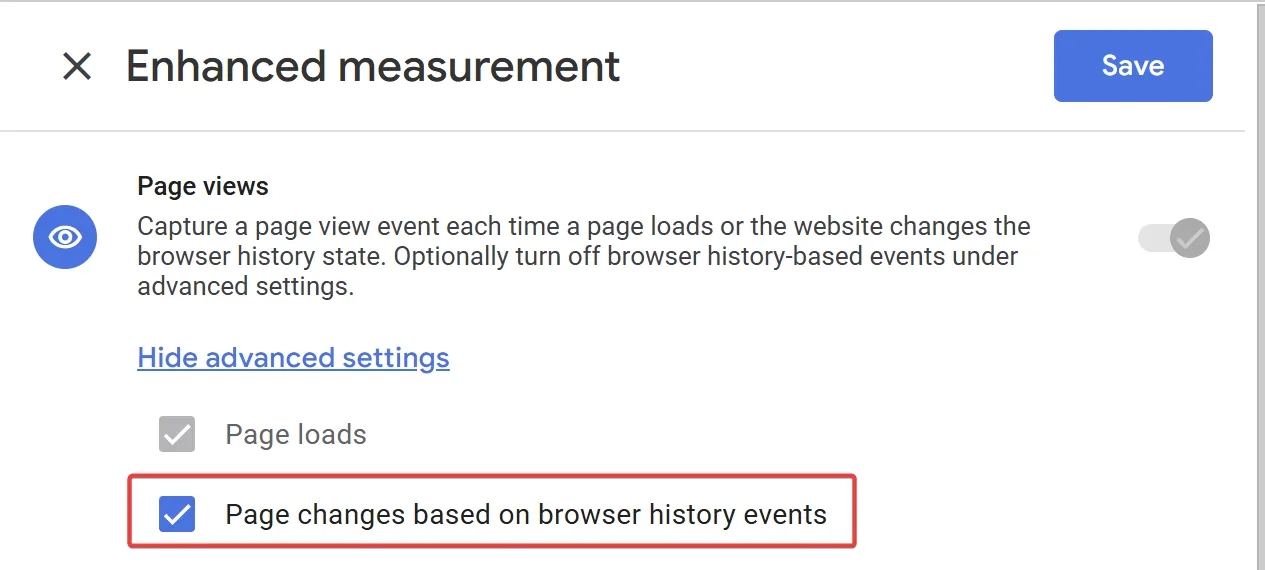
Facebook also has built-in mechanisms for tracking page views on SPA websites. That’s why the History Change trigger is usually only needed when working with systems that “lag behind” in terms of tracking modern technologies.
So it seems like SPAs aren’t that scary and everything has already been thought through for us? In most cases — yes. But there are still two important nuances:
- Race conditions.
When the URL changes, there are cases where the page content — for example, the title — hasn’t updated yet. If this happens on your site, keep in mind that the History Change trigger fires instantly, which can lead to chaos in page-level analytics. In such cases, it’s better to ask developers to push a custom event to the Data Layer after the new content has fully rendered. - Issues with scroll and time-based triggers.
As we’ve already discussed, in SPAs navigation is emulated via the History API, which means that some GTM triggers that rely on “classic” page loads may work incorrectly. Let’s look at the scroll trigger as an example. In the screenshot below, you can see that its configuration includes an activation condition tied to the page load stage.
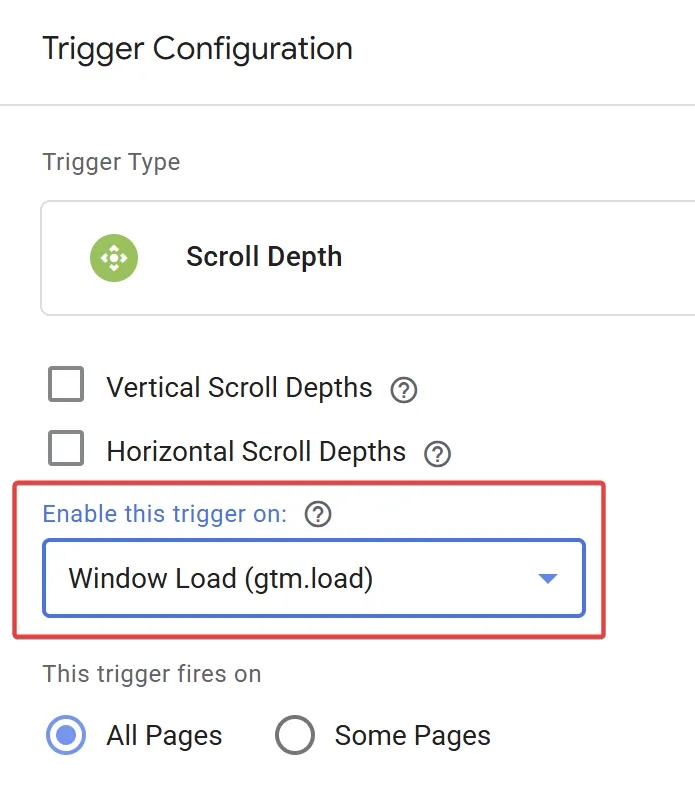
Think of it this way: at that moment, GTM calculates the height of the page in order to determine which scroll thresholds the user reaches. For the first page, everything looks fine. But let’s go further. In a traditional setup, when the next page loads, GTM would recalculate the page height and set new thresholds. But in an SPA, there is no equivalent gtm.load event (as shown in the screenshot). This means the page height is never recalculated, no matter how many pages the user navigates through. As you can imagine, even if you collect such data, it cannot be trusted. So be careful with SPAs and don’t forget about this “nuance.”
9. Why does the console show “refused to load script” errors for GTM?
If you open the console and see red errors similar to the one shown in the screenshot below, with the message “Refused to load the script… because it violates the following Content Security Policy directive” — congratulations, you’ve run into CSP (Content Security Policy).
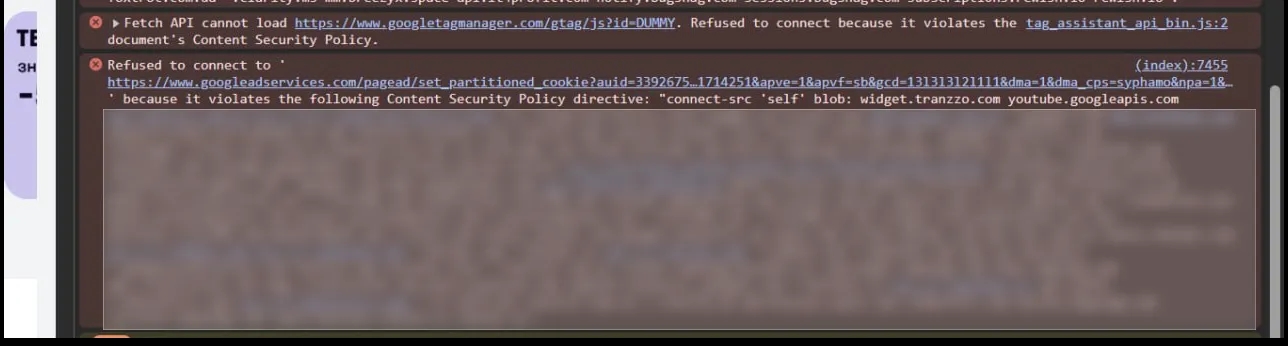
Simply put, CSP is a kind of “security checkpoint” that tells the browser: “Here’s the list of scripts I trust — everything else must not be executed.” This list is configured by the website’s development team and significantly improves security. But for marketing or analytics specialists, it often becomes a headache, because the browser blocks the GTM container itself or individual tags inside it.
How do you “fix” this? Send your development team a link to the official documentation from Google, Facebook, or any other system you’re using, where it clearly states which domains need to be added to the whitelist (script-src, img-src, connect-src, and so on).
And remember: if you see these errors, data is either not being sent to analytics at all, or it’s being sent incorrectly. Ignoring this will only cost you more later.
Recently, Tag Assistant has also started notifying you when CSP restricts the operation of your Google tags. However, since this issue can affect more than just Google tags, I still recommend relying on the browser console when diagnosing CSP-related problems.
10. Does GTM support AMP (Accelerated Mobile Pages)?
Yes, but it requires a separate container type — an AMP Container. A standard web container will not work due to JavaScript restrictions in AMP.
It’s also important to keep in mind that AMP imposes strict limitations on custom JavaScript. Many GTM features (for example, Custom HTML tags) are not available in AMP containers.
If you’re currently working on analytics setup for an AMP website, I recommend checking out this material by David Vallejo.
11. How can you track users inside an iFrame?
This is one of those questions that makes analysts go gray prematurely. If you’ve ever tried to “catch” an event from a form loaded inside an iFrame from another domain, you know exactly what I’m talking about. And if you need to solve this problem right now, you can use the solution shown in this video.
Warning. The solution from the video will only work if you or your developer have access to the code both inside the iFrame and on the main website. If you’re using a third-party service (for example, a calendar or form) that doesn’t allow you to inject code and doesn’t support postMessage, then tracking such interactions is simply impossible. Your only option is to contact their support team.
Diagnostics and Troubleshooting
The ability to diagnose a problem is more important than the ability to set up a tag.
12. Why does the site open in a new window in Preview Mode? Can it be set to open in a neighboring tab?
Honestly, I hear this question very rarely. Most people simply assume that it can’t work any other way. But whenever I see someone struggling with multiple windows, I always show them how to configure Preview Mode so the site opens in a neighboring tab — and people are always happy and never go back to the old approach. Especially since the setup is extremely simple: you just need to install the official Google extension — Tag Assistant. No additional configuration is required.
By the way, this same extension also allows you to easily verify that GTM, Google Tag, and other Google marketing and analytics codes are installed correctly on your site. So I recommend it for two reasons at once.
13. Why doesn’t the Preview Mode window connect to the site (“Not Connected”)?
There can be many reasons for this, and each case may have its own: third-party cookie blocking, browser extensions, network issues, and so on.
That’s why I’ll just list the things you should check first:
- Browser: Safari, Brave, and other “privacy-focused” browsers block trackers by default. Use Chrome.
- Extensions: AdBlock, Ghostery, uBlock Origin, and similar tools block the
gtm.jsscript. Disable them or add the site to exceptions. - Cookies: GTM Preview uses cookies to communicate between the interface and the site. Check whether third-party cookies are allowed in your browser settings. Incognito mode sometimes blocks them by default.
- CSP: I covered this point in more detail in the question “Why does the console show ‘refused to load script’ errors for GTM?”
Of course, this is not a complete list, but based on my experience working with PRO GTM students, I can confidently say that it covers about 80% of cases.
14. My setup doesn’t work (my event is not being sent): how can I understand what the problem is?
Yes, this is a very broad question, but I’ll try to describe a short pattern here that always helps me.
- First of all, switch to Preview Mode.
- Perform the action on the site at the moment when your event should be sent.
- In Preview Mode, find the event you need in the list on the left and click on it. In my case, I’m demonstrating this using a button click, so I’m looking at the Click event.
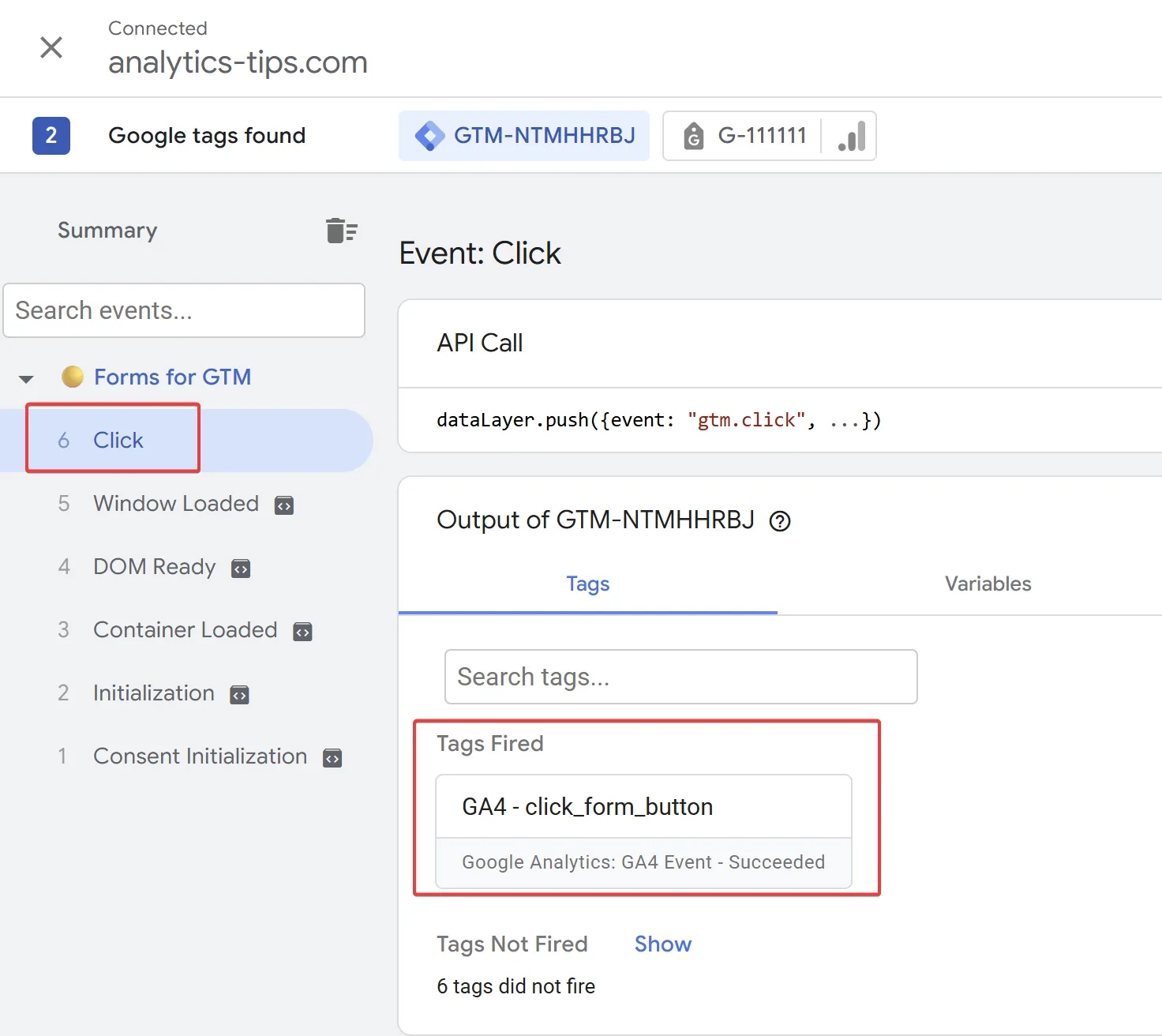
4. If after that you see your tag in the Tags Fired section — as in my screenshot above, GA4 – click_form_button — but the event still doesn’t arrive, read the answer to the next question. If your tag is in Tags Not Fired, then you should look for an error in your trigger configuration.
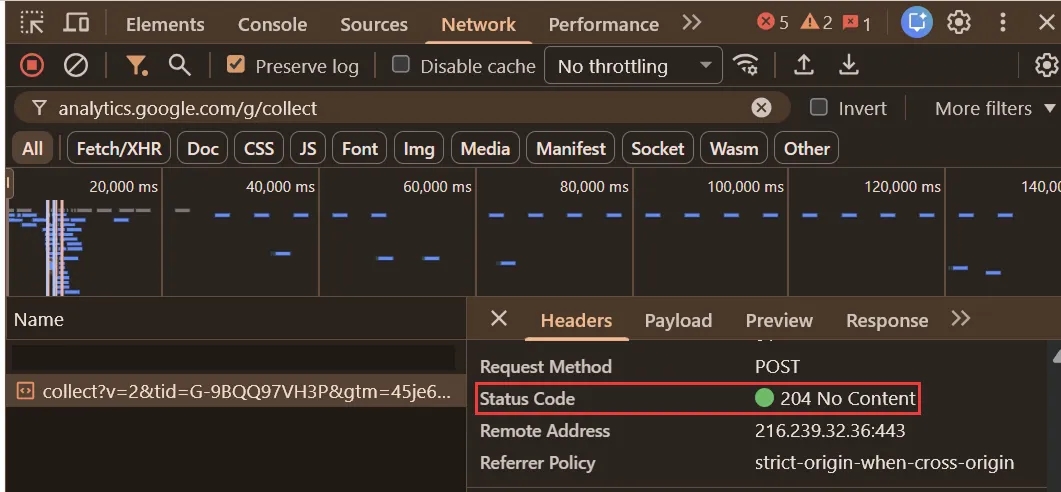
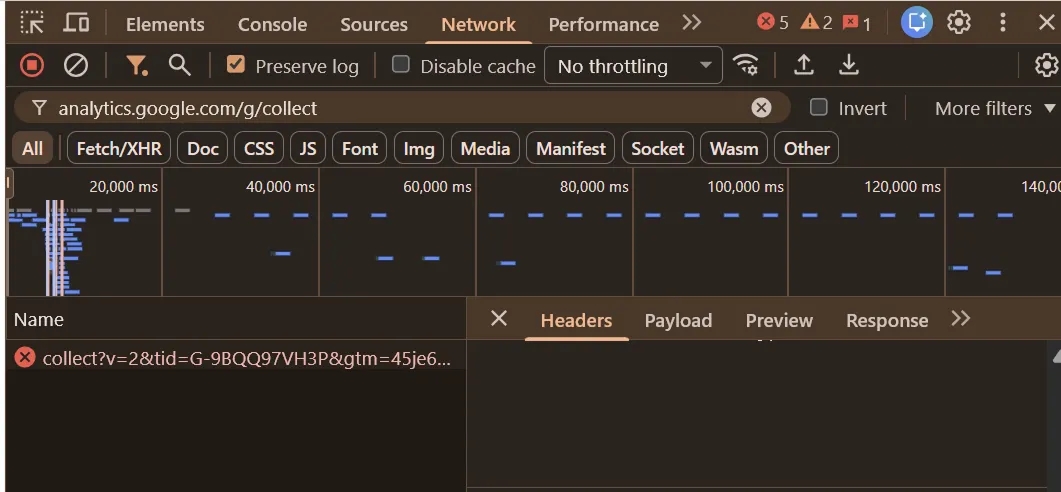
- If the request is red (Blocked or Canceled), check the error description and look for the cause. Most likely, the issue is in the tag configuration.
16. Why are Click ID or Click Element equal to null when clicking? I’ve set up a click on a button, but it doesn’t always fire.
Usually, tracking button clicks is one of the simplest setups in GTM, but even here there are nuances. Take a close look at the following code:
<button type="button" id="add-button">
  <i class="fa fa-shopping-cart"></i>
  <span class="hidden-xs hidden-sm hidden-md">
    Add to Cart
  </span>
</button>
This is the code for an “Add to Cart” button. And if you need to track clicks on it, a beginner’s first reaction is usually to use a trigger like this:
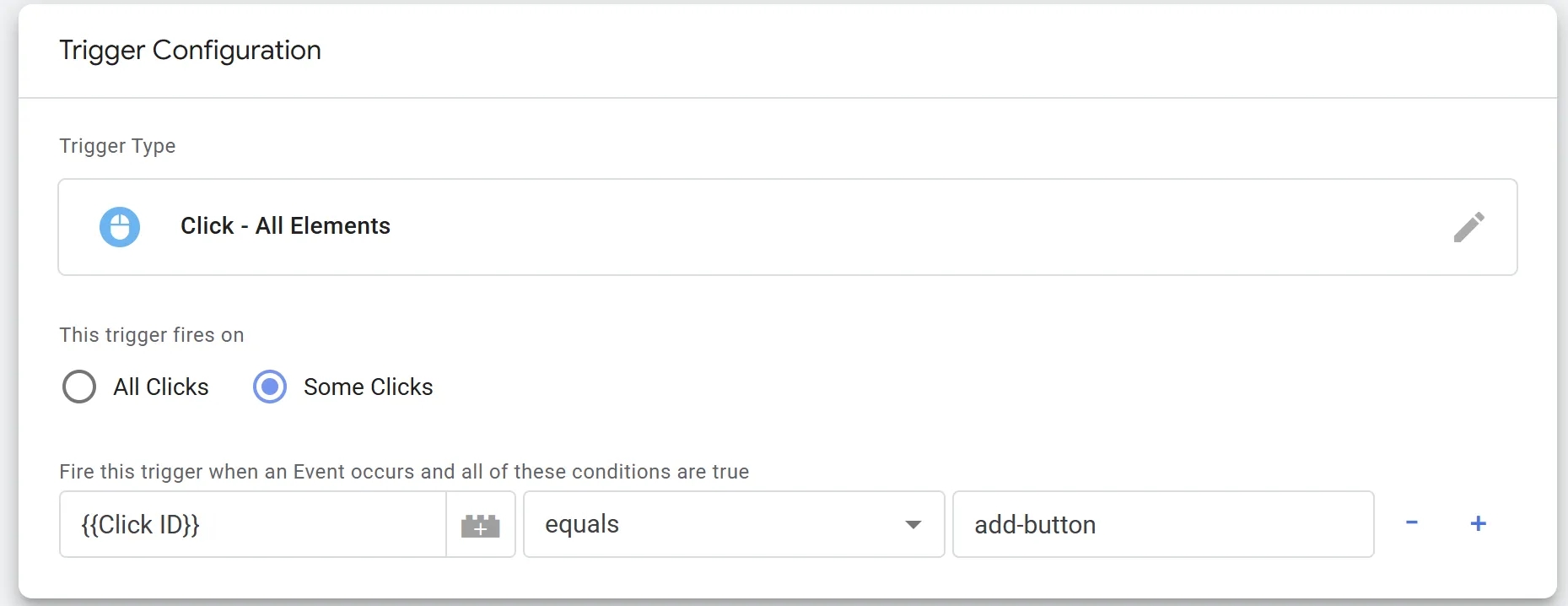
But this setup will work, at best, only about half the time. That’s because the button consists of multiple elements, and this configuration covers only one of them. Here’s what will actually happen visually:
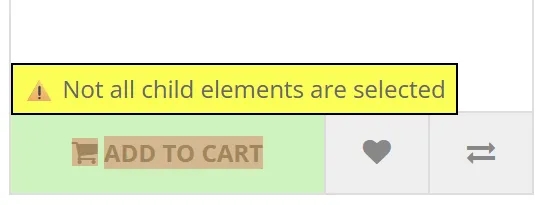
The green part of the button covers the areas where clicks will generate an event, while the light red part shows where the event will not be sent.
The screenshot above, where I showed which part of the button sends the event and which does not, was created using the PROANALYTICS extension. I built this extension to help my students navigate such tricky cases more easily. It also makes working with reports in GA4 and Google Ads more convenient and is completely free. You can read more about its features here.
The correct setup in this case should look like this:
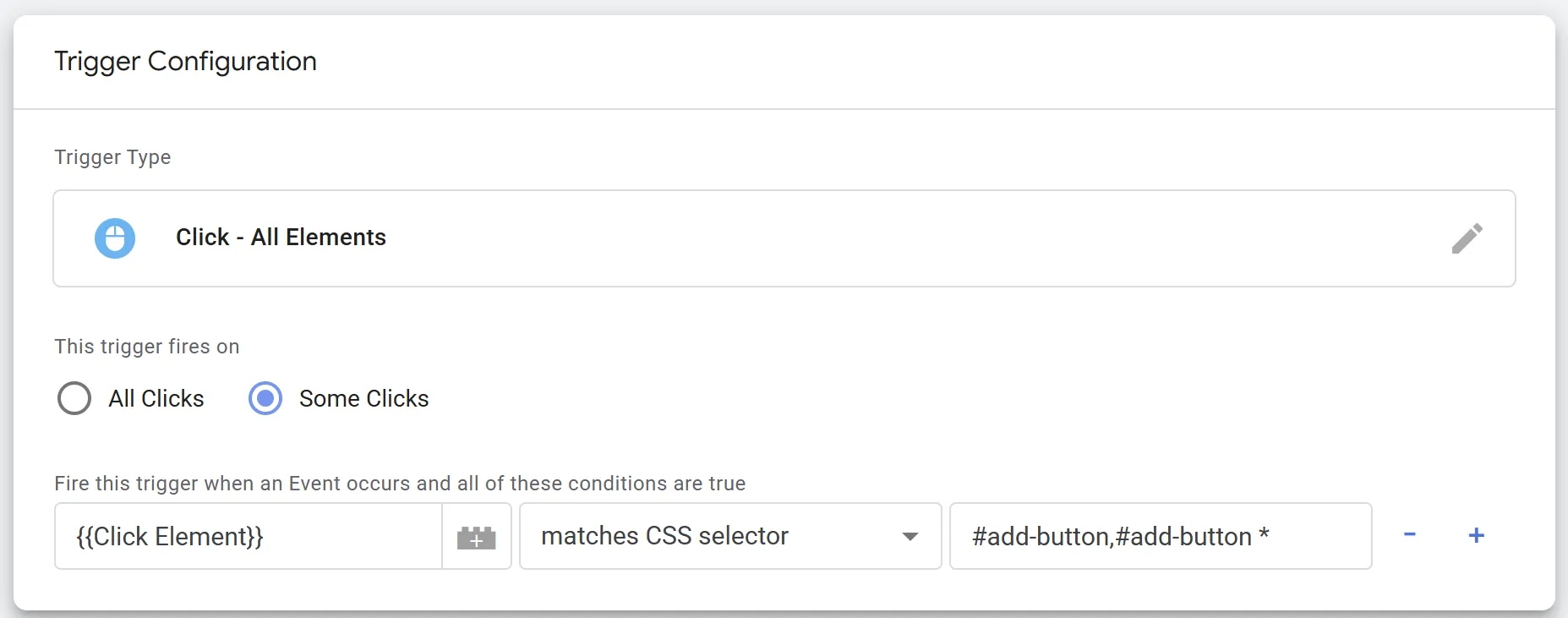
For a more detailed explanation of the Click – All Elements trigger and CSS selectors, check out my article Tracking clicks on website elements using Google Tag Manager.
17. Why doesn’t the standard “Form Submission” trigger react to my form?
Modern forms use AJAX and other technologies that the standard Form Submission trigger may not cover. That’s why, for tracking forms, you should use the following algorithm:
- If a
formSubmitevent fires when the form is successfully submitted, use the Form Submission trigger. Make sure to check whetherformSubmitalso fires on unsuccessful submissions. - If one of the conditions in step 1 is not met, but a new element appears after submission, use the Element Visibility trigger.
- If no new elements appear, try to determine whether it’s an AJAX form. If it is, use this method.
- If none of the above options work, you’re left with either writing a technical task for a developer or becoming a bit of a developer yourself and setting up tracking using validation logic.
18. Why don’t you need to publish a new version every time you test your setup?
This is one of those questions that saves hundreds of hours of work and keeps your container’s version history free of “junk.” Many beginners think GTM works like regular site code: change — save — publish. But that’s a path to chaos, where the version history fills up with entries like “test 1,” “test 2,” “this one will definitely work,” and so on.
Publishing is the final step, not the working process. GTM separates the Workspace from the Live Version. Preview Mode works specifically with your workspace. And that’s exactly where you should be working.
So the correct workflow looks like this:
- Make changes to tags/triggers.
- Click Preview.
- Check everything in Tag Assistant (whether tags fire and what data is being sent).
- If something is wrong, go back to GTM, fix it, and click Preview again.
- Only when everything works perfectly do you click Submit and publish a version with a clear description (for example, “Contact form tracking setup for GA4”).
19. How can I check that the Google Tag Manager code is installed correctly on the site?
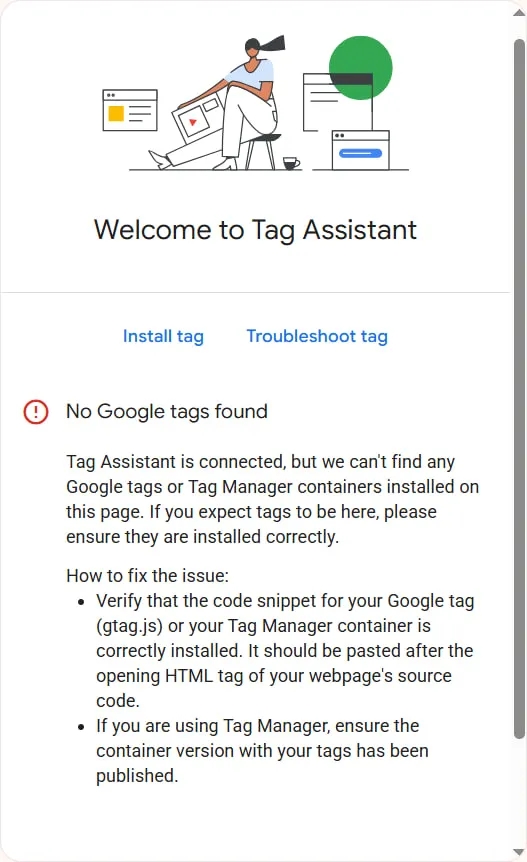
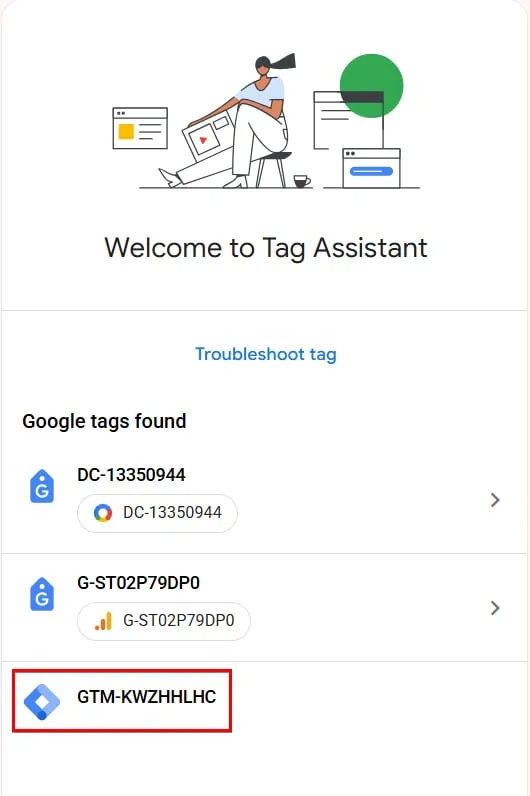
The easiest way is to use the official Google extension — Tag Assistant. Just click it after installation, and you’ll either see something similar to what’s shown in my first screenshot — which means something went wrong with the GTM installation — or you’ll see your GTM ID without any warnings, as in the second screenshot, which means everything is set up correctly.
20. I’d like to test my setup before applying it in the main container. How can I do that?
There’s no point in being afraid to change the main container, because none of your changes are applied immediately. You always have the option to test everything first in Preview Mode.
If you don’t know how to use Preview Mode, that’s a different issue altogether. In that case, I’d recommend postponing any work in GTM and investing as much effort as possible into learning this mode — because it’s exactly what will protect you from problematic configurations.
Trigger Configuration
21. How can you properly configure the Element Visibility trigger without “freezing” the browser?
This is a problem people usually don’t think about until it actually happens. Careless use of the Observe DOM Changes option can indeed cause performance issues for end users. This option запускає a MutationObserver, which can consume a significant amount of CPU resources.
To avoid overloading the browser:
- Use it only for dynamic content: enable this option only when an element is physically added to the page’s DOM without a page reload (for example, when a popup appears or a success message is shown).
- Scrolling is not a DOM change: if an element already exists in the DOM but is simply located “below the fold,” the Observe DOM Changes option is not needed. GTM will detect it on scroll anyway.
- Limit the pages: do not allow a trigger with this option enabled to run on all pages (All Pages). Activate it only on pages where such an element can theoretically appear.
22. How can you fire a tag only after multiple conditions are met (for example, 50% scroll + 30 seconds on site)?
Use the Trigger Group feature. It waits until all triggers added to the group have fired, and only then activates the tag. Practical examples can be found here.
Nuance: a Trigger Group fires only once, when all conditions are met. If you need repeated firing, this will require more complex logic.
23. How can you configure a timer so that it doesn’t run in a background tab?
The standard GTM timer continues to run even when the tab is inactive. For accurate tracking of active time, you need to use Custom JavaScript. You can find an example of such a solution here.
24. Why doesn’t the built-in YouTube trigger work on my site?
For the trigger to work, the iframe video URL must include the enablejsapi=1 parameter. If the video is embedded without this parameter, GTM will not be able to “listen” to the player. It should look like the example shown in the screenshot below.

If this parameter is missing, your developer needs to manually add it to the embed code or use a script that automatically appends it to all videos on the page.
I’ve written more about video tracking with GTM here.
25. What are gtm.js, gtm.dom, and gtm.load?
These are internal GTM events:
- gtm.js = Page View (the GTM script has started running).
- gtm.dom = DOM Ready (the HTML has been fully built).
- gtm.load = Window Loaded (all images and scripts have finished loading).
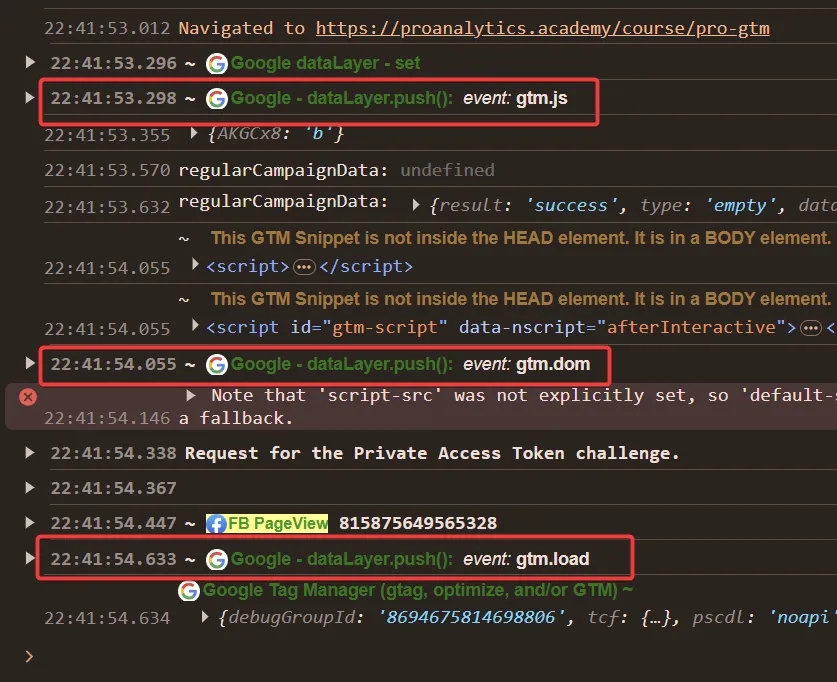
But here are the same events on the same page with a slow internet connection:
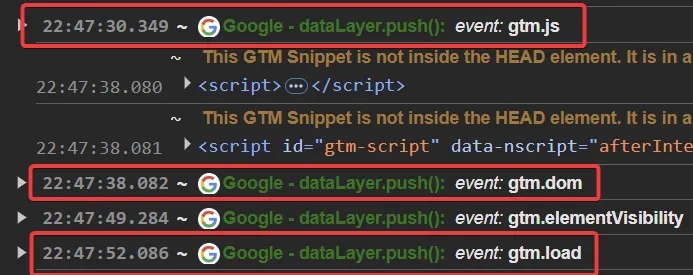
Now the difference between the first and last event is 22 seconds. That’s your answer.
The earlier you fire your analytics code on the site, the more data you’ll usually be able to collect. And in most cases, this strategy is the best one.
27. The “All Pages” trigger doesn’t work. Why?
This usually happens when the developer (or you) places the Data Layer snippet below the Google Tag Manager container code. This guide explains it in more detail.
28. I click on different elements on the website, but the GTM Preview console shows nothing. Why?
This is a common beginner mistake. Enabling built-in click variables alone is not enough to start tracking anything.
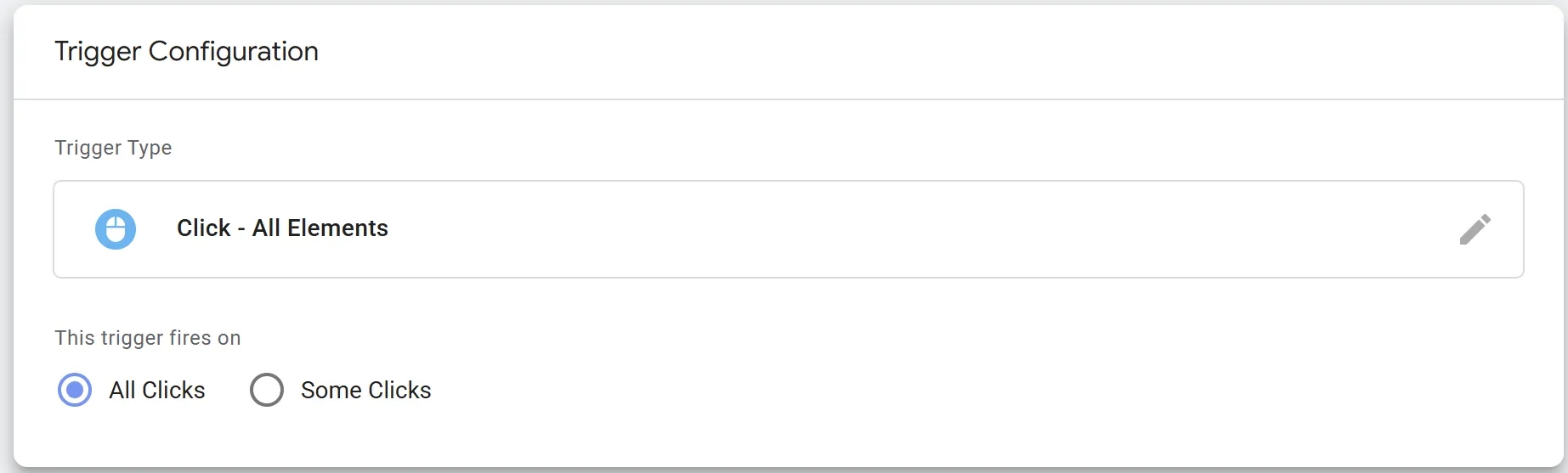
If Preview Mode (Tag Assistant) opens but doesn’t register clicks, the problem is usually that you haven’t created any trigger responsible for clicks. GTM is not a spy that records every action by default. For it to start registering Click events in the left panel of Preview Mode, your container must have at least one trigger of the Click – All Elements type. Until such a trigger exists, GTM simply ignores these actions to avoid overloading the browser.
Create a trigger like the one shown in the screenshot — even without attaching a tag — and GTM will start detecting clicks.
Migration and Settings Import
29. Do you need to remove gtag.js when switching to GTM? Is it okay to send events from GTM if Google Tag is already installed in the site code?
This is a classic question where the answer is: “It will work, but it’s better not to do it.” If you keep both gtag.js and GTM at the same time, you’re manually creating a risk zone for data duplication.
Technically, the site won’t break if both tools remain in the code, but you’ll end up with a “zoo” of configurations and analytics setups and make your own life more complicated. It’s best to leave just one solution in place (and in most cases, that should be GTM).
30. Can you transfer configurations from one container to another?
Yes, via the Export / Import feature (JSON file). It’s located in the Admin section at the container level.
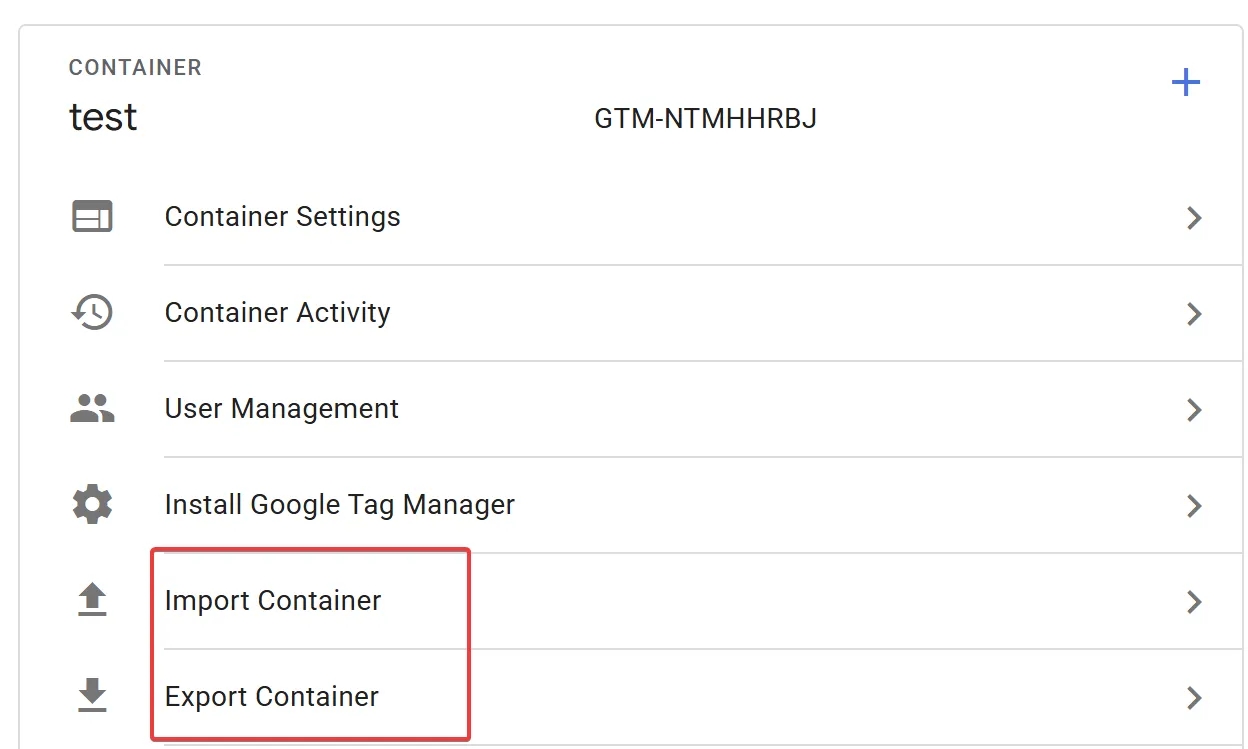
You can also use the GTM Tools service. I’ve written more about this service in the article “Speeding up Google Tag Manager setup with GTM Tools.”
31. I’m starting to work on a new project, and it turns out the company only has read-only access in GTM. The email with full access is missing. How can this be resolved quickly?
Use the container Export / Import functionality or the GTM Tools service mentioned in the previous question. These options are available even with read-only access.
Additional Frequently Asked Questions
33. I want to check whether a CSS selector matches conditions using a Lookup Table, but it doesn’t work. Why?
This is a classic trap that most PRO GTM students fall into. A Lookup Table checks only for exact matches. When working with CSS selectors, however, we usually rely on the Matches CSS Selector condition — and that’s a completely different type of logic.
If you need to return different values depending on the selector, you’ll have to use a variable with a small JavaScript snippet. You can find such a solution in this article.
34. Can GTM be loaded before the user gives consent?
Personally, my view is this: the GTM container itself is just an “empty box.” Loading it alone does not result in any personal data being sent anywhere. And consent management is actually quite convenient and quick to implement via GTM — which means it can even be done by a marketer or a business owner without a developer.
That said, some European courts seem to think otherwise (here’s an example of such a case). So the decision is ultimately yours — just be careful.
35. Everything was working, and then someone broke something: how can you find out who broke the container and what exactly was changed?
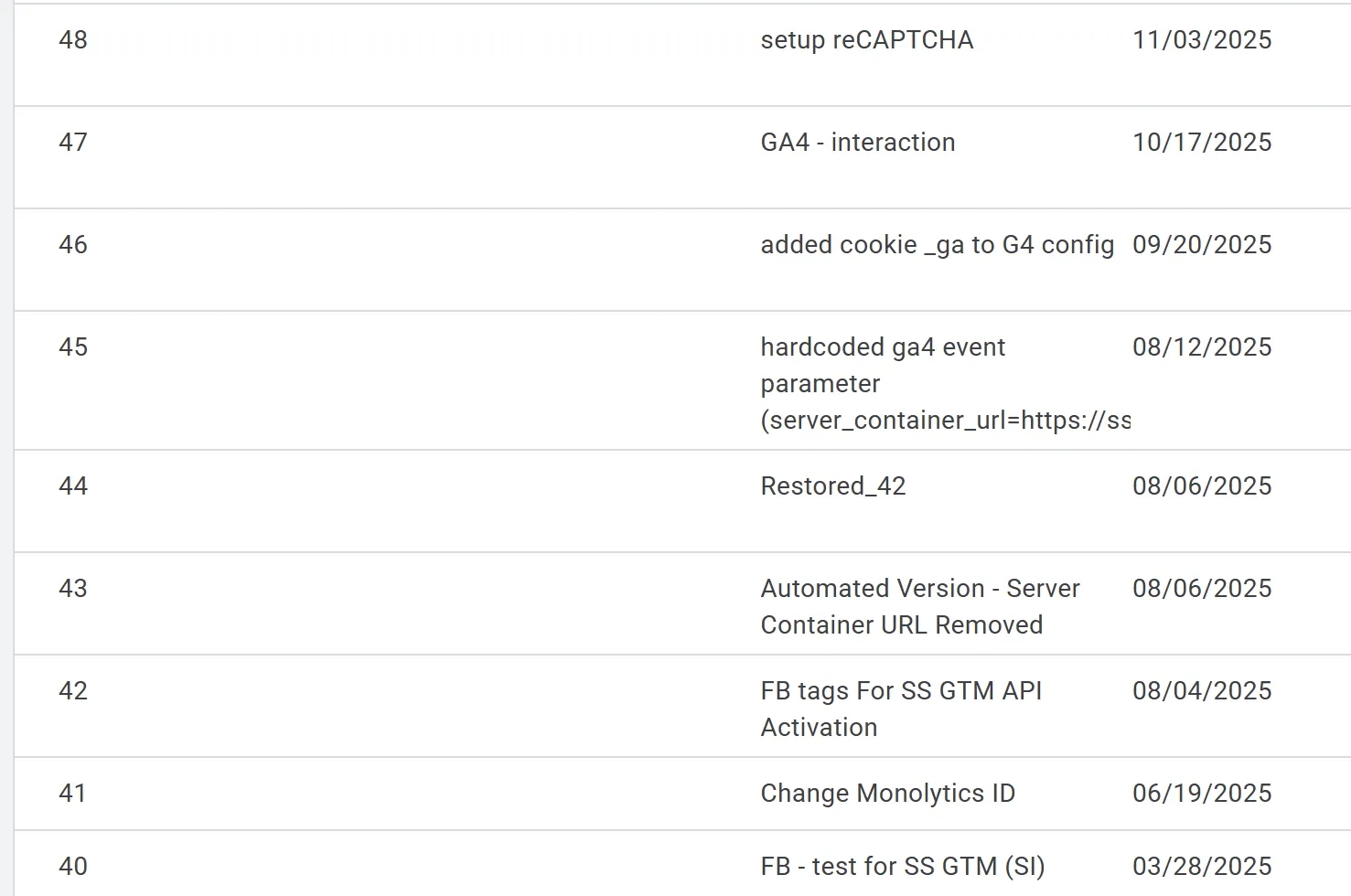
GTM has built-in version history (Versions). You can see who made changes and when, and if necessary, roll back to a previous stable version.
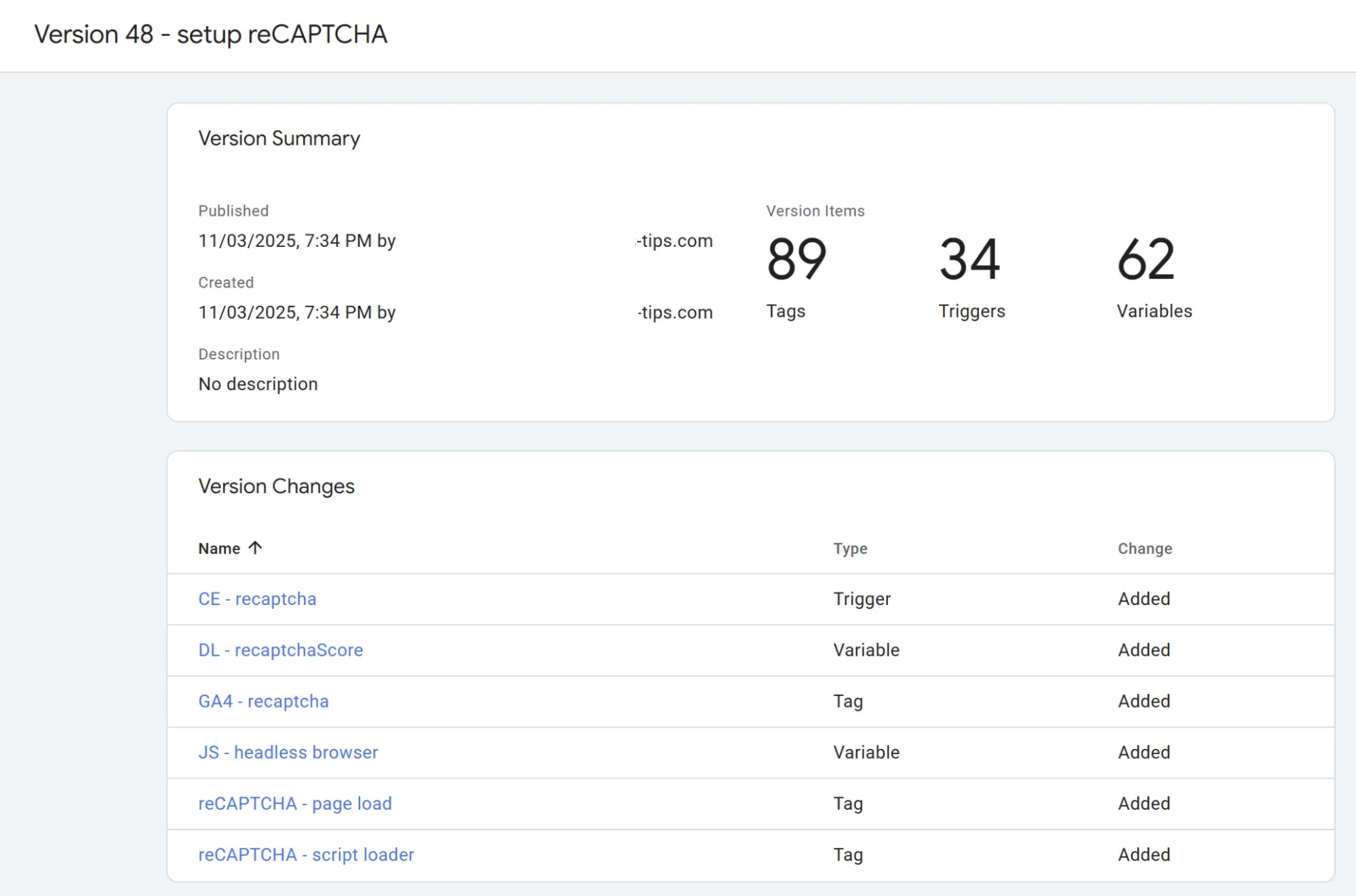
The key thing is not to forget to give your versions meaningful names, so you can quickly understand what was done and when.
36. How can I learn more about Google Tag Manager?
It probably won’t come as a surprise that one of my first recommendations is this blog, as well as the PROANALYTICS.ACADEMY blog.
I also can’t help but mention colleagues in the industry who contribute a lot to educating the community:
- Simo Ahava’s blog
- Analytics Mania (Julius Fedorovicius)
- Measure School on YouTube
37. Why do naming conventions in GTM matter, and why are they important?
This is the question that separates a “specialist who just clicks things together” from a true analytics architect. Naming conventions are not about aesthetics. They’re about the survival of your container six months down the line, when it has 150 tags instead of 10.
Imagine joining a project where tags are named “GA4 Event 1,” “Pixel New,” or “Form Test.” To understand what they do, you’d have to open each one. That’s a waste of time.
Personally, I’m a fan of the structure [Category/Vendor] – [Details/Event Name]. In practice, it looks like this:
- Tags:
GA4 – purchaseFB – purchaseGAds – purchaseHTML – script_name(HTMLprefix for custom scripts)
- Triggers:
EV – contact_us_form_submit(EVprefix for an Element Visibility trigger)CE – purchase(CEprefix for a Custom Event trigger)
- Variables:
DL – ecommerce.items(Data Layer Variable)JS – calculatePrice(Custom JavaScript)URL – utm_source(URL parameter)
It doesn’t matter whether you choose my style or come up with your own — the key is consistency, so that the same type of element is always named according to the same pattern.
Using such naming conventions for variables also has an extra advantage: in Preview Mode, all variables are sorted alphabetically, which means variables of the same type will always be grouped together.
38. Can the same GTM container be used on multiple websites?
This is one of those questions where the answer depends heavily on your business. If you plan to set up cross-domain tracking across multiple sites, using a single container can actually be desirable. In all other cases, it’s better to avoid it.
39. I granted GTM access to a colleague or contractor, but they can’t see anything. Why?
This is another classic beginner mistake. Most often, the issue is that access was granted at the Account level but not at the Container level.
The screenshot below shows exactly this situation: access to the account is granted, but no access is given to any container.
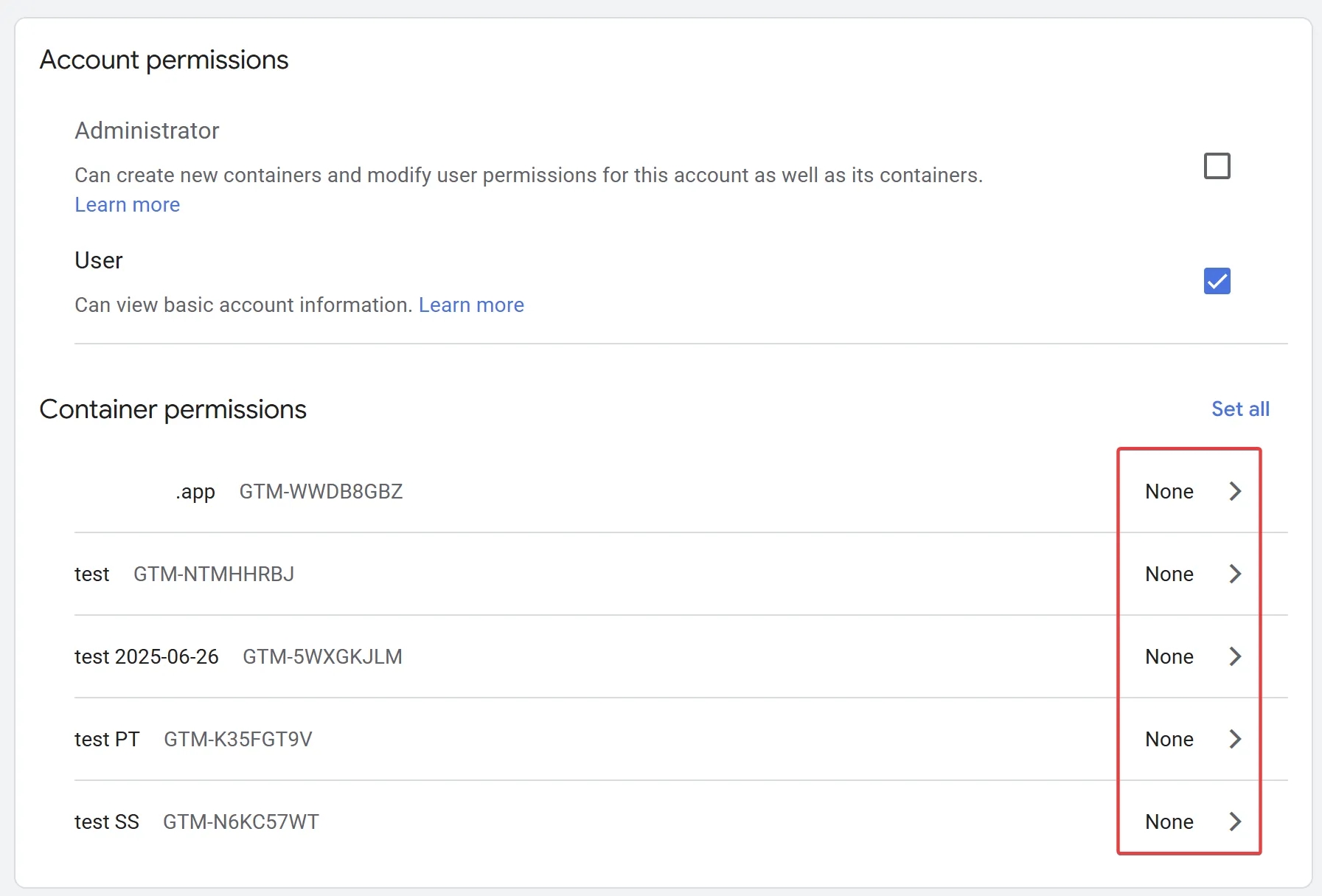
Account level: this represents your company. If you add a person here, they’ll see the account name in their list, but if you haven’t checked any container permission boxes, they’ll see an empty screen inside.
Container level: this is the actual workspace with your tags. Most often, a colleague or contractor needs access here with Edit permissions (if they’re only preparing tags) or Publish permissions (if you trust them to release changes themselves).
40. Does Google Tag Manager store any visitor data?
No. GTM does not collect or store any data. It’s a system that allows you to easily connect other systems’ code to your website. I’ve already covered this in more detail in the answer to the question “What is the fundamental difference between GTM and Google Analytics 4?”
Instead of a conclusion
I honestly wish someone had shared a piece like this with me 10 years ago. It would have saved me from a lot of GTM-related bruises. But I’ve already gone through that journey — and I hope that thanks to this material, yours will be a bit easier.
What other nuances or questions around GTM do you come across most often? Leave them in the comments. Let’s improve and expand this material together.
Loading comments…