
Today, you and I continue to analyze the events of advanced statistics. Who missed it, here is the first article about the scroll event - Why it is important to analyze page scrolling, and how to do it with GA4. Today we will analyze the next event, сlicks on external links, or as it is called in GA4 - click.
If you are an SEO specialist or a marketer or a business owner and want to know where visitors to your site go: to which domains and which links, and even from which pages, then this article is for you today.
Important clarification! The information that we will analyze is collected by default in Google Analytics 4. That is, apart from installing the basic code, you do not need to do anything else. The only thing is to understand where to find the information that Google Analytics has collected for us. This is exactly what we will talk about today.
Отже, маємо такий план:
- What the
clickevent shows and where to find it. - How to find out from which pages of your site users most often go to other sites.
- Combinations of dimensions and metrics in a custom report for the analysis of clicks on external links.
If you prefer the video material, or you just want to see the video instructions for this article, then you can watch our video on the YouTube channel.
What the click event shows and where to find it
First of all, let's check if you have external link click data collection enabled. To do this, go to Admin > Data collection and modification > Data streams > Select the desired stream > Enhanced measurement
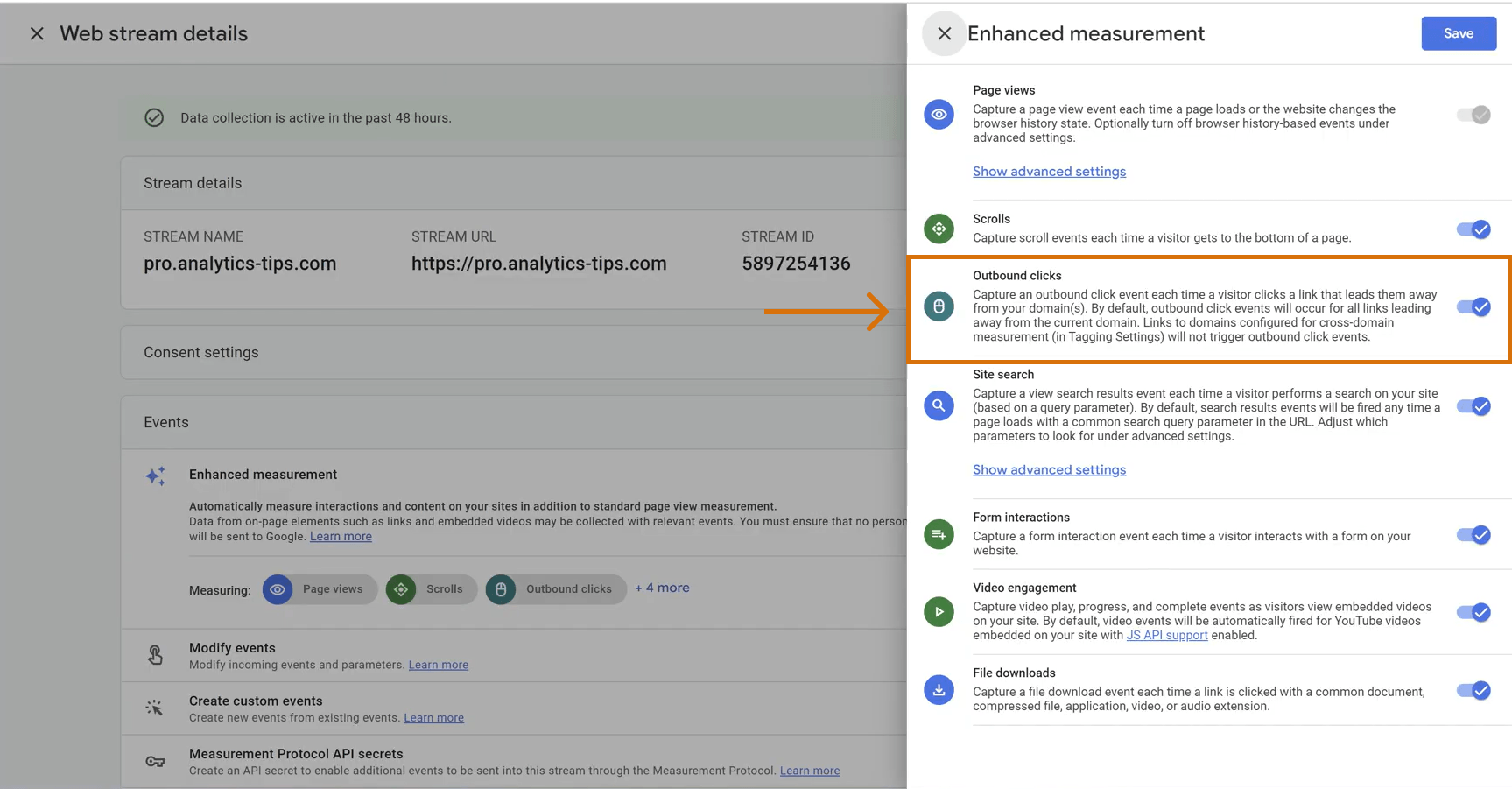
If the switch is activated, when a visitor comes to your site and clicks on a certain link, Google Analytics compares your domain with the domain of the clicked link. If they differ, then the event with the name slick is counted. This, by the way, allows you to track not only clicks on links that lead to other domains, but also clicks on phone numbers and emails.
Where can we find information about this event? First of all, of course, you can go to Reports > Engagement > Events and try to find the event you need here. The name of this event is simply click. In this report, we can see the number of events and the number of users who made this event.
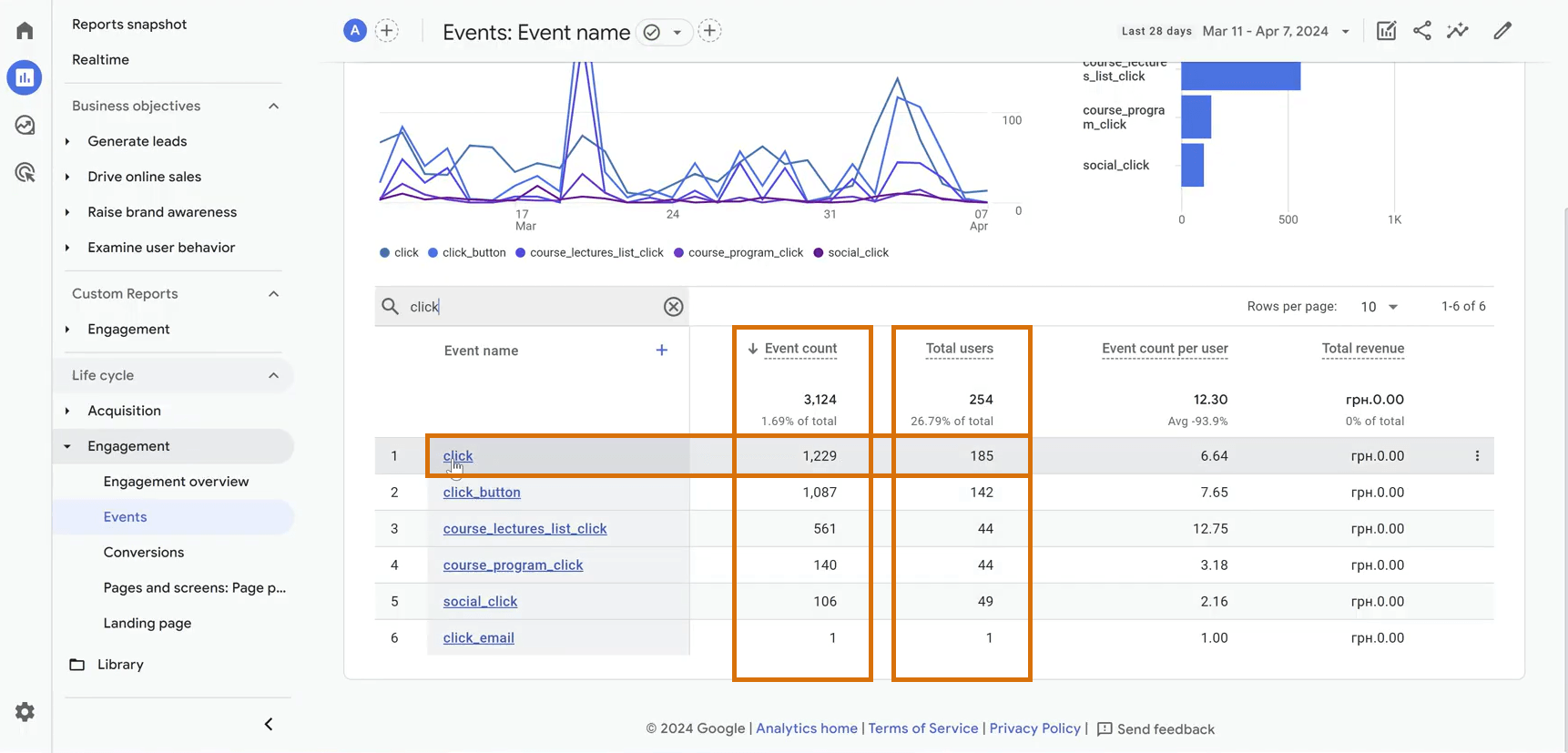
But, unfortunately, you and I are nowhere in this report, even if we click on click and fall down, we will not be able to find information on which page or pages these events took place, and which links were clicked on.
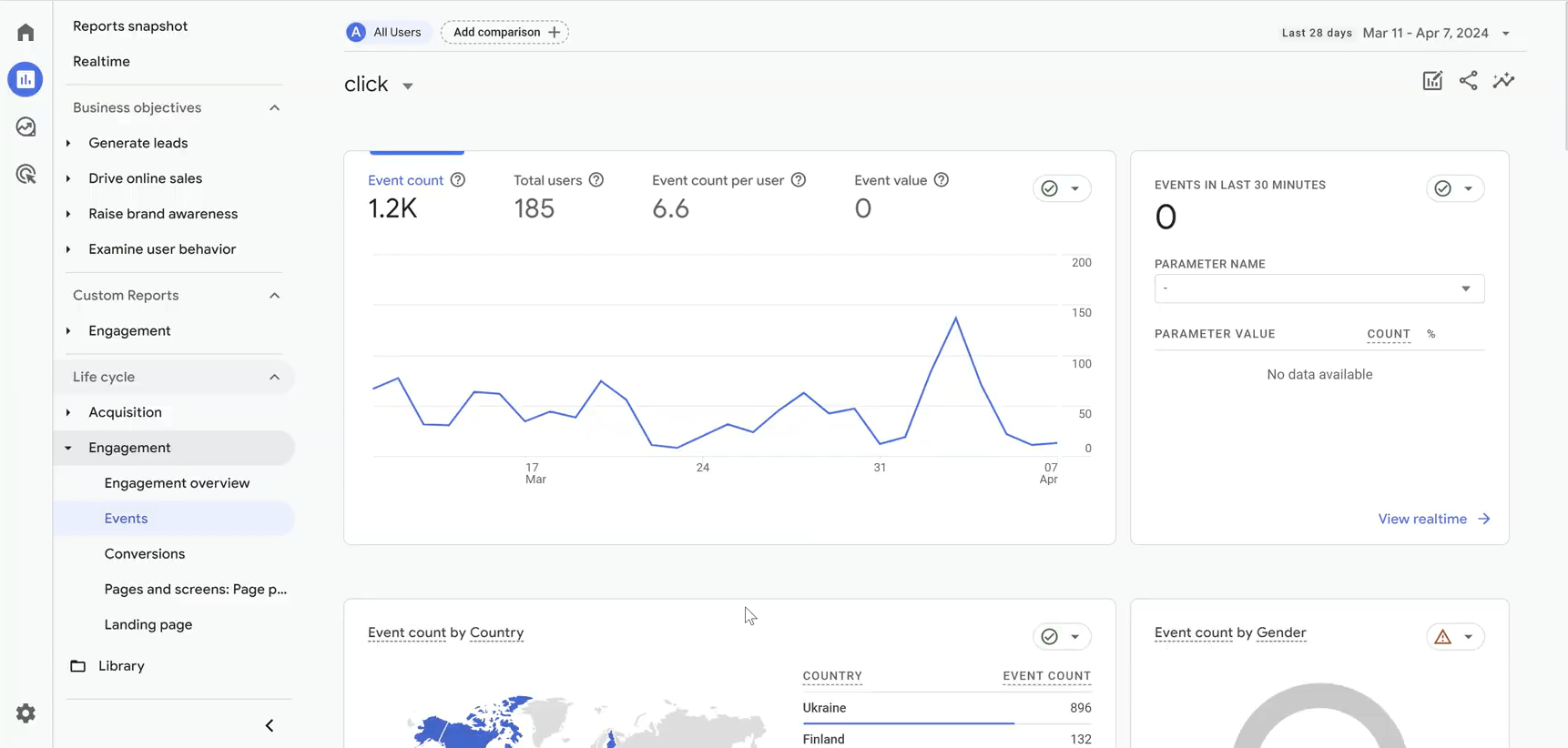
That is, if we scroll down, we will see a lot of other information about the demographic or geo data of users who clicked on the links, but which links were clicked on and on which pages, you will not find this information in standard reports.
How to find out from which pages of your site users most often go to other sites.
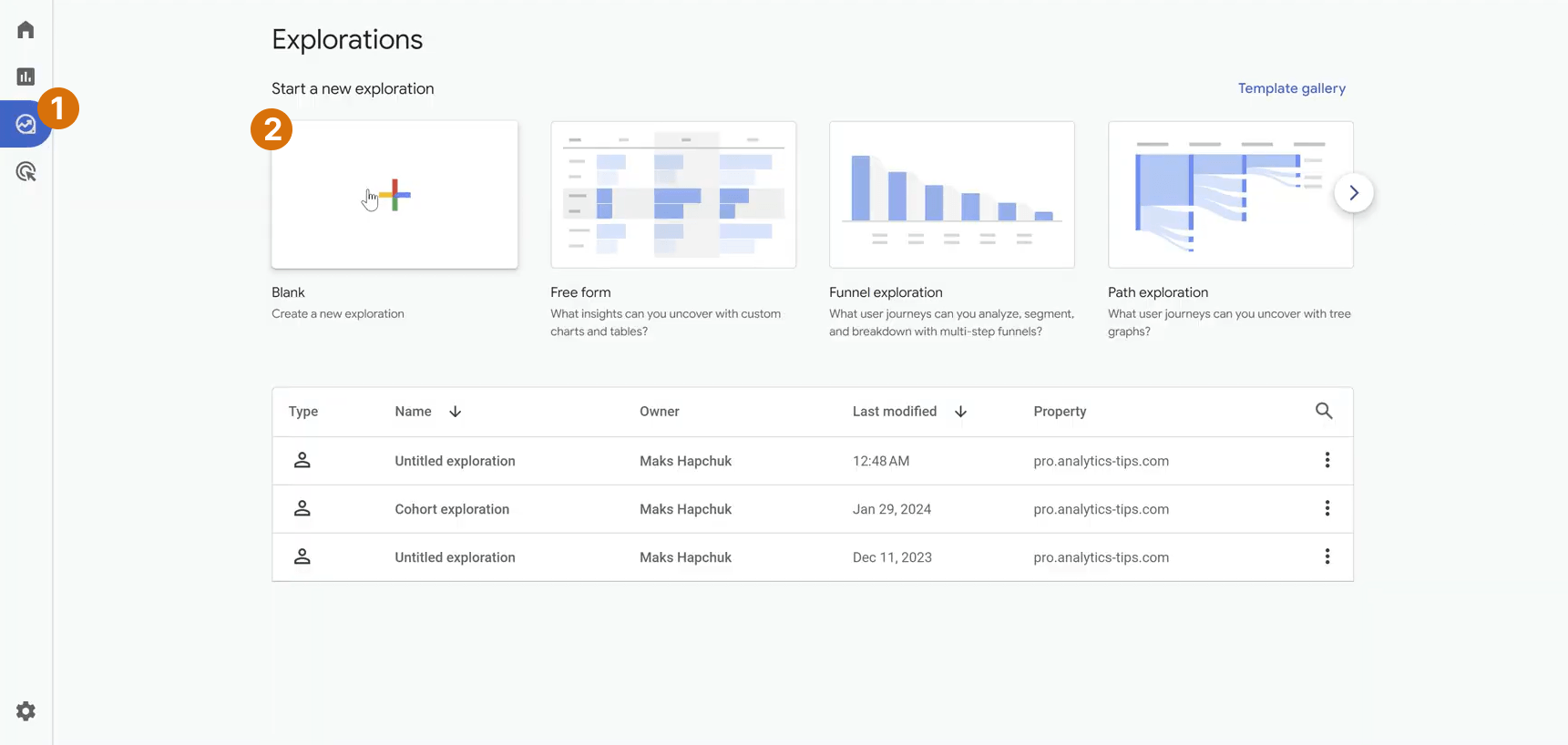
To find which link and which pages were clicked, we will go to the "Explore" block and try to find this information there. We select an empty report.
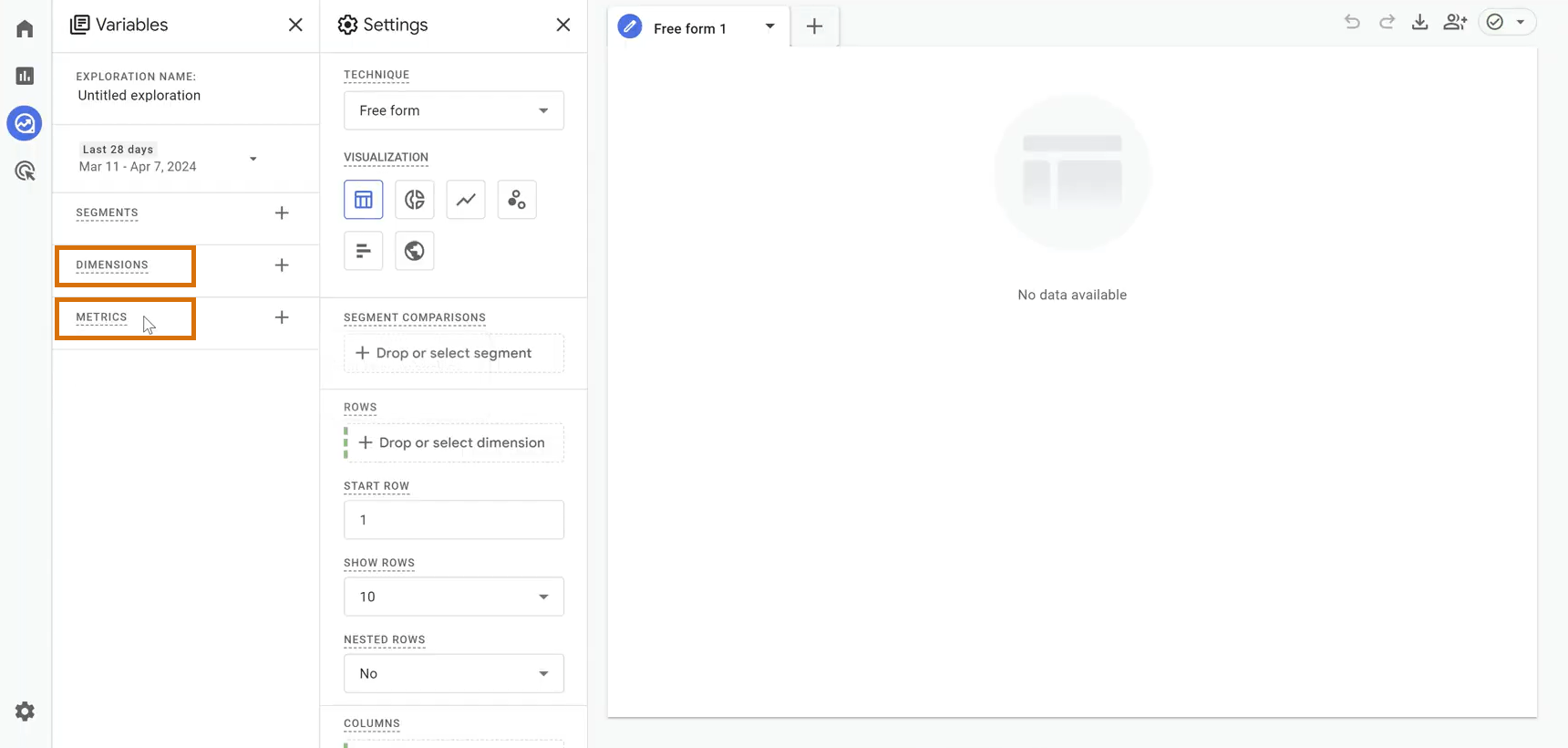
In order to build a study, you will need to select the necessary dimensions and metrics.
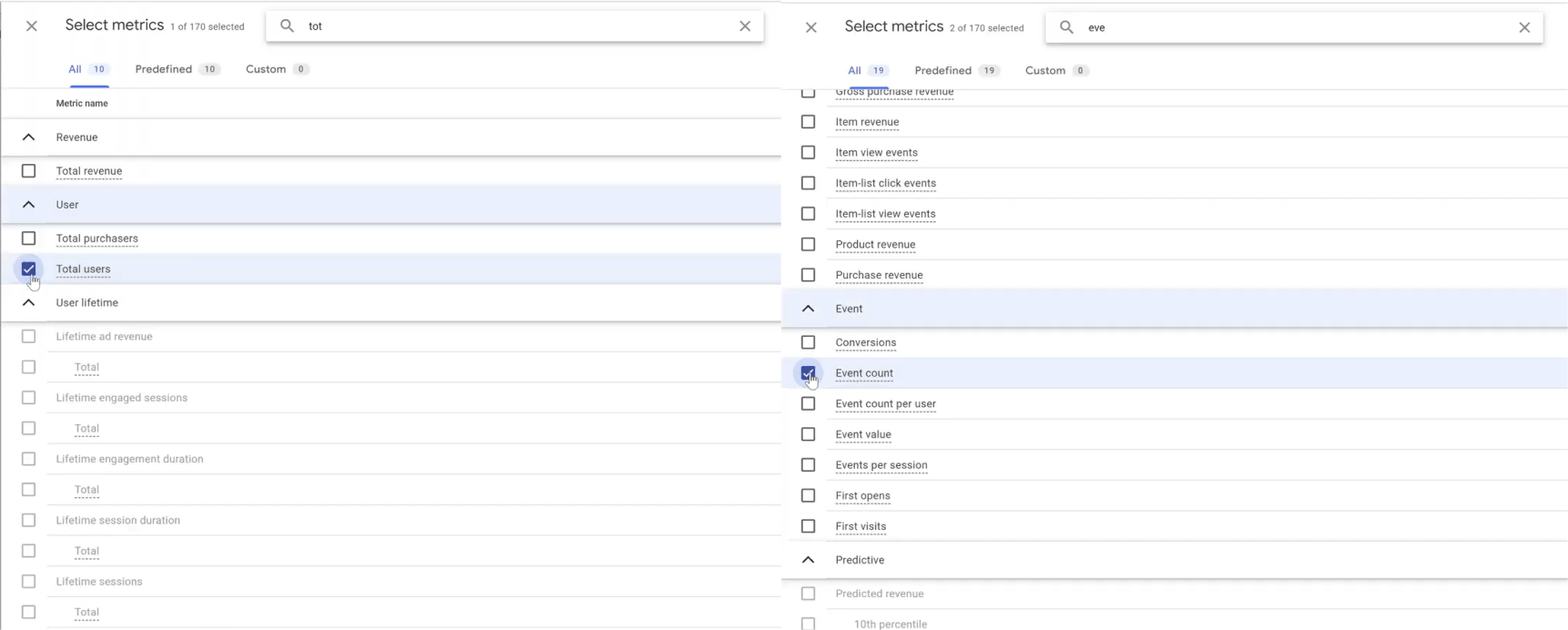
Everything is very simple with the Metrics, we want to see the same ones that were in the standard report: the number of events and users. You can use Total users if you want to see the unique number of users who took these actions. Or Event count, if you need to analyze the unique number of actions, that is, how many times they did it.
Regarding "Dimensions" - there is a separate group of parameters for each standard event that is monitored by advanced statistics. We are interested in the Link group.
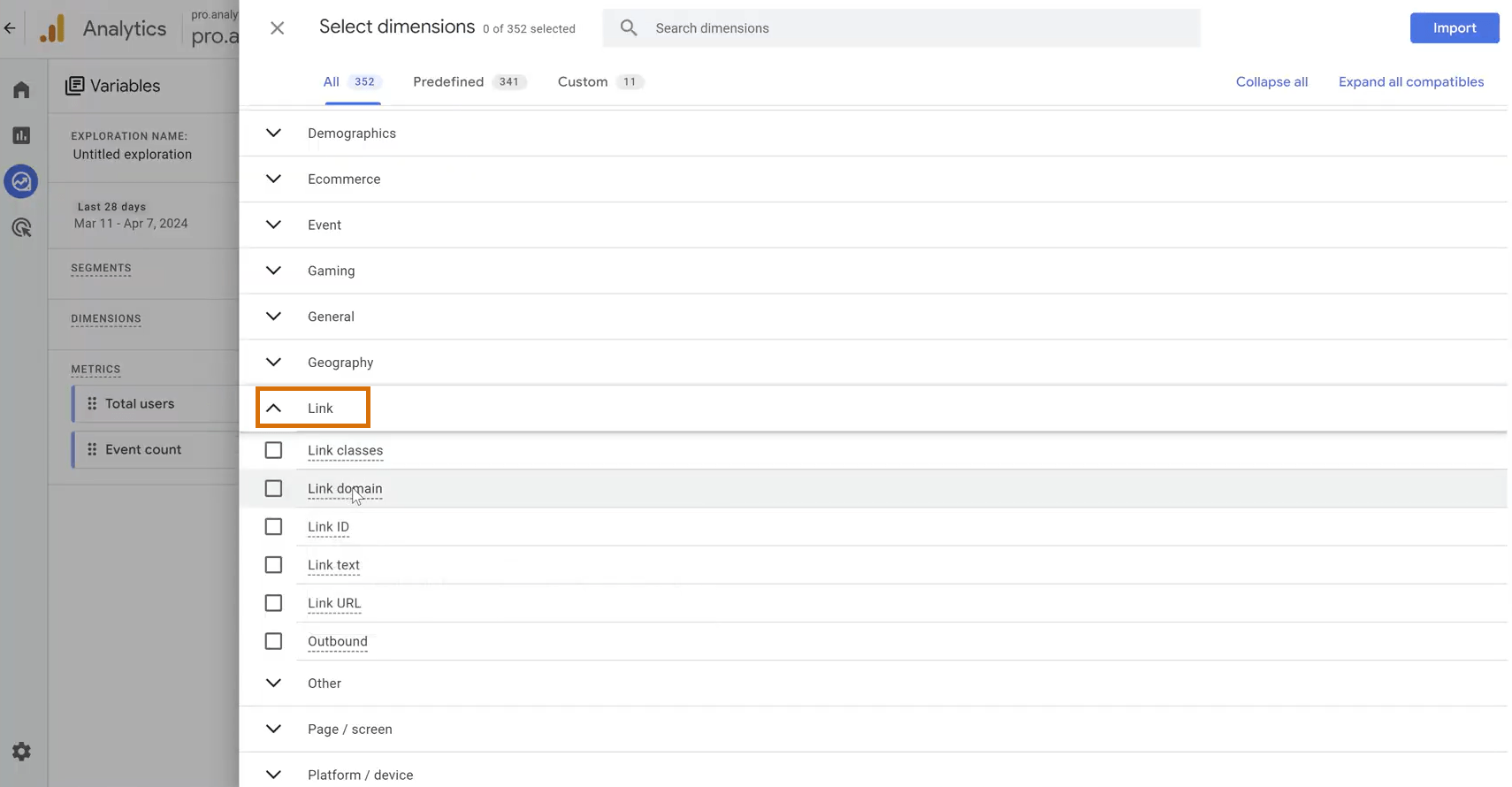
You can use the following parameters for analysis (the names in parentheses are the counterparts in the Ukrainian interface and they are so-so as you can see, so I definitely recommend you to use the English interface when working with GA4):
Link classes- the class of the element in which there was a link.Link domain- the domain of the clicked link.Link ID- the ID of the clicked element.Link text- if the link was attached to the text, then the parameter will return the text that was clicked on.Link URL- the link itself, which was clicked on.Outbound- shows if this is an external link. Currently, only clicks on external links are tracked in Google Analytics 4, so this parameter has no value as such.
The most interesting, of course, are Link domain and Link URL, and we will use them.
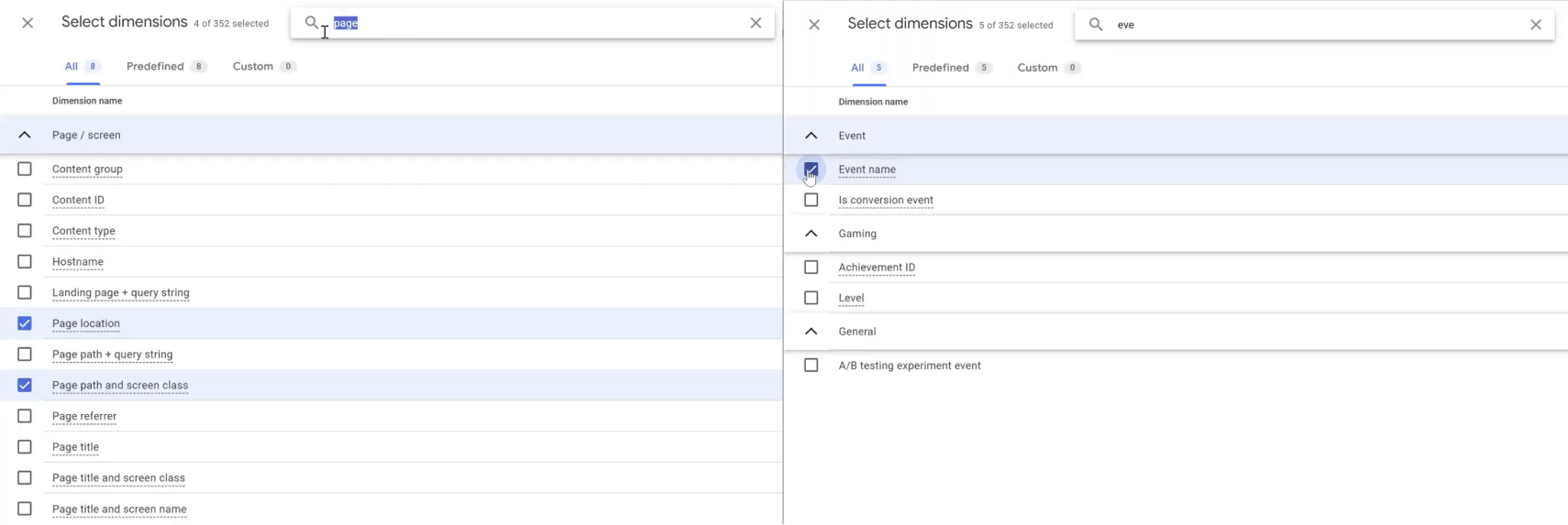
We'll also need a Page Location or Page Path and Screen Class option, whichever you prefer to use.
And don't forget the Event Name parameter, which will be required for the filter. Because we want to build our entire report based on information about the click event.
Having marked all the necessary parameters - click "Import".
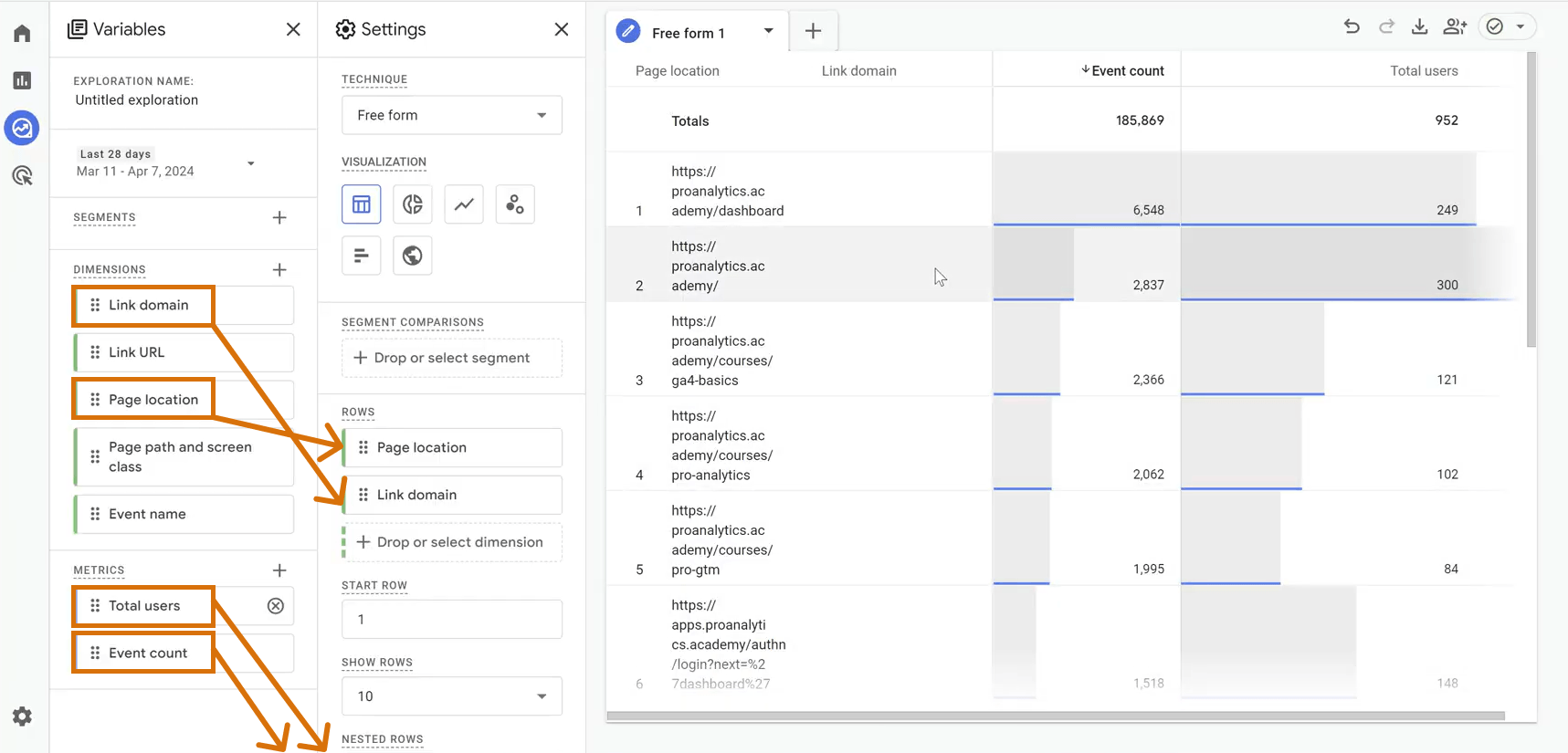
Now let's add it all to our report. Add:
Page Location- the page on which the action took place;Link Domain- the domain to which visitors went after clicking on the link;Event count- to understand how many events visitors made;Total users- how many unique visitors to the site made clicks.
And we add a filter: we select Event name and set the exact matches condition we need, and we are interested in the click event.
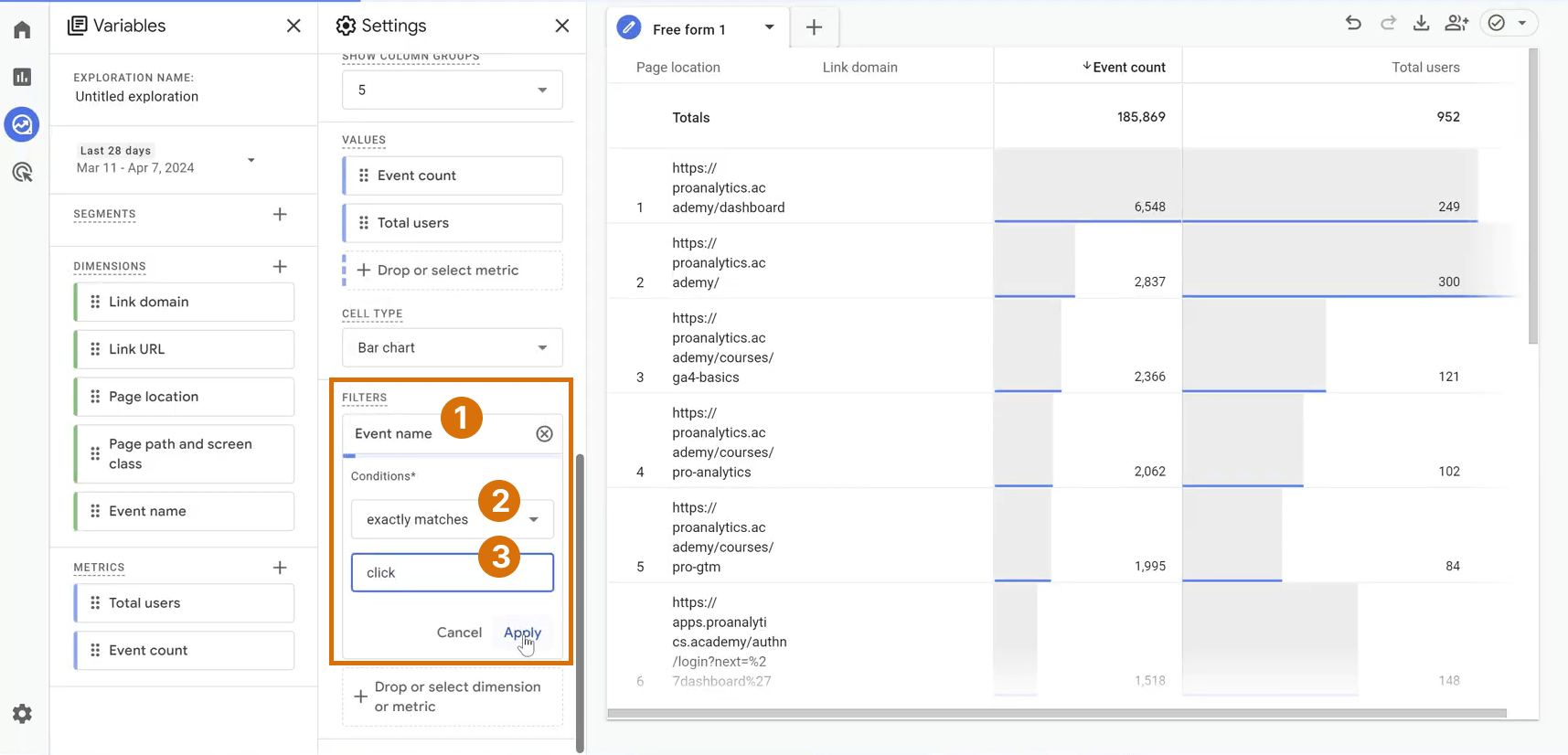
We press "Apply", and here we have built the report we need.
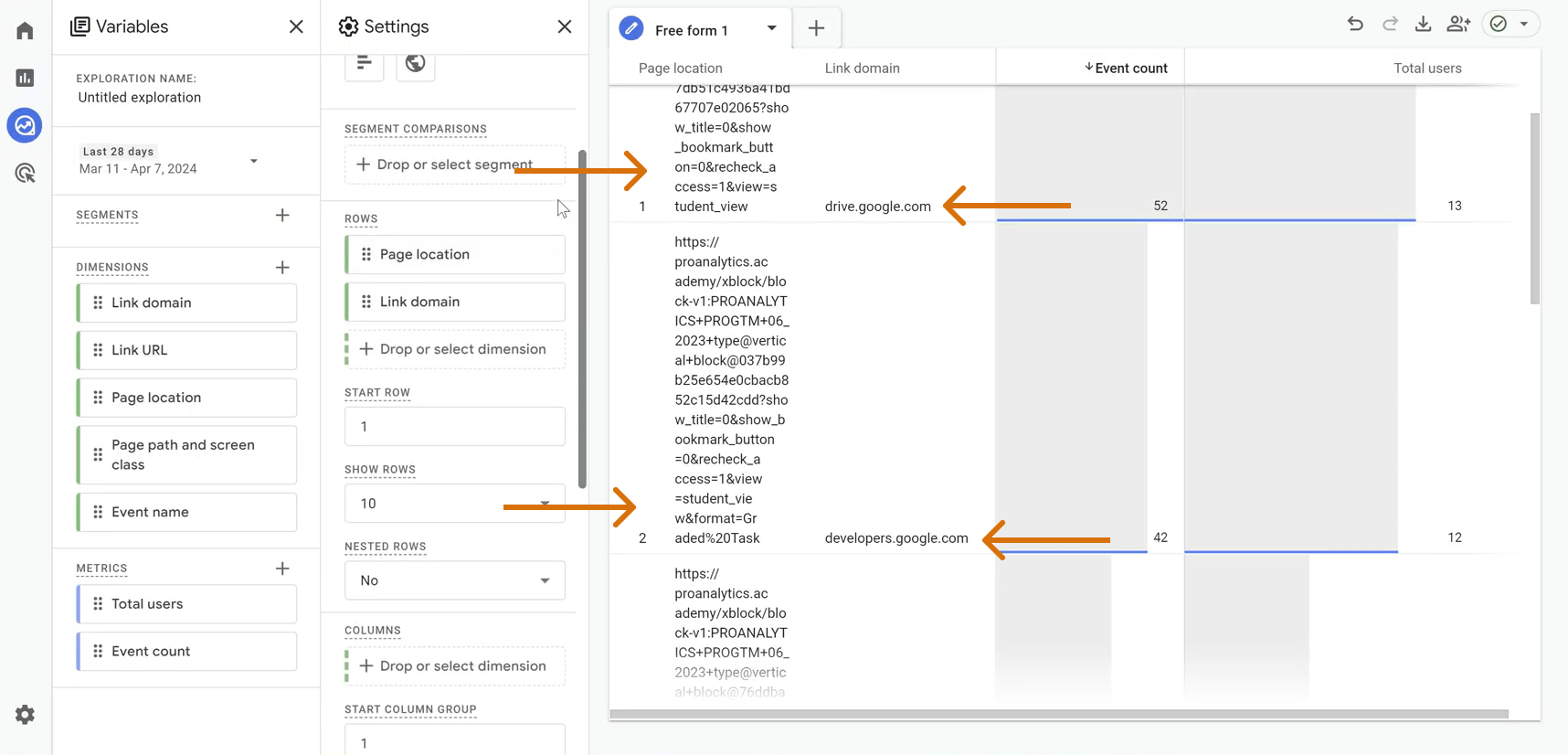
This report shows us on which pages of the site users click on external links and which domains they most often go to from our site. For example, we see that from the page
https://proanalytics.academy/xblock/block-v1:PROANALYTICS+PROGTM+06_2023+type@vertical+block@037b99b25e654e0cbacb852c15d42cdd?show_title=0&show_bookmark_button=0&recheck_access=1&view=student_view&format=Graded%20Task
I have 12 visitors who have switched to the domain developers.google.com.
Combinations of dimensions and metrics in a custom report for the analysis of clicks on external links.
Of course, the example above does not cover all the cases required for analysis. So catch a few more.
- If you are not interested in the page on which the action took place, but only in the most popular domains that people go to from your site, remove
Page Locationand leave only theLink domainoption.
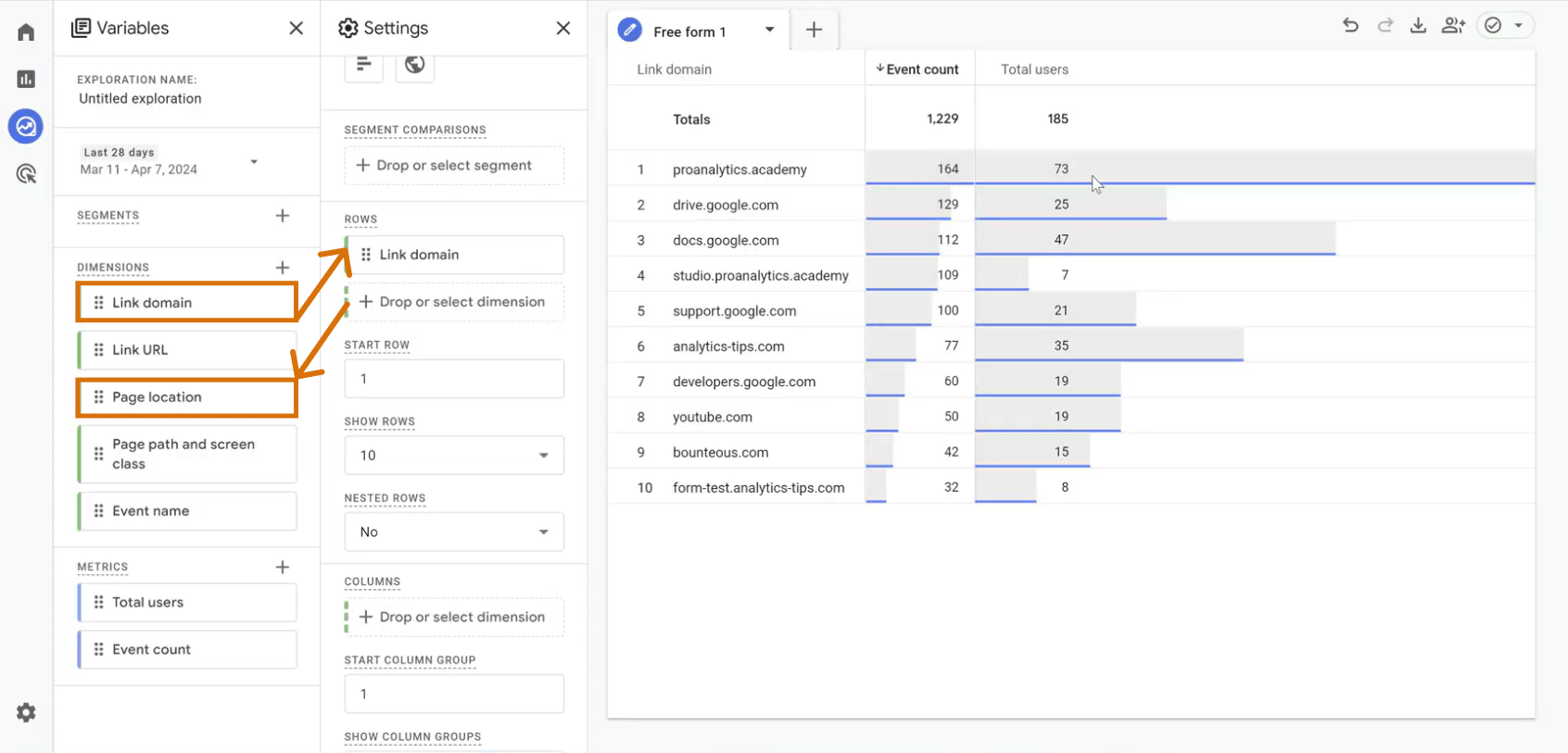
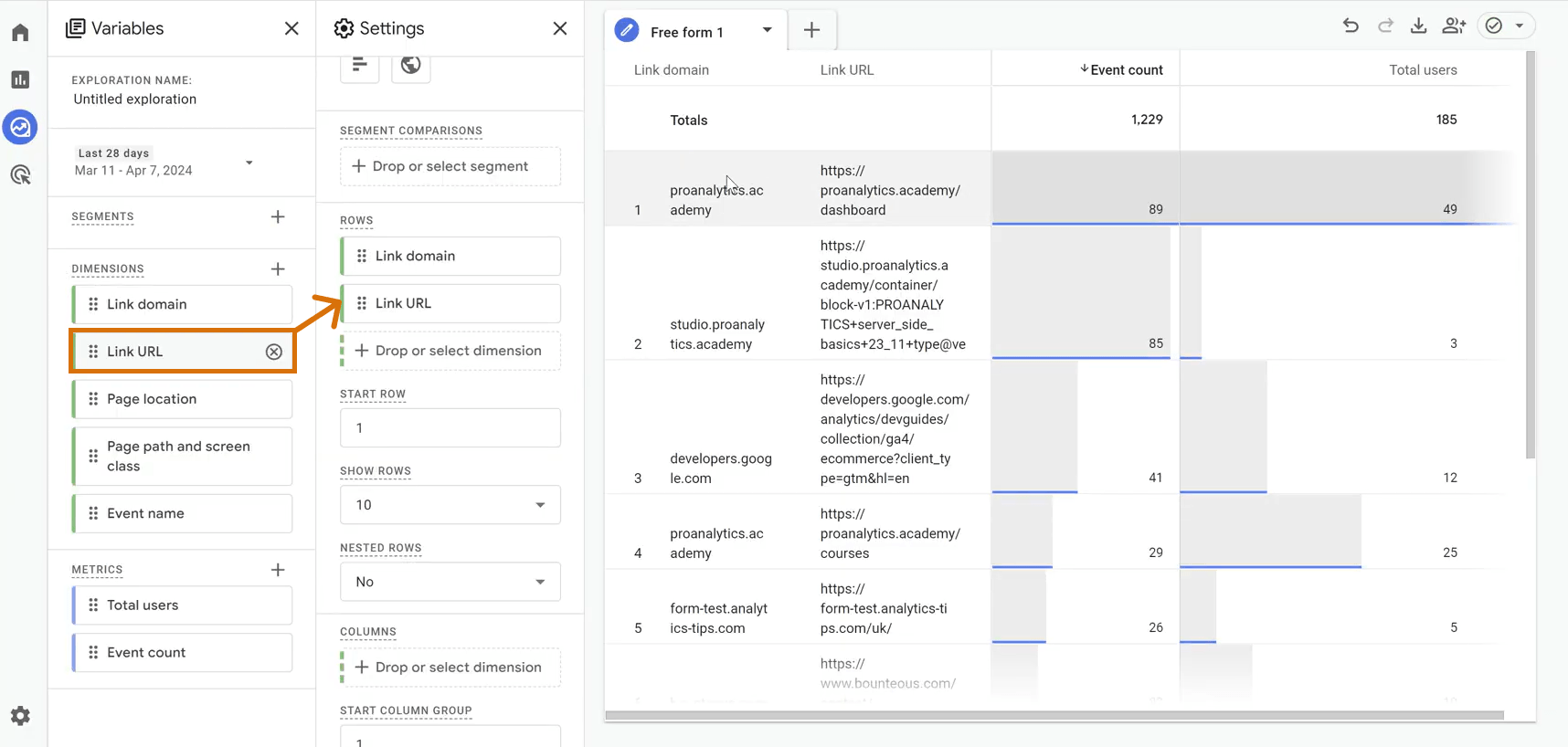
2. If you want to drill down to specific clicked links, use the Link URL option. In this way, you will find out the link to the page itself.
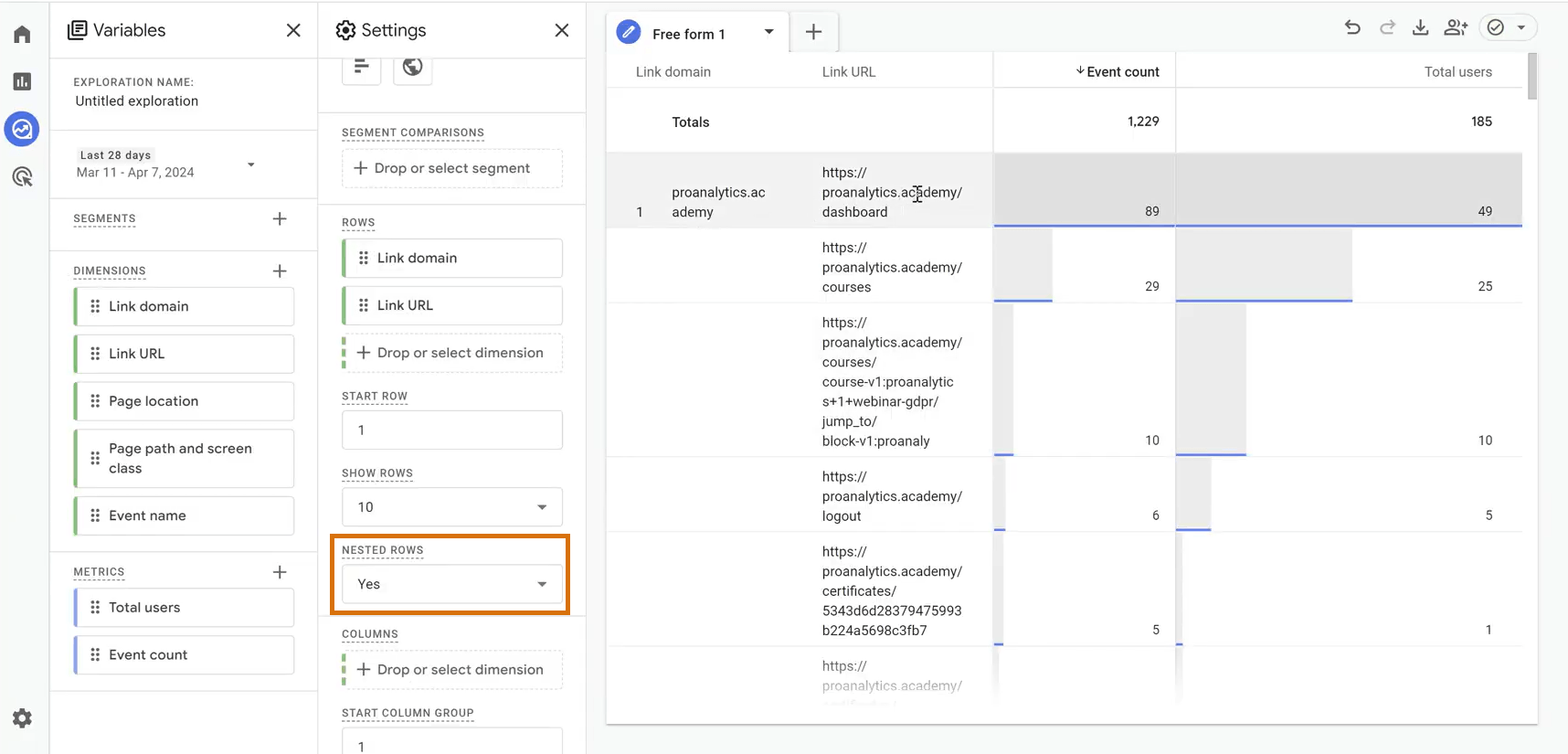
3. We may also group this information by domain. Go to “Nested rows”, click “Yes” and you will see which external domains visitors go to most often and which links from these domains are the most popular.
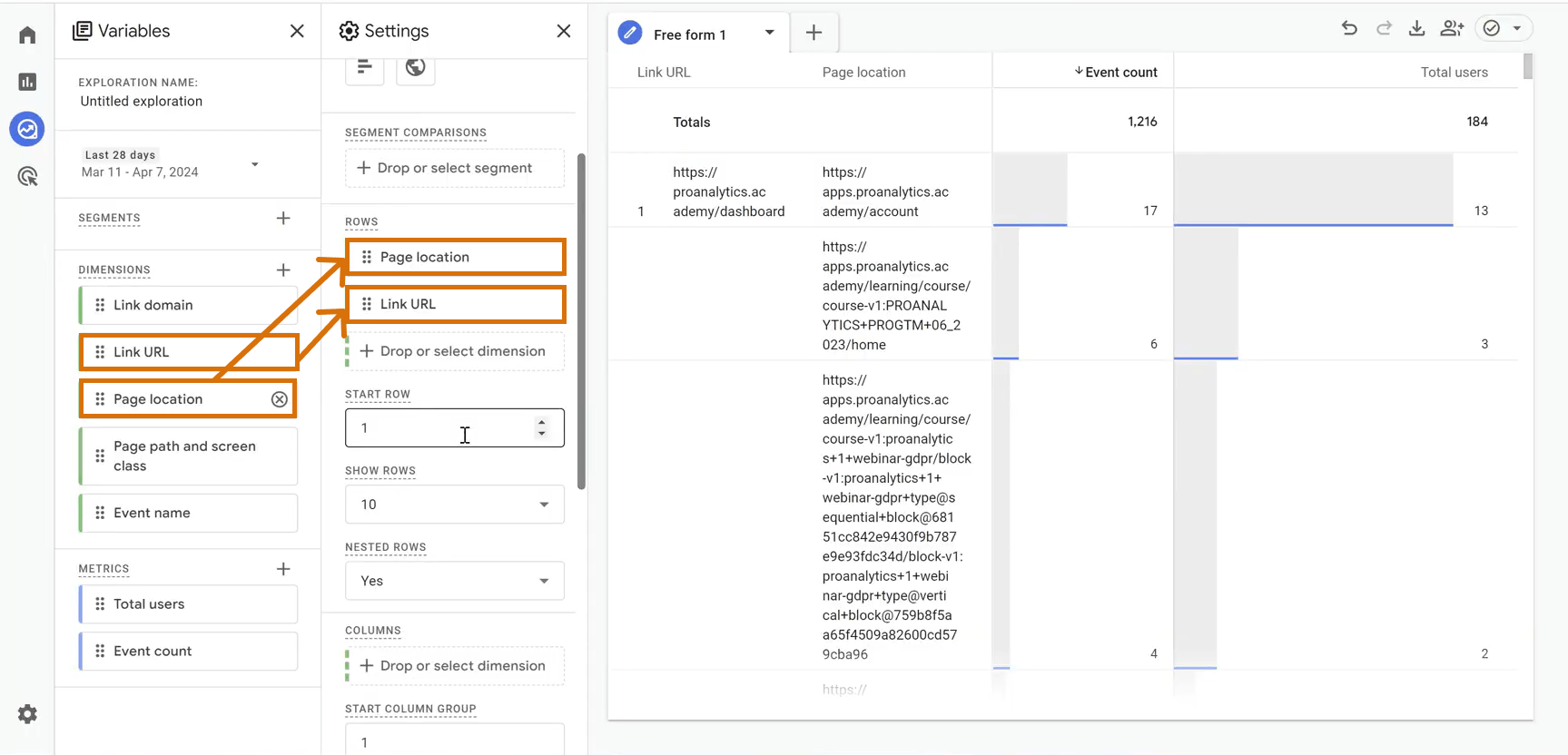
4. If you are not interested in domains, but are interested in specific information, from which page, which links people go to the most, that is, how they leave your site, then let's use a combination of Page Location and Link URL.
Instead of a conclusion
As you can see, the default setting from Google is quite useful. So, again, you don't need to do anything other than install the basic analytics code on your site to start collecting this information. Moreover, who does not know, in fact, a click on a phone number or a click on an e-mail is also in most cases a click on a link. Therefore, by filtering the value of the Link URL by the condition starts with tel: or starts with mailto:, you can also find out how many relevant actions of visitors there were on the site.
Hopefully, after reading this article, you have some ideas on how you can use the information you need, and a better understanding of where to find it.
In future articles, we will talk about other advanced statistics events, such as video viewing, interaction with the internal search on the site, and others. Therefore, I recommend not to miss them. By the way, in the previous article I already talked about the features of scroll event analysis, so if you are interested in other advanced statistics events and their possibilities offered by GA4, then the previous article is available at this link.
If you want to learn even more about how to work with data in the Google Analytics 4 interface, I definitely recommend signing up for one of the courses from PROANALYTICS.ACADEMY. Most likely, the "GA4 Basics" course is exactly what you are missing right now, especially if the information you read in the article was new and super interesting to you.
In the "GA4 Basics" course, you will be able to learn in detail the process of installation, configuration and the main aspects of working with Google Analytics 4. You will learn the skills of tracking various events on the site, setting up conversions and audiences, as well as creating custom reports and much more. The full course program and all the necessary details are available at this link.
Loading comments…