
Today we continue to talk about advanced statistics events in Google Analytics 4. If you missed it, here are links to other articles in this series:
- How to correctly analyze clicks on external links in GA4?
- Why it is important to analyze page scrolling and how to do it with GA4.
In this article, we will analyze such an event of advanced statistics as tracking user interaction with internal search. In GA4, this event is called view_search_results.
In the article we will talk about the following:
If you prefer video content, you have the option to view video instructions for analyzing internal user searches on the site. I leave the link here:
What is internal search on the site
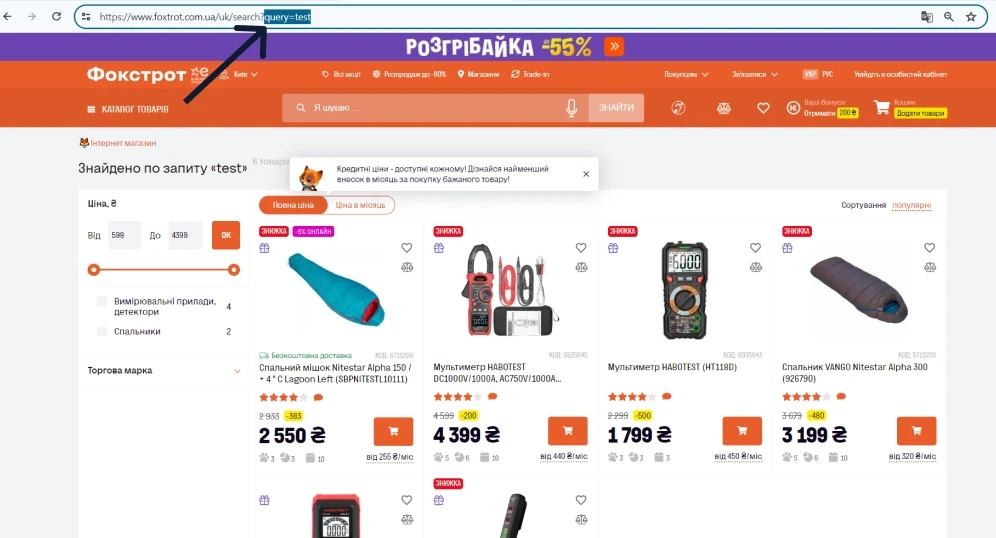
Let's start with what is internal search on the site in general and what Google Analytics 4 understands by internal search on the site. Everything is very simple for us, most sites have an input field where we can enter our query, for example the product name, and the site will return us a page with search results. For example, we entered the word "test" and got the following search result:
Please note that there are kind of two varieties of such a search:
- The first option - we write something, for example, "test", I press "Enter". And in this case, we are thrown to the search results page.
At the same time, we have a special get-parameter in the URL, the name of which in this case is query, but in general it can be another. Its value, in our case, is "test". This value is the search query entered by the visitor.
2. There can also be another type of search. For example, we want to enter "Sony TV", and after we enter the first character, the site immediately offers certain options.
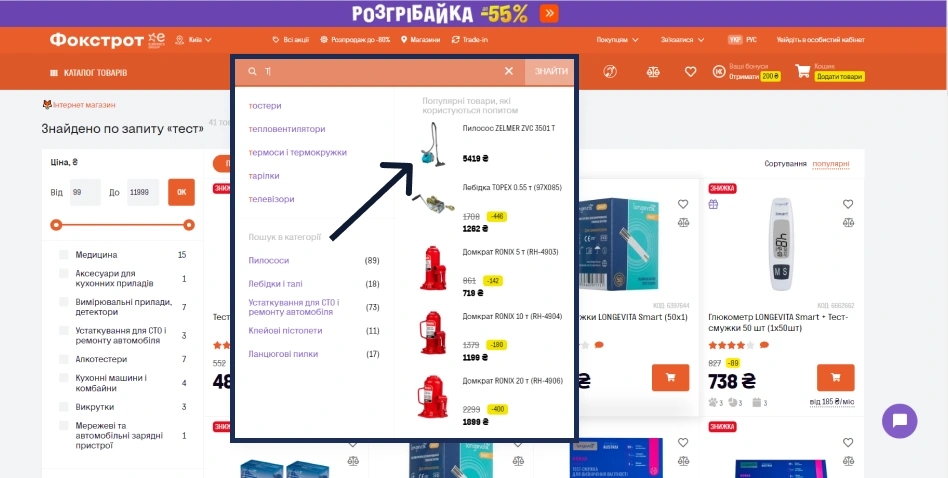
And we can go to the specific product that the system decided to show us.
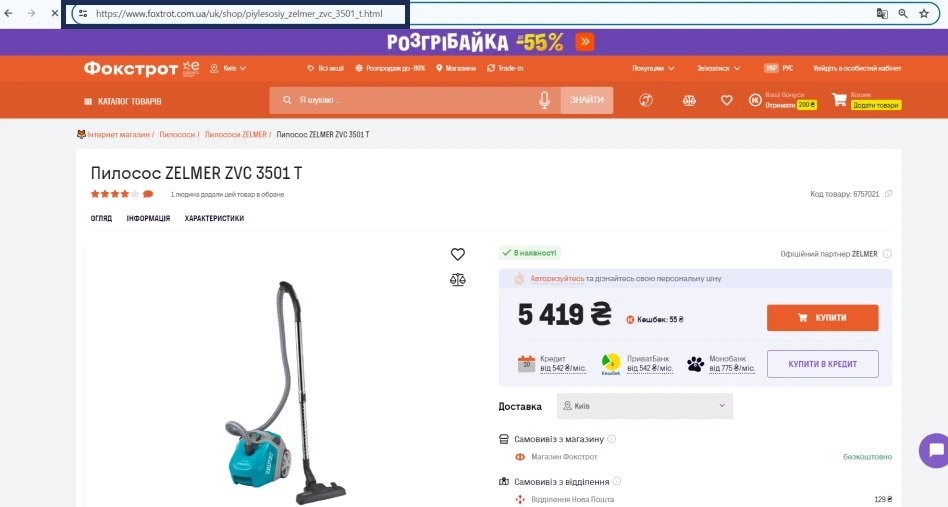
This case has some differences from its predecessor:
- firstly, if I click on a product in the "Popular products" block, I will not be redirected to the search results, but immediately to the page of a specific product;
- secondly, most likely, no additional get parameters will appear in the final URL of the product card.
Why did I pay attention to these two points? And why did I single out two separate types of internal search on the site? Everything is very simple: for site visitors, it does not matter whether the first case or the second is an interaction with an internal search, but for Google Analytics 4 the situation looks different, since it sees only the type of search when additional get parameters appear.
Why standard interaction tracking with internal search is not suitable for all sites, and what to do in such a case
Now I will explain why, in the framework of the article, which was supposed to be about working with data, I added such an insert at the beginning, where we talk about internal search, and why am I writing about some incomprehensible, perhaps, get-parameters for many? Because that's actually the setting you see in the advanced stats signed here as site search, helps to track not the entire internal search on the site, but only a certain part of it.
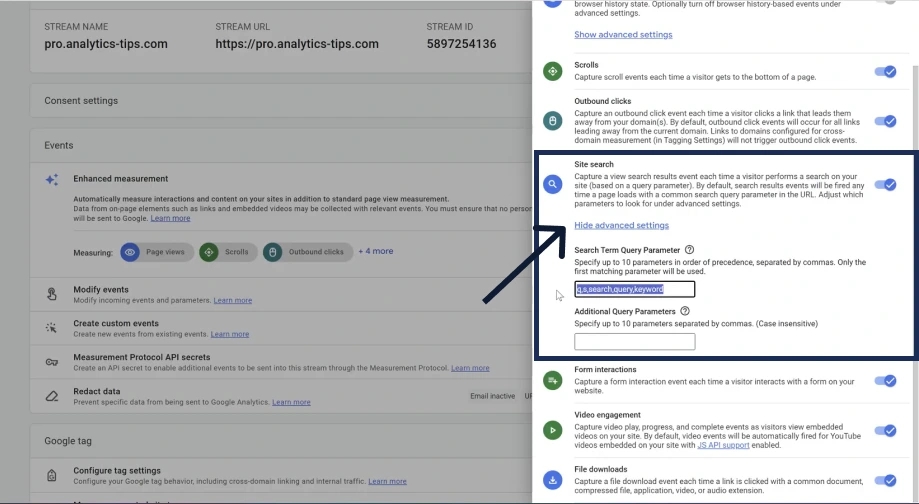
If we click on “Show Enhanced Settings”, we will see the get parameters that are already supported by default. Pay attention, for example, on our site there was a query parameter.
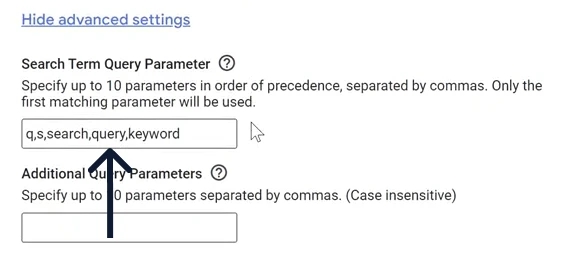
If we look at the settings, we will notice that we have such a parameter by default. Therefore, this part of the search on our website would work perfectly. Unfortunately, this functionality does not cover the case when people immediately get on the product card. Therefore, you will need to make some additional settings.
Pay attention! Even when it takes us to the search results page, additional get parameters do not always appear. It depends on which CMS system you are using.
So before you read on, use your site's search to see if you have a get parameter added to your search results page, and which one. If your parameter is not among those specified, then you do not need to run and do some complicated setup. It is enough to simply write your parameters in “Additional Query Parameters”.
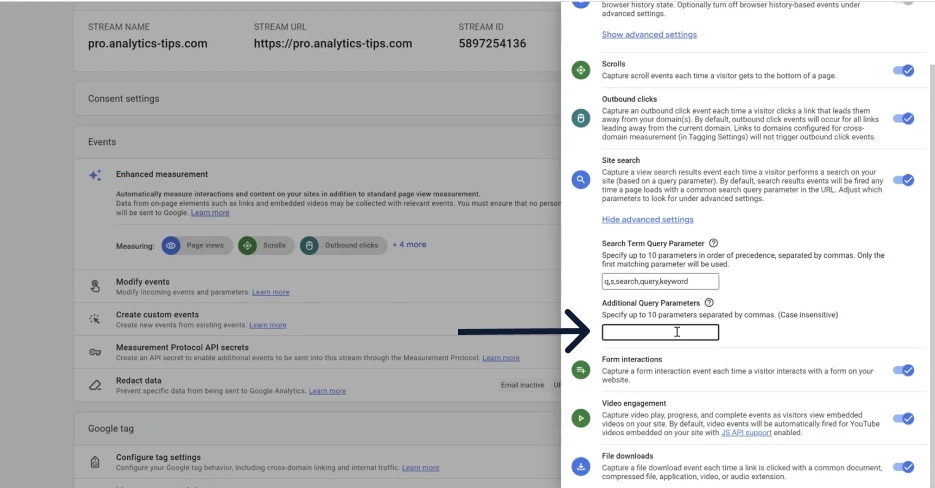
That is, in this case there will be no difficulties. It's a completely different matter, if you don't use get-parameters at all, then you need to either change the search functionality on the site, or set up tracking of interaction with it through GTM and sending custom events.
Where to find internal search data in the GA4 interface
Well, let's say you're lucky and all your internal site searches lead to pages with get parameters. Where to find the necessary values in the analytics interface and how can they be used in general and, most importantly, for what?
You can find this event, like any other, in the “Events” report. Our event is called view_search_result. By writing "search" in the search box, we will quickly find the event we need.
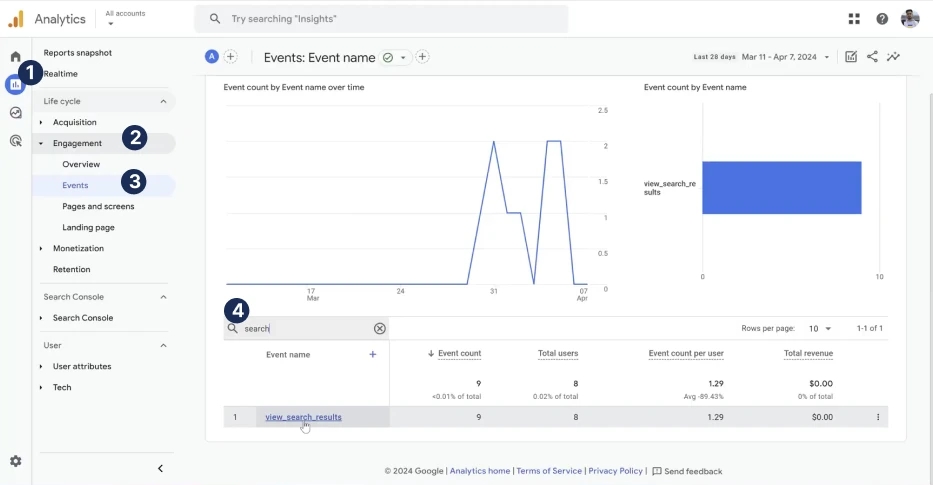
But as always, this standard report does not include any additional information about where people searched and what exactly they searched for on your site (
How to create and use an internal search report for website analysis
To fix this, we will have to go to the "Explore" block and build the necessary research there. We open a new study and add the necessary parameters and indicators.
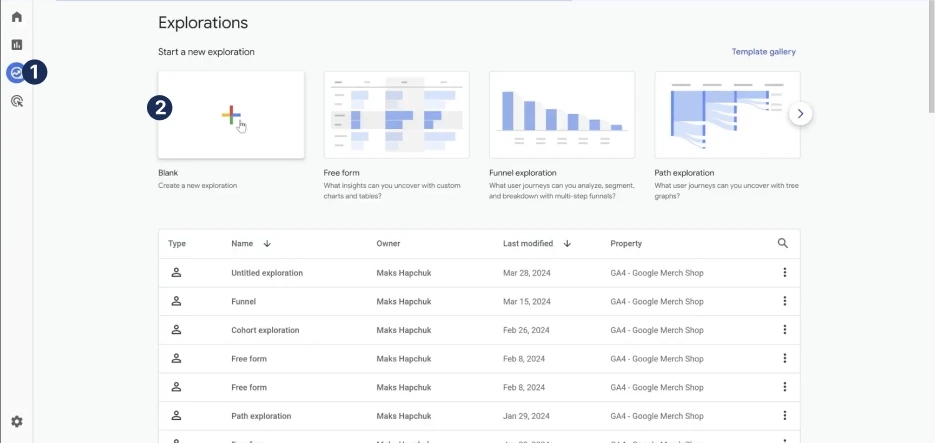
If you are not yet familiar with this block and do not know where to start and how, then I will analyze this in another article from the same series. In it, we just talked about how to build your first report in the research block on the example of an event click - How to correctly analyze clicks on external links in GA4?
Well, we will return to today's topic. We will need the following parameters:
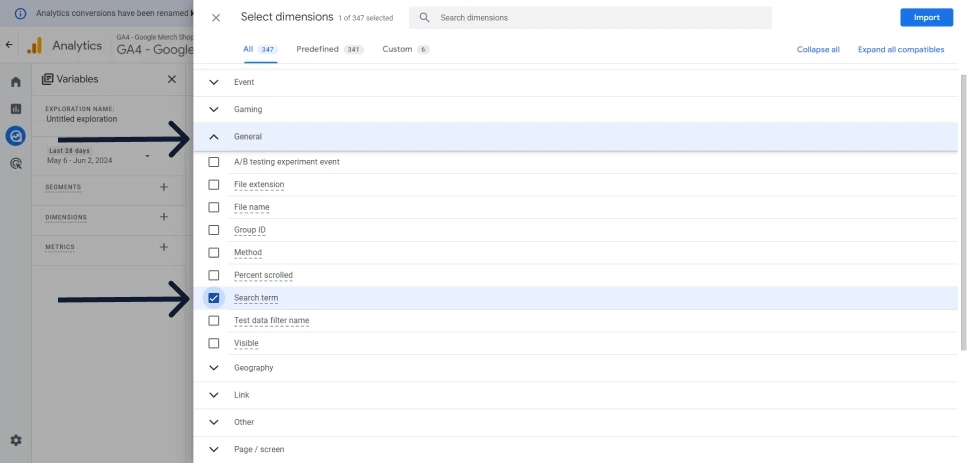
Search termin the sectionGeneral. It means the exact word or phrase that the user entered in the internal search field.
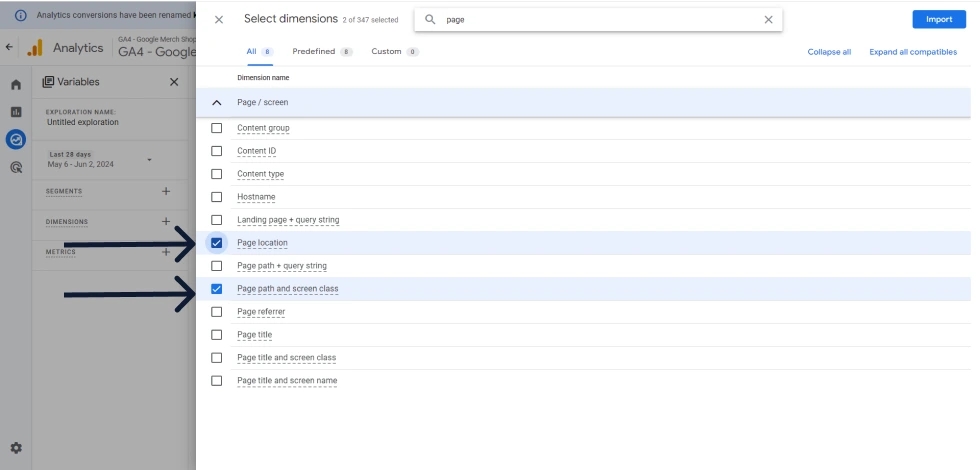
Page LocationorPage Path and Screen Class. They are needed in order to understand on which page the action took place.
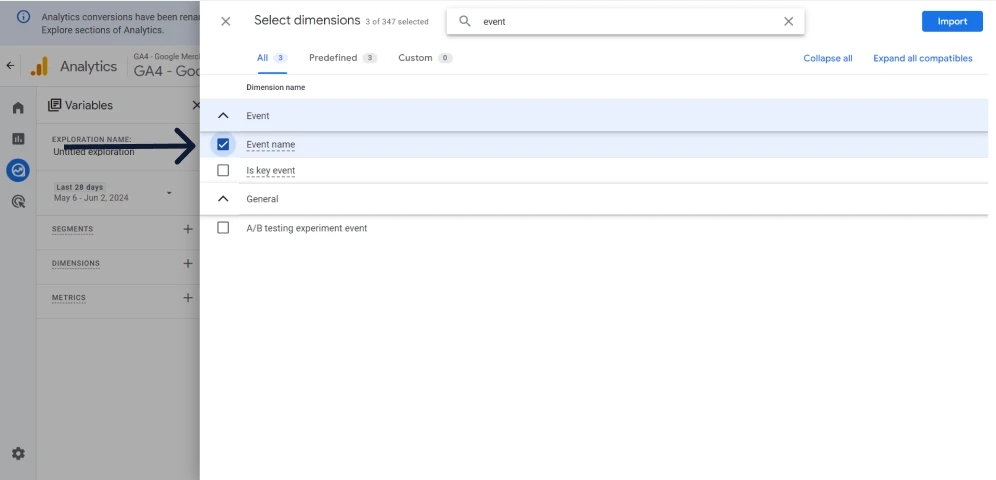
Event nameis required in order to set the filters correctly.
Regarding metrics, we will use two classic ones:
Total users
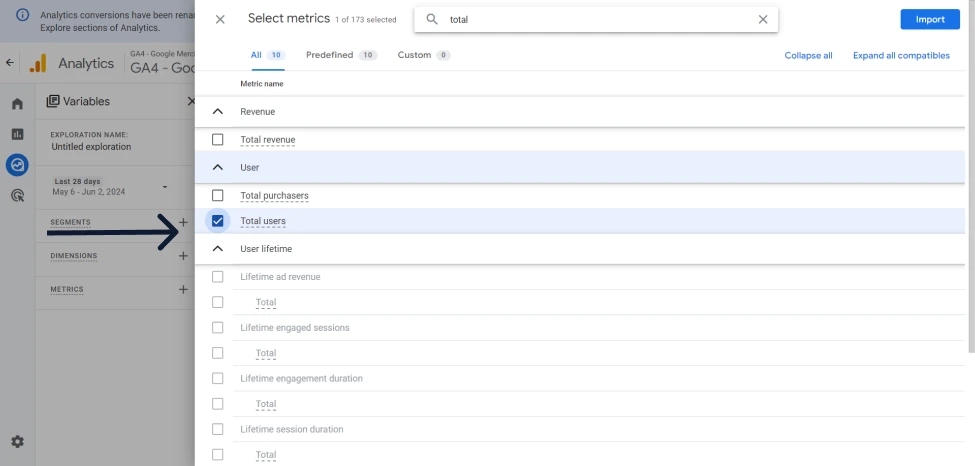
Event Count
Click “Import”.
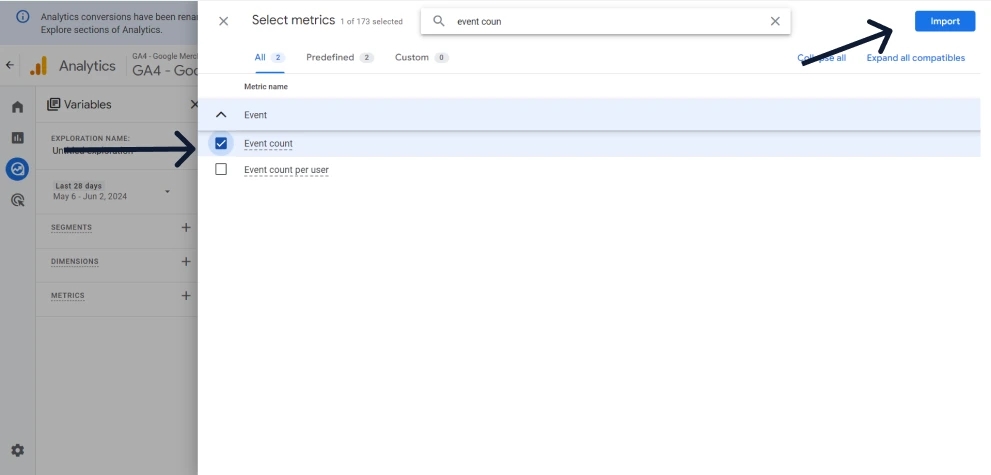
Now let's put everything together and see what we get in the end.
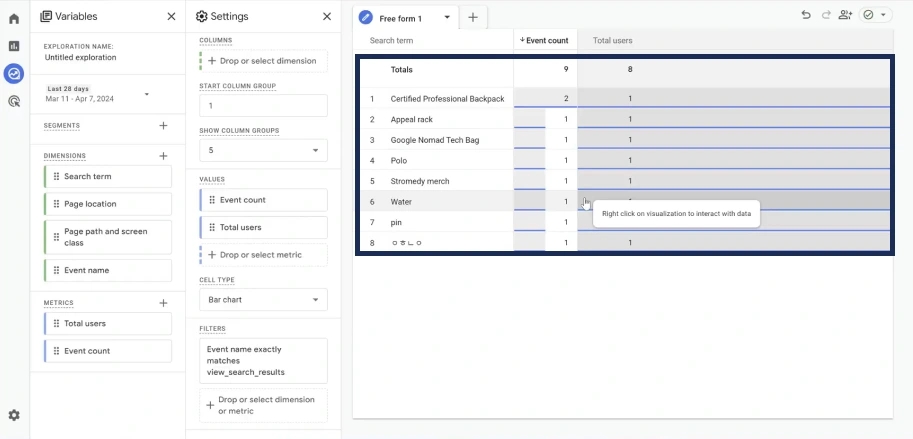
So, if we want to know what the most popular search queries are entered by our site visitors, we need to throw in a parameter Search term and add our two metricsEvent Count та Total users. And now we can already see the answer to our question.
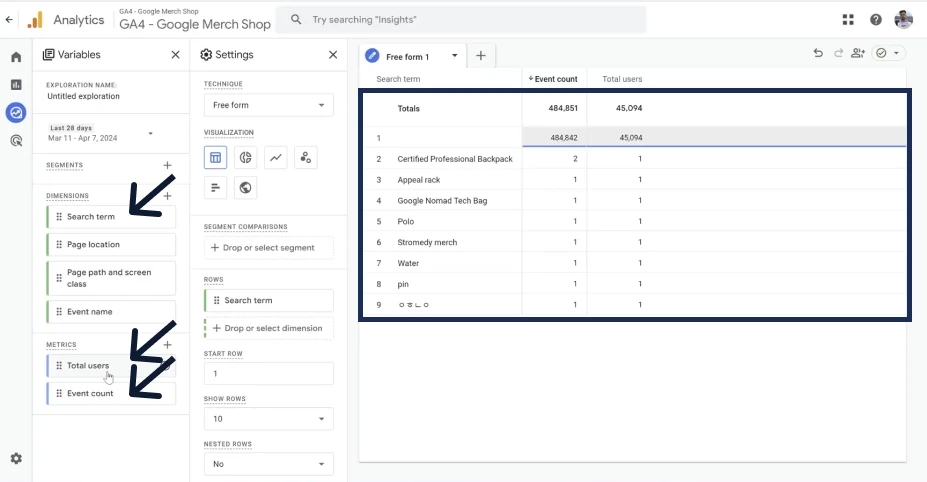
Notice we have an empty string. This is because we have not added a filter for the event we need.
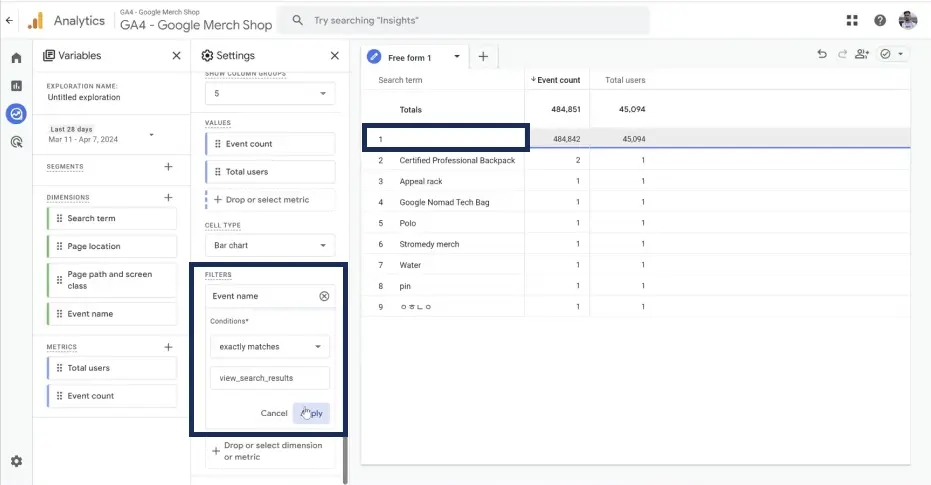
That is, if we use Event Name, with the condition exactly matches and view_search_result, then, accordingly, the empty line will disappear.
What can this information be needed for?
For example, to understand what exactly people cannot quickly find on your site. Or you can also use these queries to find keywords to run ads on Google Ads.
But of course, the analysis of internal search data does not end there: when you see exactly what people are searching for you, it would also be right to understand where exactly they are looking for it.
For example, you got into the following situation. There is an advertisement, people on the advertisement go to a certain page, but there they do not find the product they expected to see. So they go to use internal search. How can it be seen?
First of all, we can add Page location to our report.
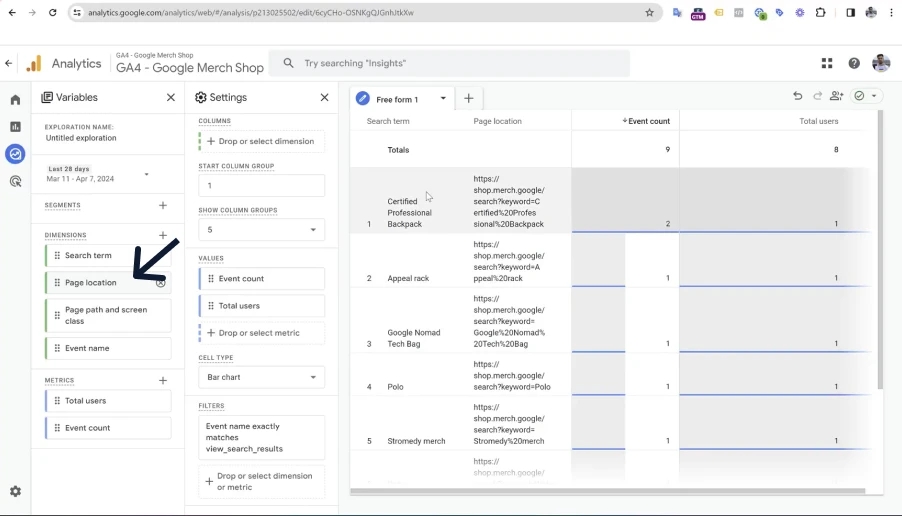
This will help us understand on which page the event occurred. But there is one important nuance - the search event with us always takes place on the search results page.
Pay attention, on the screen we see the same phrase in the URL, we always have a page - shop.merch.google/search
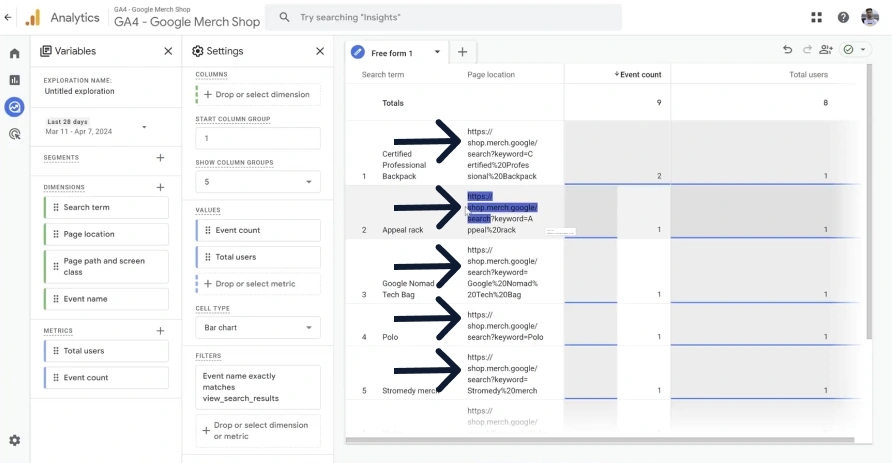
That is, this information does not bring much value to us. What to do in this case?
In this case, you will not need Page location, but Page Referrer, which is the previous page before the search result. Let's go to “Dimensions” and add another Page Referrer.
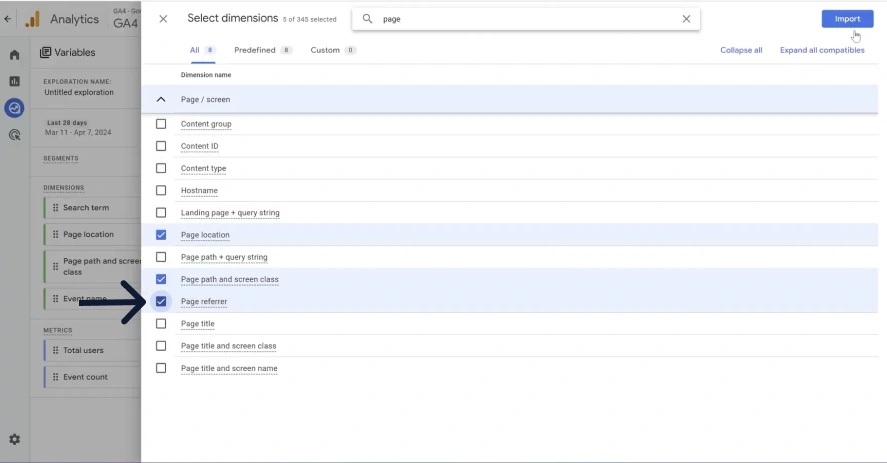
We will display it, and we can remove Page location
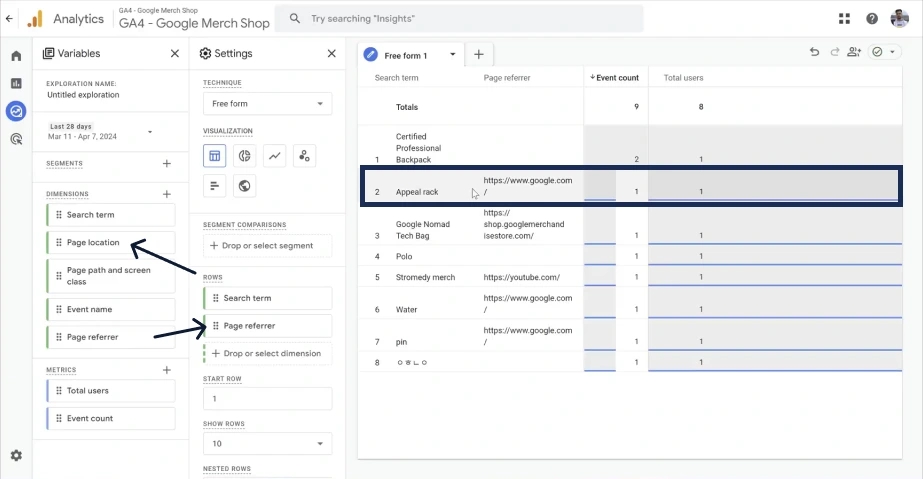
Now it became more interesting:
- In the screenshot below we can see that we have people who have moved from the domain
google.com, and they immediately landed on the search page.
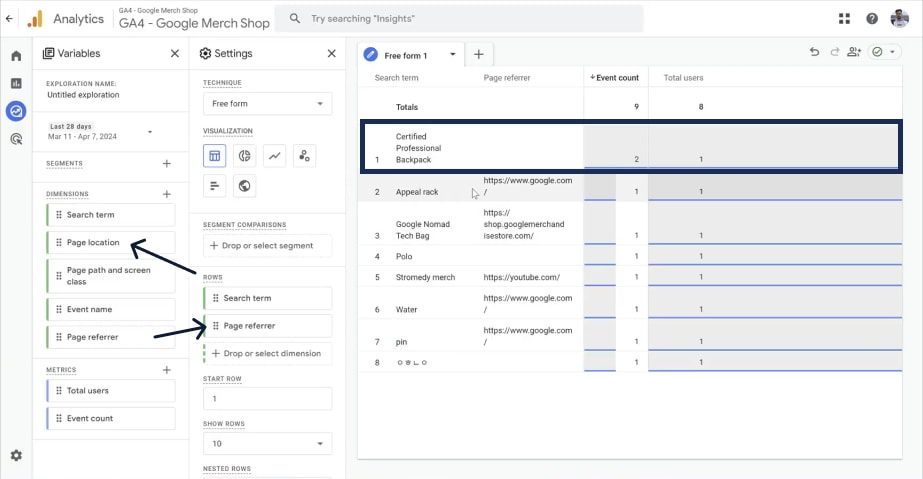
- There is also another case when there is no referrer at all, but the person also immediately got to the search page. For example, due to the fact that someone sent his friend a link immediately to the search page.
- In addition, people will not always go from some external domains or external links immediately to the search pages. There may be a situation when we see that a person has moved from the main page or from some other page of the site. In this case, an internal transition occurs, and in this case it will be interesting from which source of traffic the transition to our site was. And we can find out too.
- Let's go to "Dimensions" and we will need exactly those traffic sources that begin with "Session". Let's look at an example of
Source/Medium. If I writeSource/Medium, then we have several options: justSource/Medium,Session Source/Medium,First user Source/Medium. All these are different parameters.
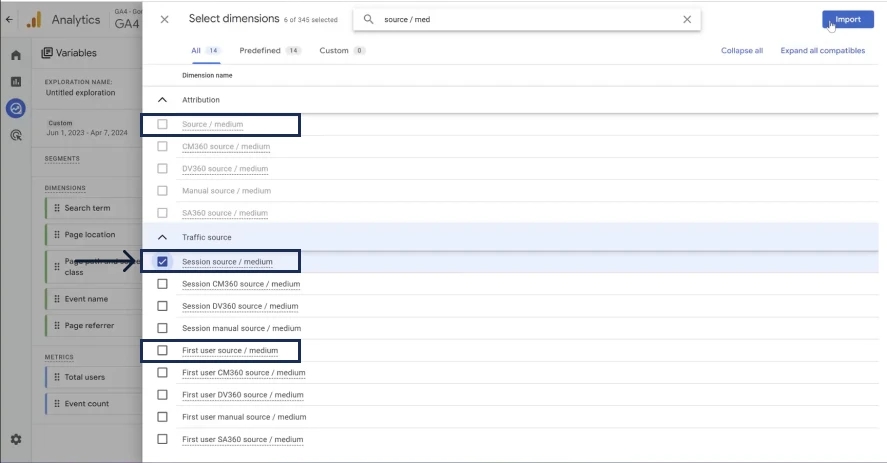
Now we need Session Source/Medium, select it and immediately add it to the report.
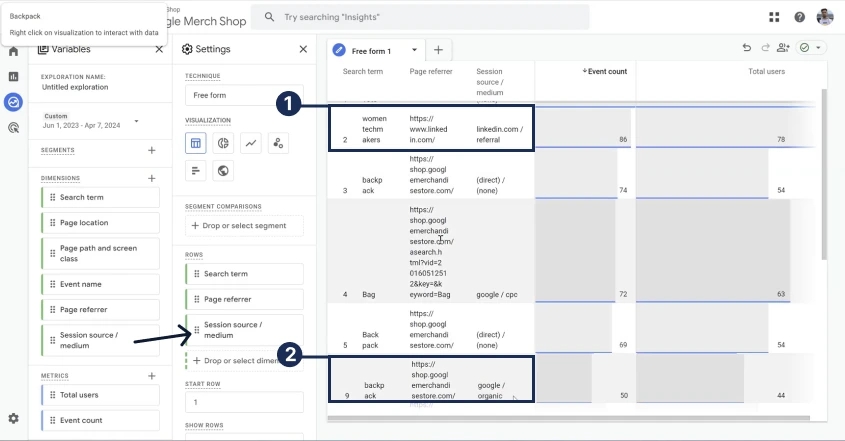
What we see now:
Here people came to us from LinkedIn and immediately to the search page (see №1 from the screenshot above)
Here people went from google/organic to the main page and then went to the search page (see №2 from the screenshot above)
And in this way, we understand what exactly people were looking for, what was the previous page before the search and from which source they visited our site.
By the way, pay attention to another important nuance that you can get from this data. Often there is a situation when people are looking for products on your website, and you do not have such products yet.
- On the one hand, it can be a point of growth. You can start selling such products. Or if we talk about blogs, as an alternative resource, which can also have an internal search, then you can write articles on the desired topics.
- Or on the other hand, you may realize that you will never have such products, but go look at the traffic source and see that it is paid advertising. And then it makes sense to go to your ppc guy and show him what kind of traffic he's driving, and that people are actually interested in something else that isn't on your site.
Instead of a conclusion
Now you know all about the view_search_results: how it works and what it shows. Hopefully, you can use this information to improve the performance of your site.
If you liked this article, don't forget to share it with your friends.
Even more useful and interesting information will be released in the following articles very soon. Well, if you want to get more such life hacks and dive deeper into website analytics, you can do it by enrolling in a course from PROANALYTICS.ACADEMY. Perhaps the course “GA4 Basics” - is exactly what you need now in order to increase your level of work with Google Analytics 4. Such nuances and interesting ways of using data, as you saw in the article, are very, very many in the course.
Loading comments…