
Welcome to the final fourth article in the Advanced Statistics event series. If you haven't seen the previous parts, you can read them at these links:
- Why it is important to analyze page scrolling, and how to do it with GA4.
- How to correctly analyze clicks on external links in GA4?
- How to correctly analyze the internal search of users on the website?
If you have some kind of pricing on your site, or you offer some kind of detailed description of your services, or you have some useful materials or certain files that users can download on your site, and have you ever wondered: “How do I understand what are users interested in, what they download and what they don't?”, then this article is just for you.
Today we will talk about the advanced statistics event, which is responsible for downloading files on your site. And it is very important that this is the event of advanced statistics - it means that you do not need to make any additional settings except how to put the basic code of Google Analytics 4 on the site. Then Google will do everything for you. You just have to understand where to find the necessary information and how to use it. We will talk about this in today's article. Well, about the disadvantages of this approach, of course, too, but about everything in order.
We have the following plan:
Our YouTube channel also has video instructions for the file download event, so if you prefer video content, I'll leave a link to the video here:
Where to find the event responsible for downloading files - file_download
Like any event, file_download, that's the name of the event responsible for downloading files, can be found in the "Events" report. You can write file_download here, and in this way you will quickly find information about the number of these events, as well as the number of users who performed this event.
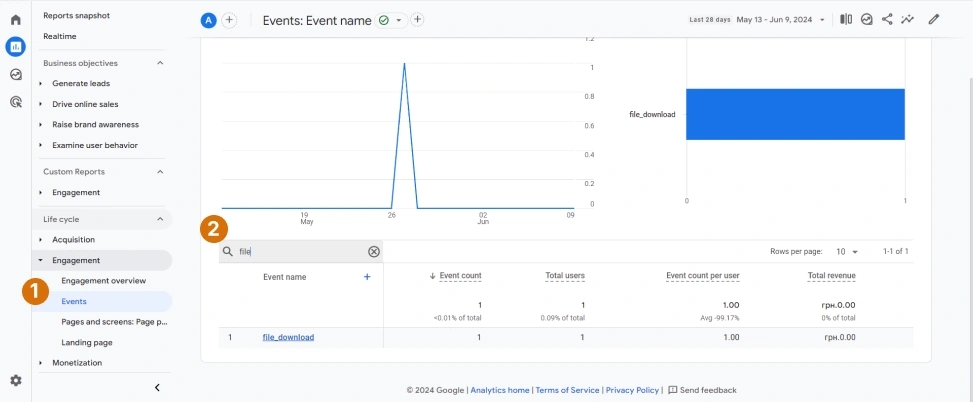
But there is one classic "but". I say "classic" because all past articles where we talk about advanced statistics events have these "buts" in common. They are that we cannot find detailed information about what happened in the standard reports. That is, you and I can see the number of events, the number of users, but, unfortunately, we do not know on which pages the action we need took place, or with which files our users interacted.
How to set up a custom report to analyze file downloads on the site
The standard report does not have this information, but we will now go to the “Explore” block and build a custom report there, which will give us the answer to these questions.
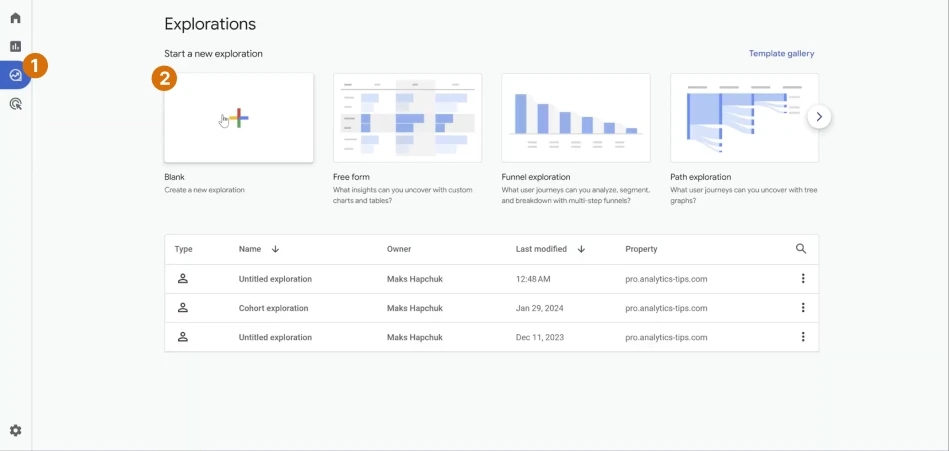
We select an empty exploration and we need to add the necessary "Dimensions" and "Metrics" for our report.
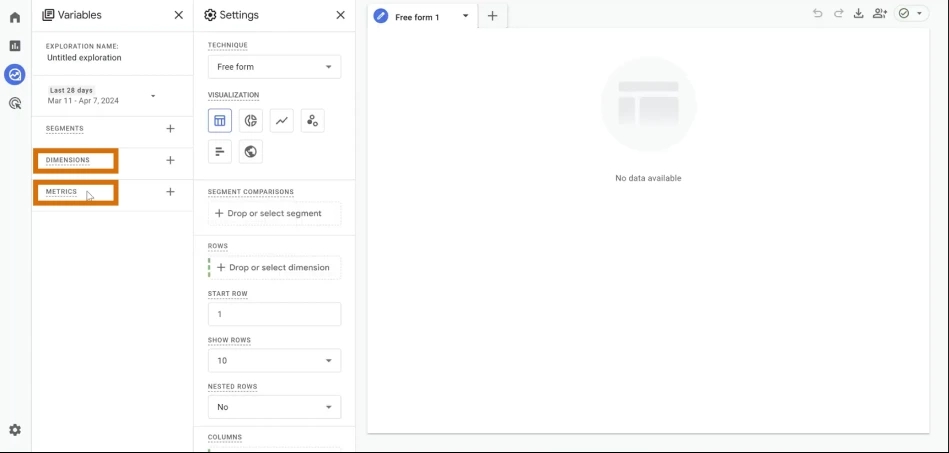
Since we are interested in what exactly a person downloaded and where, that is, on which page he did it, we will need the following parameters:
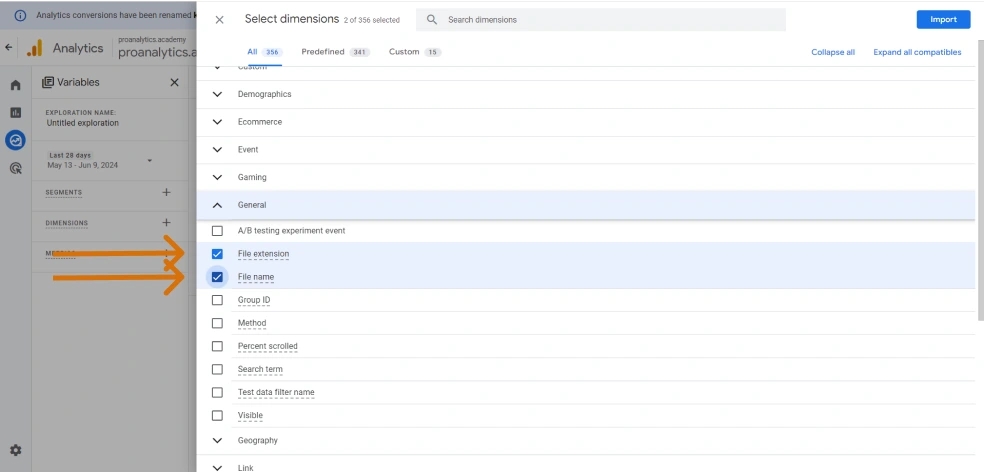
- First, in the
Generalblock, we need two parametersFile ExtensionandFile Name.
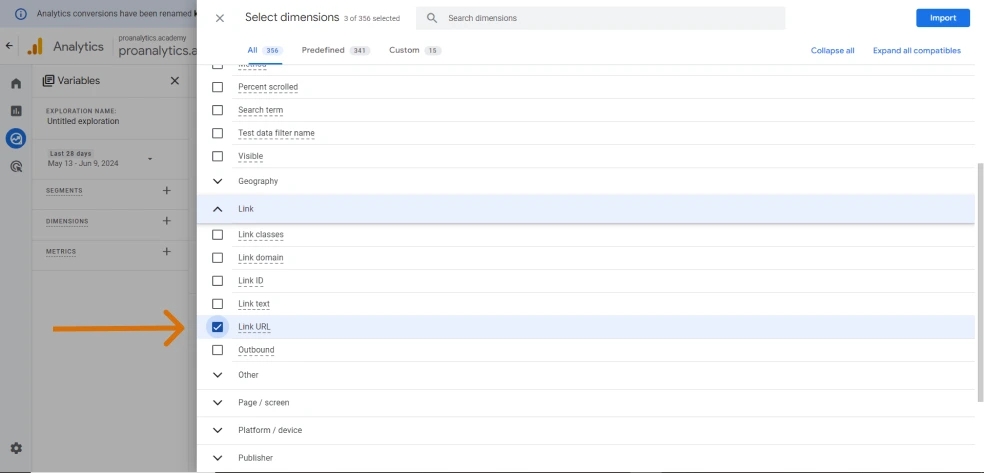
- Next, we will need a parameter in the
Linkblock calledLink URL.
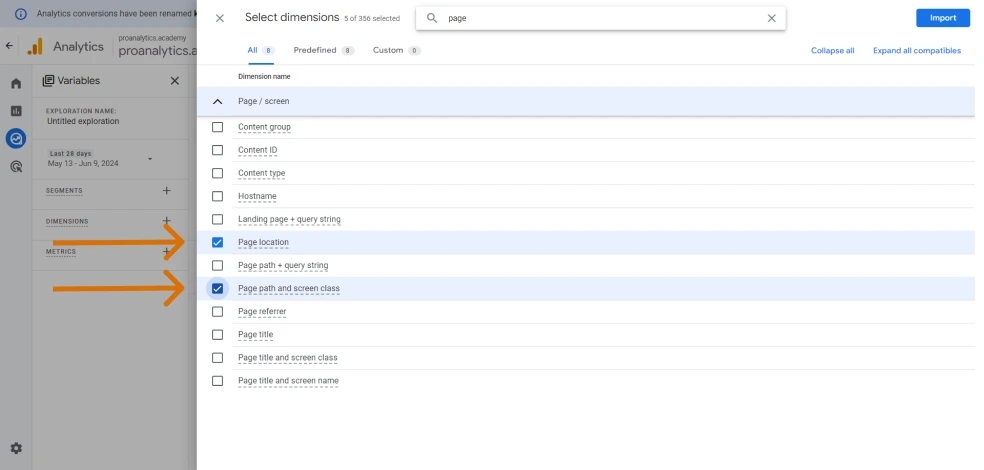
- And, of course, we'll need something like
Page LocationorPage Path, whichever you're more used to. These parameters are responsible for which page the action took place on.
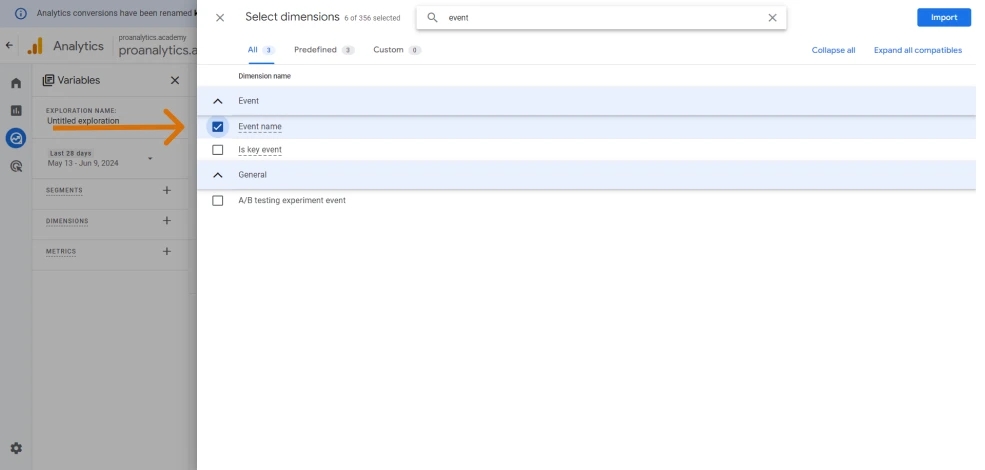
- Since we will only need to filter the data for our report by the
file_downloadevent, we will need theEvent Nameparameter.
As for metrics, we will need two classic ones. Classic, I mean, in this series of articles.
Event Countwill tell you how many times people have downloaded files.
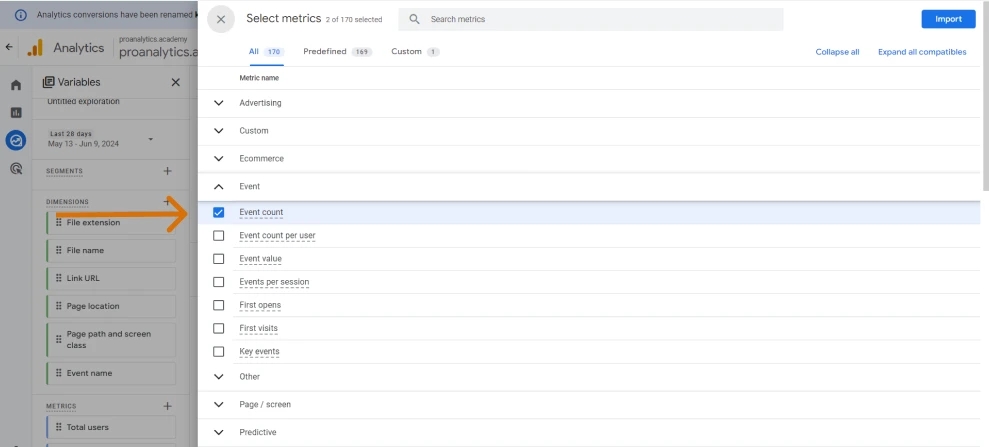
Total Users will show us how many unique users downloaded the file.
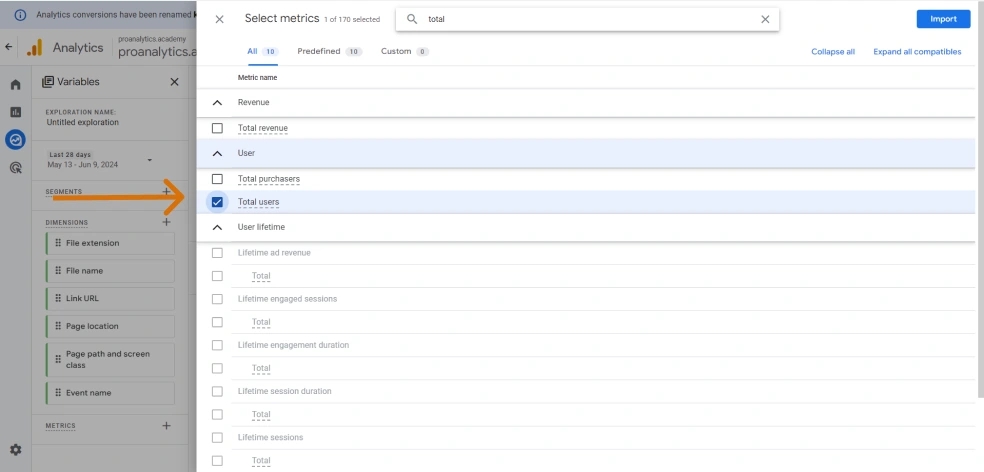
Let's add our metrics right away.
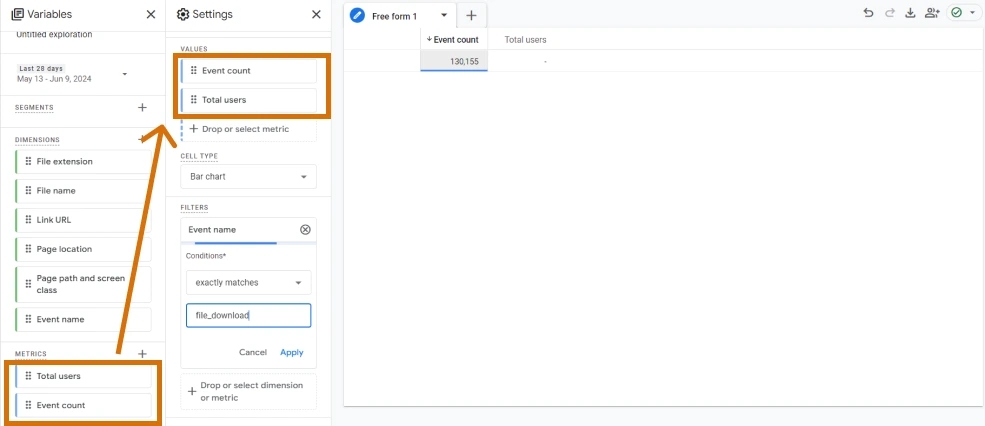
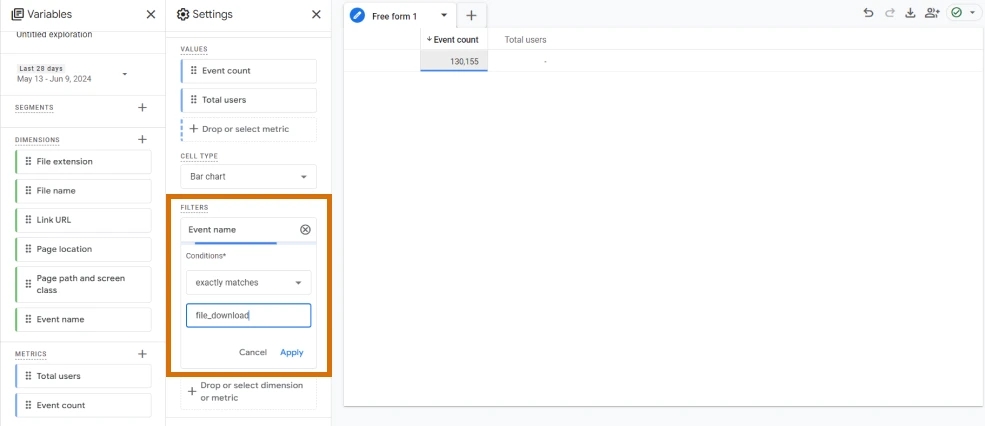
And we also add a filter.
Combinations of metrics and parameters in a custom report to analyze user behavior
Now we need to choose what information we want to display.
- If we want to see which files are most often downloaded on the site, then we simply display the
File Name. And now we can see that there is a file that is downloaded most often, but we do not see what extension it has.
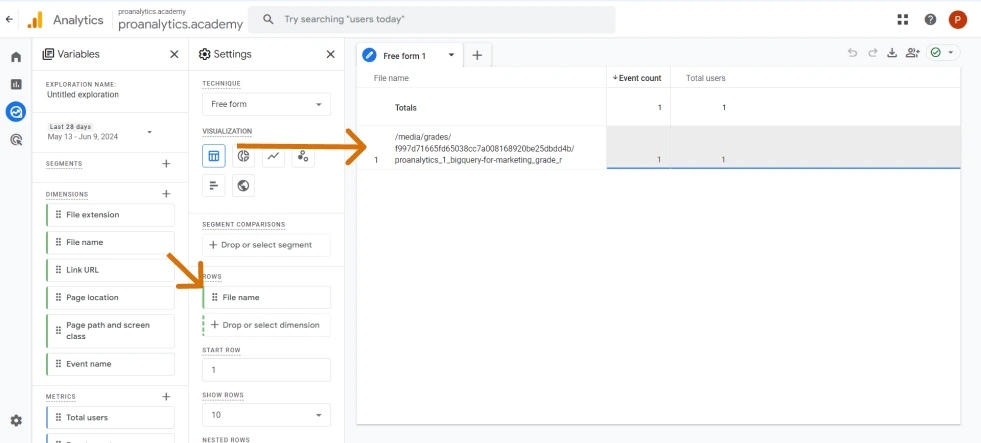
2. If we are interested in the file extensions most downloaded by users, we can also add File Extension. Now it became clear - our file has a csv extension.
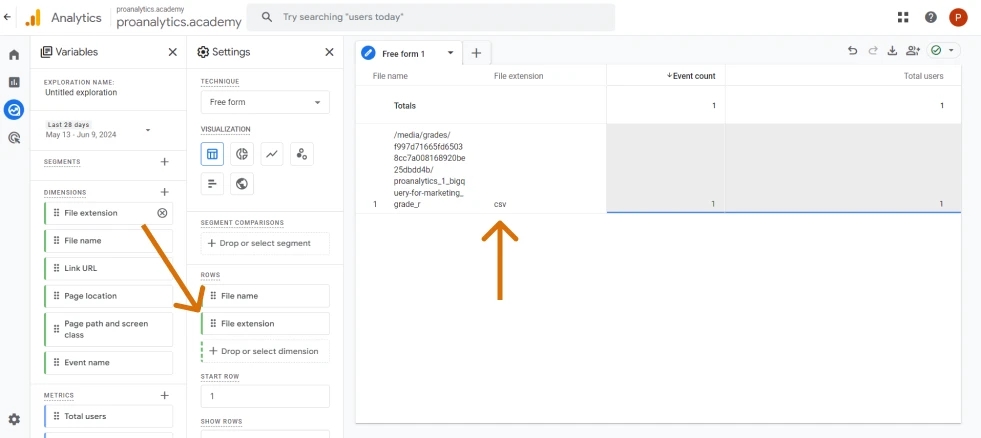
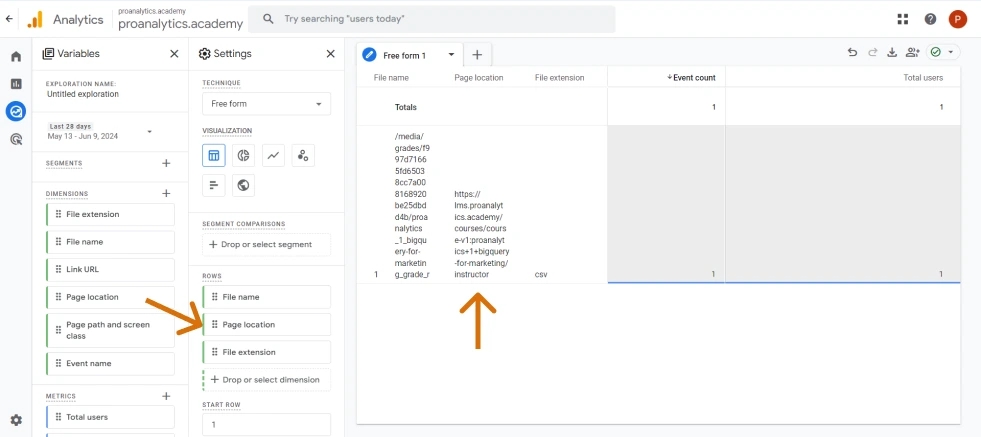
3. If we are interested in the page on which this download interaction occurred, then we can use the Page Location or Page Path parameter. And we will see on which page this file was downloaded most often.
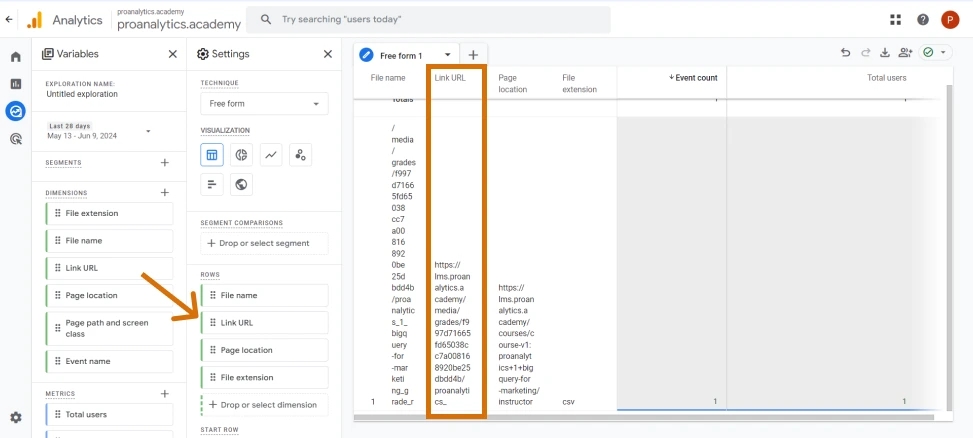
4. If the name of the file itself is not enough for us and we want a full link to it, then we can display information using the Link URL parameter.
Instead of a conclusion
Now you know how quickly you can see what files users download on your site and on which pages of the site they download. The Google team has done a great job of giving you this option "out of the box", but as with every previous article in the Enhanced Measurement series, this setup has some cases that it doesn't cover. And Google, by the way, writes directly to you about this, but who reads such notes carefully?))
In fact, downloading a file just means clicking on a link with a certain extension that matches the following regular expression pdf|xlsx?|docx |txt|rtf|csv|exe|key|pp(s|t|tx)|7z|pkg|rar|gz|zip|avi|mov|mp4|mpe?g|wmv|midi?|mp3|wav|wma .

That is, if on your site the file download starts with a direct click on the link - this advanced statistics event will help you and quickly provide answers to questions. If the download of the file is started after clicking on the button using a JS script, or after sending a certain form, then this event is not for you and it is better to use other solutions, for example, to track the click on the button (You can read about this in the article "Tracking clicks on elements site using Google Tag Manager: Advanced Guide"), or successful form submission (you can read how to do this in the article "Tracking form submission using the Element Visibility trigger").
If the information is still not enough for you and you want to develop further, I highly recommend taking the GA4 Basics course on the PROANALYTICS.ACADEMY platform. You will learn much more interesting and useful material on it. The link to this course is available here.
All past articles from the Advanced Statistics event series can be found below:
Loading comments…