Everything you need to know about BigQuery: what it is, why you need it, and what the benefits are for marketing

You have probably already heard about the vast amounts of data generated every day — data that needs to be not only stored but also analyzed quickly and efficiently. Businesses of all sizes need to make informed decisions quickly. This is where BigQuery, Google’s powerful cloud data warehouse, comes in.
Let’s start with the basics and look at the official definition — or, more precisely, my slightly less official version of it.
What is Google BigQuery?
“BigQuery is a fully managed, serverless data warehouse from Google that enables scalable analysis of large volumes of data. It supports queries written in GoogleSQL and includes built-in machine learning capabilities.”

I understand that official definitions are not always easy to grasp at first, but they usually contain important information about the product, so I decided to include one at the beginning. Now, let’s explain it in simpler terms.
What we’ll cover:
- What is Google BigQuery?
- How BigQuery is organized and how it works
- What are the benefits for marketers?
- Overcoming the limitations of the Google Analytics 4 interface
- Building end-to-end analytics and automating reporting
- Getting started for free
- Affordable pricing
- Easy-to-use machine learning tools
- Less dependence on the IT department
- Seamless native integrations with Google services
- Easy scalability
- Transferring data from BigQuery to other services
- Data security
- BigQuery is a part of the broader Google Cloud ecosystem
- How to get started with BigQuery?
- Integrating Google BigQuery with Google Analytics 4
- Integrating Google BigQuery with Google Ads and Facebook Ads
- Google BigQuery integration with Google Merchant Center
- Google BigQuery integration with Google Search Console
- Google BigQuery integration with Google Sheets
- How to configure data transfer from other systems to Google BigQuery
- Integrating Google BigQuery with data visualization and business intelligence tools: Data Studio (Looker Studio) and Power BI
- Instead of a conclusion
How BigQuery is organized and how it works
Disclaimer: Although this article is primarily intended for marketers, it is also an introduction to the platform, so I decided to begin with a few technical aspects of BigQuery. If you are not interested in the technical details, you can skip straight to the practical benefits of BigQuery for marketers.
In simple terms, BigQuery allows you to bring together and store data from multiple sources in one place. It is essentially a cloud data warehouse provided by Google.
What makes it special? Its compute engine (Query Engine) and data storage (Storage System) work separately from each other—an approach often referred to as “decoupled storage and compute.” This, in turn, allows you to scale the resources needed to store data separately from those needed to perform calculations.
If you’re a technical person and want to learn more about why this approach is such a significant advantage, I recommend reading the article “Separation of Storage and Compute in BigQuery” on the official Google Cloud blog.
The image below is taken from Google’s official documentation and nicely illustrates the general architecture of BigQuery.
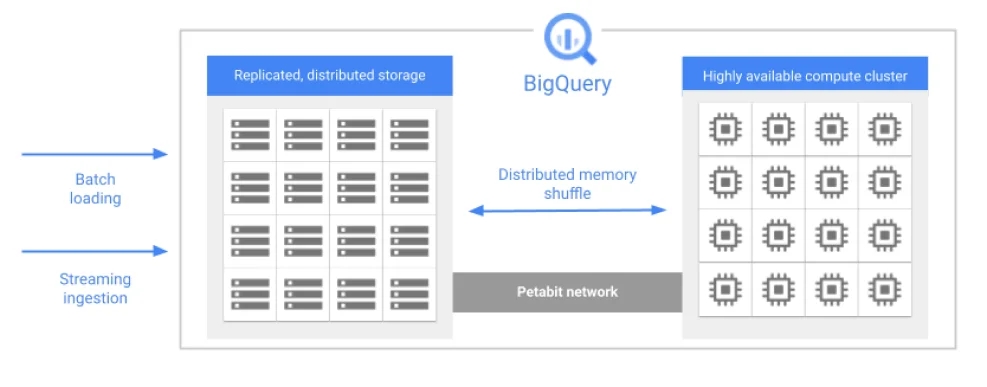
When you run a query in BigQuery, the system distributes the workload across several parallel computing processes. They scan the relevant tables simultaneously, perform the necessary calculations, combine the results, and return the final query result. This approach allows BigQuery to process complex queries efficiently, even across very large volumes of data and in a short amount of time.
But these are all technical details, and this article is primarily for marketers. So let’s get to the main point.
What are the benefits for marketers?
The items below are listed in no particular order. Each of them is important and deserves your attention.
- Overcoming the limitations of the Google Analytics 4 interface
- Do you often run into data sampling issues when working on a large project?
- Would you like to analyze data for a period longer than 14 months? Just a reminder: you can’t do this in Google Analytics 4 Explorations.
- Does the GA4 interface not allow you to create the report you need?
In all these cases, BigQuery becomes indispensable. Working with raw data allows you to get around the limitations of the interface.
2. Building end-to-end analytics and automating reporting
Do you constantly switch between Google Ads, Facebook Ads, Google Analytics, your call tracking system, and your CRM to understand how effective your advertising is, but still can’t see the full picture?
With BigQuery, you can bring all your raw data together in one place and then use an external tool like Power BI, Tableau, or Looker to create your final reports.
Although end-to-end analytics can be built without BigQuery, BigQuery remains one of the most popular solutions for implementing it due to its many advantages.
3. Free to get started
Google Cloud offers eligible new customers $300 in free credits, enough for three months of work for most companies. This allows you to evaluate the platform before incurring additional costs.
4. Affordable pricing
In addition to the free start, you will have free monthly storage and data processing limits:
- the first 1 TiB of data processing is free;
- the first 10 GiB of storage is free.
Because these allowances reset each month, they are often sufficient to cover the needs of a small business without incurring additional BigQuery charges. For larger businesses, monthly costs of tens or even hundreds of dollars may still be relatively modest compared with the value the platform provides.
BigQuery offers transparent, usage-based pricing, so you pay only for the resources you use.
5. Easy-to-use machine learning tools
I think it’s no secret that, in the right hands, machine learning can significantly simplify data analysis and uncover new insights.
With BigQuery, you don't need to be a data scientist to start using machine learning with your data. This is not done in 1 click, but it is quite simple and convenient.
For example, you can spend just a few hours and learn to segment the customer base based on RFM (recency, frequency, monetary value) analysis using ML.
6. Less dependence on the IT department
Often (I would say too often) I see in companies that the work of the IT department can slow down the work of marketing. IT often works in sprints and according to a plan, but marketing needs flexibility and the ability to act situationally.
Also, a situation often arises when marketing depends on updates of various systems, for example, on updates from Google or Facebook. Sometimes we don't know about these updates in advance. But simply asking the IT department to do something immediately can be difficult. Do we know this?
In many companies, unfortunately, the interaction between marketers and IT professionals looks something like this:

BigQuery is a cloud platform. It does not require a system administrator or other technical specialist to monitor the operation of the database. Google solves all technical questions for you. Just remember to pay your bills on time.
7. Fast native integration with Google services
BigQuery is not just a cloud platform, but a cloud platform from Google. And this is a very important advantage.
Think about where you usually view site performance and traffic data:
- Maybe in Google Analytics 4?
And where are the biggest advertising budgets?
- Maybe in Google Ads?
Yes, it is difficult to imagine modern marketing without Google services. The difference between BigQuery and other similar cloud solutions is the ability to configure data collection from various Google services, such as Google Ads, GA4, Search Console and others, in just a few clicks.
I talk in more detail about the possibility of native integration of BigQuery with various Google services in the article below - Google BigQuery integrations with Google Analytics 4, Google Ads, Facebook Ads, Google Sheets, Data Studio (Looker Studio), Power BI.
8. Simple scaling
BigQuery can handle any amount of data, making it an excellent tool for both small and large businesses. Google takes care of all the technical aspects, so you can just work with the data without too much worry.
9. The ability not only to natively collect data from other systems and store them, but also to transfer data from BigQuery to other services
Now, transferring data from CRM to BigQuery is not only a desire, but also a necessity: many CRM systems do not support native integration with advertising cabinets or business intelligence systems, but BigQuery has such integrations. And this actually applies not only to CRM:
- Want to transfer offline conversions to Google Ads? Please, here is the native connection. (Read more about this below - Import conversions from Google BigQuery to Google Ads)
- Want to import audience segments into Google Ads? there is also a native connection. (Read more about this below - Import audiences from Google BigQuery to Google Ads)
- Need to visualize data in Power BI or Tableau? Ready connections will also help. (Read more about other connectors in the block - Google BigQuery Integration with GA4, Google Ads, Google Sheets.)
10. Data security is confirmed by PCI DSS, ISO 27001, SOC 2 and SOC 3 type II certificates
Data storage security is backed by leading certifications, so you can store sensitive customer data like credit card numbers, email addresses and other identifying information without worry. BigQuery is ideal for storing a customer contact database and, for example, further working with it for segmentation or personalization of marketing activities.
And let's move on to the last advantage:
11. BigQuery is a small part of the larger Google Cloud Platform
This advantage is not immediately apparent, but once you start working with it, the appetite for possibilities grows quickly. For example, if you lack a native connector, you can extend the functionality using Cloud Function, Cloud Scheduler, or any of the dozens offered by Google Cloud Platform.
- Want to transfer offline conversions from BigQuery to Facebook Ads? No problem.
- Want to import audience segments from BigQuery into Facebook Ads? This is also possible.
- Or perhaps there is a desire to import audience segments from BigQuery into the email distribution system? Well, you understand, all this is also possible.
Although BigQuery may seem difficult to master, it will provide significant benefits and a competitive advantage, so it is worth moving in this direction. And as always, at this stage it is important to know where to start.
How to get started with BigQuery?
In general, the entire process of working with BigQuery for marketing tasks can be divided into the following stages:
- Sign up for BigQuery.
- Configuring the transfer of data from different systems to BigQuery. More details - further points in the article:
● Integration of Google BigQuery with Google Analytics 4
● Integration of Google BigQuery with Google Ads and Facebook Ads advertising systems
● Google BigQuery integration with Google Merchant Center
● Google BigQuery integration with Google Sheets
● Setting up data transfer from other systems to Google BigQuery
● Integration of Google BigQuery with data visualization and business analytics systems: Data Studio (Looker Studio) and Power BI - Working with data in the middle of BigQuery Studio using SQL (and Python). If you're new to SQL, you can start with Part 1 of our guide, which takes you from the fundamentals to advanced marketing analytics, and then move on to Part 2, which focuses on building a Traffic Acquisition report.
- Connecting external data visualization or business analytics systems to build automated reports or more detailed analysis in a more convenient format. More details below in the article about Google Sheets, Data Studio (Looker Studio), Power BI.
- Setting up the transfer of processed conversion data to advertising or other systems for training campaigns or personalized communication with your customers (setting up the transfer of conversions and creating audiences).
As you already understood, first of all you will need to register. The process is not complicated, but I will still describe it below.
Sign up for Google BigQuery
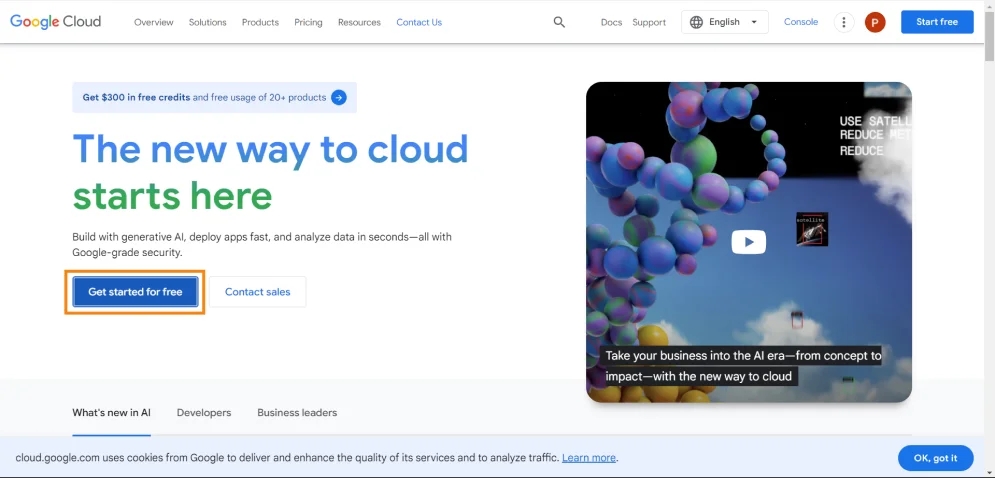
- First of all, let's go to the site Google Cloud Platform and click Get started for free.
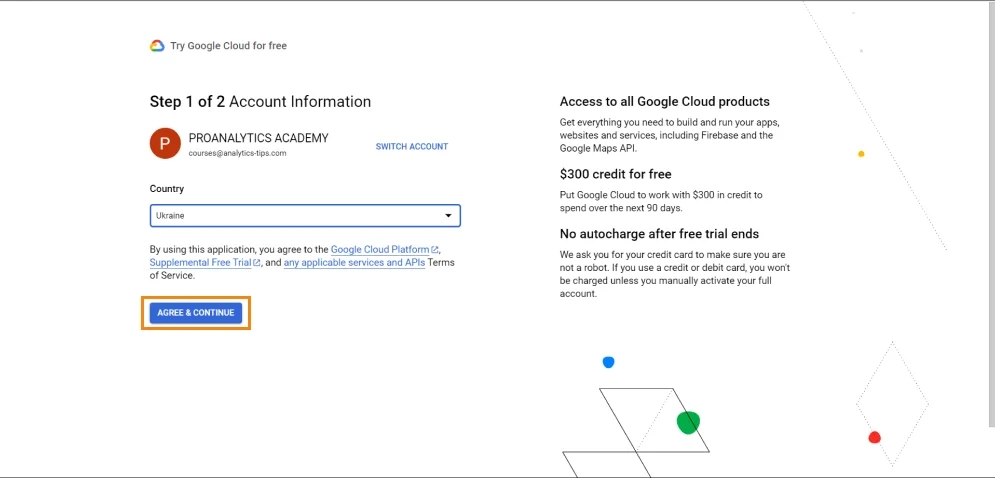
2. Next, enter the country data and agree to the terms.
3. Fill in information about you and enter payment data.
As I wrote above, to get started, the BigQuery sandbox provides free access to BigQuery features, including 10 GB of data storage space and 1 TB of analysis data per month. Therefore, you will be able to test the capabilities of the service without additional costs.
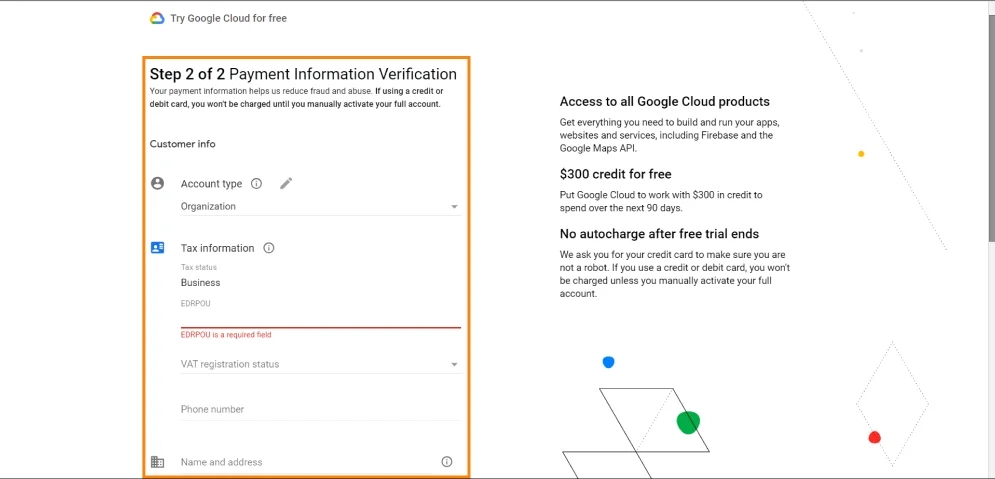
4. Click Start free.
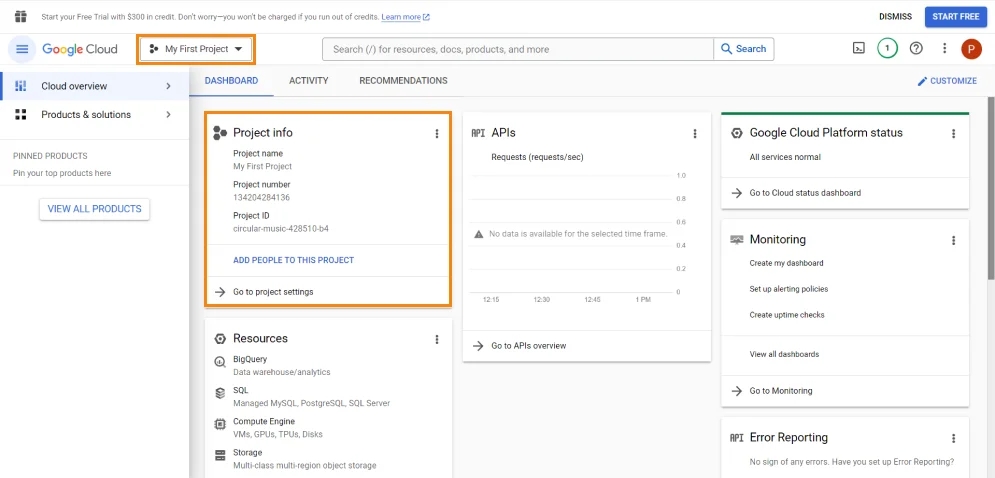
After registration, a new project My first project was automatically created.
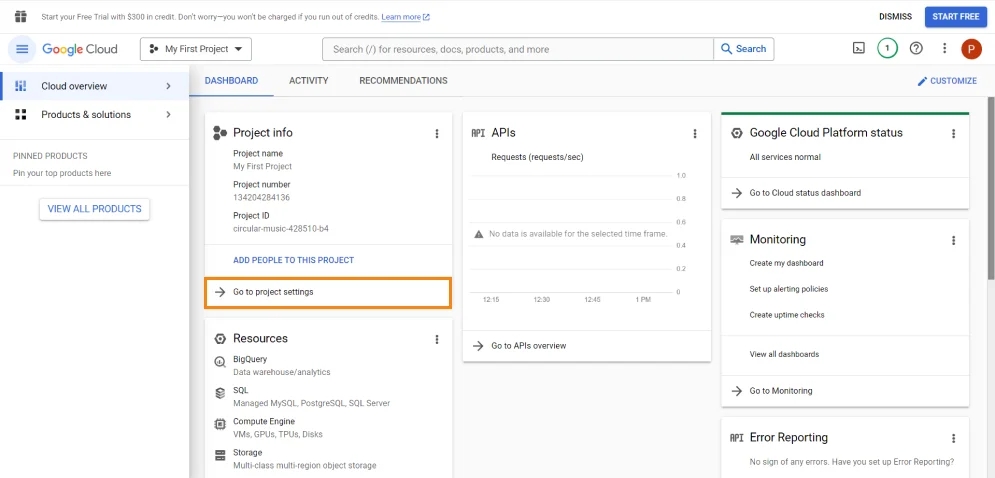
5. Be sure to change the name of the project in BigQuery to match your site or project for ease of use. You can do this in the settings. To do this, click Go to project settings.
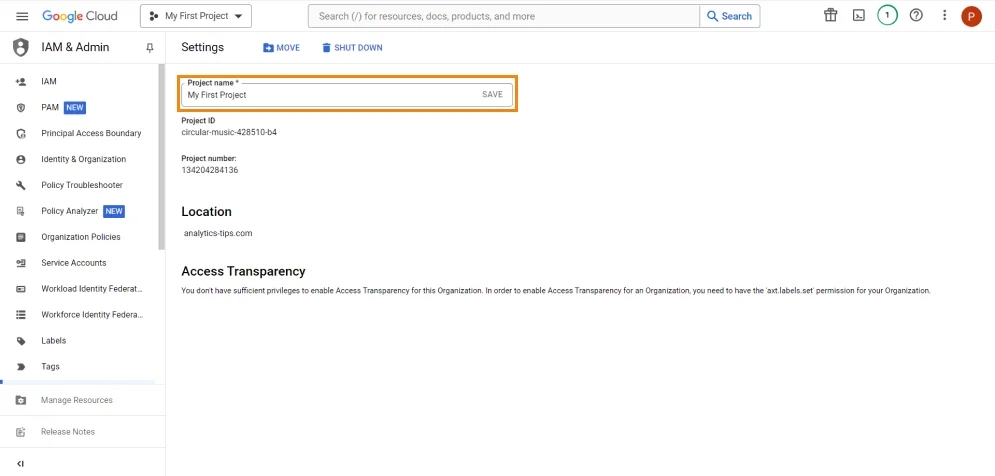
6. If necessary, you can also provide access to the emails of the team of analysts or other specialists who will work with the project.
Let's figure out how to do it:
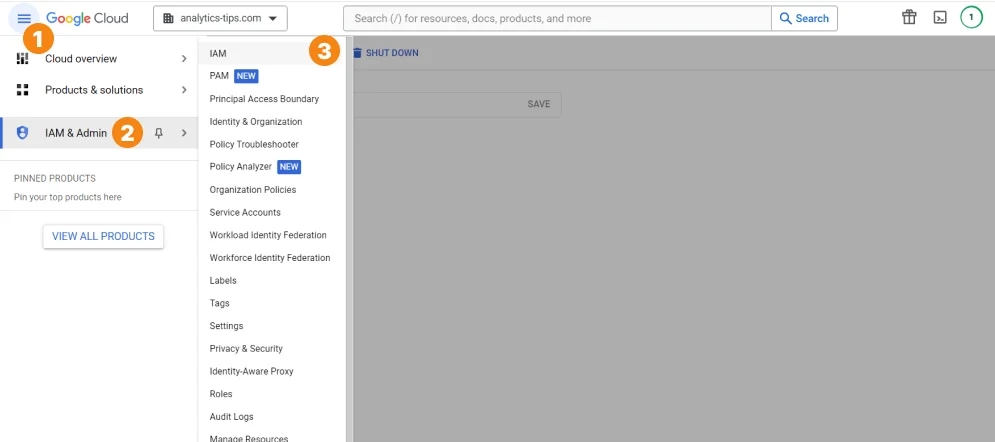
- Go to Menu -> IAM & Admin -> IAM.
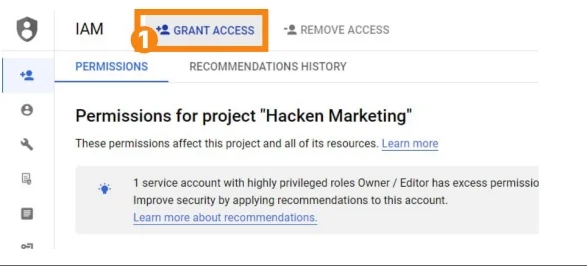
- Then click Grant Access.
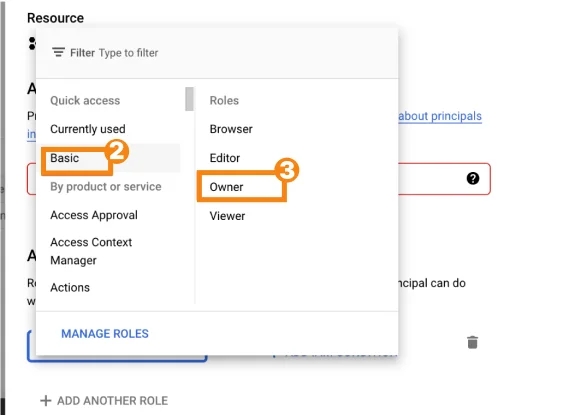
- Well, choose the level of access you want to provide. For example, Basic -> Owner. Be careful when granting the owner role, more limited access will suffice in most cases.
The next step after creating a project is to set up the transfer of data from various marketing and analytical systems to Google BigQuery. And here, as I wrote above, Google offers many ready-made and even free integrations. Let's analyze the most popular of them.
Integration of Google BigQuery with Google Analytics 4
Integration takes place directly in the interface "in 2 clicks". All data collected on the site is transmitted. Now I will show you in more detail:
- Go here and create a new project. If you're reading this article consistently, you already have. If you immediately went to this section and do not know how to create a project, scroll above, or just click - Registration in Google BigQuery.
- Go to the GA4 interface, to Admin -> BigQuery Links.
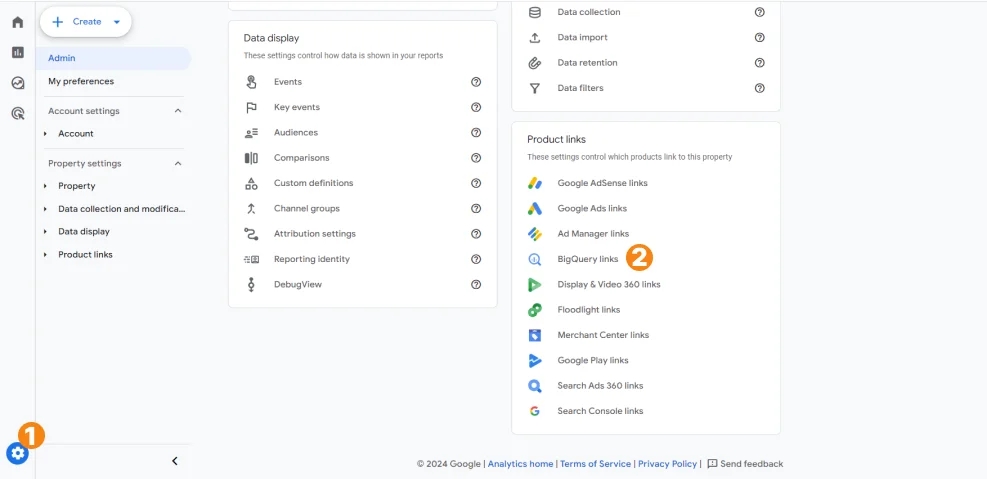
3. Click Link.
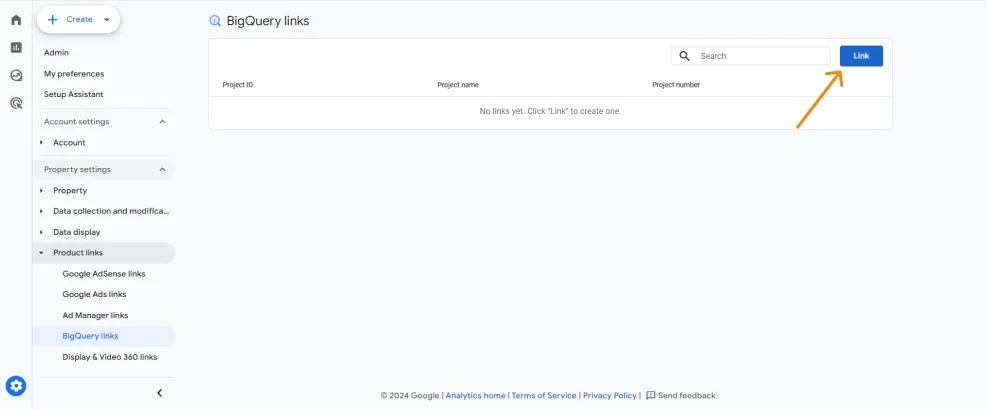
4. Select the desired project and click Confirm.
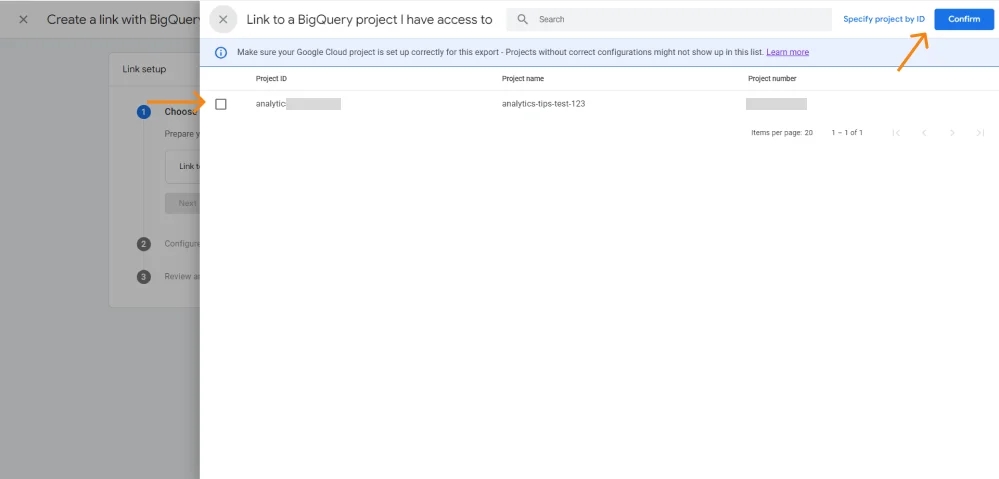
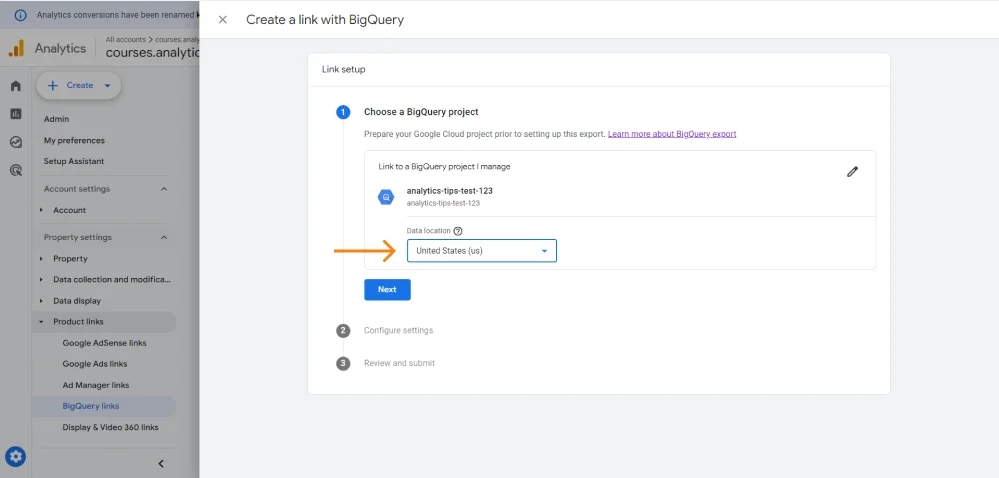
5. Data Location. Actually, it doesn't make much difference which country you put here, but consider two details:
- If your client wants to see a specific location or there are some legal circumstances regarding the place of information storage, then it should be taken into account. However, if you don't care about the difference, you can set the general one for the US or Europe.
- Be mindful of which location you choose and ensure that all subsequent data you collect, including Google Ads data, CRM data, etc., is also tagged with that location. This is very important because you will not be able to use data from different locations in one SQL query.
6. Data streams and events
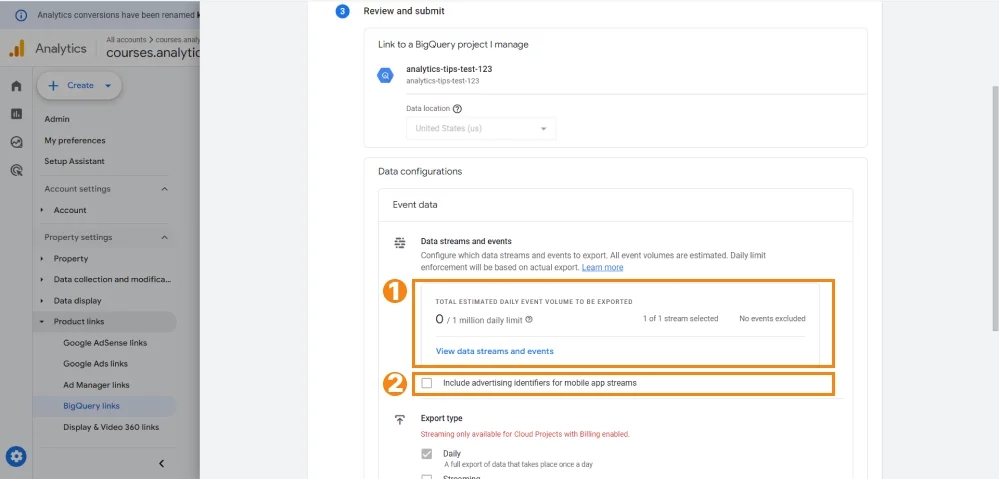
- At this point, you can select the Data Streams you need if you don't want to import data from all of them. (I don't even imagine that anyone would ever need it, but there is such a possibility)).
- There is also an opportunity to choose the information on which events you want to export - if you have a large project with more than 1,000,000 daily events - I recommend taking a closer look at this setting.
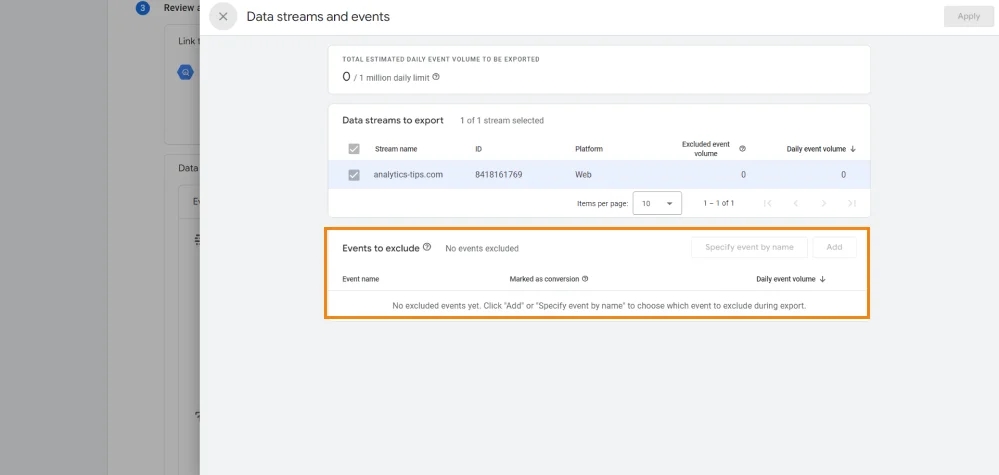
- And if you have a mobile app, don't forget to tick the Include advertising identifiers for mobile app streams setting.
7. Next, configure the Export type item for event data and user data.
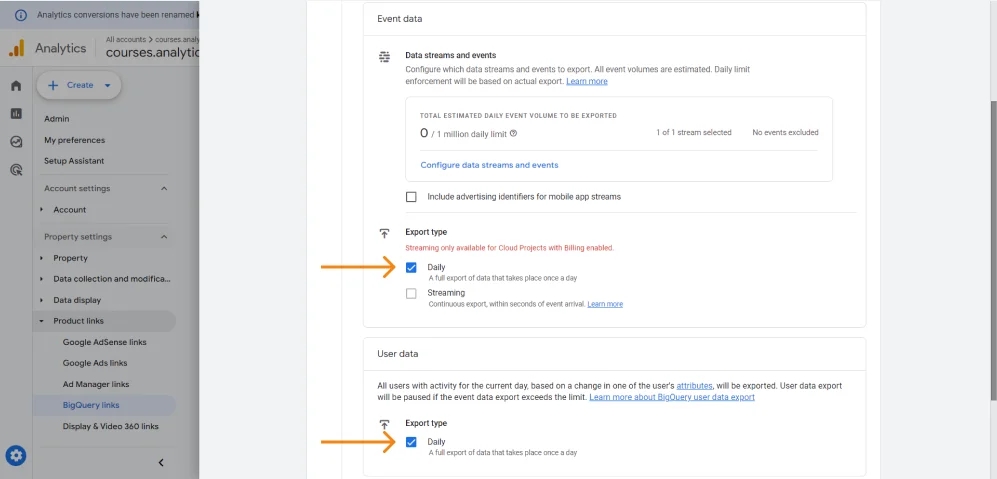
- Daily - means that the data will arrive every day at around 5-7 in the morning according to the time zone specified in the settings of the GA4 resource. Personally, I think this setting should be the default for GA4 and do it for all my clients.
This option is completely free, and if you do not have a lot of traffic on the site, somewhere up to 500,000 monthly sessions, you will still fit into the free BigQuery limits. So, after spending only 5 minutes of your time, you will receive a customized export of raw data from GA4 to BigQuery absolutely free of charge. Note that data starts accumulating from the date you set up the export, so the sooner you do it, the better.
Daily exports are limited to 1,000,000 events per stream per day. Therefore, the streaming option may be more suitable for large projects.
- Streaming - transmission in real time. In my personal experience the delay was at most 10 minutes and then this is most likely an exception. Usually your data is displayed in the streaming table within a minute. This function is paid, but if you need real-time reports or you have a large project and you have more than 1,000,000 events every day, this option will be a way out of the situation. And the prices are actually not that high - only 0.01 dollars. USA for 200 MB.
8. That's it, don't forget to click Submit. A table with daily export data will appear in BigQuery within 48 hours. The streaming data table usually appears much faster.
Integration of Google BigQuery with Google Ads and Facebook Ads advertising systems
Of course, BigQuery has native integration not only with analytical systems, but also with others, for example, advertising ones. Here are some examples of practical use of such integrations:
- Build an end-to-end analytics report that includes not only traffic data from GA4 and revenue data from your CRM, but also spend data from your ad cabinets.
- Settings for transferring conversion data to advertising offices. I mean the transfer of real data from your CRM.
- Create ad audiences based on data from your CRM or internal database.
Let's see more practically.
Integration of Google BigQuery with Google Ads
It works in both directions: you can also send data to Google BigQuery (link) and export from BigQuery to Google Ads (link). Of course, we will analyze both options later.
Export from Google Ads to BigQuery
Let's first consider how to export from Google Ads:
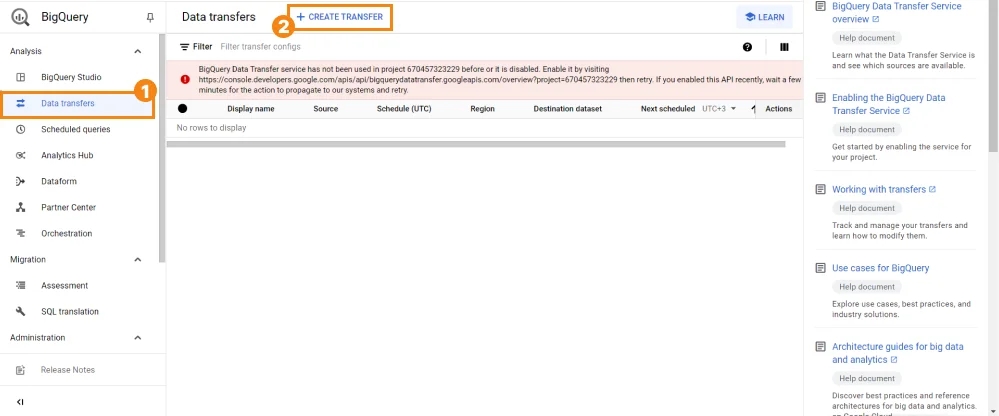
- Go to BigQuery and click Data transfers -> Create transfer.
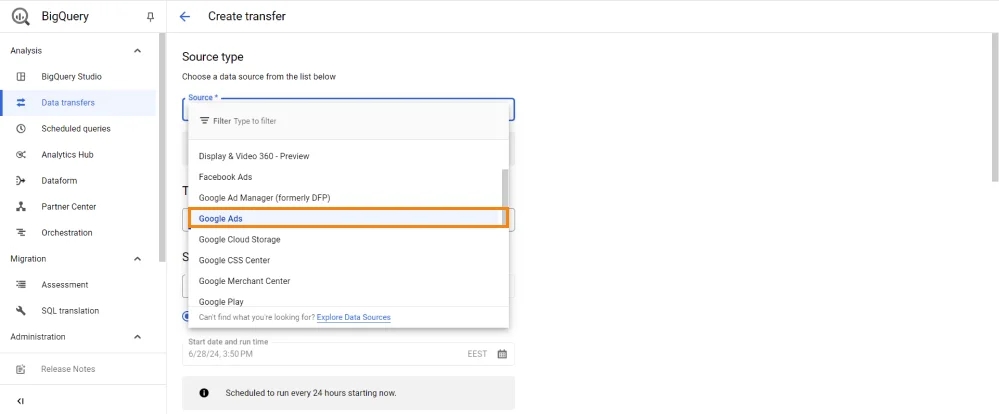
2. Then choose Type Source -> Google Ads
If this is your first transfer, you will need to enable the appropriate API. You must have the project owner role to enable the BigQuery data transfer service. Open BigQuery Data Transfer API page in the API library. Select the appropriate project from the drop-down menu. Click the Enable button.
3. Now we start the settings from the Transfer config name and Schedule options blocks.
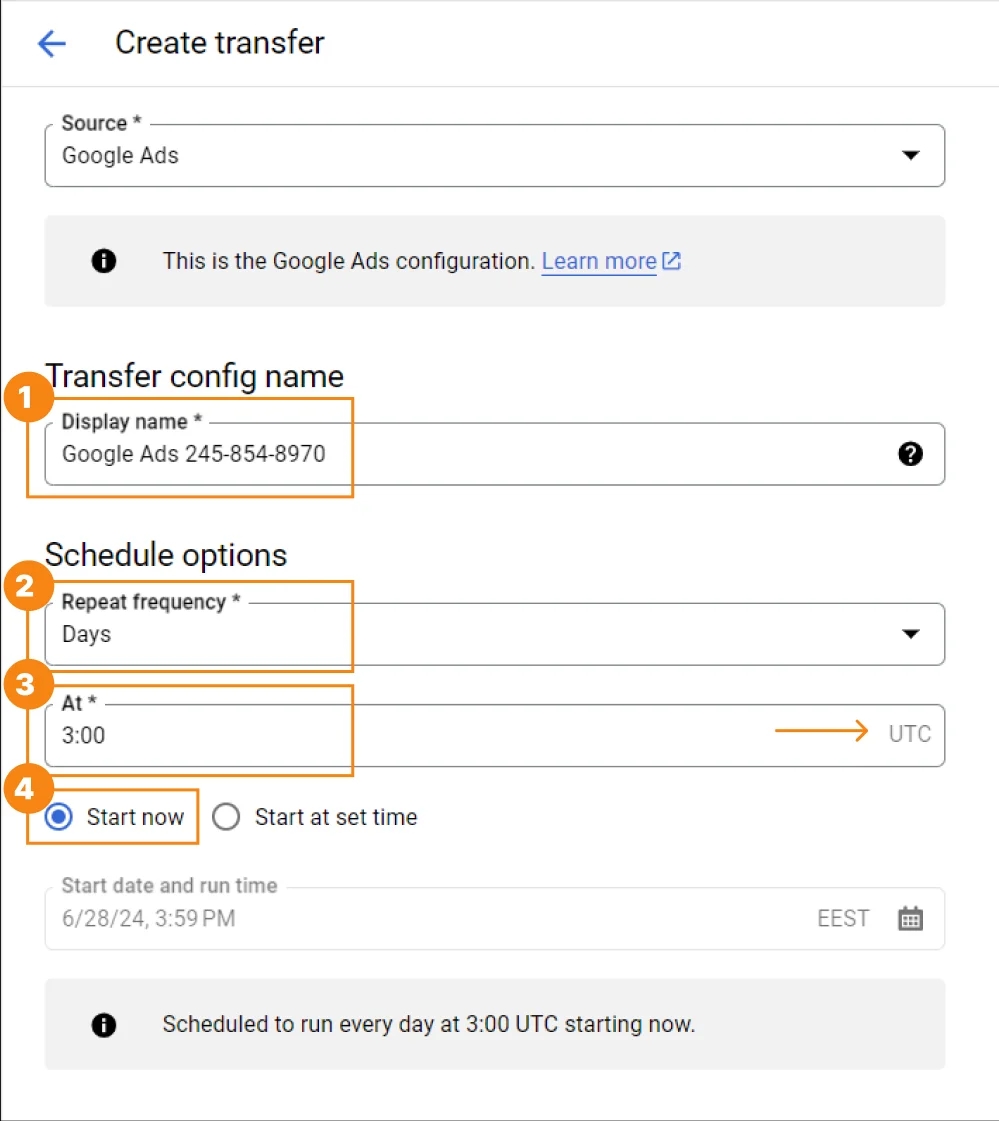
- Display name - the name of the transfer, I usually write "Google Ads and ID"
- Repeat frequency - how often data will be sent. I recommend setting Days.
- Specify the exact download time, for example, 3:00 a.m. UTC (Note that UTC is actually time zone 0. Therefore, 3:00 a.m. UTC is not 3:00 a.m. Kyiv time). Please note that below will show you the time according to your time zone.
- Select Start now.
4. Next, we go to the Destination settings block, where we will save data.
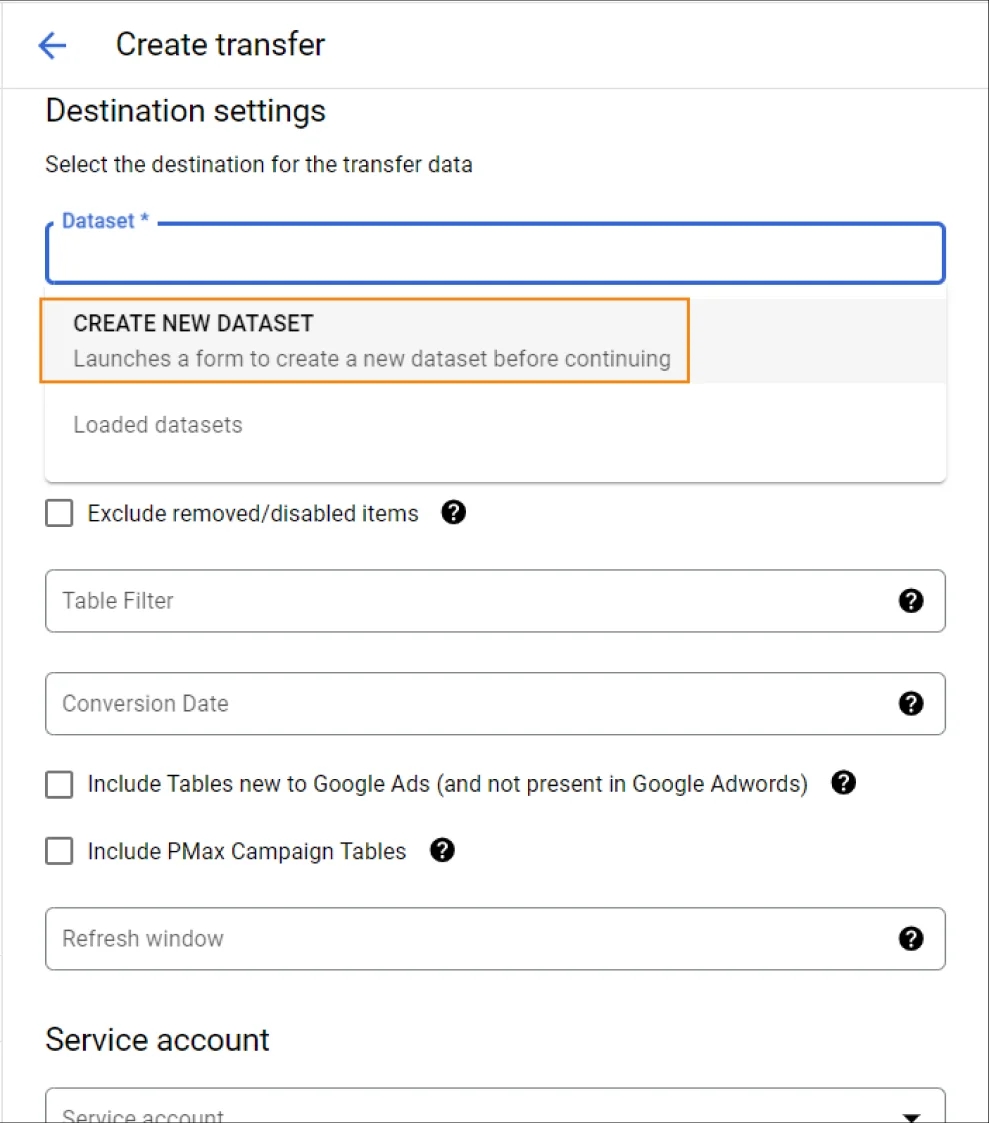
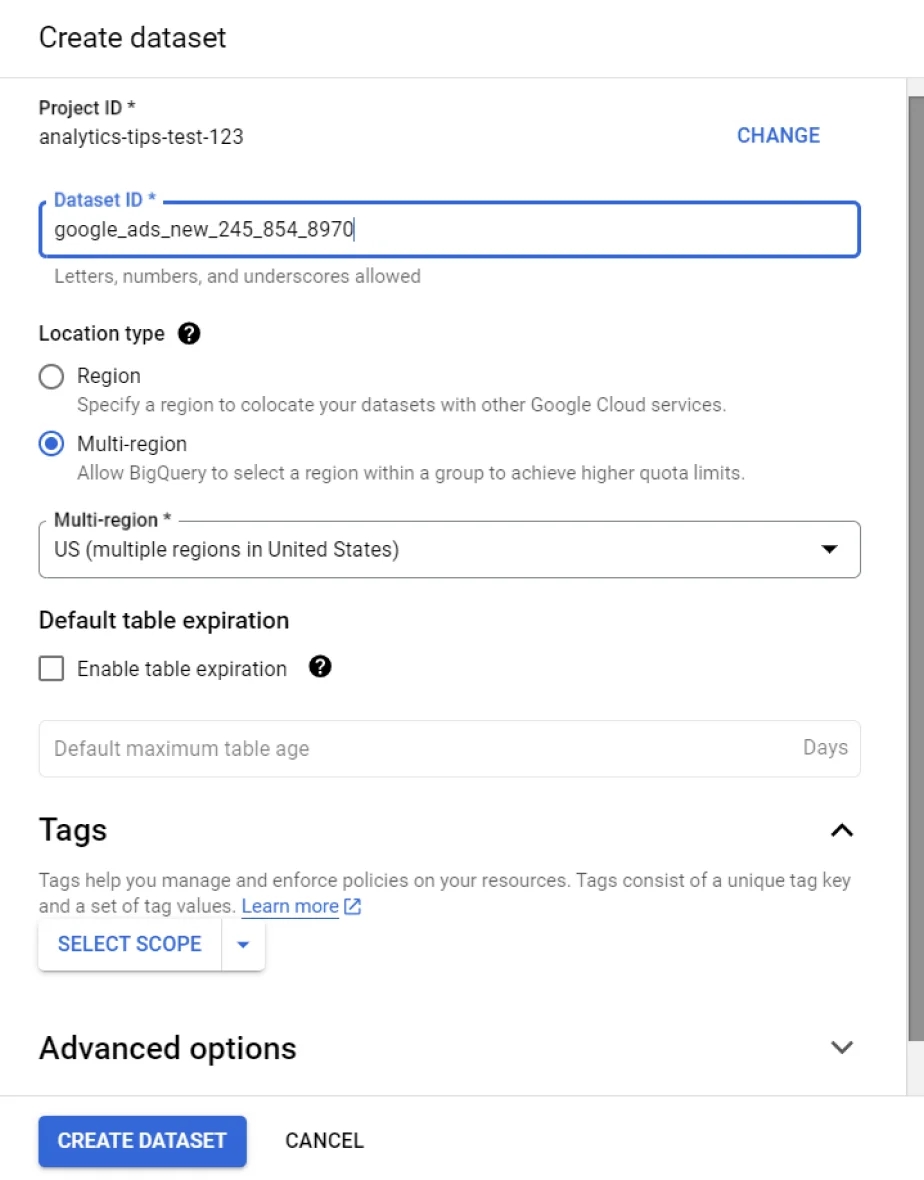
5. The best solution is to create a separate dataset.
We will need to specify the name of the new dataset, usually something like google_ads_XXX_XXX-XXXX (where XXX_XXX-XXXX is your advertising account), and choose the location where your data will be stored.
Pay attention! When setting up the integration with GA4, you already specified a certain location, and I noted that in all subsequent exports, you must also specify the same location. Therefore, do not forget about it. If you missed that explanation in the article above, here's a quick link - Integration of Google BigQuery with Google Analytics 4.
6. We continue the settings in the Data source details block:
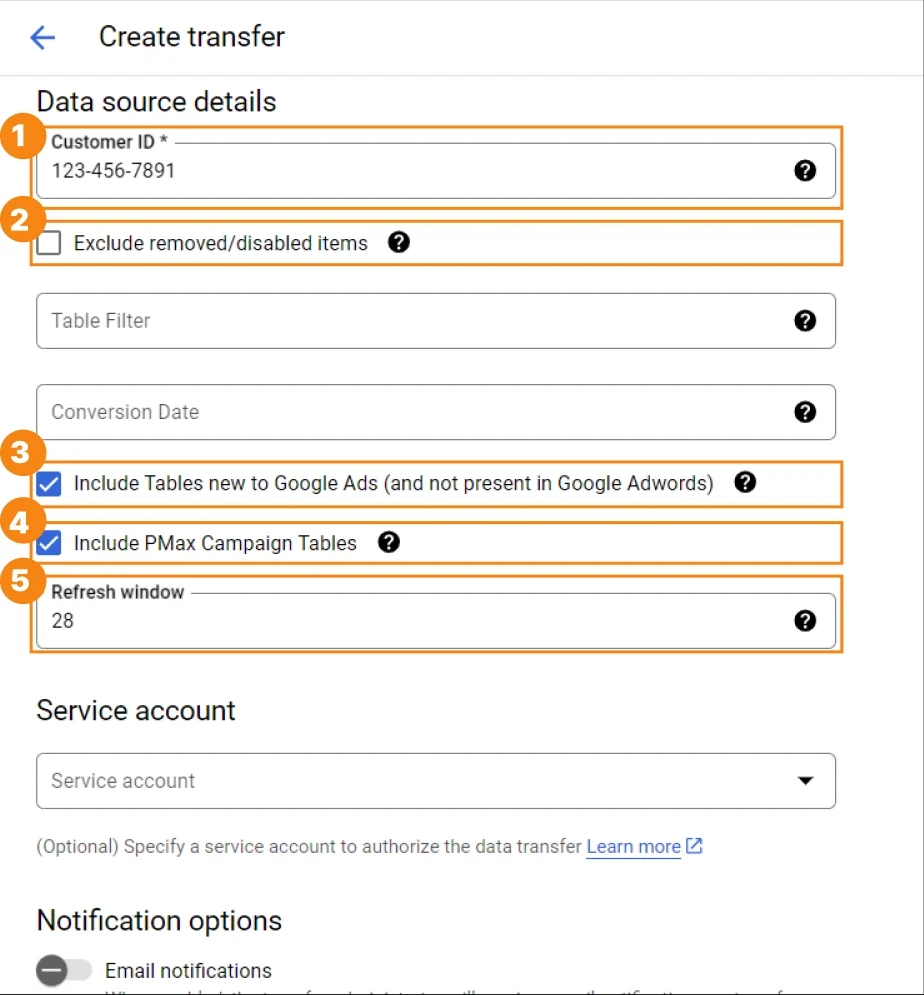
- We indicate the Customer ID, it can be found in the Google Ads account (numbers in the upper right corner, next to your email).
- If desired, you can also choose Exclude removed/disabled items, but I usually do not choose it.
- In the Table Filter field, you can specify the tables you want to load, otherwise all tables will be transferred. If you have a small project or you are working with export data for the first time, then I recommend not to specify anything and transfer all tables. If you are not doing this for the first time and you know exactly what you need or you have a large business with thousands of advertising campaigns, then it makes sense to pay attention to this setting. Enumerate the names of the necessary tables separated by commas. You can find more details about this point in the help.
- Conversion Date is an old and outdated setting.
- Include tables new to Google Ads - Those who still remember the good old Google AdWords know that the difference between it and Google Ads is quite significant and the functionality has changed and expanded quite a lot. Therefore, a tick in this item is mandatory, otherwise you will not get a lot of useful data.
- Include PMax Campaign Tables - definitely activate. Even if you currently do not have PMax campaigns, so that when they appear, you do not have to search for a long time for the reason for their absence in the export data.
- Refresh window is an important setting, Google Ads can often change its data, for example, on costs due to invalid clicks. This can affect historical data, so I recommend setting it to 28 days.
7. You can also add a service account if you want. This is the Google work account associated with your Google Cloud project. If you didn't understand anything with the last two words - no problem, it just means that you don't have this need yet. Skip this setting. You can see more about this feature and capabilities in the help at this link.
8. And as always, don't forget to save all settings.
Import to Google Ads from BigQuery
Now let's analyze how to transfer data to Google Ads with BigQuery.
As is clear from the title of the section, data from your CRM or internal database must first be uploaded to BigQuery. Of course, someone may have a logical question: "Isn't it better to immediately, directly, send data from CRM to Google Ads, bypassing BigQuery?". The short answer is "No, not better!". Once you invest in transferring data from CRM to BigQuery, you will discover many opportunities that are provided to you using the built-in functionality of BigQuery and which you can use without a developer. Hopefully the example below will help get you on the right track. In both cases, we need to do the following:
- Configure the transfer of real conversions from CRM to Google Ads for training advertising campaigns;
- Configure the transfer of conversion data from CRM to Google Sheets to build reports there (Of course, I understand that it is better to build reports in Looker or Power BI, but I still see many managers who use Google Sheets for daily reporting. This example is dedicated to them );
- Configure the transfer of conversion data from CRM to Google Ads to create the required remarketing audiences.
Option 1. You invest in transferring data directly from CRM to Google Ads.
- You pay the developer to set up the transfer of conversion data from CRM to Google Ads to generate conversions;
- You pay almost the same cost of work to a developer to transfer conversion data from CRM to Google Sheets. A different system, which means a completely different API, so although the work is similar, it takes no less time;
- You pay the developer to set up the transfer of conversion data from CRM to Google Ads to create audiences. About the same as for the previous items. How so? It's the same system - Google Ads - and the same data - about conversions. It's simple, the data is the same, but the API methods are different, which means that the developer will have to deal with each of them separately.
Now let's consider an alternative option.
Option 2. You invest in transferring data from CRM to Google BigQuery.
- You pay the developer to set up conversion data transfer from CRM to BigQuery - about the same time as any of the three integrations above.
- Through the native integration of BigQuery with Google Ads and Google Sheets, you or with the help of an analyst can set up data transfer to the required systems in a few hours.
From experience, I can say that option 2 is twice as fast and cheaper to implement on average. And we have considered a fairly simple option. In some cases, the savings can be much greater.
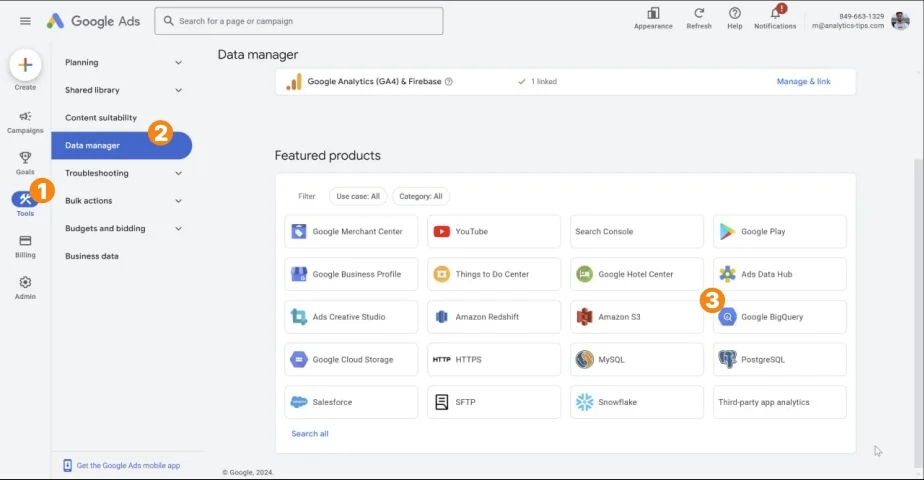
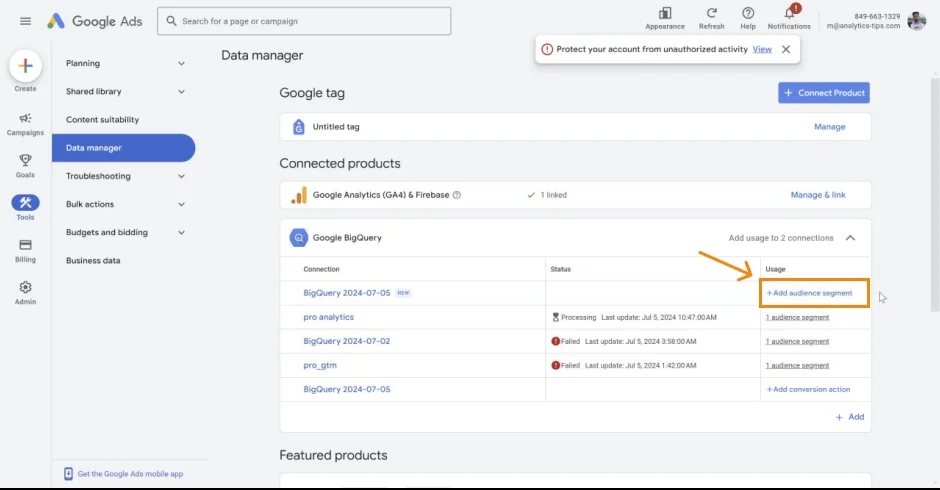
- Go to the Google Ads account and open the Data Manager (Tools > Data manager) and choose from the Google BigQuery products.
2. Specify Direct connection.
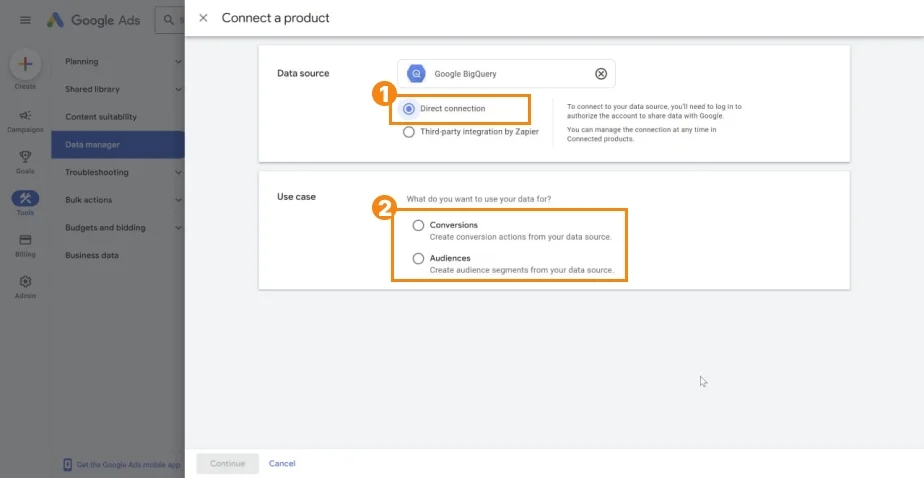
3. Next, we have a choice between sending conversions or audiences. Let's analyze each option separately.
Setting up transfer of conversions from BigQuery to Google Ads
Currently, most advertising campaigns work on the basis of machine learning algorithms, which in turn learn from the conversions that you transfer to the advertising account. Therefore, the more accurate conversion data we provide, the more relevant the audience will be. This method allows you to transfer data directly from the CRM system, that is, the actual conversions that have occurred.
This allows you to avoid such situations when a visitor placed an order on the site, but for some reason did not pick it up. If information is transmitted only from the site, then the conversion will be counted, although in reality it did not occur.
To import conversions from BigQuery to Google Ads, you need to take the following steps:
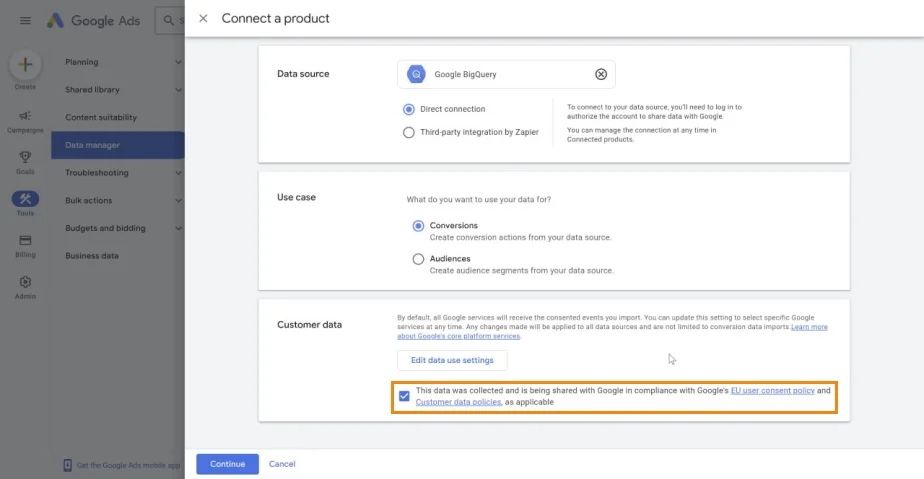
- We select conversions in the Use case block and confirm to Google that the data of our visitors is collected with the consent of users in the Customer Data block.
Of course, I hope that you have actually obtained permission to use data from your visitors, and not just indicated it to proceed.
2. Select the project, dataset and table from which we will import data.
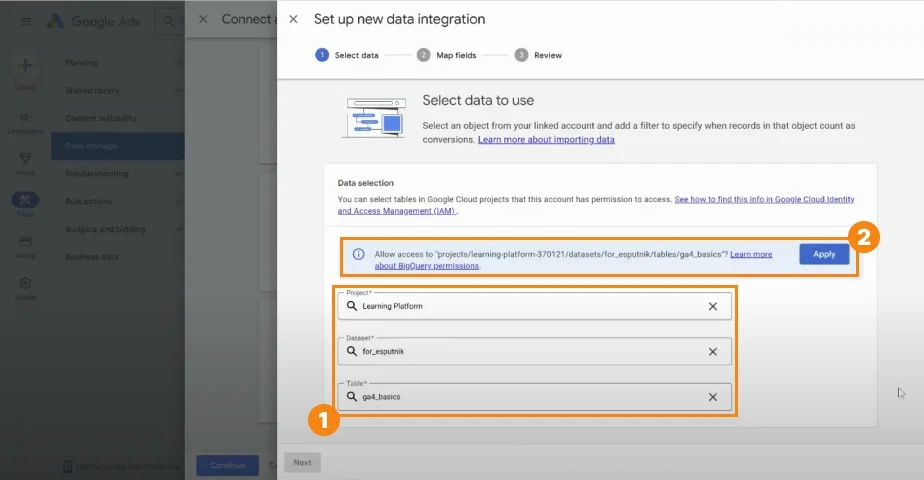
It is very important, if you choose a table for the first time, you need to grant access to it to the Google Ads system account. To do this, you need to have rights at the Owner level
3. Next, we compare the data from BigQuery according to the Google Ads fields:
- сonversion_event_time - when the order took place.
- gclid - the value of Google's automark (gclid get-parameter), which shows from which ad this order occurred. Of course, it must be pre-collected during order placement and transferred to CRM. If you have Conversion Linker configured in GTM, then the easiest way is to take the value from the
_gcl_awcookie. - conversion_value - order amount.
- currency_code - the currency in which the order amount is specified.
- order_id - order identifier.
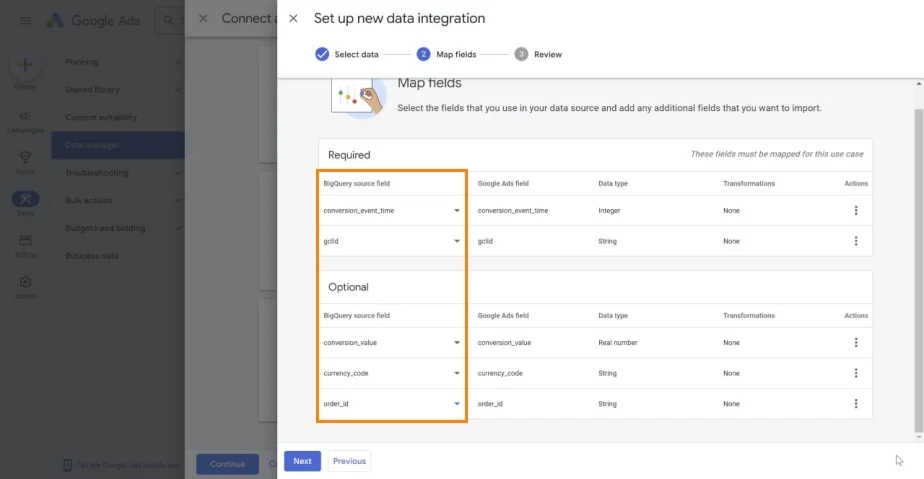
After that, click the Next button.
4. At the next stage, we can set the basic settings of our import, namely:
- Connection name - I recommend specifying a clear connection name (Under clear, I mean that it will be clear not only to you ;) ).
- Update schedule - we can set the update time.
- Selected data - here, if necessary, you can change where the data for import will come from. We configured this point earlier.
- Mapped fields - the ability to edit the field mapping that we made in the previous step.
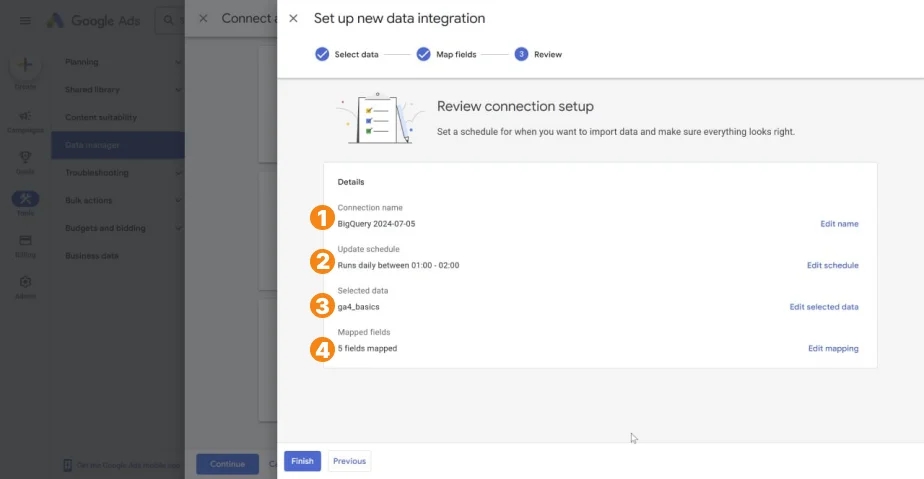
If everything is OK for you - click Finish.
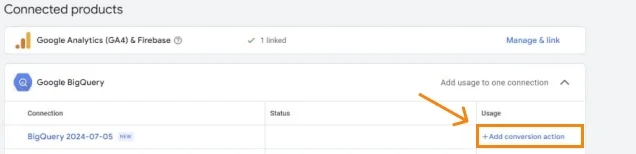
5. At the last stage, do not forget to create a conversion based on this data by clicking Add conversion action in the Connected products block.
Configuring the transfer of audiences from BigQuery to Google Ads
If the value of transferring conversions from CRM to Google Ads is clear to everyone, then regarding the transfer of audiences, I often hear phrases like: "What is this for us?", "We can create audiences based on data from GA4", etc. The short answer is this - this functionality allows you to create audiences based on real user actions, including actions that did not occur on the site. For example, you can create an audience of those who bought the product after the call or even in an offline store. Or use RFM-segmentation of your client base and think of separate marketing activities for each segment.
To set up data import to create audiences, you need to perform the following steps:
- We select Audiences and confirm that users have given us consent to use their data.
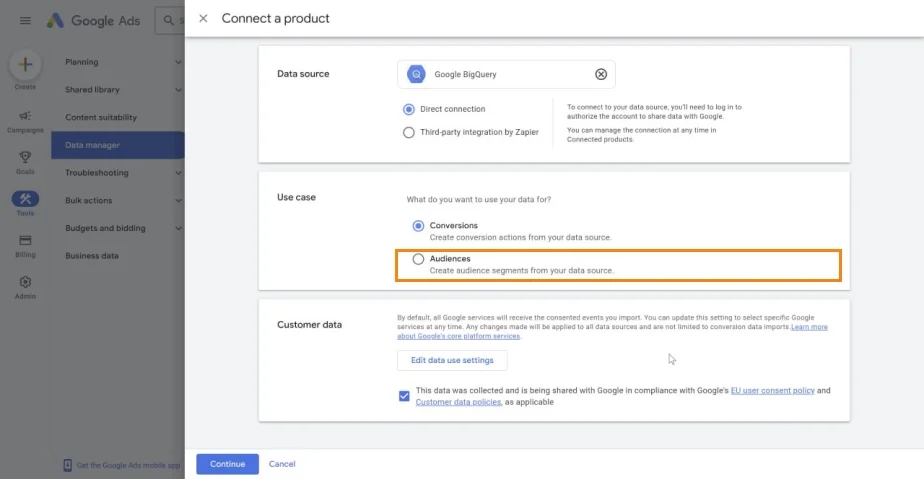
- Select a data type - you can choose one of three options:
- Emails, phone numbers and/or mail addresses - i.e. personal data of users (emails, phone numbers) - the option that is used most often. User personal data is usually taken from CRM.
- User IDs - if you have configured User ID transmission to GA4 and many users log in under their accounts on the site, this option can be a good alternative to the first point.
- Device IDs - if you cannot or do not want to use personal user data for some reason, you can still use Device ID.
A Device ID is a valid mobile advertising identifier. It must consist of 5 groups of alphanumeric characters separated by hyphens, with 8, 4, 4, 4, and 12 characters (for example, abgf126e-a124-bcKG-d125-123456789alc).
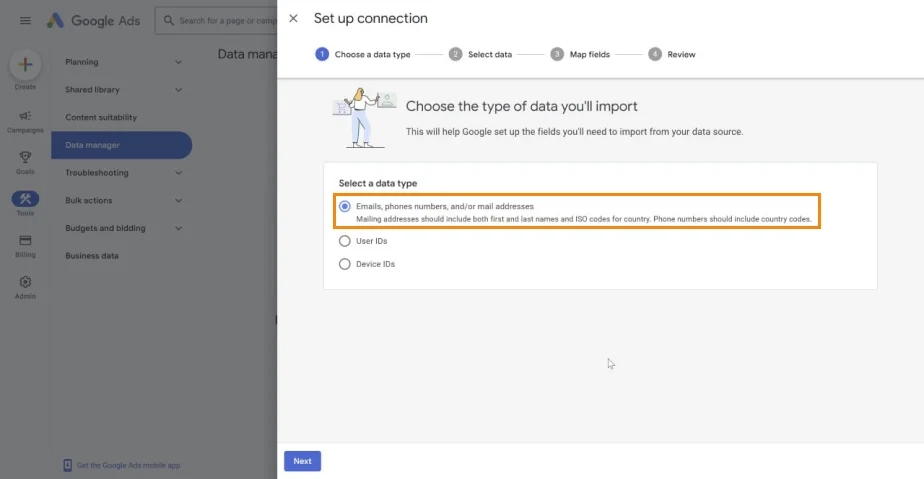
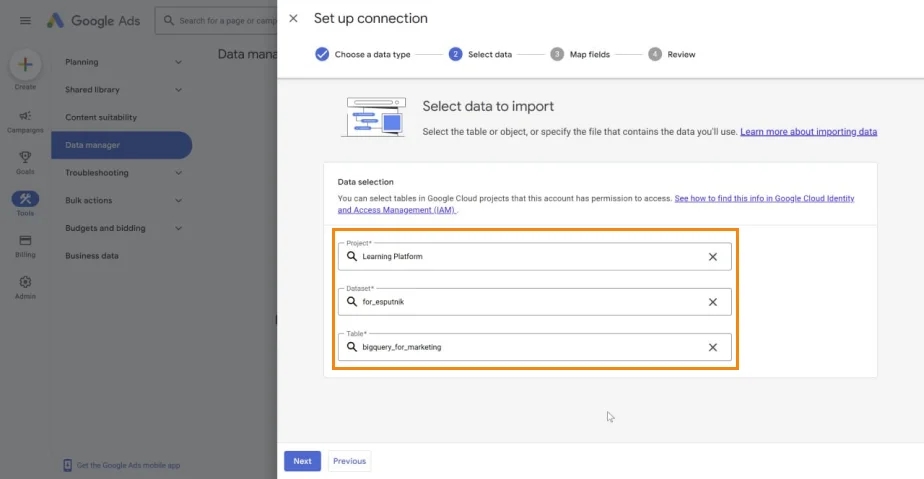
3. Select data to import - As in the case of importing conversions, we choose the desired project, dataset and table, and if you are adding it for the first time, then you will definitely need to grant access. You can do this only if you have the appropriate access rights on the project.
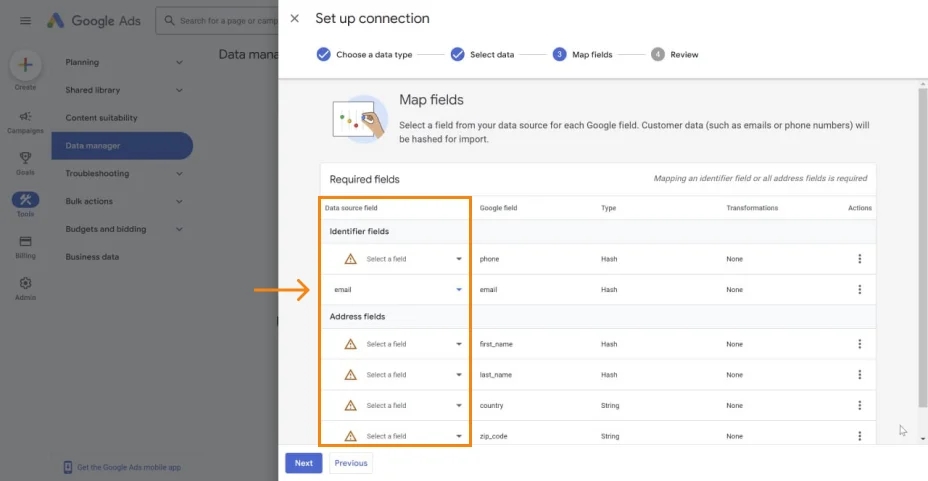
4. Map fields - This is also a block similar to conversion import: we map data from BigQuery and match it with the data that Google Ads requires. Note that you can choose to use only one field if you wish. For example, in my screenshot, only the email field is used. Naturally, the more data you provide, the higher the likelihood that Google will be able to identify the user.
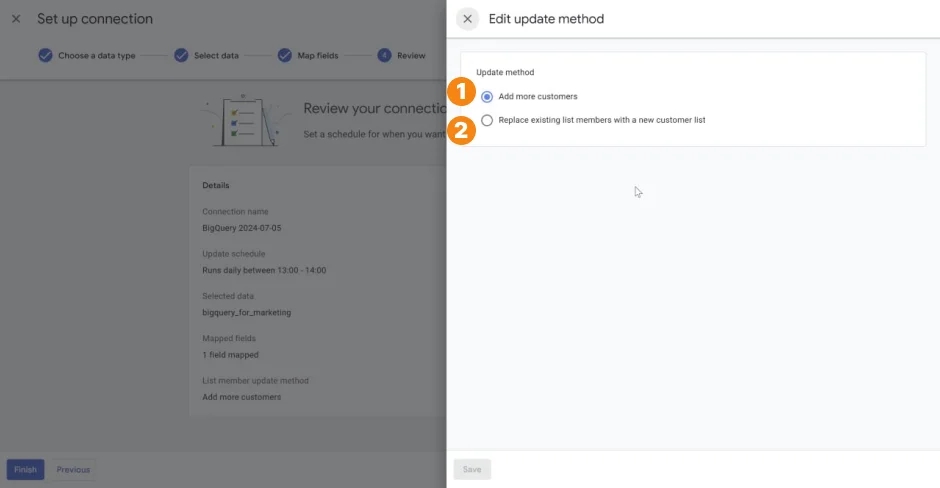
5. In the final Review block, we can check the settings and change them if necessary. I discussed each of these points in more detail above in the section Setting up transfer of conversions from BigQuery to Google Ads so below is a fairly brief description. Pay special attention to the last item List member update method - this item is unique for audience import functionality:
- In the Connection name field, you can change the name of the data connection accordingly.
- In the Update schedule block, we can set the information update time.
- Selected data shows the data we selected earlier.
- Mapped fields also provides the information we mapped in the previous step.
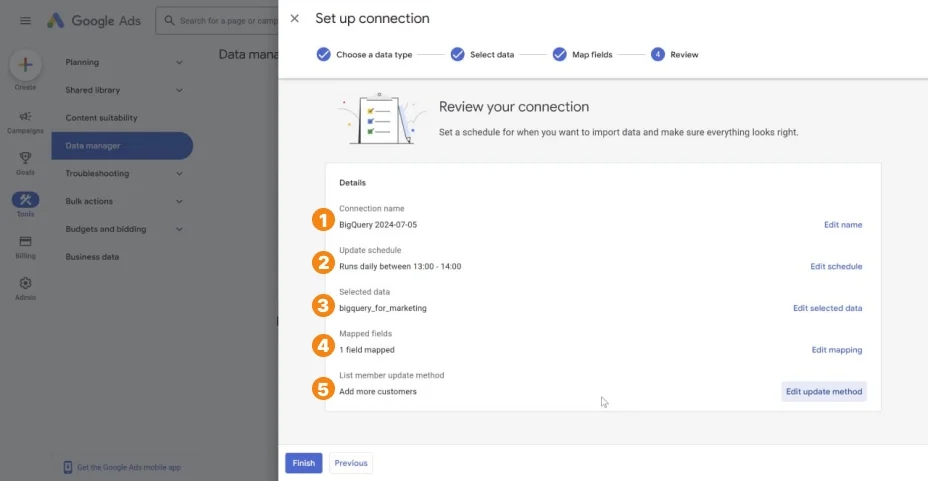
- List member update method - this setting is anout the method of adding new members to the audience. This can be configured in two ways.
- Add more customers - means that when updating, new audience members will be added to the existing ones. Example of use, we want to have an audience of people who bought some product. Yesterday there were 100 people on the list who bought a refrigerator, and today another 10 customers bought it, if you use this method, there will be 110 participants in the audience after import.
- Replace existing list members with a new customer list completely deletes past customers and records new ones. This option is better to choose if you need to segment users according to a certain set of characteristics and users can change their segment every day. This import option will be relevant, for example, when creating audiences based on RFM analysis.
6. We've finished setting up the data import, but don't forget to create an audience as we've just uploaded the data to Google Ads for now.
Setting up data export from Facebook Ads to BigQuery
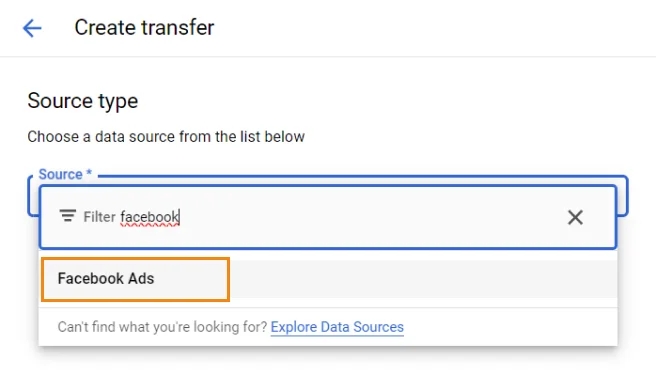
Google Ads is not the only advertising system that has native data export to Google BigQuery. Of course, the integration between Google services works quite well, but what about others? Let's consider how it works on the example of Facebook Ads.
- As in previous cases, we go to the BigQuery transfer settings, а саме до блоку Data transfers -> Create transfer -> Type Source -> Facebook Ads.
2. Let's start filling in the basic information from the Data source details block.
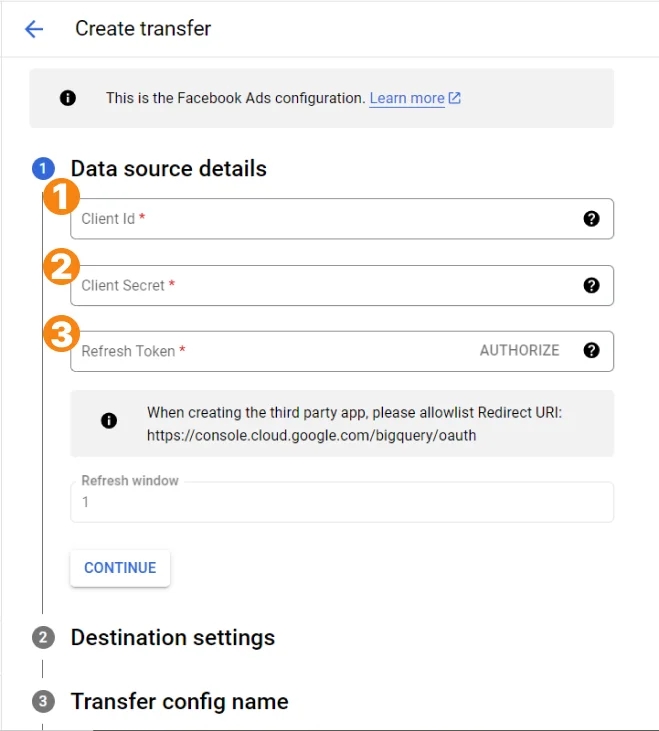
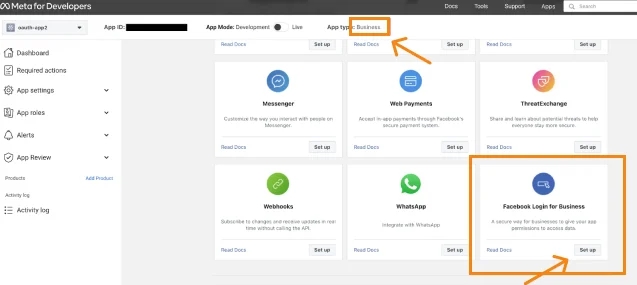
In order to get Client ID, Client Secret and Refresh Token you need Facebook Developer App. If you don't have one, you need to create a new one (yes, this will be your first Facebook app, but don't worry, you don't need to write code) with the Business app type. I will describe the instructions for creation in detail below.
If you already have the application, you can immediately go to the point Where to find Client ID, Client Secret and Refresh Token in Facebook Developer App
How to create a Facebook Developer App
First of all, you need to be registered in Meta developers and have your own account. If you don't have it, follow the instructions below. If you have an account, you can immediately go to section 5 of the instructions below.
How to register a Meta Developer account
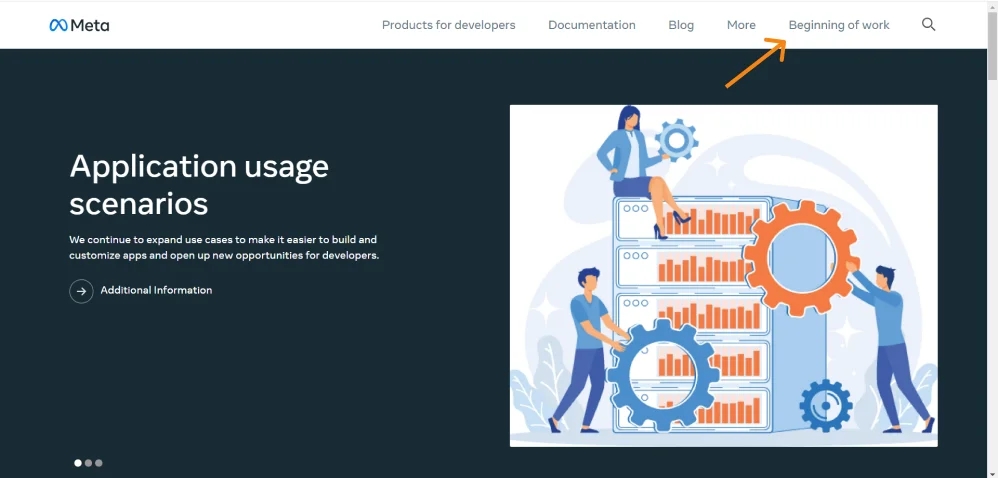
- Follow this link and click Beginning of work.
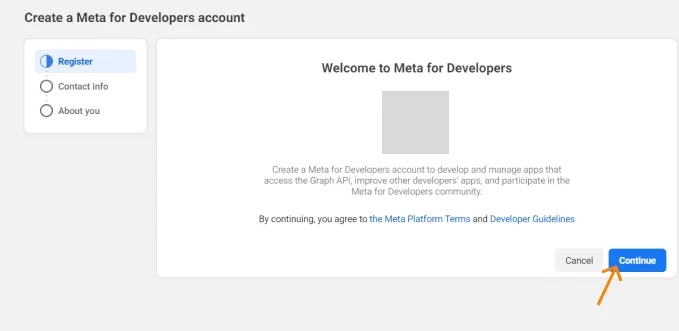
2. At this point, we confirm that we agree to the terms by clicking Continue.
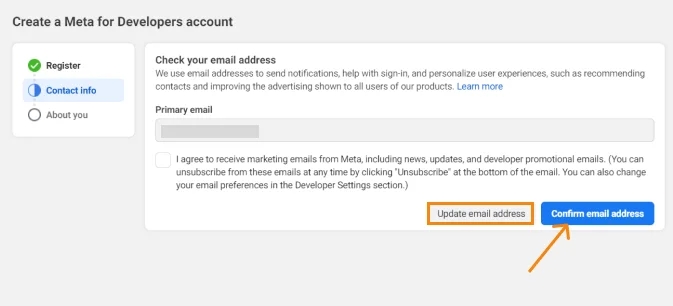
3. Now we confirm the email. If you want to change your email, you will need to confirm it through a code that will be sent to the email you entered.
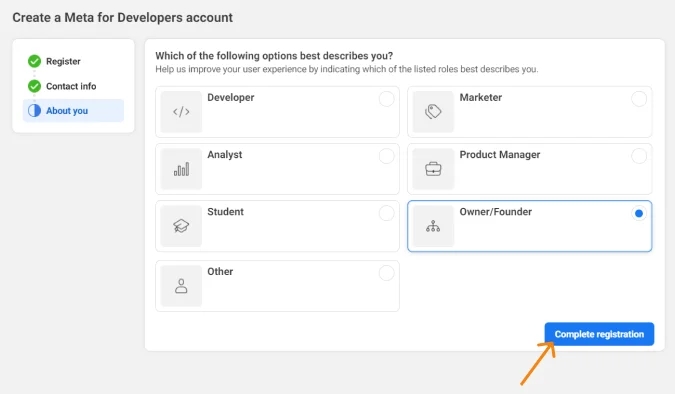
4. Choose a field of activity, so choose which one best describes what you do.
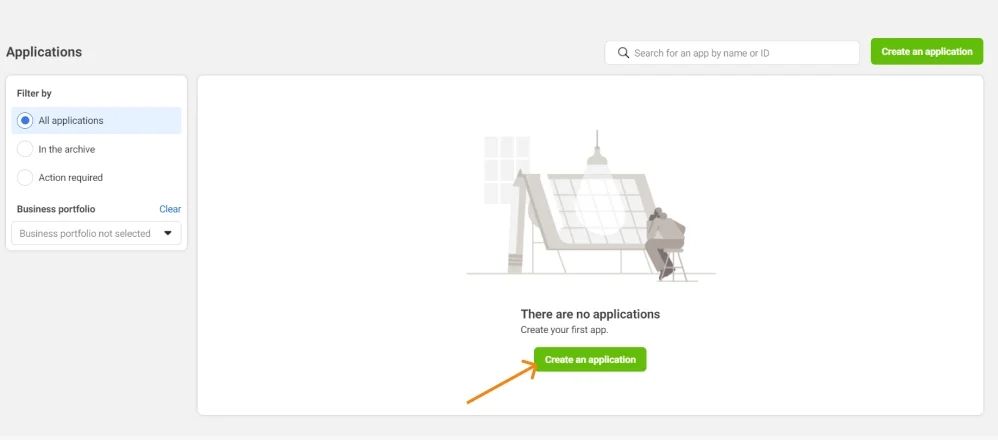
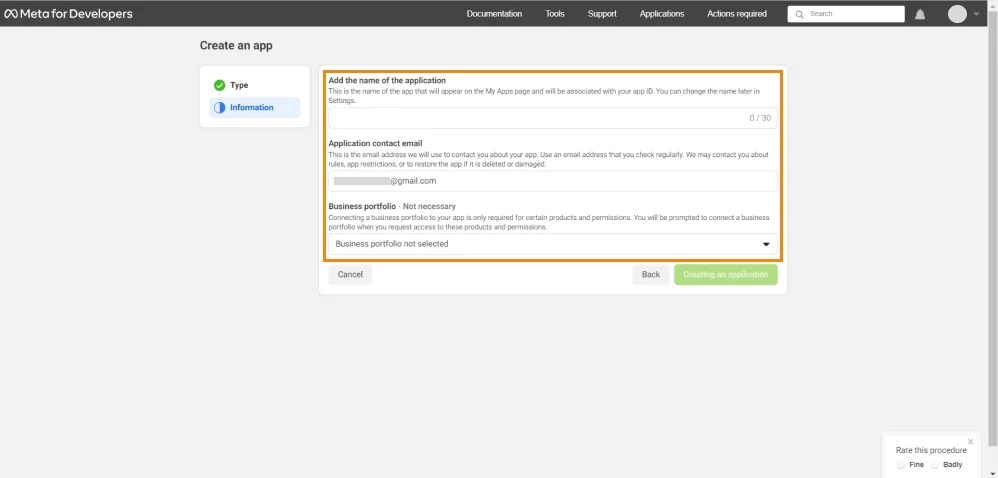
5. The registration is completed and now we can proceed to the creation of the application. To do this, click Create an application.
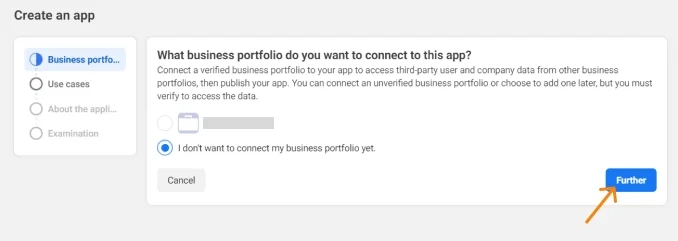
6. You can connect your account right away, but you can do it later.
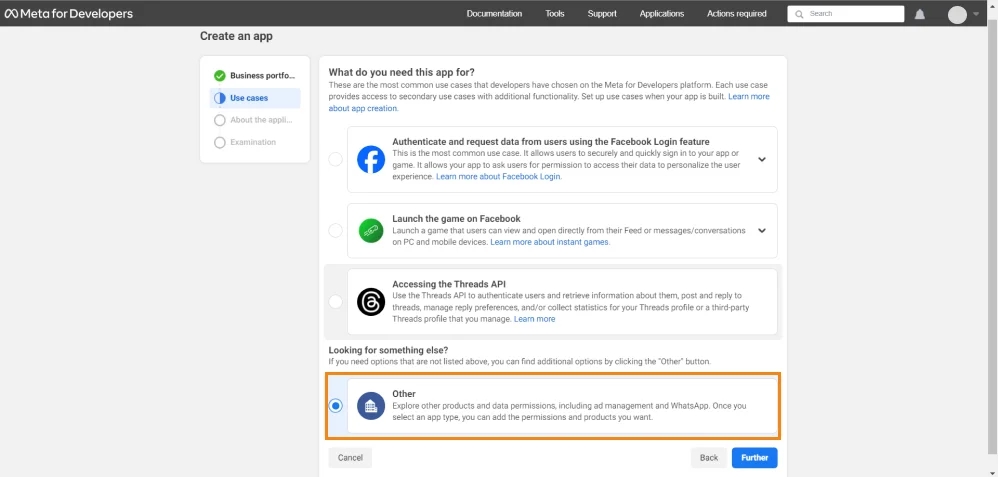
7. At the Use cases selection stage, we choose Others.
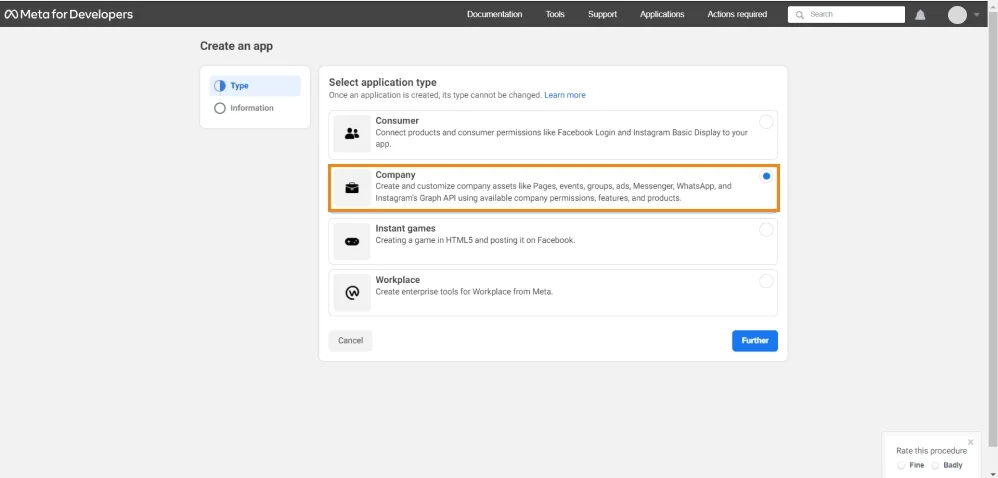
8. Now we specify those applications. Please note that at the time of writing this article, Facebook was conducting some tests, so you may encounter two options. Can be signed type as Company or Business.
9. And the last step is to name our application and click on Creating an application.
Where to find Client ID, Client Secret and Refresh Token in Facebook Developer App
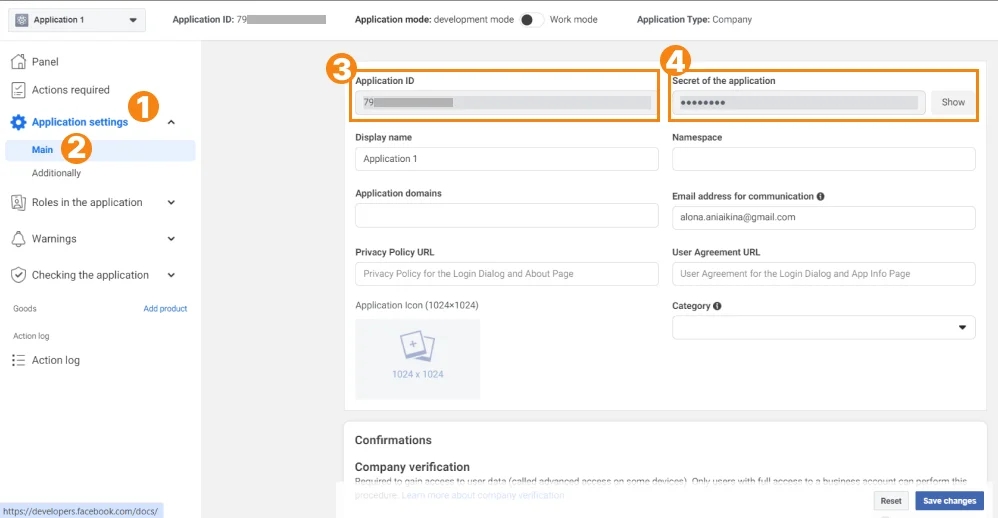
In order to get Client ID and Client Secret, you need:
- Go to App settings -> Main and there you will find the fields Application ID and Secret of the application. This is exactly what we need.
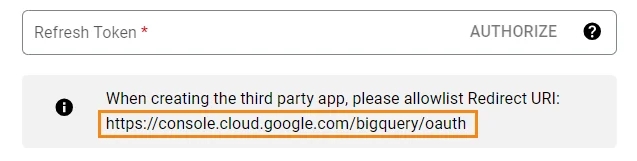
In order to find the Refresh Token, you need to:
- Copy the link below the Refresh Token field.
- Go to Facebook App dashboard, and then Facebook login for Business Set up -> Facebook login for Business.
- On the page Settings enter the copied address and click Save.
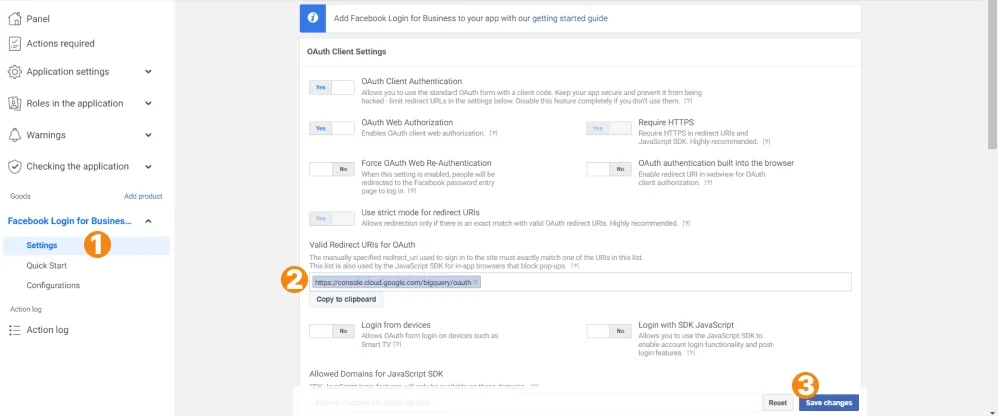
- Return to the Refresh Token field in the console and click Authorize. We will be redirected to the Facebook authentication page.
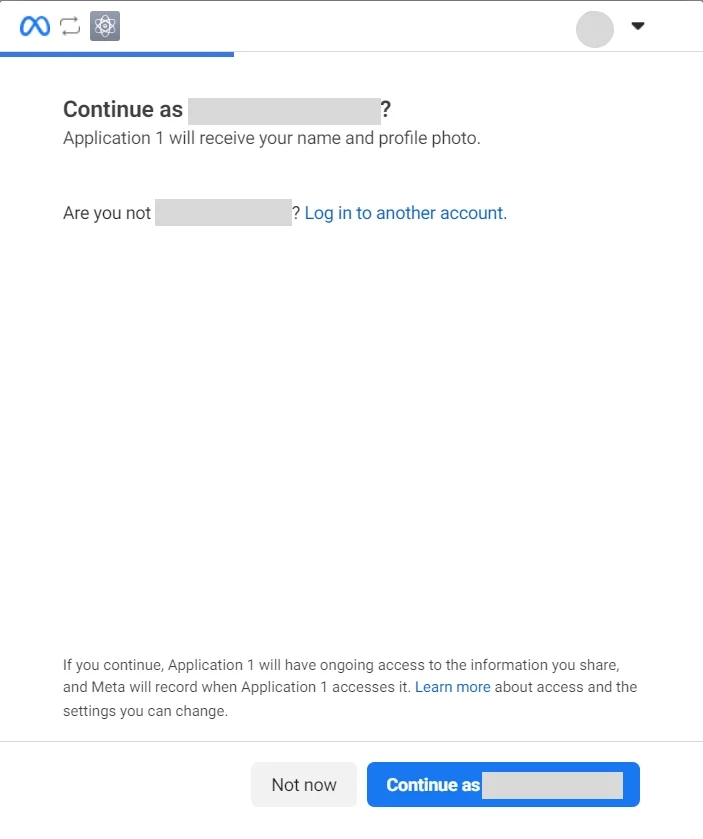
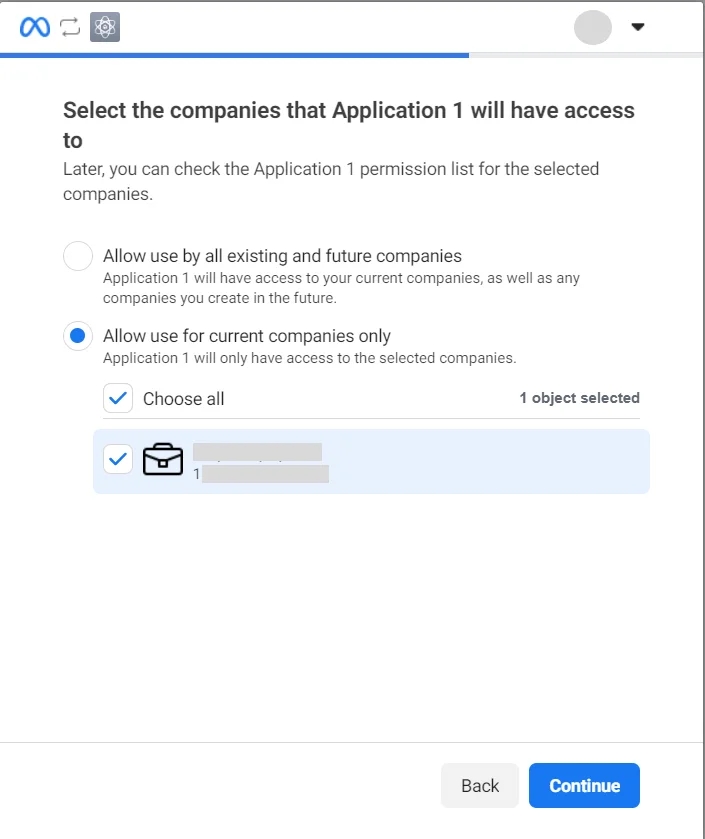
- Next, give the application access to the business account.
- Save settings.
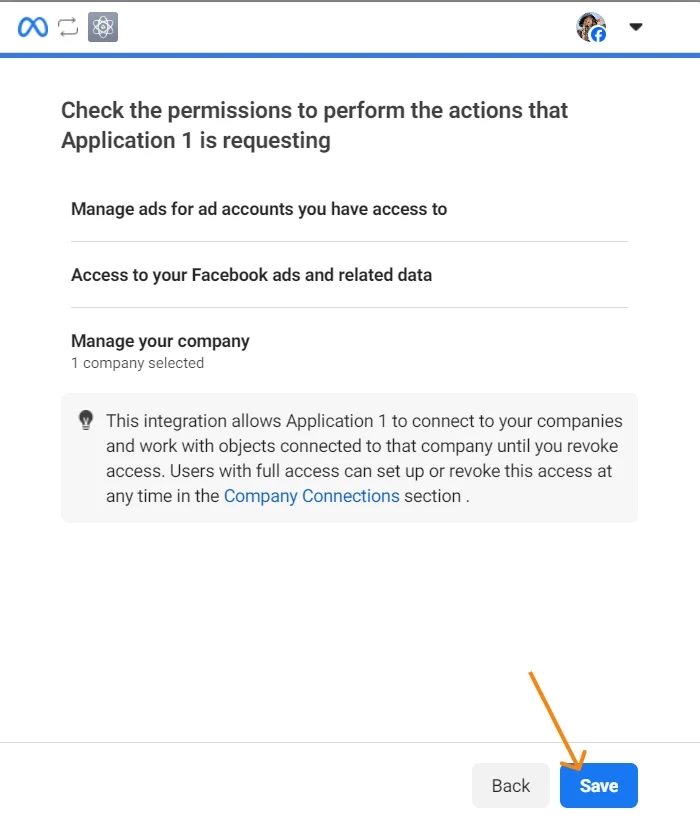
- And we complete the authorization.
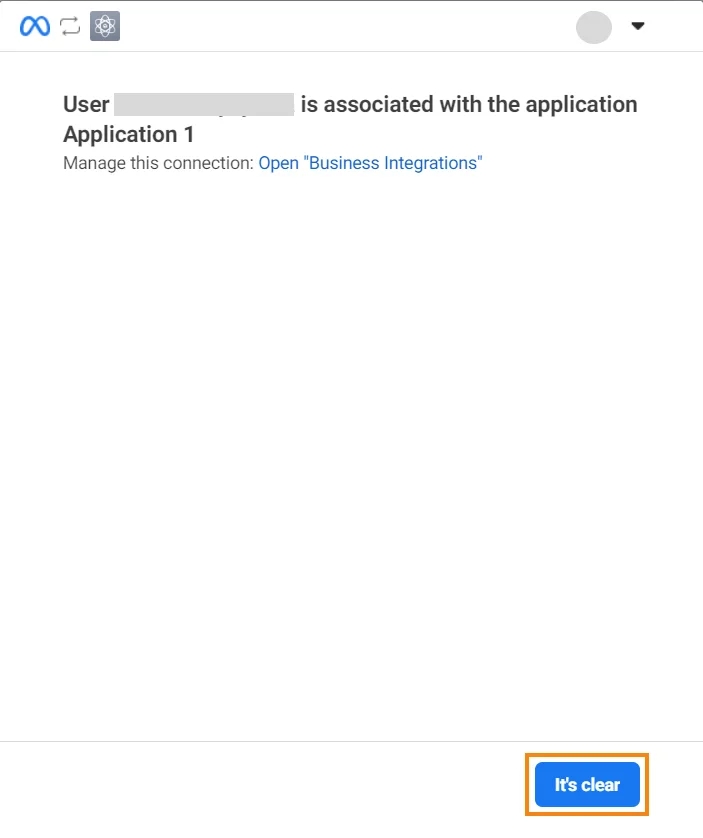
3. Now let's return to the transfer settings, where all fields should already be filled:
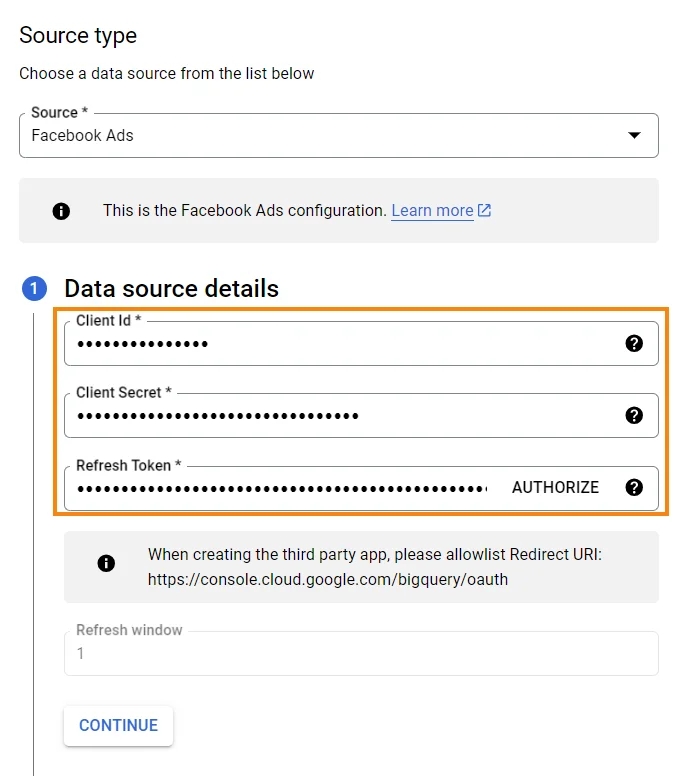
4. Below we see another setting whose field is inactive:
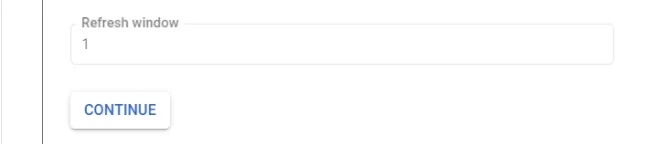
Refresh window - this setting cannot be changed yet, and it automatically lasts for 1 day, but Google has already released an update for some accounts with the ability to change this setting, so it is possible that by the time you read this article, you will already be able to change it. If possible, I recommend setting 30 days.
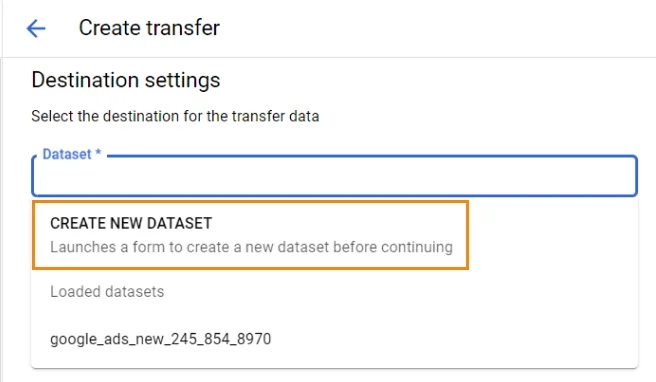
5. Now we create a new dataset.
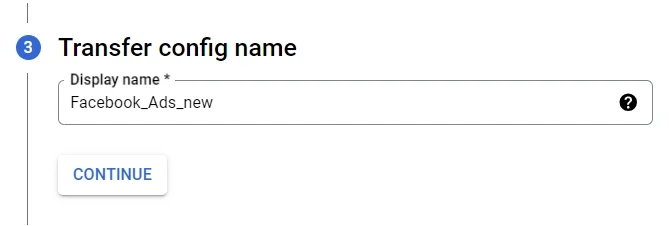
6. Lets`s give a name to our transfer and go to Schedule options.
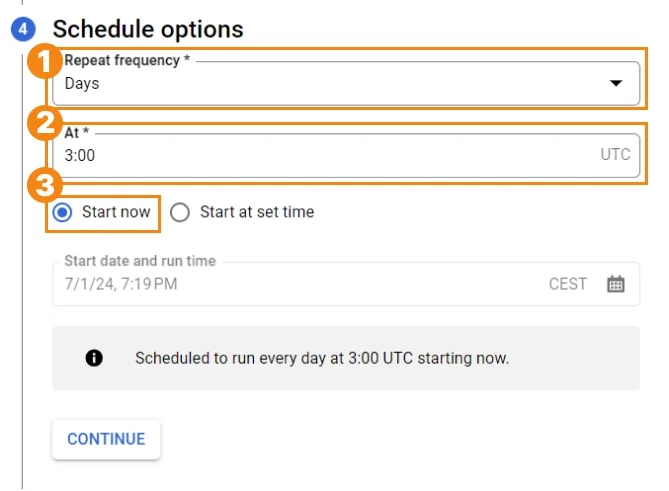
- We set the frequency of data transfer - Daily.
- We specify a specific UTC time - for example, 3:00 a.m., and below we see the adaptation to our time zone.
- And we start the transfer right now.
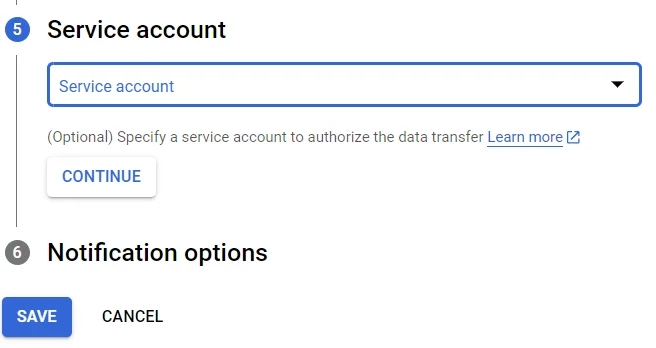
7. You can also add Service account. This is the Google work account associated with your Google Cloud project. You can read more about this function and capabilities in the help by this link.
8. And the basic settings are complete, so we can save our transfer.
Google BigQuery integration with Google Merchant Center
Yes, Google Merchant Center also has a native connector with BigQuery, which means you can get data quite quickly. The instructions are similar to the previous ones.
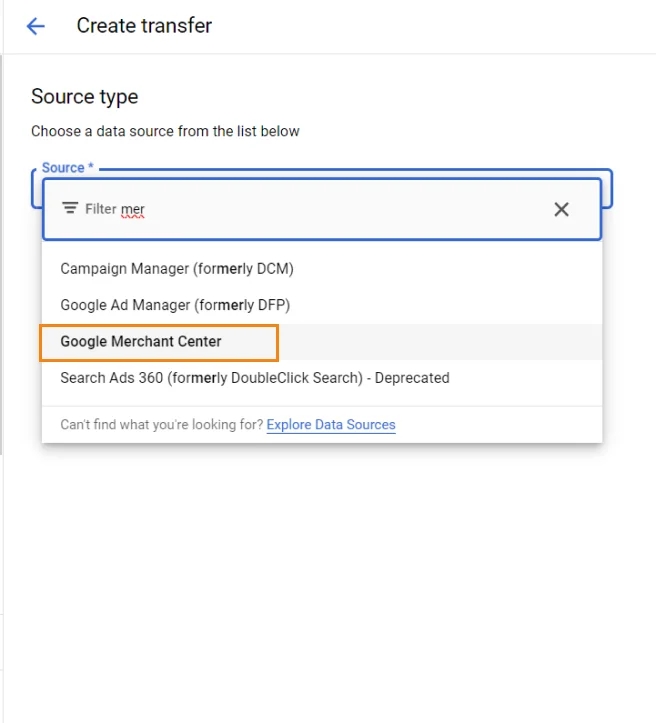
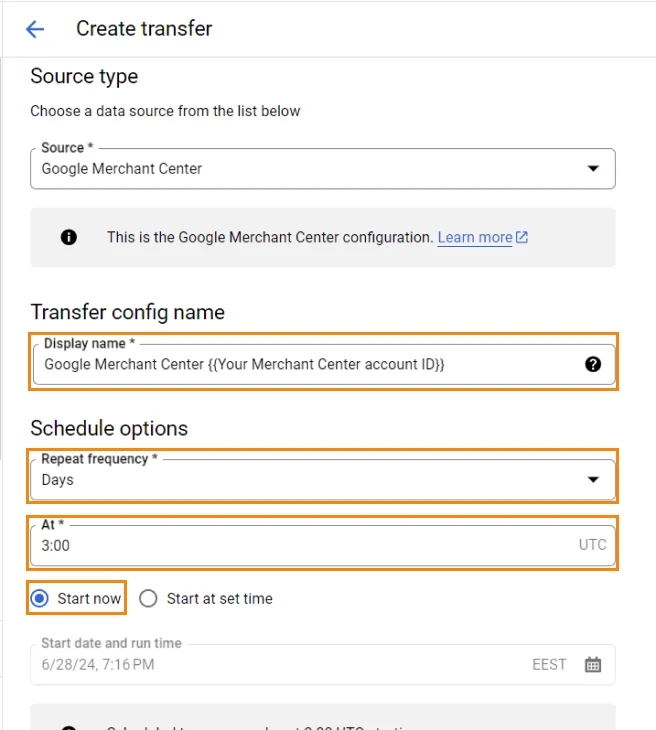
- As in previous cases, we move on to transfer settings in BigQuery, choose Data transfers -> Create transfer-> Source type -> Google Merchant Center
2. We start the basic settings from the Transfer config name and Schedule options blocks:
- Display name - give a name to our transfer. Something like Google Merchant Center {{Your Merchant Center account ID}}
- Repeat frequency - how often the data will be updated. I usually choose Days.
- We specify a specific UTC time - for example, 3:00 a.m., and below we see the adaptation to our time zone.
- And click Start now.
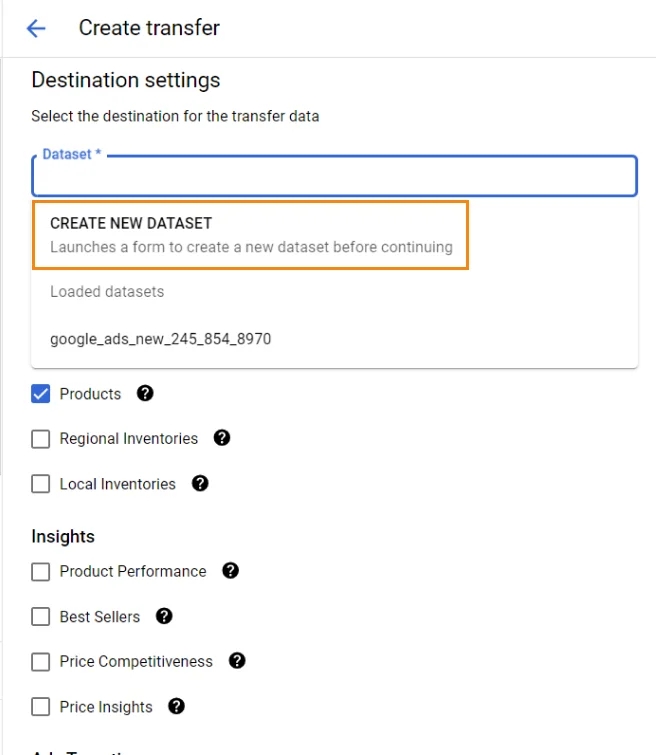
3. In the Destination settings block, specify where we will save the data. For this, we create a new dataset. Do not forget to choose the correct location (just in case, I wrote about it above)
4. We select the reports that we want to transfer. You can read more about each report in the help by this link.
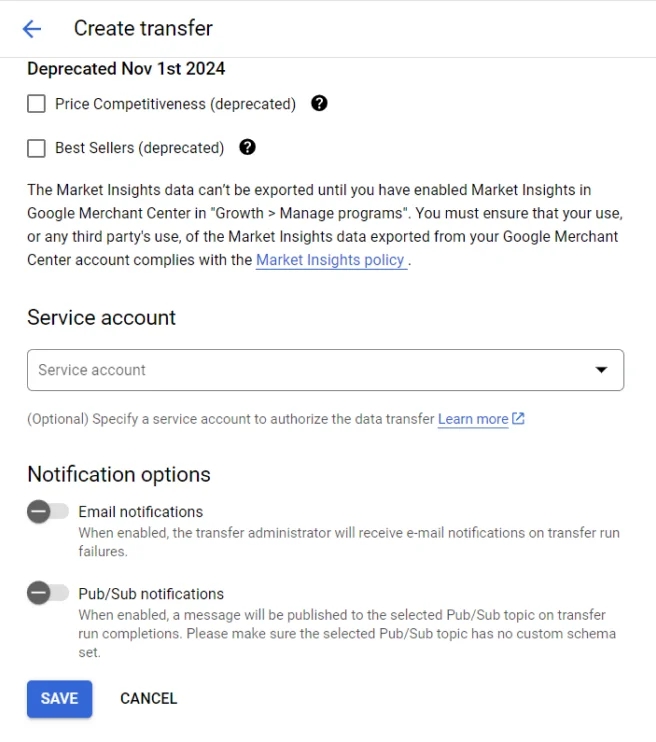
5. You can also add if necessary Service account. You can read more about this function in help.
6. Basic settings are completed, so we save the transfer.
Google BigQuery integration with Google Search Console
If you are an SEO specialist, then this is exactly what you need to do when starting work with the project. Do you want to accumulate historical data from Google Search Console, and not lose it?
To import data to BigQuery, you need to perform the following actions:
- Go to Google Search Console and go to Settings -> Bulk data export
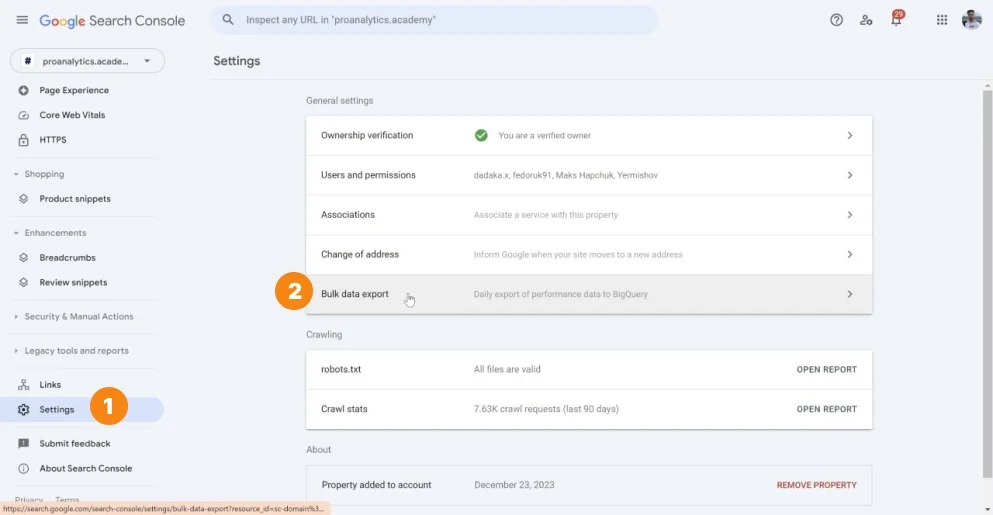
2. Specify Cloud project ID, Dataset name, i.e. where we want to export data, and Dataset location. Here, too, just in case, I will remind you that the choice of location is very important.
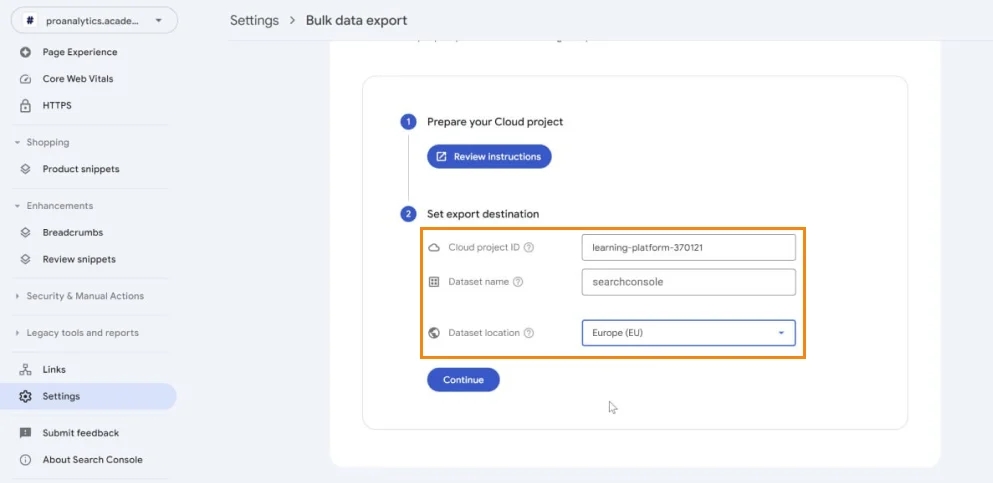
3. Click Continue and confirm the export.
Google BigQuery integration with Google Sheets
As with Google Ads, there are two integration options: we can export data from Google Sheets to BigQuery and import it from BigQuery to Google Sheets. Let's analyze these 2 methods in order and start with export.
Export data from Google Sheets to Google BigQuery
It may be necessary for various reasons, for example, you fill in data on SEO costs in a Google spreadsheet, but you want to use this data in your SQL query. Everything is set up very quickly:
- To do this, go to BigQuery and click Create table.
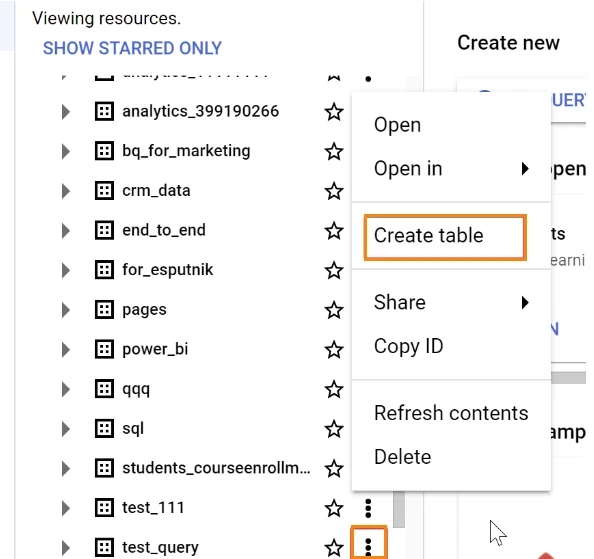
2. In the Create table from item, select the Drive option. After that, an additional File format settings item will appear, where you need to select the Google Sheets value.
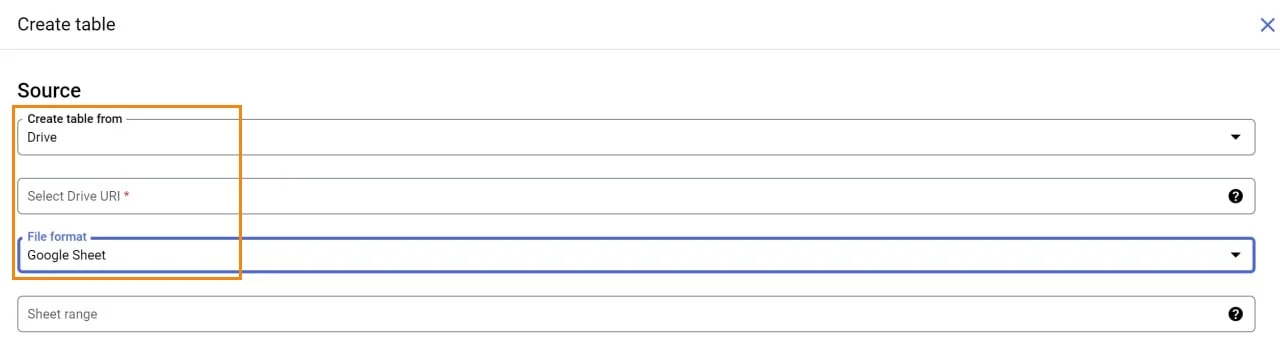
3. Now you need to specify the Select Drive URI. To do this, go to Google Drive and right-click on the desired file. Next, select Share -> Copy Link.
4. When exporting, the type of data is not always well defined and sometimes there are errors with the definition of headers, so I recommend specifying the Sheet Range. I usually specify without the first line and prescribe the scheme myself. Of course, you can test your luck and use the Auto detect schema option.
5. I don't particularly dwell on Destination, as I already wrote a lot above.
Do not forget to click the Create table button.
If you use such an export, the loaded table will have the type external table (external table), and therefore will have certain restrictions.
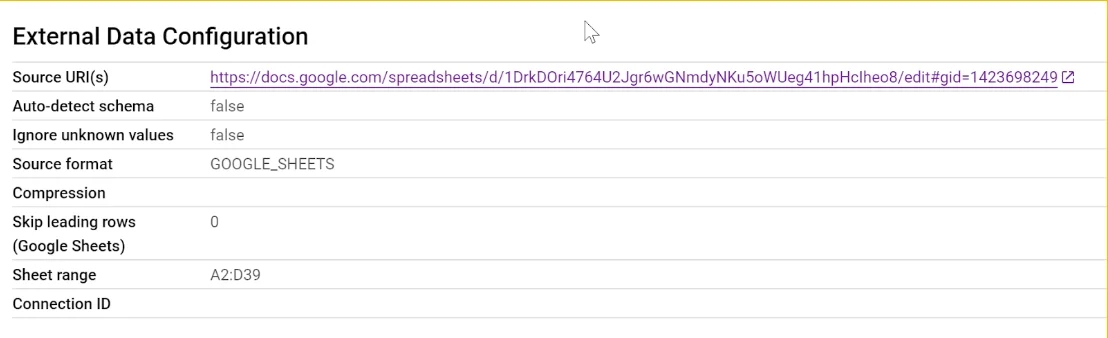
If you plan to work with this table in BigQuery Studio, this will not affect your work in any way. But if you want to use this data in an external system, certain problems may arise with such a table. For example, there may be nuances when updating data from Power Bi or transferring data to Google Ads. Therefore, sometimes you have to follow a slightly more difficult path, for example, the one described by Kopal Garg in his article.
Import data into Google Sheets from BigQuery
If working with data in BigQuery Studio using SQL or Python isn't your thing, that doesn't mean you have to give up the benefits of BigQuery, it just means you have to enroll in a course BigQuery for Marketing. A native ad)))
And seriously, I was serious about the course too, there is another alternative. You can work in the usual Google Sheets for everyone. Getting data from Google BigQuery there is quite simple.
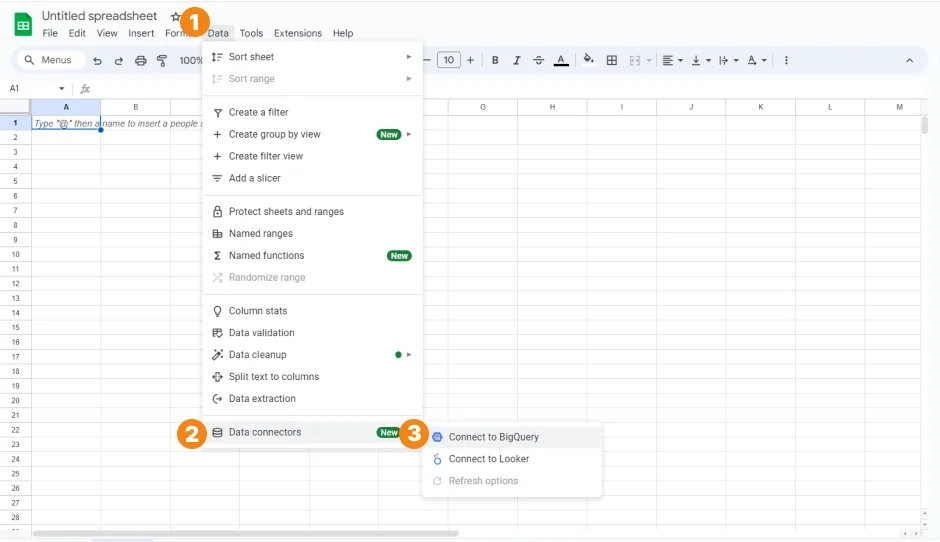
- Go to Google Sheets and select Data -> Data connections -> Connect to BigQuery.
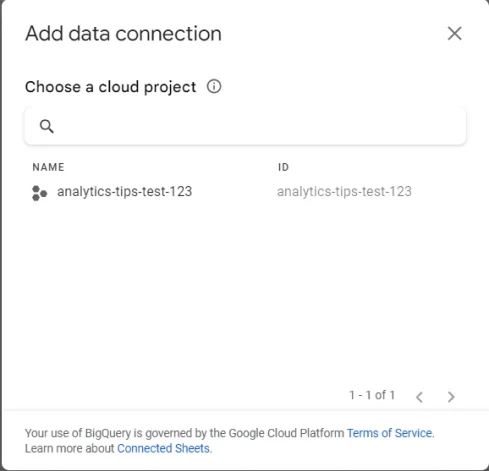
2. Select the project from which we want to transfer data
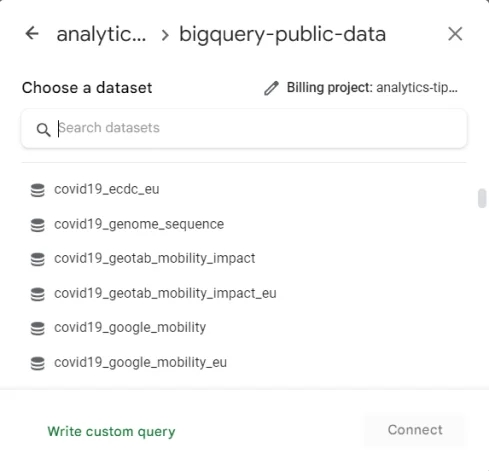
3. We select the desired table from which we will import data.
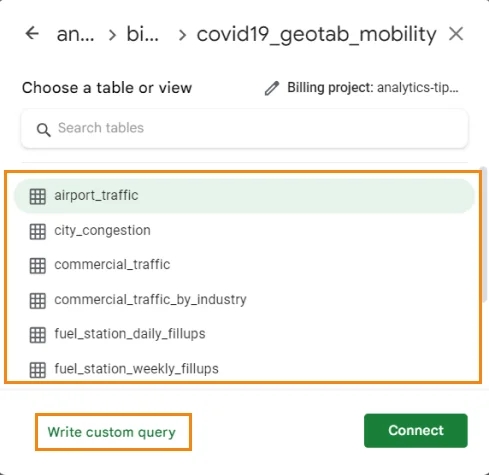
4. Here you can:
- just select the data from the table.
- if you are well versed in SQL - write custom code.
5. Click Get started.
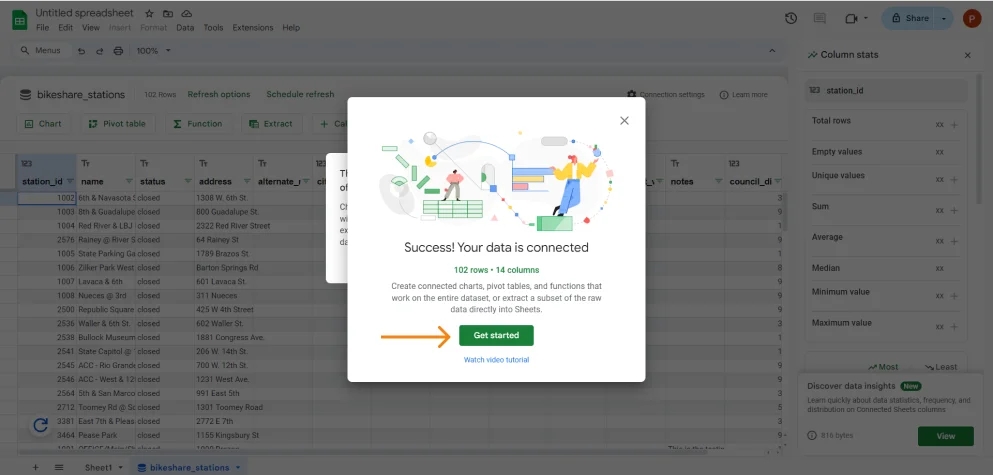
6. Now your data is uploaded and you can even set a refresh schedule by going to Refresh options -> Schedule refresh.
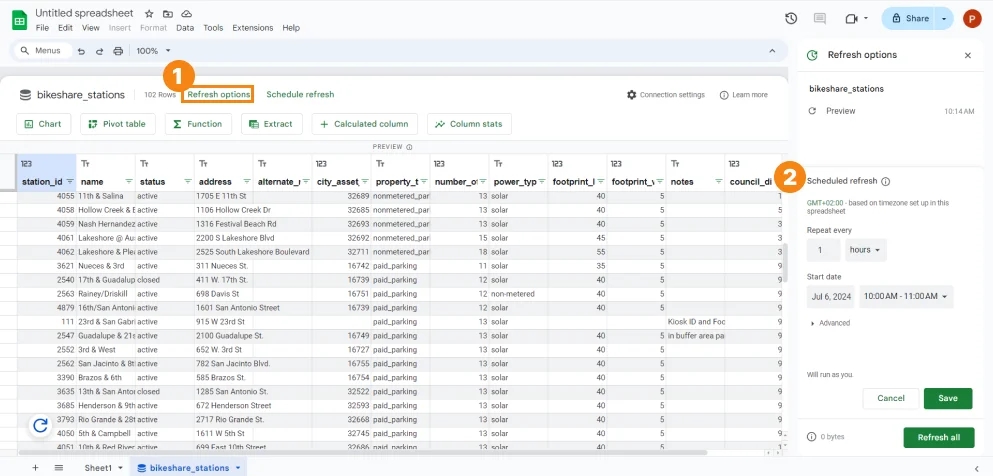
Then I think you already know what to do with them.
How to configure data transfer from other systems to Google BigQuery
What to do if you did not find instructions in this article on how to transfer data from the system you need to Google BigQuery? You have 4 options for further actions:
- First of all I recommend to check a list of available for Transfer systems, there are a lot of popular connectors out there that I haven't figured out, e.g: Cloud Storage, Amazon S3, Google Play, YouTube.
- If the first option did not help - try to read the help of the system you need or ask directly from support. Many services offer native integration on their side. Such integration is, for example, in eSputnik.
- If there is no native integration, the only option left is to write your own. Here is one example of such an implementation - Writing your data connector from Facebook ads to Google BigQuery.
- Well, another possible option is to use services that offer ready-made connections, one of the best solutions, and open source also offers Airbyte.
Integration of Google BigQuery with data visualization and business analytics systems: Data Studio (Looker Studio) and Power BI
BigQuery contains data in the form of tables, looking at which it is difficult to draw any conclusions. To make decisions, you want to see visualized data, for example in the form of a graph or diagram. Or even in the form of a comprehensive report. Therefore, very often marketers, ppc and seo specialists upload data to systems such as Data Studio (Looker Studio) or Power BI. Let's figure out how to do it.
Import data from Google BigQuery to Data Studio (Looker Studio)
- Go to Data Studio and create a new report.
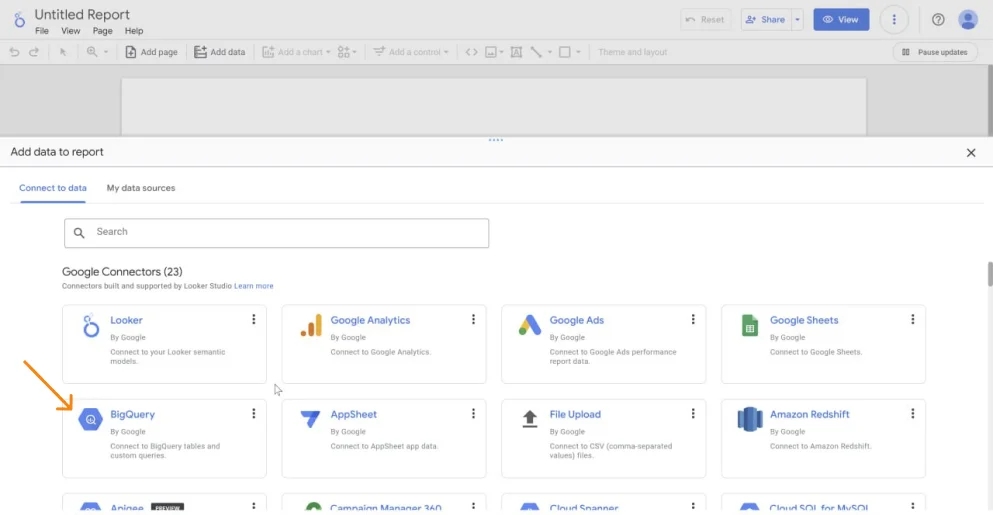
2. Here we are immediately offered to select data, and we specify BigQuery.
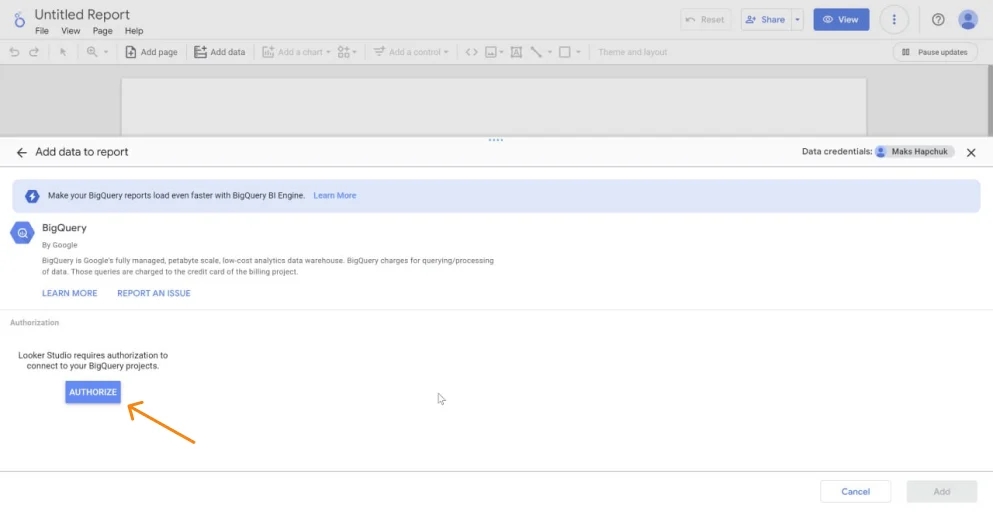
3. Now we need to log in.
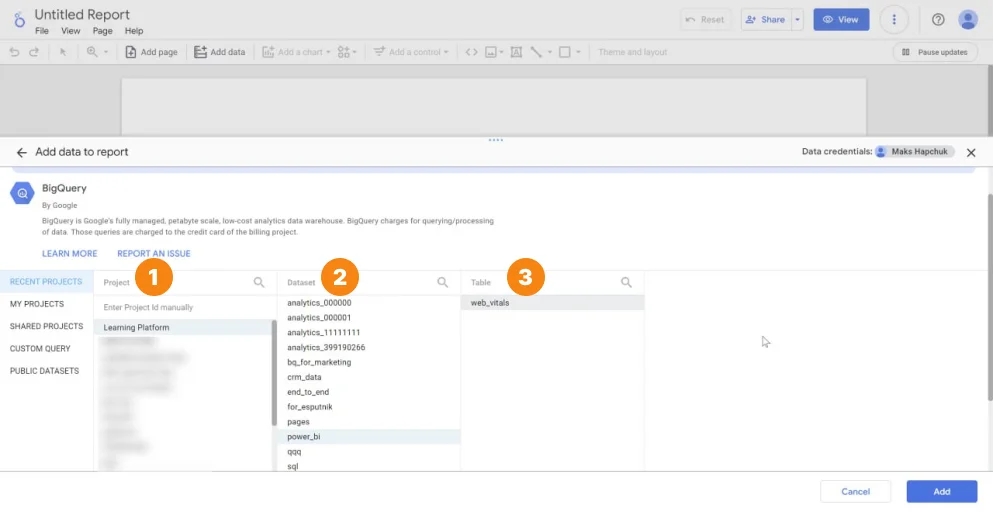
4. We add the data we want to upload.
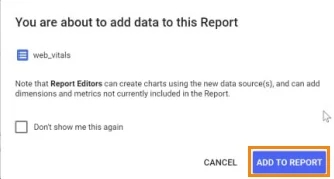
5. We click Add to report, by which we confirm that we are adding our information.
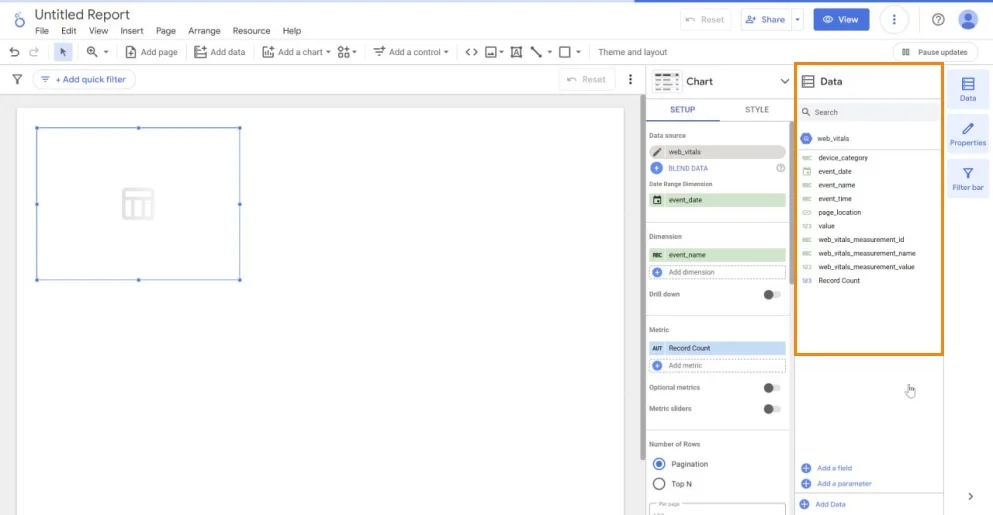
6. The data is here, and now we can use it.
Import data from Google BigQuery to Power BI
If the usual data visualization system is not enough for you and you want to build more complex reports, then you will most likely need a business intelligence service such as Tableau or Power BI. Let's use the example of Power BI to analyze how to connect our data to it.
- Go to Power BI and create a new report.
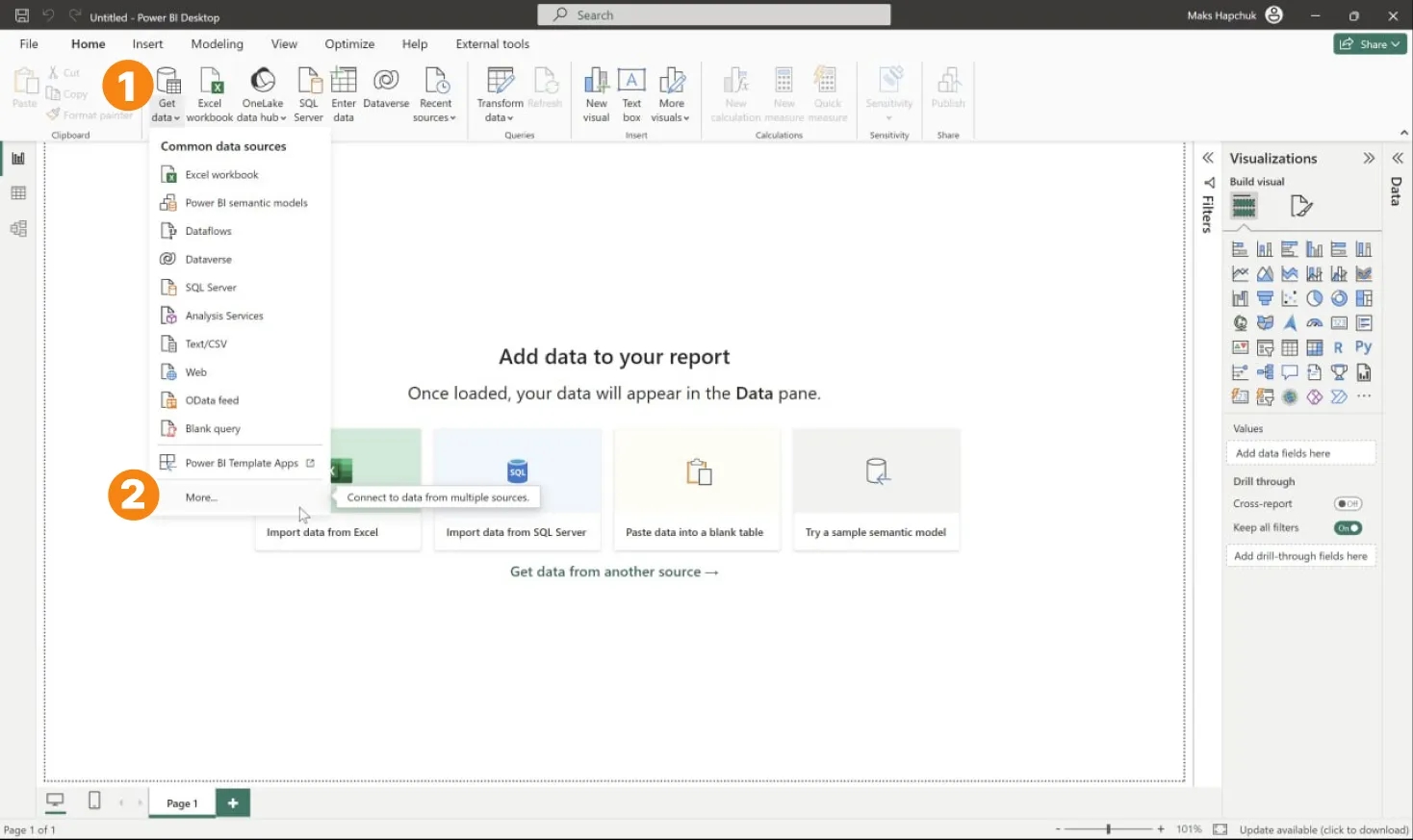
2. Choose Get Data -> More.
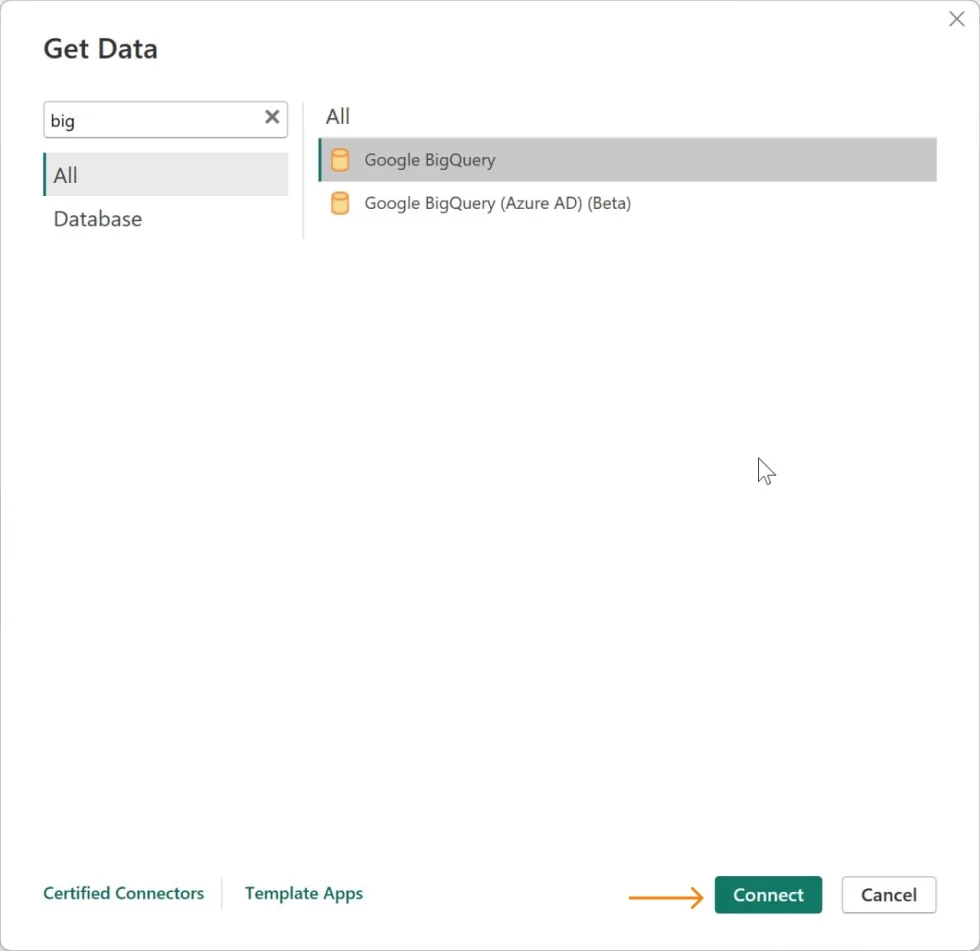
3. Look for the BigQuery and click Connect.
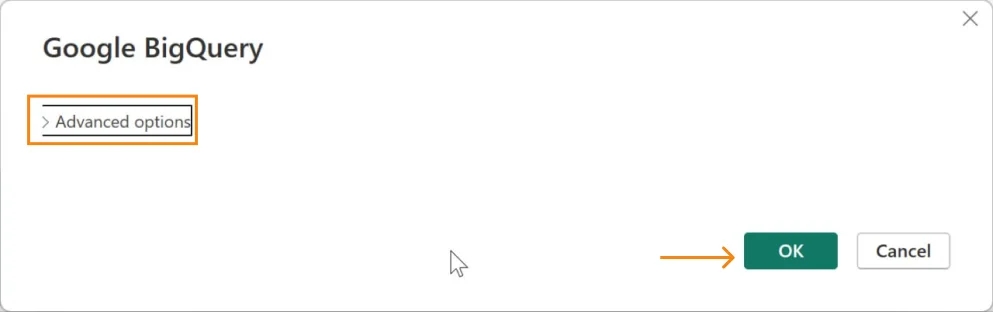
4. There are Advanced settings here, but they are not needed for basic import, so click OK.
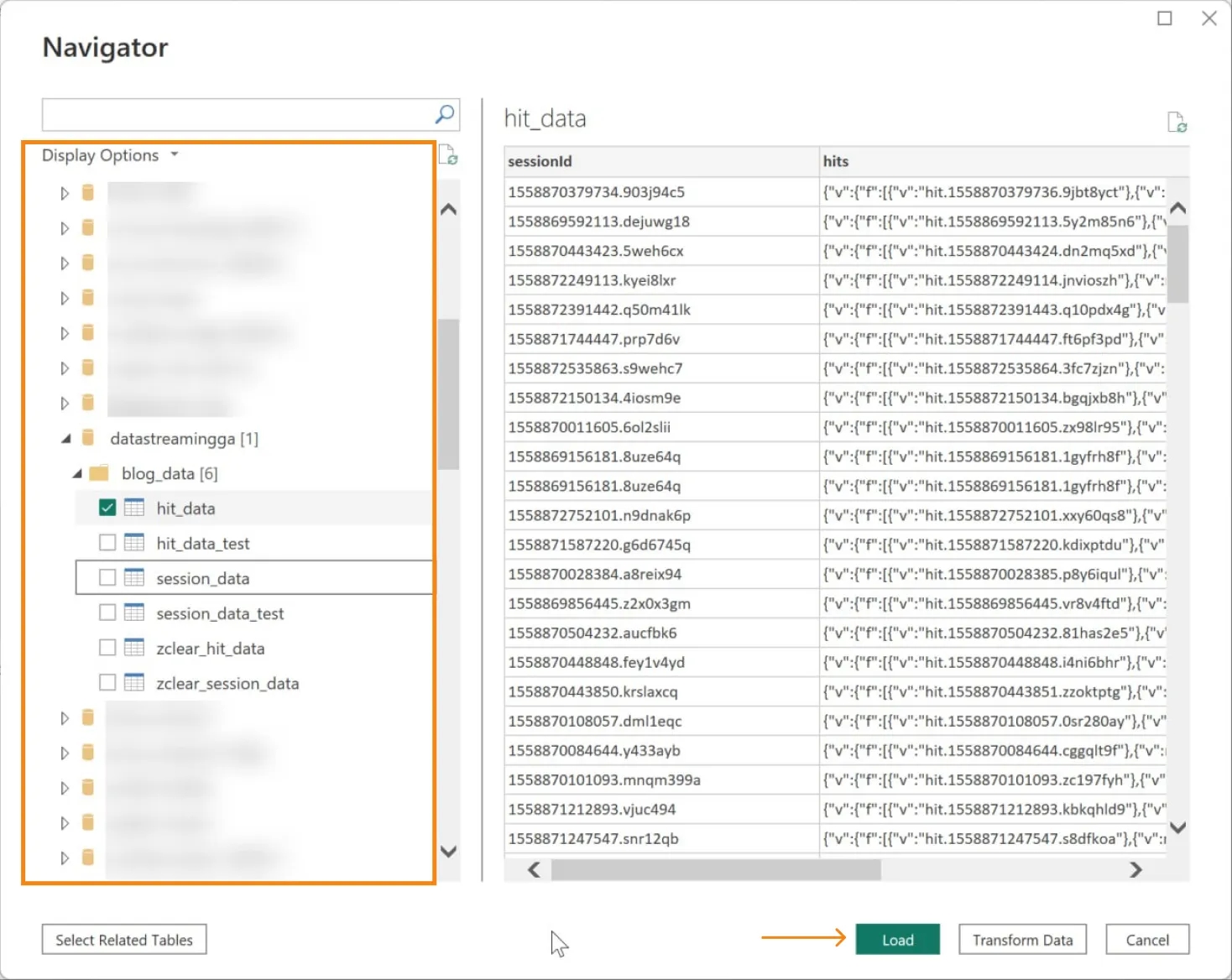
5. We select the data we want to transfer and click Load.
Instead of a conclusion
Of course, the decision to start using BigQuery or not is your choice. BigQuery may seem complicated at first, but its capabilities are worth your effort.
Finally, I would like to emphasize two more important points:
- You've probably noticed that BigQuery has a lot of integrations, and the more you use them, the more you benefit. Setting up the export of data from GA4 to BigQuery is, of course, also the use of this tool, but the business will not get much value from it, but if you start using data in BigQuery to build end-to-end analytics, import conversions and audiences to advertising systems, customer segmentation, and other tasks - the business will receive much more.
- BigQuery is already an Internet marketing tool that gives businesses a competitive advantage and will soon become a must-have for marketers (and even for PPC specialists). You now know how powerful a tool BigQuery is and how much benefit it can bring to your work a little earlier than others. Do not miss the opportunity to use this knowledge ;)
If you still decide to embark on the path of mastering this tool, the course can help you “BigQuery for Marketing” by PROANALYTICS.ACADEMY. In it, a complete guide to working with BigQuery awaits you: building reports, funnels, cohorts and much more. There will also be work with Google Ads and GA4 data and the combination of data from different systems.
If you liked the material, don't forget to share it with your colleagues, and if you have any questions, write your thoughts in the comments.
Loading comments…